Search icon CANCEL
Subscription
0
Cart icon
Your Cart (0 item)
Close icon
You have no products in your basket yet
Save more on your purchases! discount-offer-chevron-icon
Savings automatically calculated. No voucher code required.
Arrow left icon
Explore Products
Best Sellers
New Releases
Books
Videos
Audiobooks
Learning Hub
Newsletter Hub
Free Learning
Arrow right icon
timer SALE ENDS IN
0 Days
:
00 Hours
:
00 Minutes
:
00 Seconds
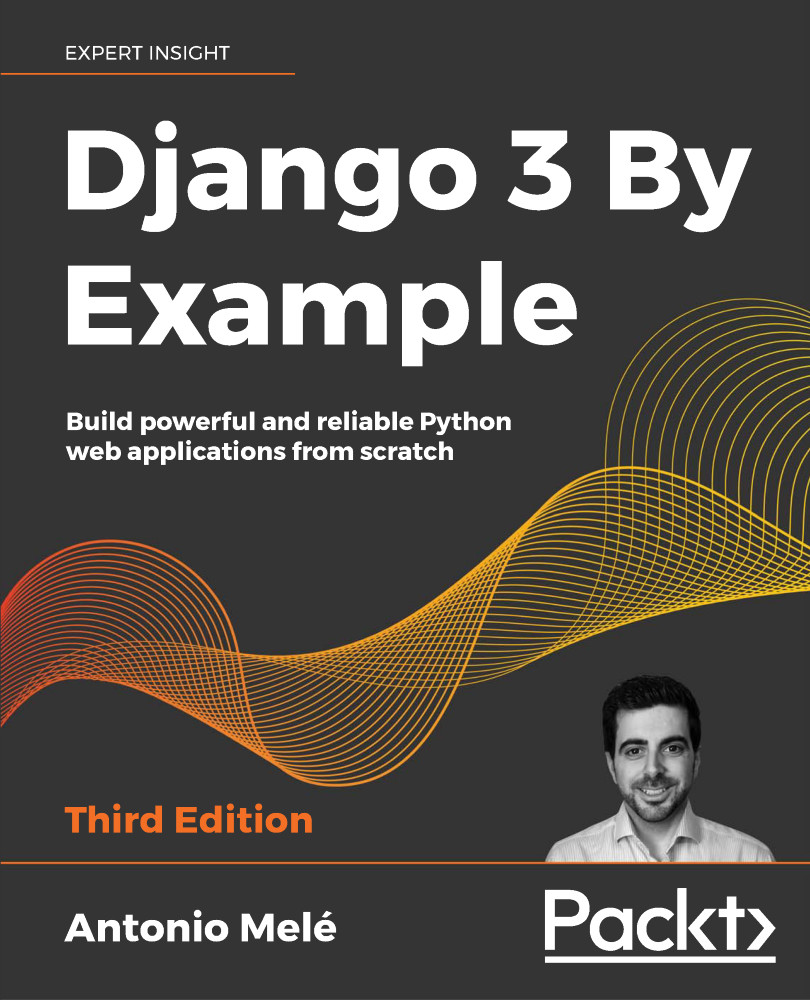
Django 3 By Example
Django 3 By Example

Django 3 By Example: Build powerful and reliable Python web applications from scratch , Third Edition

Arrow left icon
Profile Icon Antonio Melé
Arrow right icon
₱2806.99
Full star icon Full star icon Full star icon Full star icon Half star icon 4.3 (26 Ratings)
Paperback Mar 2020 568 pages 3rd Edition
eBook
₱580 ₱2245.99
Paperback
₱2806.99
Subscription
Free Trial
Arrow left icon
Profile Icon Antonio Melé
Arrow right icon
₱2806.99
Full star icon Full star icon Full star icon Full star icon Half star icon 4.3 (26 Ratings)
Paperback Mar 2020 568 pages 3rd Edition
eBook
₱580 ₱2245.99
Paperback
₱2806.99
Subscription
Free Trial
eBook
₱580 ₱2245.99
Paperback
₱2806.99
Subscription
Free Trial

What do you get with Print?

Product feature icon Instant access to your digital copy whilst your Print order is Shipped
Product feature icon Paperback book shipped to your preferred address
Product feature icon Redeem a companion digital copy on all Print orders
Product feature icon Access this title in our online reader with advanced features
Product feature icon DRM FREE - Read whenever, wherever and however you want
Product feature icon AI Assistant (beta) to help accelerate your learning
Modal Close icon
Payment Processing...
tick Completed

Shipping Address

Billing Address

Shipping Methods
Table of content icon View table of contents Preview book icon Preview Book

Django 3 By Example

Enhancing Your Blog with Advanced Features

In the preceding chapter, you created a basic blog application. Next, you will turn your application into a fully functional blog with the advanced functionalities that many blogs feature nowadays. You will implement the following features in your blog:

  • Sharing posts via email: When readers like an article, they might want to share it with somebody else. You will implement the functionality to share posts via email.
  • Adding comments to a post: Many people want to allow their audience to comment on posts and create discussions. You will let your readers add comments to your blog posts.
  • Tagging posts: Tags allow you to categorize content in a non-hierarchical manner, using simple keywords. You will implement a tagging system, which is a very popular feature for blogs.
  • Recommending similar posts: Once you have a classification method in place, such as a tagging system, you can use it to provide content recommendations to your readers. You will build a system that recommends other posts that share tags with a certain blog post.

These functionalities will turn your application into a fully featured blog.

In this chapter, we will cover the following topics:

  • Sending emails with Django
  • Creating forms and handling them in views
  • Creating forms from models
  • Integrating third-party applications
  • Building complex QuerySets

Sharing posts by email

First, let's allow users to share posts by sending them via email. Take a minute to think about how you could use views, URLs, and templates to create this functionality using what you learned in the preceding chapter. In order to allow your users to share posts via email, you will need to do the following things:

  • Create a form for users to fill in their name, their email, the email recipient, and optional comments
  • Create a view in the views.py file that handles the posted data and sends the email
  • Add a URL pattern for the new view in the urls.py file of the blog application
  • Create a template to display the form

Creating forms with Django

Let's start by building the form to share posts. Django has a built-in forms framework that allows you to create forms in an easy manner. The forms framework makes it simple to define the fields of your form, specify how they have to be displayed, and indicate how they have to validate input data. The Django forms framework offers a flexible way to render forms and handle data.

Django comes with two base classes to build forms:

  • Form: Allows you to build standard forms
  • ModelForm: Allows you to build forms tied to model instances

First, create a forms.py file inside the directory of your blog application and make it look like this:

from django import forms
class EmailPostForm(forms.Form):
    name = forms.CharField(max_length=25)
    email = forms.EmailField()
    to = forms.EmailField()
    comments = forms.CharField(required=False,
                               widget=forms.Textarea)

This is your first Django form. Take a look at the code. You have created a form by inheriting the base Form class. You use different field types for Django to validate fields accordingly.

Forms can reside anywhere in your Django project. The convention is to place them inside a forms.py file for each application.

The name field is CharField. This type of field is rendered as an <input type="text"> HTML element. Each field type has a default widget that determines how the field is rendered in HTML. The default widget can be overridden with the widget attribute. In the comments field, you use a Textarea widget to display it as a <textarea> HTML element instead of the default <input> element.

Field validation also depends on the field type. For example, the email and to fields are EmailField fields. Both fields require a valid email address; the field validation will otherwise raise a forms.ValidationError exception and the form will not validate. Other parameters are also taken into account for form validation: you define a maximum length of 25 characters for the name field and make the comments field optional with required=False. All of this is also taken into account for field validation. The field types used in this form are only a part of Django form fields. For a list of all form fields available, you can visit https://docs.djangoproject.com/en/3.0/ref/forms/fields/.

Handling forms in views

You need to create a new view that handles the form and sends an email when it's successfully submitted. Edit the views.py file of your blog application and add the following code to it:

from .forms import EmailPostForm
def post_share(request, post_id):
    # Retrieve post by id
    post = get_object_or_404(Post, id=post_id, status='published')
    if request.method == 'POST':
        # Form was submitted
        form = EmailPostForm(request.POST)
        if form.is_valid():
            # Form fields passed validation
            cd = form.cleaned_data
            # ... send email
    else:
        form = EmailPostForm()
    return render(request, 'blog/post/share.html', {'post': post,
                                                    'form': form})

This view works as follows:

  • You define the post_share view that takes the request object and the post_id variable as parameters.
  • You use the get_object_or_404() shortcut to retrieve the post by ID and make sure that the retrieved post has a published status.
  • You use the same view for both displaying the initial form and processing the submitted data. You differentiate whether the form was submitted or not based on the request method and submit the form using POST. You assume that if you get a GET request, an empty form has to be displayed, and if you get a POST request, the form is submitted and needs to be processed. Therefore, you use request.method == 'POST' to distinguish between the two scenarios.

The following is the process to display and handle the form:

  1. When the view is loaded initially with a GET request, you create a new form instance that will be used to display the empty form in the template:
    form = EmailPostForm()
    
  2. The user fills in the form and submits it via POST. Then, you create a form instance using the submitted data that is contained in request.POST:
    if request.method == 'POST':
        # Form was submitted
        form = EmailPostForm(request.POST)
    
  3. After this, you validate the submitted data using the form's is_valid() method. This method validates the data introduced in the form and returns True if all fields contain valid data. If any field contains invalid data, then is_valid() returns False. You can see a list of validation errors by accessing form.errors.
  4. If the form is not valid, you render the form in the template again with the submitted data. You will display validation errors in the template.
  5. If the form is valid, you retrieve the validated data by accessing form.cleaned_data. This attribute is a dictionary of form fields and their values.

If your form data does not validate, cleaned_data will contain only the valid fields.

Now, let's explore how to send emails using Django to put everything together.

Sending emails with Django

Sending emails with Django is pretty straightforward. First, you need to have a local Simple Mail Transfer Protocol (SMTP) server, or you need to define the configuration of an external SMTP server by adding the following settings to the settings.py file of your project:

  • EMAIL_HOST: The SMTP server host; the default is localhost
  • EMAIL_PORT: The SMTP port; the default is 25
  • EMAIL_HOST_USER: The username for the SMTP server
  • EMAIL_HOST_PASSWORD: The password for the SMTP server
  • EMAIL_USE_TLS: Whether to use a Transport Layer Security (TLS) secure connection
  • EMAIL_USE_SSL: Whether to use an implicit TLS secure connection

If you can't use an SMTP server, you can tell Django to write emails to the console by adding the following setting to the settings.py file:

EMAIL_BACKEND = 'django.core.mail.backends.console.EmailBackend'

By using this setting, Django will output all emails to the shell. This is very useful for testing your application without an SMTP server.

If you want to send emails but you don't have a local SMTP server, you can probably use the SMTP server of your email service provider. The following sample configuration is valid for sending emails via Gmail servers using a Google account:

EMAIL_HOST = 'smtp.gmail.com'
EMAIL_HOST_USER = 'your_account@gmail.com'
EMAIL_HOST_PASSWORD = 'your_password'
EMAIL_PORT = 587
EMAIL_USE_TLS = True

Run the python manage.py shell command to open the Python shell and send an email, as follows:

>>> from django.core.mail import send_mail
>>> send_mail('Django mail', 'This e-mail was sent with Django.', 'your_account@gmail.com', ['your_account@gmail.com'], fail_silently=False)

The send_mail() function takes the subject, message, sender, and list of recipients as required arguments. By setting the optional argument fail_silently=False, you are telling it to raise an exception if the email couldn't be sent correctly. If the output you see is 1, then your email was successfully sent.

If you are sending emails using Gmail with the preceding configuration, you will have to enable access for less secure applications at https://myaccount.google.com/lesssecureapps, as follows:

Figure 2.1: The Google less secure application access screen

In some cases, you may also have to disable Gmail captcha at https://accounts.google.com/displayunlockcaptcha in order to send emails with Django.

Edit the post_share view in the views.py file of the blog application, as follows:

from django.core.mail import send_mail
def post_share(request, post_id):
    # Retrieve post by id
    post = get_object_or_404(Post, id=post_id, status='published')
    sent = False
    if request.method == 'POST':
        # Form was submitted
        form = EmailPostForm(request.POST)
        if form.is_valid():
            # Form fields passed validation
            cd = form.cleaned_data
            post_url = request.build_absolute_uri(
                post.get_absolute_url())
            subject = f"{cd['name']} recommends you read " \
                      f"{post.title}"
            message = f"Read {post.title} at {post_url}\n\n" \
                      f"{cd['name']}\'s comments: {cd['comments']}"
            send_mail(subject, message, 'admin@myblog.com',
                      [cd['to']])
            sent = True
    else:
        form = EmailPostForm()
    return render(request, 'blog/post/share.html', {'post': post,
                                                    'form': form,
                                                    'sent': sent})

Replace admin@myblog.com with your real email account if you are using an SMTP server instead of the console EmailBackend.

In the code above you declare a sent variable and set it to True when the post was sent. You will use that variable later in the template to display a success message when the form is successfully submitted.

Since you have to include a link to the post in the email, you retrieve the absolute path of the post using its get_absolute_url() method. You use this path as an input for request.build_absolute_uri() to build a complete URL, including the HTTP schema and hostname. You build the subject and the message body of the email using the cleaned data of the validated form and, finally, send the email to the email address contained in the to field of the form.

Now that your view is complete, remember to add a new URL pattern for it. Open the urls.py file of your blog application and add the post_share URL pattern, as follows:

urlpatterns = [
    # ...
    path('<int:post_id>/share/',
         views.post_share, name='post_share'),
]

Rendering forms in templates

After creating the form, programming the view, and adding the URL pattern, you are only missing the template for this view. Create a new file in the blog/templates/blog/post/ directory and name it share.html. Add the following code to it:

{% extends "blog/base.html" %}
{% block title %}Share a post{% endblock %}
{% block content %}
  {% if sent %}
    <h1>E-mail successfully sent</h1>
    <p>
      "{{ post.title }}" was successfully sent to {{ form.cleaned_data.to }}.
    </p>
  {% else %}
    <h1>Share "{{ post.title }}" by e-mail</h1>
    <form method="post">
      {{ form.as_p }}
      {% csrf_token %}
      <input type="submit" value="Send e-mail">
    </form>
  {% endif %}
{% endblock %}

This is the template to display the form or a success message when it's sent. As you will notice, you create the HTML form element, indicating that it has to be submitted by the POST method:

<form method="post">

Then, you include the actual form instance. You tell Django to render its fields in HTML paragraph <p> elements with the as_p method. You can also render the form as an unordered list with as_ul or as an HTML table with as_table. If you want to render each field, you can iterate through the fields, instead of using {{ form.as_p }} as in the following example:

{% for field in form %}
  <div>
    {{ field.errors }}
    {{ field.label_tag }} {{ field }}
  </div>
{% endfor %}

The {% csrf_token %} template tag introduces a hidden field with an autogenerated token to avoid cross-site request forgery (CSRF) attacks. These attacks consist of a malicious website or program performing an unwanted action for a user on your site. You can find more information about this at https://owasp.org/www-community/attacks/csrf.

The preceding tag generates a hidden field that looks like this:

<input type='hidden' name='csrfmiddlewaretoken' value='26JjKo2lcEtYkGoV9z4XmJIEHLXN5LDR' />

By default, Django checks for the CSRF token in all POST requests. Remember to include the csrf_token tag in all forms that are submitted via POST.

Edit the blog/post/detail.html template and add the following link to the share post URL after the {{ post.body|linebreaks }} variable:

<p>
  <a href="{% url "blog:post_share" post.id %}">
    Share this post
  </a>
</p>

Remember that you are building the URL dynamically using the {% url %} template tag provided by Django. You are using the namespace called blog and the URL named post_share, and you are passing the post ID as a parameter to build the absolute URL.

Now, start the development server with the python manage.py runserver command and open http://127.0.0.1:8000/blog/ in your browser. Click on any post title to view its detail page. Under the post body, you should see the link that you just added, as shown in the following screenshot:

Figure 2.2: The post detail page, including a link to share the post

Click on Share this post, and you should see the page, including the form to share this post by email, as follows:

Figure 2.3: The page to share a post via email

CSS styles for the form are included in the example code in the static/css/blog.css file. When you click on the SEND E-MAIL button, the form is submitted and validated. If all fields contain valid data, you get a success message, as follows:

Figure 2.4: A success message for a post shared via email

If you input invalid data, the form is rendered again, including all validation errors:

Figure 2.5: The share post form displaying invalid data errors

Note that some modern browsers will prevent you from submitting a form with empty or erroneous fields. This is because of form validation done by the browser based on field types and restrictions per field. In this case, the form won't be submitted and the browser will display an error message for the fields that are wrong.

Your form for sharing posts by email is now complete. Let's now create a comment system for your blog.

Creating a comment system

You will build a comment system wherein users will be able to comment on posts. To build the comment system, you need to do the following:

  1. Create a model to save comments
  2. Create a form to submit comments and validate the input data
  3. Add a view that processes the form and saves a new comment to the database
  4. Edit the post detail template to display the list of comments and the form to add a new comment

Building a model

First, let's build a model to store comments. Open the models.py file of your blog application and add the following code:

class Comment(models.Model):
    post = models.ForeignKey(Post,
                             on_delete=models.CASCADE,
                             related_name='comments')
    name = models.CharField(max_length=80)
    email = models.EmailField()
    body = models.TextField()
    created = models.DateTimeField(auto_now_add=True)
    updated = models.DateTimeField(auto_now=True)
    active = models.BooleanField(default=True)
    class Meta:
        ordering = ('created',)
    def __str__(self):
        return f'Comment by {self.name} on {self.post}'

This is your Comment model. It contains a ForeignKey to associate a comment with a single post. This many-to-one relationship is defined in the Comment model because each comment will be made on one post, and each post may have multiple comments.

The related_name attribute allows you to name the attribute that you use for the relationship from the related object back to this one. After defining this, you can retrieve the post of a comment object using comment.post and retrieve all comments of a post using post.comments.all(). If you don't define the related_name attribute, Django will use the name of the model in lowercase, followed by _set (that is, comment_set) to name the relationship of the related object to the object of the model, where this relationship has been defined.

You can learn more about many-to-one relationships at https://docs.djangoproject.com/en/3.0/topics/db/examples/many_to_one/.

You have included an active Boolean field that you will use to manually deactivate inappropriate comments. You use the created field to sort comments in a chronological order by default.

The new Comment model that you just created is not yet synchronized into the database. Run the following command to generate a new migration that reflects the creation of the new model:

python manage.py makemigrations blog

You should see the following output:

Migrations for 'blog':
  blog/migrations/0002_comment.py
    - Create model Comment

Django has generated a 0002_comment.py file inside the migrations/ directory of the blog application. Now, you need to create the related database schema and apply the changes to the database. Run the following command to apply existing migrations:

python manage.py migrate

You will get an output that includes the following line:

Applying blog.0002_comment... OK

The migration that you just created has been applied; now a blog_comment table exists in the database.

Next, you can add your new model to the administration site in order to manage comments through a simple interface. Open the admin.py file of the blog application, import the Comment model, and add the following ModelAdmin class:

from .models import Post, Comment
@admin.register(Comment)
class CommentAdmin(admin.ModelAdmin):
    list_display = ('name', 'email', 'post', 'created', 'active')
    list_filter = ('active', 'created', 'updated')
    search_fields = ('name', 'email', 'body')

Start the development server with the python manage.py runserver command and open http://127.0.0.1:8000/admin/ in your browser. You should see the new model included in the BLOG section, as shown in the following screenshot:

Figure 2.6: Blog application models on the Django administration index page

The model is now registered in the administration site, and you can manage Comment instances using a simple interface.

Creating forms from models

You still need to build a form to let your users comment on blog posts. Remember that Django has two base classes to build forms: Form and ModelForm. You used the first one previously to let your users share posts by email. In the present case, you will need to use ModelForm because you have to build a form dynamically from your Comment model. Edit the forms.py file of your blog application and add the following lines:

from .models import Comment
class CommentForm(forms.ModelForm):
    class Meta:
        model = Comment
        fields = ('name', 'email', 'body')

To create a form from a model, you just need to indicate which model to use to build the form in the Meta class of the form. Django introspects the model and builds the form dynamically for you.

Each model field type has a corresponding default form field type. The way that you define your model fields is taken into account for form validation. By default, Django builds a form field for each field contained in the model. However, you can explicitly tell the framework which fields you want to include in your form using a fields list, or define which fields you want to exclude using an exclude list of fields. For your CommentForm form, you will just use the name, email, and body fields, because those are the only fields that your users will be able to fill in.

Handling ModelForms in views

You will use the post detail view to instantiate the form and process it, in order to keep it simple. Edit the views.py file, add imports for the Comment model and the CommentForm form, and modify the post_detail view to make it look like the following:

from .models import Post, Comment
from .forms import EmailPostForm, CommentForm
def post_detail(request, year, month, day, post):
    post = get_object_or_404(Post, slug=post,
                                   status='published',
                                   publish__year=year,
                                   publish__month=month,
                                   publish__day=day)
    # List of active comments for this post
    comments = post.comments.filter(active=True)
    new_comment = None
    if request.method == 'POST':
        # A comment was posted
        comment_form = CommentForm(data=request.POST)
        if comment_form.is_valid():
            # Create Comment object but don't save to database yet
            new_comment = comment_form.save(commit=False)
            # Assign the current post to the comment
            new_comment.post = post
            # Save the comment to the database
            new_comment.save()
    else:
        comment_form = CommentForm()
    return render(request,
                  'blog/post/detail.html',
                  {'post': post,
                   'comments': comments,
                   'new_comment': new_comment,
                   'comment_form': comment_form})

Let's review what you have added to your view. You used the post_detail view to display the post and its comments. You added a QuerySet to retrieve all active comments for this post, as follows:

comments = post.comments.filter(active=True)

You build this QuerySet, starting from the post object. Instead of building a QuerySet for the Comment model directly, you leverage the post object to retrieve the related Comment objects. You use the manager for the related objects that you defined as comments using the related_name attribute of the relationship in the Comment model. You use the same view to let your users add a new comment. You initialize the new_comment variable by setting it to None. You will use this variable when a new comment is created.

You build a form instance with comment_form = CommentForm() if the view is called by a GET request. If the request is done via POST, you instantiate the form using the submitted data and validate it using the is_valid() method. If the form is invalid, you render the template with the validation errors. If the form is valid, you take the following actions:

  1. You create a new Comment object by calling the form's save() method and assign it to the new_comment variable, as follows:
    new_comment = comment_form.save(commit=False)
    

    The save() method creates an instance of the model that the form is linked to and saves it to the database. If you call it using commit=False, you create the model instance, but don't save it to the database yet. This comes in handy when you want to modify the object before finally saving it, which is what you will do next.

    The save() method is available for ModelForm but not for Form instances, since they are not linked to any model.

  2. You assign the current post to the comment you just created:
    new_comment.post = post
    

    By doing this, you specify that the new comment belongs to this post.

  3. Finally, you save the new comment to the database by calling its save() method:
    new_comment.save()
    

Your view is now ready to display and process new comments.

Adding comments to the post detail template

You have created the functionality to manage comments for a post. Now you need to adapt your post/detail.html template to do the following things:

  • Display the total number of comments for a post
  • Display the list of comments
  • Display a form for users to add a new comment

First, you will add the total comments. Open the post/detail.html template and append the following code to the content block:

{% with comments.count as total_comments %}
  <h2>
    {{ total_comments }} comment{{ total_comments|pluralize }}
  </h2>
{% endwith %}

You are using the Django ORM in the template, executing the QuerySet comments.count(). Note that the Django template language doesn't use parentheses for calling methods. The {% with %} tag allows you to assign a value to a new variable that will be available to be used until the {% endwith %} tag.

The {% with %} template tag is useful for avoiding hitting the database or accessing expensive methods multiple times.

You use the pluralize template filter to display a plural suffix for the word "comment," depending on the total_comments value. Template filters take the value of the variable they are applied to as their input and return a computed value. We will discuss template filters in Chapter 3, Extending Your Blog Application.

The pluralize template filter returns a string with the letter "s" if the value is different from 1. The preceding text will be rendered as 0 comments, 1 comment, or N comments. Django includes plenty of template tags and filters that can help you to display information in the way that you want.

Now, let's include the list of comments. Append the following lines to the post/detail.html template below the preceding code:

{% for comment in comments %}
  <div class="comment">
    <p class="info">
      Comment {{ forloop.counter }} by {{ comment.name }}
      {{ comment.created }}
    </p>
    {{ comment.body|linebreaks }}
  </div>
{% empty %}
  <p>There are no comments yet.</p>
{% endfor %}

You use the {% for %} template tag to loop through comments. You display a default message if the comments list is empty, informing your users that there are no comments on this post yet. You enumerate comments with the {{ forloop.counter }} variable, which contains the loop counter in each iteration. Then, you display the name of the user who posted the comment, the date, and the body of the comment.

Finally, you need to render the form or display a success message instead when it is successfully submitted. Add the following lines just below the preceding code:

{% if new_comment %}
  <h2>Your comment has been added.</h2>
{% else %}
  <h2>Add a new comment</h2>
  <form method="post">
    {{ comment_form.as_p }}
    {% csrf_token %}
    <p><input type="submit" value="Add comment"></p>
  </form>
{% endif %}

The code is pretty straightforward: if the new_comment object exists, you display a success message because the comment was successfully created. Otherwise, you render the form with a paragraph, <p>, element for each field and include the CSRF token required for POST requests.

Open http://127.0.0.1:8000/blog/ in your browser and click on a post title to take a look at its detail page. You will see something like the following screenshot:

Figure 2.7: The post detail page, including the form to add a comment

Add a couple of comments using the form. They should appear under your post in chronological order, as follows:

Figure 2.8: The comment list on the post detail page

Open http://127.0.0.1:8000/admin/blog/comment/ in your browser. You will see the administration page with the list of comments you created. Click on the name of one of them to edit it, uncheck the Active checkbox, and click on the Save button. You will be redirected to the list of comments again, and the ACTIVE column will display an inactive icon for the comment. It should look like the first comment in the following screenshot:

Figure 2.9: Active/inactive comments on the Django administration site

If you return to the post detail view, you will note that the inactive comment is not displayed anymore; neither is it counted for the total number of comments. Thanks to the active field, you can deactivate inappropriate comments and avoid showing them on your posts.

Adding the tagging functionality

After implementing your comment system, you need to create a way to tag your posts. You will do this by integrating a third-party Django tagging application into your project. django-taggit is a reusable application that primarily offers you a Tag model and a manager to easily add tags to any model. You can take a look at its source code at https://github.com/jazzband/django-taggit.

First, you need to install django-taggit via pip by running the following command:

pip install django_taggit==1.2.0

Then, open the settings.py file of the mysite project and add taggit to your INSTALLED_APPS setting, as follows:

INSTALLED_APPS = [
    # ...
    'blog.apps.BlogConfig',
    'taggit',
]

Open the models.py file of your blog application and add the TaggableManager manager provided by django-taggit to the Post model using the following code:

from taggit.managers import TaggableManager
class Post(models.Model):
    # ...
    tags = TaggableManager()

The tags manager will allow you to add, retrieve, and remove tags from Post objects.

Run the following command to create a migration for your model changes:

python manage.py makemigrations blog

You should get the following output:

Migrations for 'blog':
  blog/migrations/0003_post_tags.py
    - Add field tags to post

Now, run the following command to create the required database tables for django-taggit models and to synchronize your model changes:

python manage.py migrate

You will see an output indicating that migrations have been applied, as follows:

Applying taggit.0001_initial... OK
Applying taggit.0002_auto_20150616_2121... OK
Applying taggit.0003_taggeditem_add_unique_index... OK
Applying blog.0003_post_tags... OK

Your database is now ready to use django-taggit models.

Let's explore how to use the tags manager. Open the terminal with the python manage.py shell command and enter the following code. First, you will retrieve one of your posts (the one with the 1 ID):

>>> from blog.models import Post
>>> post = Post.objects.get(id=1)

Then, add some tags to it and retrieve its tags to check whether they were successfully added:

>>> post.tags.add('music', 'jazz', 'django')
>>> post.tags.all()
<QuerySet [<Tag: jazz>, <Tag: music>, <Tag: django>]>

Finally, remove a tag and check the list of tags again:

>>> post.tags.remove('django')
>>> post.tags.all()
<QuerySet [<Tag: jazz>, <Tag: music>]>

That was easy, right? Run the python manage.py runserver command to start the development server again and open http://127.0.0.1:8000/admin/taggit/tag/ in your browser.

You will see the administration page with the list of Tag objects of the taggit application:

Figure 2.10: The tag change list view on the Django administration site

Navigate to http://127.0.0.1:8000/admin/blog/post/ and click on a post to edit it. You will see that posts now include a new Tags field, as follows, where you can easily edit tags:

Figure 2.11: The related tags field of a Post object

Now, you need to edit your blog posts to display tags. Open the blog/post/list.html template and add the following HTML code below the post title:

<p class="tags">Tags: {{ post.tags.all|join:", " }}</p>

The join template filter works the same as the Python string join() method to concatenate elements with the given string. Open http://127.0.0.1:8000/blog/ in your browser. You should be able to see the list of tags under each post title:

Figure 2.12: The Post list item, including related tags

Next, you will edit the post_list view to let users list all posts tagged with a specific tag. Open the views.py file of your blog application, import the Tag model form django-taggit, and change the post_list view to optionally filter posts by a tag, as follows:

from taggit.models import Tag
def post_list(request, tag_slug=None):
    object_list = Post.published.all()
    tag = None
    if tag_slug:
        tag = get_object_or_404(Tag, slug=tag_slug)
        object_list = object_list.filter(tags__in=[tag])
    paginator = Paginator(object_list, 3) # 3 posts in each page
    # ...

The post_list view now works as follows:

  1. It takes an optional tag_slug parameter that has a None default value. This parameter will be passed in the URL.
  2. Inside the view, you build the initial QuerySet, retrieving all published posts, and if there is a given tag slug, you get the Tag object with the given slug using the get_object_or_404() shortcut.
  3. Then, you filter the list of posts by the ones that contain the given tag. Since this is a many-to-many relationship, you have to filter posts by tags contained in a given list, which, in your case, contains only one element. You use the __in field lookup. Many-to-many relationships occur when multiple objects of a model are associated with multiple objects of another model. In your application, a post can have multiple tags and a tag can be related to multiple posts. You will learn how to create many-to-many relationships in Chapter 5, Sharing Content on Your Website. You can discover more about many-to-many relationships at https://docs.djangoproject.com/en/3.0/topics/db/examples/many_to_many/.

Remember that QuerySets are lazy. The QuerySets to retrieve posts will only be evaluated when you loop over the post list when rendering the template.

Finally, modify the render() function at the bottom of the view to pass the tag variable to the template. The view should look like this:

def post_list(request, tag_slug=None):
    object_list = Post.published.all()
    tag = None
    if tag_slug:
        tag = get_object_or_404(Tag, slug=tag_slug)
        object_list = object_list.filter(tags__in=[tag])
    paginator = Paginator(object_list, 3) # 3 posts in each page
    page = request.GET.get('page')
    try:
        posts = paginator.page(page)
    except PageNotAnInteger:
        # If page is not an integer deliver the first page
        posts = paginator.page(1)
    except EmptyPage:
        # If page is out of range deliver last page of results
        posts = paginator.page(paginator.num_pages)
    return render(request, 'blog/post/list.html', {'page': page,
                                                   'posts': posts,
                                                   'tag': tag})

Open the urls.py file of your blog application, comment out the class-based PostListView URL pattern, and uncomment the post_list view, like this:

path('', views.post_list, name='post_list'),
# path('', views.PostListView.as_view(), name='post_list'),

Add the following additional URL pattern to list posts by tag:

path('tag/<slug:tag_slug>/',
     views.post_list, name='post_list_by_tag'),

As you can see, both patterns point to the same view, but you are naming them differently. The first pattern will call the post_list view without any optional parameters, whereas the second pattern will call the view with the tag_slug parameter. You use a slug path converter to match the parameter as a lowercase string with ASCII letters or numbers, plus the hyphen and underscore characters.

Since you are using the post_list view, edit the blog/post/list.html template and modify the pagination to use the posts object:

{% include "pagination.html" with page=posts %}

Add the following lines above the {% for %} loop:

{% if tag %}
  <h2>Posts tagged with "{{ tag.name }}"</h2>
{% endif %}

If a user is accessing the blog, they will see the list of all posts. If they filter by posts tagged with a specific tag, they will see the tag that they are filtering by.

Now, change the way tags are displayed, as follows:

<p class="tags">
  Tags:
  {% for tag in post.tags.all %}
    <a href="{% url "blog:post_list_by_tag" tag.slug %}">
      {{ tag.name }}
    </a>
    {% if not forloop.last %}, {% endif %}
  {% endfor %}
</p>

In the code above, you loop through all the tags of a post displaying a custom link to the URL to filter posts by that tag. You build the URL with {% url "blog:post_list_by_tag" tag.slug %}, using the name of the URL and the slug tag as its parameter. You separate the tags by commas.

Open http://127.0.0.1:8000/blog/ in your browser and click on any tag link. You will see the list of posts filtered by that tag, like this:

Figure 2.13: A post filtered by the tag "jazz"

Retrieving posts by similarity

Now that you have implemented tagging for your blog posts, you can do many interesting things with tags. Tags allow you to categorize posts in a non-hierarchical manner. Posts about similar topics will have several tags in common. You will build a functionality to display similar posts by the number of tags they share. In this way, when a user reads a post, you can suggest to them that they read other related posts.

In order to retrieve similar posts for a specific post, you need to perform the following steps:

  1. Retrieve all tags for the current post
  2. Get all posts that are tagged with any of those tags
  3. Exclude the current post from that list to avoid recommending the same post
  4. Order the results by the number of tags shared with the current post
  5. In the case of two or more posts with the same number of tags, recommend the most recent post
  6. Limit the query to the number of posts you want to recommend

These steps are translated into a complex QuerySet that you will include in your post_detail view.

Open the views.py file of your blog application and add the following import at the top of it:

from django.db.models import Count

This is the Count aggregation function of the Django ORM. This function will allow you to perform aggregated counts of tags. django.db.models includes the following aggregation functions:

  • Avg: The mean value
  • Max: The maximum value
  • Min: The minimum value
  • Count: The total number of objects

You can learn about aggregation at https://docs.djangoproject.com/en/3.0/topics/db/aggregation/.

Add the following lines inside the post_detail view before the render() function, with the same indentation level:

# List of similar posts
post_tags_ids = post.tags.values_list('id', flat=True)
similar_posts = Post.published.filter(tags__in=post_tags_ids)\
                              .exclude(id=post.id)
similar_posts = similar_posts.annotate(same_tags=Count('tags'))\
                            .order_by('-same_tags','-publish')[:4]

The preceding code is as follows:

  1. You retrieve a Python list of IDs for the tags of the current post. The values_list() QuerySet returns tuples with the values for the given fields. You pass flat=True to it to get single values such as [1, 2, 3, ...] instead of one-tuples such as [(1,), (2,), (3,) ...].
  2. You get all posts that contain any of these tags, excluding the current post itself.
  3. You use the Count aggregation function to generate a calculated field—same_tags—that contains the number of tags shared with all the tags queried.
  4. You order the result by the number of shared tags (descending order) and by publish to display recent posts first for the posts with the same number of shared tags. You slice the result to retrieve only the first four posts.

Add the similar_posts object to the context dictionary for the render() function, as follows:

return render(request,
              'blog/post/detail.html',
              {'post': post,
               'comments': comments,
               'new_comment': new_comment,
               'comment_form': comment_form,
               'similar_posts': similar_posts})

Now, edit the blog/post/detail.html template and add the following code before the post comment list:

<h2>Similar posts</h2>
{% for post in similar_posts %}
  <p>
    <a href="{{ post.get_absolute_url }}">{{ post.title }}</a>
  </p>
{% empty %}
  There are no similar posts yet.
{% endfor %}

The post detail page should look like this:

Figure 2.14: The post detail page, including a list of similar posts

You are now able to successfully recommend similar posts to your users. django-taggit also includes a similar_objects() manager that you can use to retrieve objects by shared tags. You can take a look at all django-taggit managers at https://django-taggit.readthedocs.io/en/latest/api.html.

You can also add the list of tags to your post detail template in the same way as you did in the blog/post/list.html template.

Summary

In this chapter, you learned how to work with Django forms and model forms. You created a system to share your site's content by email and created a comment system for your blog. You added tagging to your blog posts, integrating a reusable application, and built complex QuerySets to retrieve objects by similarity.

In the next chapter, you will learn how to create custom template tags and filters. You will also build a custom sitemap and feed for your blog posts, and implement the full text search functionality for your posts.

Left arrow icon Right arrow icon
Download code icon Download Code

Key benefits

  • Learn Django 3 by building real-world web applications from scratch in Python, using coding best practices
  • Integrate other technologies into your application with clear, step-by-step explanations and comprehensive example code
  • Implement advanced functionalities like a full-text search engine, a user activity stream, or a recommendation engine
  • Add real-time features with Django Channels and WebSockets

Description

If you want to learn the entire process of developing professional web applications with Python and Django, then this book is for you. In the process of building four professional Django projects, you will learn about Django 3 features, how to solve common web development problems, how to implement best practices, and how to successfully deploy your applications. In this book, you will build a blog application, a social image bookmarking website, an online shop, and an e-learning platform. Step-by-step guidance will teach you how to integrate popular technologies, enhance your applications with AJAX, create RESTful APIs, and set up a production environment for your Django projects. By the end of this book, you will have mastered Django 3 by building advanced web applications.

Who is this book for?

This book is intended for developers with Python knowledge who wish to learn Django in a pragmatic way. Perhaps you are completely new to Django, or you already know a little but you want to get the most out of it. This book will help you to master the most relevant areas of the framework by building practical projects from scratch. You need to have familiarity with programming concepts in order to read this book. Some previous knowledge of HTML and JavaScript is assumed.

What you will learn

  • Build real-world web applications
  • Learn Django essentials, including models, views, ORM, templates, URLs, forms, and authentication
  • Implement advanced features such as custom model fields, custom template tags, cache, middleware, localization, and more
  • Create complex functionalities, such as AJAX interactions, social authentication, a full-text search engine, a payment system, a CMS, a RESTful API, and more
  • Integrate other technologies, including Redis, Celery, RabbitMQ, PostgreSQL, and Channels, into your projects
  • Deploy Django projects in production using NGINX, uWSGI, and Daphne
Estimated delivery fee Deliver to Philippines

Standard delivery 10 - 13 business days

₱492.95

Premium delivery 5 - 8 business days

₱2548.95
(Includes tracking information)

Product Details

Country selected
Publication date, Length, Edition, Language, ISBN-13
Publication date : Mar 31, 2020
Length: 568 pages
Edition : 3rd
Language : English
ISBN-13 : 9781838981952
Languages :
Concepts :
Tools :

What do you get with Print?

Product feature icon Instant access to your digital copy whilst your Print order is Shipped
Product feature icon Paperback book shipped to your preferred address
Product feature icon Redeem a companion digital copy on all Print orders
Product feature icon Access this title in our online reader with advanced features
Product feature icon DRM FREE - Read whenever, wherever and however you want
Product feature icon AI Assistant (beta) to help accelerate your learning
Modal Close icon
Payment Processing...
tick Completed

Shipping Address

Billing Address

Shipping Methods
Estimated delivery fee Deliver to Philippines

Standard delivery 10 - 13 business days

₱492.95

Premium delivery 5 - 8 business days

₱2548.95
(Includes tracking information)

Product Details

Publication date : Mar 31, 2020
Length: 568 pages
Edition : 3rd
Language : English
ISBN-13 : 9781838981952
Languages :
Concepts :
Tools :

Packt Subscriptions

See our plans and pricing
Modal Close icon
$19.99 billed monthly
Feature tick icon Unlimited access to Packt's library of 7,000+ practical books and videos
Feature tick icon Constantly refreshed with 50+ new titles a month
Feature tick icon Exclusive Early access to books as they're written
Feature tick icon Solve problems while you work with advanced search and reference features
Feature tick icon Offline reading on the mobile app
Feature tick icon Simple pricing, no contract
$199.99 billed annually
Feature tick icon Unlimited access to Packt's library of 7,000+ practical books and videos
Feature tick icon Constantly refreshed with 50+ new titles a month
Feature tick icon Exclusive Early access to books as they're written
Feature tick icon Solve problems while you work with advanced search and reference features
Feature tick icon Offline reading on the mobile app
Feature tick icon Choose a DRM-free eBook or Video every month to keep
Feature tick icon PLUS own as many other DRM-free eBooks or Videos as you like for just ₱260 each
Feature tick icon Exclusive print discounts
$279.99 billed in 18 months
Feature tick icon Unlimited access to Packt's library of 7,000+ practical books and videos
Feature tick icon Constantly refreshed with 50+ new titles a month
Feature tick icon Exclusive Early access to books as they're written
Feature tick icon Solve problems while you work with advanced search and reference features
Feature tick icon Offline reading on the mobile app
Feature tick icon Choose a DRM-free eBook or Video every month to keep
Feature tick icon PLUS own as many other DRM-free eBooks or Videos as you like for just ₱260 each
Feature tick icon Exclusive print discounts

Frequently bought together


Stars icon
Total 8,368.97
Django 3 By Example
₱2806.99
Web Development with Django
₱3571.99
Django 3 Web Development Cookbook
₱1989.99
Total 8,368.97 Stars icon

Table of Contents

16 Chapters
Building a Blog Application Chevron down icon Chevron up icon
Enhancing Your Blog with Advanced Features Chevron down icon Chevron up icon
Extending Your Blog Application Chevron down icon Chevron up icon
Building a Social Website Chevron down icon Chevron up icon
Sharing Content on Your Website Chevron down icon Chevron up icon
Tracking User Actions Chevron down icon Chevron up icon
Building an Online Shop Chevron down icon Chevron up icon
Managing Payments and Orders Chevron down icon Chevron up icon
Extending Your Shop Chevron down icon Chevron up icon
Building an E-Learning Platform Chevron down icon Chevron up icon
Rendering and Caching Content Chevron down icon Chevron up icon
Building an API Chevron down icon Chevron up icon
Building a Chat Server Chevron down icon Chevron up icon
Going Live Chevron down icon Chevron up icon
Other Books You May Enjoy Chevron down icon Chevron up icon
Index Chevron down icon Chevron up icon

Customer reviews

Top Reviews
Rating distribution
Full star icon Full star icon Full star icon Full star icon Half star icon 4.3
(26 Ratings)
5 star 65.4%
4 star 19.2%
3 star 7.7%
2 star 0%
1 star 7.7%
Filter icon Filter
Top Reviews

Filter reviews by


Safwan S. Jun 07, 2020
Full star icon Full star icon Full star icon Full star icon Full star icon 5
Django 3 By Example provides a thorough overview of core concepts and detailed instructions on how to apply them. It's a great resource to learn both the theory and practical application of the theory. After the reading the book, you should be able to create production apps that are ready to scale. I highlighly recommend the book. I find myself referring the book quite frequently as I create new web apps.
Amazon Verified review Amazon
krishnaveer May 16, 2020
Full star icon Full star icon Full star icon Full star icon Full star icon 5
Absolutely wonderful full if you are a beginning or mediator buy it .Trust me you will not regret 😉
Amazon Verified review Amazon
Alex Sep 04, 2020
Full star icon Full star icon Full star icon Full star icon Full star icon 5
If you need to start getting results right now - get this book. Very practical examples. Great explanations. Everything just makes sense. I keep jumping backward and forwards between sections to look up how to do this and that for my side project. Highly recommend to everyone
Amazon Verified review Amazon
John Pugh May 31, 2021
Full star icon Full star icon Full star icon Full star icon Full star icon 5
I like the way the book is laid out and explains complex subjects in an easyn to understand way.It has helped expand my knowledge of Django including a few specific things I had not come to terms with.
Amazon Verified review Amazon
Kishan Oct 04, 2020
Full star icon Full star icon Full star icon Full star icon Full star icon 5
Good for beginners. Explained how things works . Easy to understand
Amazon Verified review Amazon
Get free access to Packt library with over 7500+ books and video courses for 7 days!
Start Free Trial

FAQs

What is the digital copy I get with my Print order? Chevron down icon Chevron up icon

When you buy any Print edition of our Books, you can redeem (for free) the eBook edition of the Print Book you’ve purchased. This gives you instant access to your book when you make an order via PDF, EPUB or our online Reader experience.

What is the delivery time and cost of print book? Chevron down icon Chevron up icon

Shipping Details

USA:

'

Economy: Delivery to most addresses in the US within 10-15 business days

Premium: Trackable Delivery to most addresses in the US within 3-8 business days

UK:

Economy: Delivery to most addresses in the U.K. within 7-9 business days.
Shipments are not trackable

Premium: Trackable delivery to most addresses in the U.K. within 3-4 business days!
Add one extra business day for deliveries to Northern Ireland and Scottish Highlands and islands

EU:

Premium: Trackable delivery to most EU destinations within 4-9 business days.

Australia:

Economy: Can deliver to P. O. Boxes and private residences.
Trackable service with delivery to addresses in Australia only.
Delivery time ranges from 7-9 business days for VIC and 8-10 business days for Interstate metro
Delivery time is up to 15 business days for remote areas of WA, NT & QLD.

Premium: Delivery to addresses in Australia only
Trackable delivery to most P. O. Boxes and private residences in Australia within 4-5 days based on the distance to a destination following dispatch.

India:

Premium: Delivery to most Indian addresses within 5-6 business days

Rest of the World:

Premium: Countries in the American continent: Trackable delivery to most countries within 4-7 business days

Asia:

Premium: Delivery to most Asian addresses within 5-9 business days

Disclaimer:
All orders received before 5 PM U.K time would start printing from the next business day. So the estimated delivery times start from the next day as well. Orders received after 5 PM U.K time (in our internal systems) on a business day or anytime on the weekend will begin printing the second to next business day. For example, an order placed at 11 AM today will begin printing tomorrow, whereas an order placed at 9 PM tonight will begin printing the day after tomorrow.


Unfortunately, due to several restrictions, we are unable to ship to the following countries:

  1. Afghanistan
  2. American Samoa
  3. Belarus
  4. Brunei Darussalam
  5. Central African Republic
  6. The Democratic Republic of Congo
  7. Eritrea
  8. Guinea-bissau
  9. Iran
  10. Lebanon
  11. Libiya Arab Jamahriya
  12. Somalia
  13. Sudan
  14. Russian Federation
  15. Syrian Arab Republic
  16. Ukraine
  17. Venezuela
What is custom duty/charge? Chevron down icon Chevron up icon

Customs duty are charges levied on goods when they cross international borders. It is a tax that is imposed on imported goods. These duties are charged by special authorities and bodies created by local governments and are meant to protect local industries, economies, and businesses.

Do I have to pay customs charges for the print book order? Chevron down icon Chevron up icon

The orders shipped to the countries that are listed under EU27 will not bear custom charges. They are paid by Packt as part of the order.

List of EU27 countries: www.gov.uk/eu-eea:

A custom duty or localized taxes may be applicable on the shipment and would be charged by the recipient country outside of the EU27 which should be paid by the customer and these duties are not included in the shipping charges been charged on the order.

How do I know my custom duty charges? Chevron down icon Chevron up icon

The amount of duty payable varies greatly depending on the imported goods, the country of origin and several other factors like the total invoice amount or dimensions like weight, and other such criteria applicable in your country.

For example:

  • If you live in Mexico, and the declared value of your ordered items is over $ 50, for you to receive a package, you will have to pay additional import tax of 19% which will be $ 9.50 to the courier service.
  • Whereas if you live in Turkey, and the declared value of your ordered items is over € 22, for you to receive a package, you will have to pay additional import tax of 18% which will be € 3.96 to the courier service.
How can I cancel my order? Chevron down icon Chevron up icon

Cancellation Policy for Published Printed Books:

You can cancel any order within 1 hour of placing the order. Simply contact customercare@packt.com with your order details or payment transaction id. If your order has already started the shipment process, we will do our best to stop it. However, if it is already on the way to you then when you receive it, you can contact us at customercare@packt.com using the returns and refund process.

Please understand that Packt Publishing cannot provide refunds or cancel any order except for the cases described in our Return Policy (i.e. Packt Publishing agrees to replace your printed book because it arrives damaged or material defect in book), Packt Publishing will not accept returns.

What is your returns and refunds policy? Chevron down icon Chevron up icon

Return Policy:

We want you to be happy with your purchase from Packtpub.com. We will not hassle you with returning print books to us. If the print book you receive from us is incorrect, damaged, doesn't work or is unacceptably late, please contact Customer Relations Team on customercare@packt.com with the order number and issue details as explained below:

  1. If you ordered (eBook, Video or Print Book) incorrectly or accidentally, please contact Customer Relations Team on customercare@packt.com within one hour of placing the order and we will replace/refund you the item cost.
  2. Sadly, if your eBook or Video file is faulty or a fault occurs during the eBook or Video being made available to you, i.e. during download then you should contact Customer Relations Team within 14 days of purchase on customercare@packt.com who will be able to resolve this issue for you.
  3. You will have a choice of replacement or refund of the problem items.(damaged, defective or incorrect)
  4. Once Customer Care Team confirms that you will be refunded, you should receive the refund within 10 to 12 working days.
  5. If you are only requesting a refund of one book from a multiple order, then we will refund you the appropriate single item.
  6. Where the items were shipped under a free shipping offer, there will be no shipping costs to refund.

On the off chance your printed book arrives damaged, with book material defect, contact our Customer Relation Team on customercare@packt.com within 14 days of receipt of the book with appropriate evidence of damage and we will work with you to secure a replacement copy, if necessary. Please note that each printed book you order from us is individually made by Packt's professional book-printing partner which is on a print-on-demand basis.

What tax is charged? Chevron down icon Chevron up icon

Currently, no tax is charged on the purchase of any print book (subject to change based on the laws and regulations). A localized VAT fee is charged only to our European and UK customers on eBooks, Video and subscriptions that they buy. GST is charged to Indian customers for eBooks and video purchases.

What payment methods can I use? Chevron down icon Chevron up icon

You can pay with the following card types:

  1. Visa Debit
  2. Visa Credit
  3. MasterCard
  4. PayPal
What is the delivery time and cost of print books? Chevron down icon Chevron up icon

Shipping Details

USA:

'

Economy: Delivery to most addresses in the US within 10-15 business days

Premium: Trackable Delivery to most addresses in the US within 3-8 business days

UK:

Economy: Delivery to most addresses in the U.K. within 7-9 business days.
Shipments are not trackable

Premium: Trackable delivery to most addresses in the U.K. within 3-4 business days!
Add one extra business day for deliveries to Northern Ireland and Scottish Highlands and islands

EU:

Premium: Trackable delivery to most EU destinations within 4-9 business days.

Australia:

Economy: Can deliver to P. O. Boxes and private residences.
Trackable service with delivery to addresses in Australia only.
Delivery time ranges from 7-9 business days for VIC and 8-10 business days for Interstate metro
Delivery time is up to 15 business days for remote areas of WA, NT & QLD.

Premium: Delivery to addresses in Australia only
Trackable delivery to most P. O. Boxes and private residences in Australia within 4-5 days based on the distance to a destination following dispatch.

India:

Premium: Delivery to most Indian addresses within 5-6 business days

Rest of the World:

Premium: Countries in the American continent: Trackable delivery to most countries within 4-7 business days

Asia:

Premium: Delivery to most Asian addresses within 5-9 business days

Disclaimer:
All orders received before 5 PM U.K time would start printing from the next business day. So the estimated delivery times start from the next day as well. Orders received after 5 PM U.K time (in our internal systems) on a business day or anytime on the weekend will begin printing the second to next business day. For example, an order placed at 11 AM today will begin printing tomorrow, whereas an order placed at 9 PM tonight will begin printing the day after tomorrow.


Unfortunately, due to several restrictions, we are unable to ship to the following countries:

  1. Afghanistan
  2. American Samoa
  3. Belarus
  4. Brunei Darussalam
  5. Central African Republic
  6. The Democratic Republic of Congo
  7. Eritrea
  8. Guinea-bissau
  9. Iran
  10. Lebanon
  11. Libiya Arab Jamahriya
  12. Somalia
  13. Sudan
  14. Russian Federation
  15. Syrian Arab Republic
  16. Ukraine
  17. Venezuela
Modal Close icon
Modal Close icon