Search icon CANCEL
Subscription
0
Cart icon
Your Cart (0 item)
Close icon
You have no products in your basket yet
Save more on your purchases! discount-offer-chevron-icon
Savings automatically calculated. No voucher code required.
Arrow left icon
Explore Products
Best Sellers
New Releases
Books
Videos
Audiobooks
Learning Hub
Newsletter Hub
Free Learning
Arrow right icon
timer SALE ENDS IN
0 Days
:
00 Hours
:
00 Minutes
:
00 Seconds
Python Network Programming Techniques

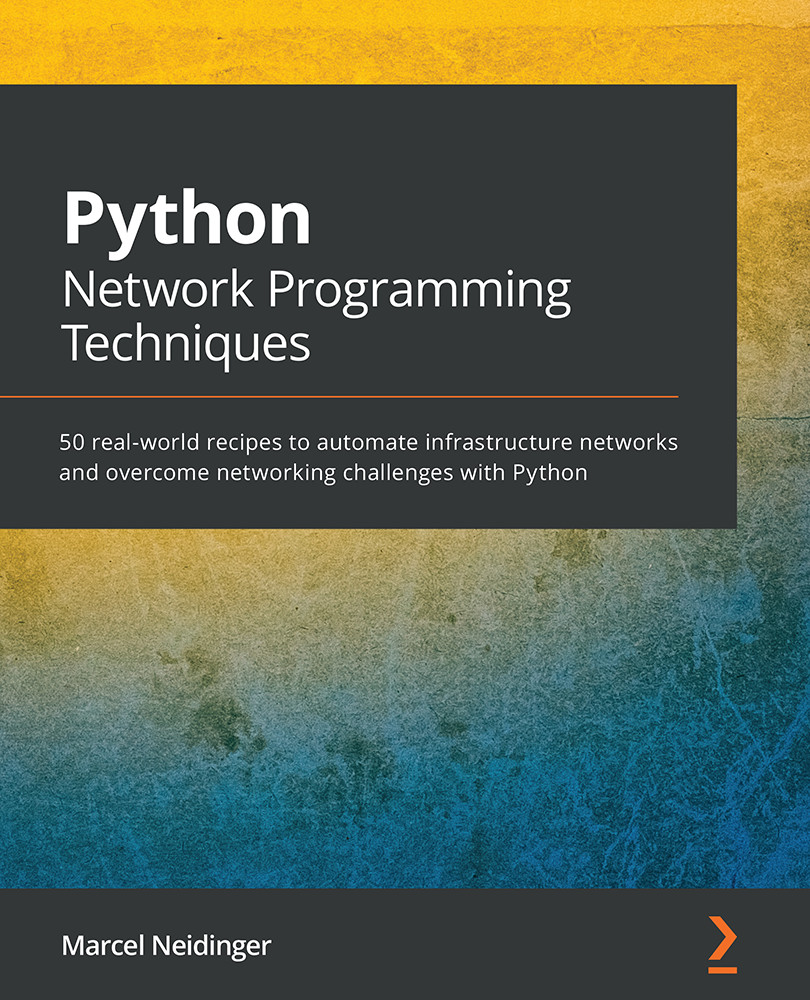
Python Network Programming Techniques: 50 real-world recipes to automate infrastructure networks and overcome networking challenges with Python

Arrow left icon
Profile Icon Marcel Neidinger
Arrow right icon
Free Trial
Full star icon Full star icon Full star icon Full star icon Empty star icon 4 (5 Ratings)
Paperback Oct 2021 340 pages 1st Edition
eBook
zł34.98 zł158.99
Paperback
zł197.99
Subscription
Free Trial
Arrow left icon
Profile Icon Marcel Neidinger
Arrow right icon
Free Trial
Full star icon Full star icon Full star icon Full star icon Empty star icon 4 (5 Ratings)
Paperback Oct 2021 340 pages 1st Edition
eBook
zł34.98 zł158.99
Paperback
zł197.99
Subscription
Free Trial
eBook
zł34.98 zł158.99
Paperback
zł197.99
Subscription
Free Trial

What do you get with a Packt Subscription?

Free for first 7 days. $19.99 p/m after that. Cancel any time!
Product feature icon Unlimited ad-free access to the largest independent learning library in tech. Access this title and thousands more!
Product feature icon 50+ new titles added per month, including many first-to-market concepts and exclusive early access to books as they are being written.
Product feature icon Innovative learning tools, including AI book assistants, code context explainers, and text-to-speech.
Product feature icon Thousands of reference materials covering every tech concept you need to stay up to date.
Subscribe now
View plans & pricing
Table of content icon View table of contents Preview book icon Preview Book

Python Network Programming Techniques

Chapter 2: Connecting to Network Devices via SSH Using Paramiko

When administrating IT devices from a remote location, be it network equipment or servers, SSH has become the standard. With its secure transport and various authentication methods, it's a safe choice that is widely used to this day to administer and configure servers or network devices. It is thus only natural when getting started with programmability and network automation, to find a way of issuing SSH commands not by hand but from a script. With this, you can take a sequence of commands you used to type into the device by hand and execute them programmatically on one or more devices. The last part is crucial. With a script that executes commands for you, you can easily apply the same sequence of commands to another device.

While we could implement the SSH protocol ourselves, this would be cumbersome work. Luckily, the Python community has already developed an SSH client library that is available for our use, called Paramiko.

In this chapter, we are going to learn the basics of programmatically connecting to a network device using SSH. We are going to use Cisco devices for our examples but the workflow is the same regardless of the vendor.

In this chapter, we will work through the following recipes:

  • Initiating an SSH session with Paramiko
  • Executing a command via SSH
  • Reading the output of an executed command
  • Executing the same command against multiple devices
  • Executing a sequence of commands
  • Using public/private keys for authentication
  • Loading local SSH configuration

Technical requirements

For this section and the remainder of the book, you'll need an installation of Python. Specifically, you'll need a Python interpreter of version 3.6.1 or higher. This book makes use of language constructs of Python 3 and thus is incompatible with Python 2.x. If you haven't done so already in the previous chapter, please go ahead and install the Paramiko package (python3 -m pip install paramiko). At the time of writing, we are using the latest version of Paramiko, version 2.7.1. You may install this exact version by issuing python3 -m pip install paramiko==2.7.1.

You also want a code editor. Popular choices include Microsoft Visual Studio Code or Notepad++. Additionally, you'll need a device (virtual or physical) that you can log into via SSH.

You can view this chapter's code in action here: https://bit.ly/37Ih46N

Initiating an SSH session with Paramiko

The basis of connecting to a device via SSH with Python and Paramiko is the SSHClient object of the library. We will use this object to create an initial connection to the SSH server and later we will use the functions of this object to execute commands on the device.

In this recipe, you will see how to programmatically open an SSH connection.

Getting ready

Open your code editor and start by creating a file called initiating.py. Next, navigate your terminal to the same directory that you just created the initiating.py file in.

How to do it...

Let's start by importing the Paramiko library and creating a client object. We will also specify the host, username, and password in variables and then initiate a connection to the specified host:

  1. Import the Paramiko library:
    from paramiko.client import SSHClient
  2. Specify the host, username, and password. You can name these variables however you like. In the Python community, it has become standard to uppercase these global variables. The three variables SSH_USER, SSH_PASSWORD, and SSH_HOST are variables of type string and we thus use double quotes to mark them. The SSH_PORT variable is an integer and thus does not use double quotes:
    SSH_USER = "<Insert your ssh user here>"
    SSH_PASSWORD = "<Insert your ssh password here>"
    SSH_HOST = "<Insert the IP/host of your device/server here>"
    SSH_PORT = 22 # Change this if your SSH port is different
  3. Create an SSHClient object, which we just imported from Paramiko:
    client = SSHClient()
  4. While we have created our client object, we have not yet connected to the device. We will use the connect method of the client object to do so. Before actually connecting, we will need to make sure that our client knows the host keys:
    client.load_system_host_keys()
    try:
        client.connect(SSH_HOST, port=SSH_PORT,
                                 username=SSH_USER,
                                 password=SSH_PASSWORD,
                                 look_for_keys=False)
        print("Connected successfully!")
    except Exception:
        print("Failed to establish connection.")
  5. Finally, we have created our connection. It is a good habit to close connections after we are done using them. To do so, we can use the close() function of our client:
    finally:
        client.close()
  6. To run this script, go to your terminal and execute it with the following:
    python3 initiating.py

How it works...

In this example, we first imported the Paramiko library's SSHClient class. Next, we set up our connection details. While you could also provide these details directly when calling the connect method on the client object, it is good practice to put them into variables. This means that if you are creating multiple client objects at different points of your script, you don't have to change the username/password and host in each of these calls but just once in the variables. Be careful when submitting these scripts to your colleagues or uploading them to code hosting services though, as they do contain your login details. You can have a look at the There's more section of this recipe to see how you can either prompt for this information interactively or get it from your environment.

Before connecting to the device, using the connect method, we load the host keys. SSH uses host keys and the fingerprints of an SSH server to make sure that the IP you are connecting to is the server you connected to before. When connecting to a brand-new device, you'll have to accept this new host key. While we can keep a separate set of host keys for our Paramiko client, it is usually best to just use the host keys that the user executing the script has. By doing this, you can connect to every device you have previously connected to from your command line, also from your Paramiko scripts.

To do this loading, we are using the load_system_host_keys() function. This function searches the default known hosts file used by OpenSSH and copies them over into Paramiko. See the following section for an example of how to make Paramiko accept new keys by default.

With our host keys configured, we can now actually connect to the device that we have specified. To do so, we are using a try-catch block. This is a Python construct that allows us to catch exceptions, errors that can be raised by any part of the code we are using, and handle them. Python will attempt to execute the instructions in the try block. If any part of that code, in our example the connect() method, errors out and raises an exception, Python will jump into the except block and execute the instructions within that block. In our example, we are only printing out a message that our connection was unsuccessful. The third block, our finally block, will be executed both when the connection has been successful (our except block was not executed) as well as after a failed connection (our except block was executed). This allows us to clean up after both a successful and unsuccessful connection and avoids dangling SSH connections.

There's more...

In this example, we relied on the user having already logged into the device from their command line in order for the host to be known. If we use the preceding code to connect to a device that was not previously known, the code will fail with an exception.

The way Paramiko handles unknown host keys can be specified using a policy. One of these policies, AutoAddPolicy, allows us to just add unknown host keys to our scripts set of host keys:

from paramiko.client import SSHClient, AutoAddPolicy
SSH_USER = "<Insert your ssh user here>"
SSH_PASSWORD = "<Insert your ssh password here>"
SSH_HOST = "<Insert the IP/host of your device/server here>"
SSH_PORT = 22 # Change this if your SSH port is different
client = SSHClient()
client.set_missing_host_key_policy(AutoAddPolicy())
client.connect(SSH_HOST, port=SSH_PORT,
                         username=SSH_USER,
                         password=SSH_PASSWORD)

The preceding code will automatically add these host keys. Be aware that this might be a potential security risk since you are not verifying that the host you are connecting to is the one you connected to last time.

In this example, we passed connection details such as username, hostname, and password directly as a variable in the script. While this is great for testing, you might want to have your script prompt you for a variable upon execution. For non-secret variables such as the username, host, and port, we can use the built-in input() function, but for passwords, it's better to use a dedicated password prompt that hides what you have typed so that someone looking over your console history can't retrieve your password. For this purpose, Python has the built-in getpass module.

Follow these steps to retrieve the configuration variables necessary, not as static information in the script but rather interactively from the user using a combination of input and the getpass module:

import getpass
SSH_PASSWORD = getpass.getpass(prompt='Password: ', stream=None)
SSH_USER = input("Username: ")
SSH_HOST = input("Host: ")
SSH_PORT = int(input("Port: "))

Executing a command via SSH

With our connection now open, we can go ahead and execute a command on our remote device. Similar to the way we deal with issuing commands on a remote device by hand, we have three different streams that come back to us: the standard out (or stdout), which is the normal output, the standard error (or stderr), which is the default stream for the system to return errors on, and the standard in (or stdin), which is the stream used to send text back into the executed command. This can be useful if, in your workflow, you would normally interact with the command line.

In this recipe, you will see how to programmatically open an SSH connection and then send a command of your choice to the device.

Getting ready

Open your code editor and start by creating a file called command.py. Next, navigate your terminal to the same directory that you just created the command.py file in.

How to do it...

Let's start by importing the Paramiko library and create a client object as seen in the last recipe. We'll then execute a single command of your choice on this device:

  1. Import the Paramiko library:
    from paramiko.client import SSHClient
  2. Specify the host, username, and password. You can name these variables however you like. In the Python community, it has become a standard to uppercase these global variables:
    SSH_USER = "<Insert your ssh user here>"
    SSH_PASSWORD = "<Insert your ssh password here>"
    SSH_HOST = "<Insert the IP/host of your device/server here>"
    SSH_PORT = 22 # Change this if your SSH port is different
  3. Create an SSHClient object, which we just imported from Paramiko:
    client = SSHClient()
  4. While we have created our client object, we have not yet connected to the device. We will use the connect method of the client object to do so. Before actually connecting, we will need to make sure that our client knows the host keys:
    client.load_system_host_keys()
    client.connect(SSH_HOST, port=SSH_PORT,
                             username=SSH_USER,
                             password=SSH_PASSWORD)
  5. Finally, we can use the client to execute a command. Executing a command will return three different file-like objects to us representing stdin, stdout, and stderr:
    CMD = "show ip interface brief" # You can issue any command you want
    stdin, stdout, stderr = client.exec_command(CMD)
    client.close()
  6. To run this script, go to your terminal and execute it with this:
    python3 command.py

How it works...

In this example, we first created a new client as seen in the previous example. We then used the exec_command() method to execute a command of our choice.

The function returns three different file-like objects for the three different streams: stdin, stdout, and stderr. In the next recipe, Reading the output of an executed command, we will use this to read back the output that was provided when executing a command.

Reading the output of an executed command

In the previous recipe, we saw how to first connect to a device and then execute a command. So far, we have ignored the output though.

In this recipe, you will see how to programmatically open an SSH connection, send a command, and then write the output of that command back to a file. We will use this to back up a running configuration.

Getting ready

Open your code editor and start by creating a file called read_out.py. Next, navigate your terminal to the same directory that you just created the read_out.py file in.

How to do it...

Let's start by importing the Paramiko library and create a client object as seen in the last recipe. Then execute a single command of your choice on this device and save the output:

  1. Import the Paramiko library:
    from paramiko.client import SSHClient
  2. Specify the host, username, and password. You can name these variables however you like. In the Python community, it has become a standard to uppercase these global variables:
    SSH_USER = "<Insert your ssh user here>"
    SSH_PASSWORD = "<Insert your ssh password here>"
    SSH_HOST = "<Insert the IP/host of your device/server here>"
    SSH_PORT = 22 # Change this if your SSH port is different
  3. Create an SSHClient object, which we just imported from Paramiko:
    client = SSHClient()
  4. While we have created our client object, we have not yet connected to the device. We will use the connect method of the client object to do so. Before actually connecting, we will need to make sure that our client knows the host keys:
    client.load_system_host_keys()
    client.connect(SSH_HOST, port=SSH_PORT,
                             username=SSH_USER,
                             password=SSH_PASSWORD)
  5. Finally, we can use the client to execute a command. Executing a command will return three different file-like objects to us representing stdin, stdout, and stderr:
    CMD = "show running-config" 
    stdin, stdout, stderr = client.exec_command(CMD)
  6. We will use the stdout object to retrieve what the command has returned:
    output = stdout.readlines()
  7. Next, we write the output back to a file:
    with open("backup.txt", "w") as out_file
        for line in output:
            out_file.write(line)
  8. To run this script, go to your terminal and execute it with this:
    python3 read_out.py

How it works...

In this example, we first created a new client as seen in the previous example. We then used the exec_command() method to execute a command of our choice. We then used the returned file-like object for the standard out to read everything that our remote device printed into the standard out and write it into a file.

A file-like object in the context of Python is an object that offers the same functions as a file object. When using the open() function to create a new file object to read/write from locally, we are offered some functions such as write() or readlines(). These functions allow us to read or write from or to a file. A file-like object offers the same functions and can thus be used as if it was a remote file. We use the readlines() function on the stdout object to read everything returned – in this example, the running configuration of our device – and write it line by line to a local file.

There's more...

If you prefer to just see the output of your command instead of writing it to a file, you can also use the following construct, instead of the code provided in step 7 of the recipe, to print out your entire configuration:

for line in output:
    print(line.strip())  

The strip() method used in the preceding example will delete any unnecessary leading or trailing whitespaces.

Executing the same command against multiple devices

In the previous recipes, we have always only dealt with a single device. Quite often we have a fleet of similar devices that we want to configure in unison.

In this recipe, you will see how to programmatically open an SSH connection to multiple devices, issue the same command to all of them, and then save the output. We will again use this example to back up the running configuration of multiple devices.

Getting ready

Open your code editor and start by creating a file called exec_multiple.py. Next, navigate your terminal to the same directory that you just created the exec_multiple.py file in. Additionally, create a file called credentials.json. We will use this file to retrieve credentials such as the username and password of our devices.

How to do it...

Let's start by creating our credentials file. We will then read that file from our Python script, create clients for each of these devices, and finally execute a command while also saving the output back to our file:

  1. Import the required libraries, Paramiko and json:
    import json
    from paramiko.client import SSHClient
  2. Open up the credentials.json file and provide the credentials to your device(s) in the format shown in the following code. You can specify as many devices as you want:
    [
     {
       "name": "<insert a unique name of your device>",
       "host": "<insert the host of your device>",
       "username": "<insert the username>",
       "password": "<insert the password",
       "port": 22
     },
     {
       "name": "<insert a unique name of your device>",
       "host": "<insert the host of your device>",
       "username": "<insert the username>",
       "password": "<insert the password",
       "port": 22
     }
    ]
  3. Go back to your exec_multiple.py file. We will now open the JSON file in our Python script:
    credentials = {}
    with open("credentials.json") as fh:
         json.load(fh)
  4. Create a variable holding the command you want to execute. We will then loop over all the devices specified in our credentials.json file and create an SSH client object. Additionally, we will create an individual output file for each of our devices based on the name we specified in the JSON file:
    CMD = "show running-config"
    for cred in credentials:
         out_file_name = str(cred['name']) + ".txt"
         client = SSHClient()
         client.load_system_host_keys()
         client.connect(SSH_HOST, port=cred['port'],
                                  username=cred['username'],
                                  password=cred['password'])
         stdin, stdout, stderr = client.exec_command(CMD)
         out_file = open(out_file_name, "w")
         output = stdout.readlines()
         for line in output:
              out_file.write(line)
         out_file.close()
         client.close()
         print("Executed command on " + cred['name'])
  5. To run this script, go to your terminal and execute it with this:
    python3 exec_multiple.py

How it works...

In this example, we first create a JSON file containing the credentials and connection details for all of our devices. We can view this file as a type of inventory. In general, it is good practice to keep this information separate from the Python code that is acting upon it.

We then use the built-in json module to read the credentials file into a list of dictionaries that we can loop over.

Based on the credentials specified in the credentials file, we then open up a new Paramiko connection, execute the command, and write the output to a new log file, that is, by including the name we set for our device in the JSON file, which is unique for each of the devices.

With this, we can back up the running configuration of an entire fleet of devices from one simple script.

Executing a sequence of commands

In the previous recipes, we have always only dealt with a single command that we wanted to execute. Maybe you have tried adding another call to the exec_command() function to the client already and have run into an error telling you that the session is closed. It is indeed correct that, once your command is done executing, the connection will close.

But quite often we don't want to execute only one but a sequence of commands one after another. We could reconnect for each of the commands, but this is a workaround that would create a lot of unneeded disconnecting and reconnecting. What we can do instead is, if the target device's configuration allows it, open up a shell session. This shell session is a single command, and we can then use stdin, stderr, and stdout to send multiple commands in the same session.

In this recipe, you will see how to programmatically open an SSH connection to a device, open a shell, and then send a list of commands to the device before closing the connection.

Getting ready

Open your code editor and start by creating a file called exec_multiple_commands.py. Next, navigate your terminal to the same directory that you just created the exec_multiple_commands.py file in.

How to do it...

Let's start by creating our credentials file. We will then read that file from our Python script, create clients for each of these devices, and finally execute a command while also saving the output back to our file:

  1. Import the Paramiko library. We will also need the built-in time library:
    from paramiko.client import SSHClient
    import time
  2. Specify the host, username, and password. You can name these variables however you like. In the Python community, it has become a standard to uppercase these global variables:
    SSH_USER = "<Insert your ssh user here>"
    SSH_PASSWORD = "<Insert your ssh password here>"
    SSH_HOST = "<Insert the IP/host of your device/server here>"
    SSH_PORT = 22 # Change this if your SSH port is different
  3. Create an SSHClient object, which we just imported from Paramiko:
    client = SSHClient()
  4. While we have created our client object, we have not yet connected to the device. We will use the connect method of the client object to do so. Before actually connecting, we will need to make sure that our client knows the host keys:
    client.load_system_host_keys()
    client.connect(SSH_HOST, port=SSH_PORT,
                             username=SSH_USER,
                             password=SSH_PASSWORD)
  5. Open up an interactive shell session and a channel that we can use to retrieve the output:
    channel = client.get_transport().open_session()
    shell = channel.invoke_shell()
  6. Next, specify the list of commands we want to execute on the device:
    commands = [
         "configure terminal",
         "hostname test"
    ]
  7. Iterate over each of the commands, execute them, and then wait for 2 seconds:
    for cmd in commands:
         shell.send(cmd + "\n")
          out = shell.recv(1024)
          print(out)
         time.sleep(1)
  8. Finally, we need to close the connection:
    client.close()
  9. To run this script, go to your terminal and execute it with this:
    python3 exec_multiple_commands.py

How it works...

In this example, we use Paramiko's concept of an interactive shell to send multiple commands to the remote device one after another.

When invoking a shell with Paramiko, we will retrieve a channel. This channel was used by Paramiko in the background all along to execute our commands but has been hidden from us so far. The channel takes care of low-level aspects such as sending and receiving the data to and from the raw network connection to our device. The channel function we use in this example is the send() function, which sends a string to the remote device. Mind the carriage return we added to the command. The same way you, when connecting to a device via SSH, have to execute a command by typing enter, the interactive session has to indicate that via a linebreak, which is the same symbol sent by your interactive session when hitting the Enter key.

We are using the sleep function here to wait for the commands you have passed to have finished executing. For short-running commands, you can get away with not using this sleep function.

Using public/private keys for authentication

So far, we have always used a username/password combination to connect to our device. This is not the most secure way, however, and many security policies advocate using public-private key pairs instead of a static password.

In this recipe, you will see how to programmatically open an SSH connection using a password-protected private key.

Getting ready

Open your code editor and start by creating a file called key_file.py. Next, navigate your terminal to the same directory that you just created the key_file.py file in.

You'll also need a password-protected private key for the device/server you are trying to connect to and have the device/server configured to allow or require key-based logins.

How to do it...

Let's start by importing the required libraries, define our new connection details, and finally open up a connection using key-based authentication:

  1. Import the Paramiko library:
    from paramiko.client import SSHClient
  2. Specify the host and username. You can name these variables however you like. In the Python community, it has become a standard to uppercase these global variables. Instead of the device password, we will now need two new variables – the path to the private key file that we want to use to authenticate and the password for that private key file:
    SSH_USER = "<Insert your ssh user here>"
    SSH_HOST = "<Insert the IP/host of your device/server here>"
    SSH_PORT = 22 # Change this if your SSH port is different
    SSH_KEY = "<Insert the name of your private key here>"
    SSH_KEY_PASSWORD = "<Insert the password here>"
  3. Create an SSHClient object, which we just imported from Paramiko:
    client = SSHClient()
  4. While we have created our client object, we have not yet connected to the device. We will use the connect method of the client object to do so. Before actually connecting, we will still need to make sure that our client knows the host keys:
    client.load_system_host_keys()
    client.connect(SSH_HOST, port=SSH_PORT,
                             username=SSH_USER,
                             look_for_keys=True,
                             key_filename=SSH_KEY,
                             passphrase=SSH_KEY_PASSWORD)
  5. As seen before, we can now execute a command once the connection is established:
    stdin, stdout, stderr = client.exec_command('<your command>')
  6. Finally, we need to close the connection:
    client.close()
  7. To run this script, go to your terminal and execute it with this:
    python3 key_file.py

How it works...

In this example, we use Paramiko's ability to load RSA keys for authentication to avoid using a username/password combination for authentication.

We need to import the same packages we have used before. The difference lies in the parameters that we pass to the connect function. Instead of specifying a password, we specify the name of our ssh key. The library will then, as indicated by setting the look_for_keys flag to true, search common places such as ~/.ssh for keys and match them with the name provided. The passphrase argument is used to provide the passphrase used to decode the private key. If your private key does not have a passphrase, you can omit this argument.

Once the connection is established, we can use the client in the same way as we did before, when dealing with username-password authentication.

There's more...

In the preceding example, we relied on the key file being present in one of the known paths. Sometimes you might want to explicitly specify the path you are loading a key file from. You can do so by, instead of just specifying the filename in the key_filename attribute, specifying the entire path where Paramiko can find your private key.

For example, if your private key is in /home/user/my_keys/id_rsa, you could modify the preceding example like so:

SSH_KEY = "/home/user/my_keys/id_rsa"

If you want to connect to different devices and have multiple keys, one for each device, you can also pass a list of key names or paths to ssh keys to the key_filename attribute:

SSH_KEY = [
           "/home/user/my_keys/device_1",
           "/home/user/my_keys/device_2",
           "/home/user/my_keys/device_3"
]

Paramiko will then try out all the keys in the provided list for each device you are connecting to.

Loading local SSH configuration

When dealing with multiple different devices and connecting to them via SSH, it can be convenient to specify information such as the hostname, port, username, or identity file to use in a specific configuration file. The OpenSSH implementation stores this file in a file called config in the .ssh directory in your home directory (~/.ssh/config on macOS and Linux).

While we could copy and paste this information into our Python scripts or try to write a parsing function for the format ourselves, it is easier and more convenient to use Paramiko's SSH configuration parser.

In this recipe, you will see how to programmatically parse your SSHConfig file, extract the relevant information based on a host, and store it in a dictionary.

Getting ready

Open your code editor and start by creating a file called parse_config.py. Next, navigate your terminal to the same directory that you just created the parse_config.py file in.

You'll also need an SSH config file for the device you are trying to connect to. In this example, we will be using a config file that has the following content:

Host example
     Host <insert your host address here>
     User <insert your user here>
     Port <insert the port here>
     IdentityFile <insert the path to your private key here>

How to do it...

Let's start by importing the required libraries and defining the path to our SSH configuration:

  1. Import the Paramiko library:
    from paramiko.client import SSHClient
    from paramiko import SSHConfig
  2. Specify the path to your SSH config file and the name of your host as it appears in your SSH configuration (example in this snippet). We will populate all the other variables from the configuration we are reading:
    SSH_CONFIG = "<insert path to ssh config here>"
    SSH_HOST = "example"
  3. Create an SSHConfig object, which we just imported from Paramiko, and create a local file object with the path to our SSH configuration:
    config = SSHConfig()
    config_file = open(SSH_CONFIG)
  4. Next, we need to tell the SSHConfig object to load and parse the configuration file:
    config.parse(config_file)
  5. With the config parsed, we can now do a lookup on this configuration object to extract all information stored in the configuration itself. The lookup function will return a dictionary:
    dev_config = config.lookup(SSH_HOST)
  6. With our device configuration extracted from the SSH config we can go ahead and fill our connection details with what we have extracted from the SSH configuration file:
    client.load_system_host_keys()
    HOST = dev_config['hostname'],
    client.connect(HOST, port=int(dev_config['port']),
                         username=dev_config['user'],
                         key_filename=dev_config['identityfile'])
  7. With the connection established, we can do all the different things we discovered in previous recipes before finally closing the connection:
    client.close()
  8. To run this script, go to your terminal and execute it with this:
    python3 parse_config.py

How it works...

In this example, we use Paramiko's ability to parse an SSH configuration file to not define this information in multiple different locations.

We start by importing the SSHConfig class, in addition to the already established SSHClient class. Instead of manually specifying the host, username, and key file information, we now create a local file object that points to our SSH configuration.

With that file opened, we can now have Paramiko parse this configuration. The SSHConfig object now contains all the different information for each of the hosts. We can then do a lookup on our host – in this recipe, the host is called example – and extract all configuration variables that are known in the configuration file.

From that, we proceed to providing that information to the SSHClient. Instead of statically specifying it, we just access it from the dictionary that was returned by Paramiko when doing the lookup on the host.

Left arrow icon Right arrow icon
Download code icon Download Code

Key benefits

  • Explore different Python packages to automate your infrastructure
  • Leverage AWS APIs and the Python library Boto3 to administer your public cloud network efficiently
  • Get started with infrastructure automation by enhancing your network programming knowledge

Description

Network automation offers a powerful new way of changing your infrastructure network. Gone are the days of manually logging on to different devices to type the same configuration commands over and over again. With this book, you'll find out how you can automate your network infrastructure using Python. You'll get started on your network automation journey with a hands-on introduction to the network programming basics to complement your infrastructure knowledge. You'll learn how to tackle different aspects of network automation using Python programming and a variety of open source libraries. In the book, you'll learn everything from templating, testing, and deploying your configuration on a device-by-device basis to using high-level REST APIs to manage your cloud-based infrastructure. Finally, you'll see how to automate network security with Cisco’s Firepower APIs. By the end of this Python network programming book, you'll have not only gained a holistic overview of the different methods to automate the configuration and maintenance of network devices, but also learned how to automate simple to complex networking tasks and overcome common network programming challenges.

Who is this book for?

This book is for network engineers who want to make the most of Python to automate their infrastructure. A basic understanding of Python programming and common networking principles is necessary.

What you will learn

  • Programmatically connect to network devices using SSH (secure shell) to execute commands
  • Create complex configuration templates using Python
  • Manage multi-vendor or multi-device environments using network controller APIs or unified interfaces
  • Use model-driven programmability to retrieve and change device configurations
  • Discover how to automate post modification network infrastructure tests
  • Automate your network security using Python and Firepower APIs

Product Details

Country selected
Publication date, Length, Edition, Language, ISBN-13
Publication date : Oct 08, 2021
Length: 340 pages
Edition : 1st
Language : English
ISBN-13 : 9781838646639
Languages :
Concepts :
Tools :

What do you get with a Packt Subscription?

Free for first 7 days. $19.99 p/m after that. Cancel any time!
Product feature icon Unlimited ad-free access to the largest independent learning library in tech. Access this title and thousands more!
Product feature icon 50+ new titles added per month, including many first-to-market concepts and exclusive early access to books as they are being written.
Product feature icon Innovative learning tools, including AI book assistants, code context explainers, and text-to-speech.
Product feature icon Thousands of reference materials covering every tech concept you need to stay up to date.
Subscribe now
View plans & pricing

Product Details

Publication date : Oct 08, 2021
Length: 340 pages
Edition : 1st
Language : English
ISBN-13 : 9781838646639
Languages :
Concepts :
Tools :

Packt Subscriptions

See our plans and pricing
Modal Close icon
$19.99 billed monthly
Feature tick icon Unlimited access to Packt's library of 7,000+ practical books and videos
Feature tick icon Constantly refreshed with 50+ new titles a month
Feature tick icon Exclusive Early access to books as they're written
Feature tick icon Solve problems while you work with advanced search and reference features
Feature tick icon Offline reading on the mobile app
Feature tick icon Simple pricing, no contract
$199.99 billed annually
Feature tick icon Unlimited access to Packt's library of 7,000+ practical books and videos
Feature tick icon Constantly refreshed with 50+ new titles a month
Feature tick icon Exclusive Early access to books as they're written
Feature tick icon Solve problems while you work with advanced search and reference features
Feature tick icon Offline reading on the mobile app
Feature tick icon Choose a DRM-free eBook or Video every month to keep
Feature tick icon PLUS own as many other DRM-free eBooks or Videos as you like for just zł20 each
Feature tick icon Exclusive print discounts
$279.99 billed in 18 months
Feature tick icon Unlimited access to Packt's library of 7,000+ practical books and videos
Feature tick icon Constantly refreshed with 50+ new titles a month
Feature tick icon Exclusive Early access to books as they're written
Feature tick icon Solve problems while you work with advanced search and reference features
Feature tick icon Offline reading on the mobile app
Feature tick icon Choose a DRM-free eBook or Video every month to keep
Feature tick icon PLUS own as many other DRM-free eBooks or Videos as you like for just zł20 each
Feature tick icon Exclusive print discounts

Frequently bought together


Stars icon
Total 585.97
Linux for Networking Professionals
zł197.99
Learn Python Programming
zł189.99
Python Network Programming Techniques
zł197.99
Total 585.97 Stars icon

Table of Contents

13 Chapters
Chapter 1: A Primer on Python 3 Chevron down icon Chevron up icon
Chapter 2: Connecting to Network Devices via SSH Using Paramiko Chevron down icon Chevron up icon
Chapter 3: Building Configuration Templates Using Jinja2 Chevron down icon Chevron up icon
Chapter 4: Configuring Network Devices Using Netmiko Chevron down icon Chevron up icon
Chapter 5: Model-Driven Programmability with NETCONF and ncclient Chevron down icon Chevron up icon
Chapter 6: Automating Complex Multi-Vendor Networks with NAPALM Chevron down icon Chevron up icon
Chapter 7: Automating Your Network Tests and Deployments with pyATS and Genie Chevron down icon Chevron up icon
Chapter 8: Configuring Devices Using RESTCONF and requests Chevron down icon Chevron up icon
Chapter 9: Consuming Controllers and High-Level Networking APIs with requests Chevron down icon Chevron up icon
Chapter 10: Incorporating your Python Scripts into an Existing Workflow by Writing Custom Ansible Modules Chevron down icon Chevron up icon
Chapter 11: Automating AWS Cloud Networking Infrastructure Using the AWS Python SDK Chevron down icon Chevron up icon
Chapter 12: Automating your Network Security Using Python and the Firepower APIs Chevron down icon Chevron up icon
Other Books You May Enjoy Chevron down icon Chevron up icon

Customer reviews

Rating distribution
Full star icon Full star icon Full star icon Full star icon Empty star icon 4
(5 Ratings)
5 star 60%
4 star 20%
3 star 0%
2 star 0%
1 star 20%
katrina Nov 10, 2021
Full star icon Full star icon Full star icon Full star icon Full star icon 5
This book does a good job of introducing beginner and intermediate Python, but goes on to really shine when it covers popular and lesser-known network tools using Python: using SSH with Paramiko, Jinja 2, Netmiko, Netconf, ncclient, and more. Almost every chapter has sections that start with "how to do it" and "how it works". Clearly the author has been a network engineer and is sharing their extensive knowledge.
Amazon Verified review Amazon
Amazon Customer Oct 27, 2021
Full star icon Full star icon Full star icon Full star icon Full star icon 5
I'm the technical reviewer of this book. This book covers all the basic and advanced topics about Netdevops, most of the scripts in this books are run and demonstrated on Cisco devices.You may find out that you are already familiar with some of the chapters in this book such as Paramiko and Netmiko as they are the most famous and most popular modules for network engineers who already have some basic knowledge about Python. Besides that, Marcel did a great job introducing the powerful but less well-known Netdevops tools such as Jinja2, NETCONF, RESTCONF, pyATS/Genie, EC2 (for AWS Cloud Networking automation) and Firepower API.I highly recommend this book to network engineers who want to develop the necessary skills and maintain a cutting edge in this Netdevops era, no matter if you are a newbie or seasoned network engineer.
Amazon Verified review Amazon
rockstar82 Nov 21, 2021
Full star icon Full star icon Full star icon Full star icon Full star icon 5
The book is dedicated to CISCO network engineers that need to know Python to deliver certain milestones. The book is also great for new devops, if they do not necessarily have a lot of experience with network programming (though I would assume that's not the case anymore.The book starts gently with a primer on Python which can be easily skipped if you are already versatile in Python. The primer is well done, but it would but it is recommended that you run at least some of the code snippets provided so you get the gist of how Python works.Once the introduction is out of the way, the book delves straight into networks programming topics like connecting via SSH to other devices with Paramiko, Jinja 2 configuration or network devices configuration with Netmiko, netconf config, etc. The approach for these chapters is very hands-on, code-focused, therefore more technical, as opposed to the images heavy approach of the early technical books on the subject. It is assumed you have some knowledge about networks. If you do not have that knowledge, it would be best to get it from another book.The last two thirds of the books are getting into the meat of the subject with complex configs with NAPALSM, automated test deployments with Genie(especially import for devops), configuring devices with a REST interface, consuming high-level networking APIs with requests, custom Ansible modules, AWS infrastructure, etc. This section of the book will help you decide if you want to continue being a network engineer or if you want to take on a more traditional development role like devops (well, yes the devops as a job exists for a decade, but such jobs of maintaining and running online systems existed for decades in some capacity).Overall a great book that can fill in your missing knowledge or help you decide which career path you would like to follow!
Amazon Verified review Amazon
jml Oct 21, 2021
Full star icon Full star icon Full star icon Full star icon Empty star icon 4
A cookbook-style reference, Python Network Programming Techniques provides the reader with introductory material, step-by-step instructions, and an explanatory section for each “recipe”. The book walks the reader through a Python 3 refresher, then moves on to basic connectivity via the Paramiko SSH library; a detour through Jinja (which is used later on) is followed by a very logical progression through Netmiko, NETCONF, Napalm, and the HTTP/REST-based engines. Ansible and cloud services via AWS are also covered in easily-followed procedures. The explanatory material is more than sufficent to ensure that even readers with little or no experience can get up and running with the tools.Engineers wanting to script configuration and maintenance tasks will find the book useful right from the start. There are some hidden gems here; a nice explanation of Python variadic arguments (for those who were a little weak in that area), great coverage of the oddly-named YANG (Yet Another Next Generation) modeling language standard, and some quick-and-dirty tricks with pyATS / Genie that will come in handy for many routine tasks.The book tends to be rather Cisco-specific in places, and if you’re going to follow along, you will need some resources to play with. For the first few chapters, a Raspberry PI and a low-end Cisco router will suffice, but later on an AWS account, Meraki, Ansible, and Firepower will be necessary. A couple of the examples may leave you scratching your head a bit due to minor typos and such but figuring those out ends up being good practice.All in all, Python Network Programming Techniques nicely fills an important gap between the Python and network-management worlds. Those wanting to automate their network configuration and management tasks will find it a readable, practical, and quite useful resource.
Amazon Verified review Amazon
wyzarddoc Feb 22, 2023
Full star icon Empty star icon Empty star icon Empty star icon Empty star icon 1
Code is very incomplete Author is not aware of their subject or how to write Python code.wasteof me
Amazon Verified review Amazon
Get free access to Packt library with over 7500+ books and video courses for 7 days!
Start Free Trial

FAQs

What is included in a Packt subscription? Chevron down icon Chevron up icon

A subscription provides you with full access to view all Packt and licnesed content online, this includes exclusive access to Early Access titles. Depending on the tier chosen you can also earn credits and discounts to use for owning content

How can I cancel my subscription? Chevron down icon Chevron up icon

To cancel your subscription with us simply go to the account page - found in the top right of the page or at https://subscription.packtpub.com/my-account/subscription - From here you will see the ‘cancel subscription’ button in the grey box with your subscription information in.

What are credits? Chevron down icon Chevron up icon

Credits can be earned from reading 40 section of any title within the payment cycle - a month starting from the day of subscription payment. You also earn a Credit every month if you subscribe to our annual or 18 month plans. Credits can be used to buy books DRM free, the same way that you would pay for a book. Your credits can be found in the subscription homepage - subscription.packtpub.com - clicking on ‘the my’ library dropdown and selecting ‘credits’.

What happens if an Early Access Course is cancelled? Chevron down icon Chevron up icon

Projects are rarely cancelled, but sometimes it's unavoidable. If an Early Access course is cancelled or excessively delayed, you can exchange your purchase for another course. For further details, please contact us here.

Where can I send feedback about an Early Access title? Chevron down icon Chevron up icon

If you have any feedback about the product you're reading, or Early Access in general, then please fill out a contact form here and we'll make sure the feedback gets to the right team. 

Can I download the code files for Early Access titles? Chevron down icon Chevron up icon

We try to ensure that all books in Early Access have code available to use, download, and fork on GitHub. This helps us be more agile in the development of the book, and helps keep the often changing code base of new versions and new technologies as up to date as possible. Unfortunately, however, there will be rare cases when it is not possible for us to have downloadable code samples available until publication.

When we publish the book, the code files will also be available to download from the Packt website.

How accurate is the publication date? Chevron down icon Chevron up icon

The publication date is as accurate as we can be at any point in the project. Unfortunately, delays can happen. Often those delays are out of our control, such as changes to the technology code base or delays in the tech release. We do our best to give you an accurate estimate of the publication date at any given time, and as more chapters are delivered, the more accurate the delivery date will become.

How will I know when new chapters are ready? Chevron down icon Chevron up icon

We'll let you know every time there has been an update to a course that you've bought in Early Access. You'll get an email to let you know there has been a new chapter, or a change to a previous chapter. The new chapters are automatically added to your account, so you can also check back there any time you're ready and download or read them online.

I am a Packt subscriber, do I get Early Access? Chevron down icon Chevron up icon

Yes, all Early Access content is fully available through your subscription. You will need to have a paid for or active trial subscription in order to access all titles.

How is Early Access delivered? Chevron down icon Chevron up icon

Early Access is currently only available as a PDF or through our online reader. As we make changes or add new chapters, the files in your Packt account will be updated so you can download them again or view them online immediately.

How do I buy Early Access content? Chevron down icon Chevron up icon

Early Access is a way of us getting our content to you quicker, but the method of buying the Early Access course is still the same. Just find the course you want to buy, go through the check-out steps, and you’ll get a confirmation email from us with information and a link to the relevant Early Access courses.

What is Early Access? Chevron down icon Chevron up icon

Keeping up to date with the latest technology is difficult; new versions, new frameworks, new techniques. This feature gives you a head-start to our content, as it's being created. With Early Access you'll receive each chapter as it's written, and get regular updates throughout the product's development, as well as the final course as soon as it's ready.We created Early Access as a means of giving you the information you need, as soon as it's available. As we go through the process of developing a course, 99% of it can be ready but we can't publish until that last 1% falls in to place. Early Access helps to unlock the potential of our content early, to help you start your learning when you need it most. You not only get access to every chapter as it's delivered, edited, and updated, but you'll also get the finalized, DRM-free product to download in any format you want when it's published. As a member of Packt, you'll also be eligible for our exclusive offers, including a free course every day, and discounts on new and popular titles.

Modal Close icon
Modal Close icon