Search icon CANCEL
Subscription
0
Cart icon
Your Cart (0 item)
Close icon
You have no products in your basket yet
Arrow left icon
Explore Products
Best Sellers
New Releases
Books
Events
Videos
Audiobooks
Packt Hub
Free Learning
Arrow right icon
timer SALE ENDS IN
0 Days
:
00 Hours
:
00 Minutes
:
00 Seconds
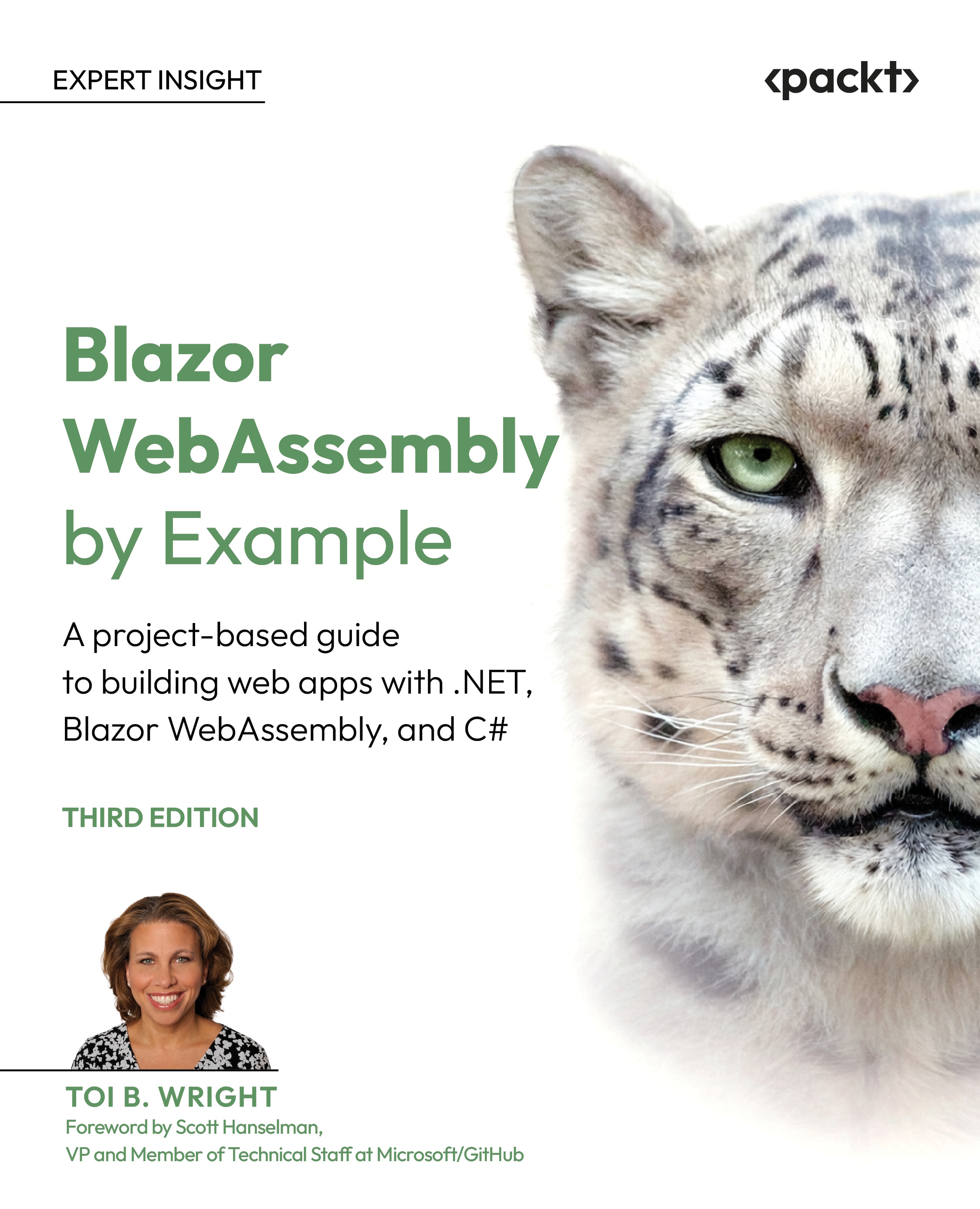
Blazor WebAssembly by Example

Blazor WebAssembly by Example: A project-based guide to building web apps with .NET, Blazor WebAssembly, and C# , Third Edition

Arrow left icon
Profile Icon Toi B. Wright
Arrow right icon
₱2021.39 ₱2245.99
eBook May 2026 598 pages 3rd Edition
eBook
₱2021.39 ₱2245.99
Paperback
₱2806.99
eBook + Subscription
Free Trial
Arrow left icon
Profile Icon Toi B. Wright
Arrow right icon
₱2021.39 ₱2245.99
eBook May 2026 598 pages 3rd Edition
eBook
₱2021.39 ₱2245.99
Paperback
₱2806.99
eBook + Subscription
Free Trial
eBook
₱2021.39 ₱2245.99
Paperback
₱2806.99
eBook + Subscription
Free Trial

What do you get with eBook?

Product feature icon Instant access to your Digital eBook purchase
Product feature icon Download this book in EPUB and PDF formats
Product feature icon Access this title in our online reader with advanced features
Product feature icon DRM FREE - Read whenever, wherever and however you want
Modal Close icon
Payment Processing...
tick Completed

Billing Address

Table of content icon View table of contents Preview book icon Preview Book

Blazor WebAssembly by Example

1

Introduction to Blazor WebAssembly

Blazor WebAssembly is Microsoft's framework for building interactive web apps that run in the browser with .NET. Because it uses the .NET runtime, you can write client‑side code in C# instead of JavaScript. As a C# developer, this means you can use a single language across development tasks, simplifying your workflow and reducing context-switching. Therefore, when developing web apps, instead of wrestling with the ever-shifting JavaScript landscape of hot frameworks, you can use C# everywhere.

Blazor lights the dawn.

C# shimmers through chrome skies,

JavaScript can rest.

In this chapter, I explain the benefits of using the Blazor framework, introduce the Blazor family, and share the core goals of WebAssembly. I conclude by guiding you through the process of setting up your computer to complete the projects in this book.

In this chapter, I will cover the following topics:

  • Blazor framework benefits
  • Blazor family
  • What is WebAssembly
  • Setting up your PC

Technical requirements

To complete the projects in this book, you need the following software installed on your PC:

  • .NET 10 SDK
  • Microsoft Visual Studio 2026 (any edition)
  • Microsoft SQL Server (any edition)

A free Microsoft Azure account is also required to deploy your web app.

For step-by-step instructions on how to prepare your PC, refer to the Setting up your PC section in this chapter.

Blazor framework benefits

There are several benefits from using the Blazor framework. For starters, it is free and open source. So, there are no license fees, no paywalls, and no gimmicks. It is just you and a seriously powerful framework built on Microsoft's rock-solid .NET Core framework. Also, Blazor is a Single-Page Application (SPA) framework that uses Razor syntax to enable your web apps to run C# in the browser. You can build interactive, dynamic web apps without switching to JavaScript mode every five minutes. And with Microsoft's best-in-class tools like Visual Studio and VS Code, you've got everything you need to code smarter, faster, and cleaner. Finally, Microsoft is constantly improving the Blazor framework. They are adding new features, improving performance, and making your developer life easier with each release. Let's begin with the most fundamental advantage: Blazor is free and open source.

Free and open source

The Blazor framework will always be free and open source. It is part of the open source ASP.NET Core project that was originally developed by Microsoft. All the source code for Blazor is available on GitHub as part of the dotnet/aspnetcore repository, which is maintained by the .NET Foundation. The .NET Foundation is an independent, non-profit organization established to support the innovative, commercially friendly, open-source ecosystem around the .NET platform. The .NET platform has a strong community of developers who continue to contribute via pull requests under the MIT license.

This is a link to the dotnet/aspnetcore repository on GitHub: https://github.com/dotnet/aspnetcore. Blazor code lives in the src/Components folder.

Since ASP.NET Core is free and open source, Blazor is too. There are no fees or licensing costs associated with using Blazor. Everyone, including individuals, startups, and commercial enterprises, can use Blazor for free.

.NET Core framework

The Blazor framework is built on the .NET Core framework. Therefore, if you are familiar with the .NET Core framework, you can quickly become productive using the Blazor framework. That means you can leverage all your favorite libraries, NuGet packages, and design patterns. Also, since the code for both the client and server can be written in C#, the client and server can share code and libraries. Need to validate data the same way on both ends? No problem. Write it once, share it everywhere.

Blazor does not rely on plugins or recompiling the code into other languages. Instead, it is based on open web standards and is supported by all modern browsers, including mobile browsers.

SPA framework

As I mentioned earlier, Blazor is a SPA framework. As the name implies, a SPA framework is used to build web apps that load a single HTML page only once. In response to each UI update, the web app dynamically rewrites the areas of the page that have changed instead of reloading the entire page. This delivers fast, fluid transitions that mimic native mobile apps.

Here's how it works: When a page is rendered, Blazor creates a render tree that is a graph of the components on the page. It is like the Document Object Model (DOM) created by the browser. However, it is a virtual DOM. Updates to the UI are applied to the virtual DOM, and only the differences between the DOM and the virtual DOM are rendered by the browser. This approach delivers high performance by avoiding full page reloading, just like modern JavaScript frameworks.

Razor syntax

Razor syntax is the secret behind Blazor's magic. It lets you mix HTML markup with C# code in the same file. Razor syntax is the primary templating language powering the view engine in ASP.NET Core applications.

Blazor web apps are built using Razor components—reusable UI elements that bundle C# code, HTML markup, and other Razor components. They are quite literally the building blocks of the Blazor framework. For more information on Razor components, refer to Chapter 2, Building Your First Blazor WebAssembly Application.

Razor syntax is not exclusive to Blazor. Razor Pages and MVC also use Razor syntax. Unlike Razor Pages and MVC, which render the whole page, Razor components only render the DOM changes. The way to distinguish between them is that Razor components use the .razor file extension, while both MVC and Razor Pages use the .cshtml file extension.

The name of the Blazor framework has an interesting origin story. The name Blazor comes from Browser + Razor. This name captures Blazor's core innovation: client-side .NET execution using the Razor templating engine.

Awesome tooling

Great tooling matters. You can use either Microsoft Visual Studio, Microsoft Visual Studio Code, or a third-party editor like JetBrains Rider to develop Blazor applications. Microsoft Visual Studio is a full-featured integrated development environment (IDE), while Microsoft Visual Studio Code is a lightweight, yet powerful, cross-platform editor. Best of all, both options offer free versions, and both are incredible tools for building Blazor apps.

Supported by Microsoft

While other frameworks come and go, Blazor is here to stay. Although it's open source, Microsoft is still at the wheel. They continue to make large investments in the future of Blazor. The following list includes features that Microsoft is actively working on to improve Blazor:

  • AI-assisted development
  • Built-in AI components
  • Multithreading support
  • Integrated .NET Scaffolding tools
  • A smoother Getting Started workflow
  • Localized validation messages
  • A new Blazor Gateway for hosting Blazor WebAssembly apps in .NET Aspire

In short, when you build with Blazor, you're building on a foundation that's only getting stronger.

This is the link to the ASP.NET Core roadmap for .NET 11 that includes Blazor-specific work items: https://github.com/dotnet/aspnetcore/issues/64787. As you can see, Microsoft is continuing to make major investments in Blazor.

There are many benefits associated with using the Blazor framework to develop web applications. Blazor gives you the freedom of open source, the strength of .NET, the speed of SPAs, the simplicity of Razor syntax, the power of Microsoft's tooling, and the confidence of ongoing support.

Those benefits matter, but Blazor also comes in several flavors, each representing a different hosting model suited to specific scenarios.

Blazor family

It's time to meet the whole Blazor family! As I have already established, Blazor is a fantastic tool for writing web apps. But just like any family, Blazor comes in an array of flavors, each with its own personality and quirks. One way to explore the members of the family is to review the project templates provided by Microsoft.

When you open Visual Studio, create a new project, and type Blazor into the search box, the following project templates pop up.

  • Blazor Web App
  • Blazor Server App
  • Blazor WebAssembly Standalone app

The following screenshot shows the Create a new project dialog within Visual Studio:

Figure 1.1 – Visual Studio project templates for Blazor

Figure 1.1 – Visual Studio project templates for Blazor

Each template gives you a slightly different way to serve, execute, and render the same Razor components.

We will not be exploring the .NET MAUI Blazor Hybrid App template since it does not run on WebAssembly.

Let's look at what each of these templates provides, in the order that they were added by Microsoft.

Blazor Server

Blazor Server was the pioneer. It was launched with .NET Core 3.0 in September 2019. This hosting model keeps your app's brain on the server, while the browser just displays the server-side rendered (SSR) HTML and CSS.

The Blazor Server App project template creates a solution with one project. Applications are deployed to a server and are executed from within an ASP.NET Core app.

Whenever a user clicks, types, or interacts with the web app, those actions make a roundtrip back to the server over a SignalR connection using the WebSockets protocol, which responds by updating the UI. As a result, this type of app requires a constant connection to the server. There's no offline support.

SignalR is a software library that allows the web server to push real-time notifications to the browser. Blazor Server uses it to send UI updates to the browser.

In short: the app runs on the server. Blazor Server apps have a low startup time, but every user interaction requires a network roundtrip, which can make these types of apps feel sluggish.

Blazor WebAssembly Standalone App

Blazor WebAssembly is the adventurer. It was launched with .NET Core 3.1 in May 2020. In this hosting model, the app is no longer chained to the server. The app's code and the .NET runtime are downloaded to the browser when the web app loads.

The Blazor WebAssembly Standalone App project template also creates a solution with one project. To deploy the web app, the assets are deployed as static files to a web server or to a service capable of serving static content to clients.

This project template produces an application that runs entirely on WebAssembly in the browser. It is a purely client-side app with zero server dependency and lightning-fast interactions once it has loaded. Whenever a user clicks, types, or interacts with the web app, the response is handled on the browser's UI thread.

Want your app to look and feel native? Turn it into a Progressive Web App (PWA), which can cache data, run offline, send notifications, and even show up in app stores. For more information on creating a PWA, refer to Chapter 7, Building a Weather App as a Progressive Web App (PWA).

The project template is called Blazor WebAssembly Standalone App because there used to be a separate project template for hosted Blazor WebAssembly apps. You can still use the old template by using the following command:

dotnet new blazorwasm -o MyBlazorApp -–hosted

This project template creates a solution with three projects: a client, a server, and a shared library. If you use this project template, you will need to update the project and all the NuGet packages to target .NET 10, since this template defaults to targeting the .NET 7 version.

In short, the app runs on the client. While the initial loading of the app can feel slow, once loaded, it is screaming fast.

Blazor Web App

Blazor Web App is the blender. Microsoft introduced the Blazor Web App project template in .NET 8 in November 2023. A Blazor Web App lets you mix SSR and WebAssembly into one project. In some ways, it gives you the best of both worlds, but it also burdens you with the issues of both worlds.

Behind the scenes, the solution is composed of two projects.

  • A Server project: used for server-side rendering and hosting the client app
  • A Client WebAssembly project: used for interactive components

It uses render modes to allow individual components to be rendered and executed on either the server or the client. Now, each individual component can decide where to run and how interactive it should be.

These are the render modes that are available:

  • Static Server: Server-side rendering
  • Interactive Server: Interactive server-side rendering with live updates via SignalR
  • Interactive WebAssembly: Client-side rendering with live updates via Blazor WebAssembly
  • Interactive Auto: initially uses interactive server-side rendering, then switches to client-side rendering after the Blazor bundle has been downloaded to the browser

In short: the app runs on the server and the client. The rendering of each component is determined by its interactive render mode. The server uses server-side rendering, and the client uses WebAssembly. This model is more complicated than simply using Blazor WebAssembly.

The following table summarizes the differences between Blazor's flavors:

Hosting model

Runs on

Interaction model

Blazor Server

Server

SignalR

Blazor WebAssembly

Browser

Client-side

Blazor Web App

Both

Render modes

Table 1.1 – Hosting models

Each project template has certain pros and cons. You can think of them like different members of a family. Blazor WebAssembly is the subject of this book. It runs entirely in the browser, runs offline, can be hosted from a CDN, and feels like a native app while staying web-based. All it needs is a browser that can run WebAssembly, and all modern ones can.

In the next section, we'll dig deeper into what makes WebAssembly tick and why it's such a game changer for .NET developers.

What is WebAssembly

WebAssembly (or Wasm for short) is a compact binary instruction format that allows code written in high-level languages, such as C#, to execute in the browser at near-native speed.

The terms Wasm and WebAssembly refer to the same technology and are interchangeable. In this book, I primarily use the term WebAssembly for clarity and formal consistency.

Blazor WebAssembly runs .NET apps directly in browsers using dotnet.wasm—a special version of the .NET runtime compiled to WebAssembly. It contains the CoreCLR, standard libraries, and browser connections.

WebAssembly is an open standard developed by a W3C Community Group. It was originally announced in 2015, and the first browser that supported it was released in 2017. Today, WebAssembly runs on all modern browsers, including mobile browsers. As you can see from the following table, all current versions of the most popular browsers are compatible with WebAssembly:

Browser

Version

Microsoft Edge

16+

Google Chrome

57+

Mozilla Firefox

52+

Apple Safari

11+

Opera

44+

Table 1.2 – WebAssembly browser compatibility

Microsoft Internet Explorer is no longer supported by Microsoft as of June 15, 2022. It does not support WebAssembly, nor will it ever support WebAssembly.

WebAssembly core goals

When WebAssembly was being developed, there were four non-negotiable goals for the project. Here they are:

Fast and efficient

WebAssembly enables developers to compile code from any language into a compact binary format that executes directly in the web browser. Unlike interpreted languages, WebAssembly runs without translation overhead, delivering near-native execution speeds. This architecture ensures that Blazor applications exhibit responsive performance, since the browser processes compiled instructions rather than interpreting each line.

Safe

Direct DOM access is eliminated since WebAssembly runs in a secure sandbox with its own isolated memory space. Interaction with the web page elements requires JavaScript interop. This architecture maintains browser security integrity regardless of application behavior.

Open

WebAssembly is a public standard that anyone can implement. Its text format (WAT) is human-readable, closely resembles assembly language, and supports manual editing and debugging. This architecture ensures portability across browsers and platforms without proprietary dependencies.

Don't break the web

WebAssembly maintains full compatibility with HTML, CSS, and JavaScript. It can call the same Web APIs, such as fetch, localStorage, and geolocation. It loads as a modular component alongside your existing scripts. This architecture preserves established web development patterns while delivering significantly enhanced performance capabilities.

Picture WebAssembly as a muscle car in a sandbox playground. It's compiled (fast), can't touch the other toys (safe), anyone can build one (open), and it follows playground rules (doesn't break the web).

WebAssembly met all its original core goals and quickly gained support across modern browsers. Those goals are exactly why Blazor WebAssembly works: it brings .NET into the browser without breaking the web. And in 2025, it advanced even further with the release of WASM 3.0

Wasm 3.0

WebAssembly 3.0 is a game-changing upgrade to the core specification. It was finalized in September 2025 and is a vast improvement over WebAssembly 2.0, which was released in 2022. WASM 3.0 supports 64-bit memory, JS interop optimizations, and structured exception handling. Best of all, as of January 2026, all major browsers support it.

64-bit memory support

The WASM 3.0 specification now supports 64-bit linear memory addressing, expanding the addressable memory space from 4 GB (32-bit limitation) to 16+ GB. This eliminates previous memory constraints for data-intensive applications such as large dataset processing and complex UI rendering. It also allows AI models to run in your application.

JavaScript interop optimizations

Early 2026 tests show 20-50% faster JS interop and up to 2x throughput for data-heavy Blazor components compared to WASM 1.0/2.0. Optimized host-provided functions for string encoding and decoding reduce JavaScript interop overhead by up to 50%. This directly benefits Blazor WebAssembly applications through faster DOM update cycles and reduced garbage collection pressure.

Structured exception handling

WebAssembly 3.0 introduces structured exception handling with try/catch semantics natively supported in the virtual machine. In the older specifications, Wasm could not throw exceptions directly to C#. This resulted in users seeing a broken UI and no error being logged. This enhancement achieves parity with desktop .NET exception handling patterns while maintaining WebAssembly's security sandbox, enabling production-grade error management in browser-hosted Blazor WebAssembly applications.

WASM 3.0 upgrades your Blazor WebAssembly app with a V8 engine (64-bit memory, 2x throughput, native try/catch) while keeping it in its own sandbox. It is 100% safe, blazing fast, and ready to race JS frameworks!

Blazor WebAssembly now achieves performance parity with optimized JavaScript frameworks, rivaling their Virtual DOM speeds due to the maturity of the WebAssembly specification.

Now that I have shared the benefits of using the Blazor framework, introduced the different flavors of the Blazor family, and covered WebAssembly fundamentals, it's time for you to start developing using the Blazor WebAssembly framework. However, before you can get started, you need to set up your PC.

Setting up your PC

For the projects in this book, I'll be using the .NET 10 SDK for building apps, Microsoft Visual Studio Community 2026 for my IDE, Microsoft SQL Server 2025 Express Edition for data storage, and Microsoft Azure for cloud hosting.

You will need .NET 10 installed on your PC to complete the projects in this book. To determine the version of .NET that is running on your computer, open Command Prompt and enter the following command:

dotnet –-version

If your computer is not running .NET 10.0 or higher, follow the directions in the Installing .NET 10 SDK section later in this chapter.

All the projects are built using Microsoft Visual Studio Community 2026 (64-bit), version 18.5, with the ASP.NET and Web Development workload. If you need to install Microsoft Visual Studio Community 2026, follow the directions in the Installing Microsoft Visual Studio Community Edition section later in this chapter.

All the screenshots in this book are from Microsoft Visual Studio Community 2026. If you are using a different version of Visual Studio or you're using a different IDE, such as Visual Studio Code, your screens may look different from the screenshots in the book.

Chapter 3, Debugging and Deploying a Blazor WebAssembly App, uses Microsoft Azure to publish a Blazor WebAssembly app to the cloud. If you want to complete the project, you will need a Microsoft Azure account. If you need to create a Microsoft Azure account, follow the directions in the Creating a Microsoft Azure account section later in this chapter.

The project in Chapter 12, Building a Task Manager with Blazor WebAssembly and ASP.NET Core Web API, uses Microsoft SQL Server as the backend database. If you need to install Microsoft SQL Server, follow the directions in the Installing Microsoft SQL Server 2025 Express section later in this chapter.

Although I am using Microsoft SQL Server 2025 Express Edition, any year or edition of SQL Server can be used to complete the projects in this book.

Installing .NET 10 SDK

To install .NET 10.0, perform the following steps:

  1. Navigate to the Download .NET page, https://dotnet.microsoft.com/en-us/download.
  2. Select .NET 10.0 to navigate to the Download .NET 10.0 page.
  3. Download Windows x64 SDK installer.
  4. Click the Install button to complete the installation of the .NET 10 SDK:
    Figure 1.2 – Microsoft .NET SDK installer

    Figure 1.2 – Microsoft .NET SDK installer

  5. Open Command Prompt and enter the following command to verify that your computer is now running .NET 10:
    dotnet –-version

    The following screenshot is from a computer that is running .NET 10.0:

    Figure 1.3 – .NET version

    Figure 1.3 – .NET version

You can use any .NET 10.x version. However, preview and nightly builds are not recommended.

Installing Microsoft Visual Studio Community Edition 2026

Microsoft Visual Studio Community Edition is the FREE edition of Microsoft Visual Studio. To install Microsoft Visual Studio Community Edition, perform the following steps:

  1. Navigate to https://visualstudio.microsoft.com.
  2. Click the Get free download button and open the VisualStudioSetup.exe file once it finishes downloading.

    If you already have an edition of Visual Studio installed, your new installation will be installed side by side.

    Figure 1.4 – Select workloads dialog

    Figure 1.4 – Select workloads dialog

    If you already have Visual Studio Community Edition 2026 installed, ensure that the ASP.NET and web development workload is selected and that the .NET 10.0 WebAssembly Build Tools checkbox is also selected.

  3. Select the ASP.NET and web development workload and select the .NET 10.0 WebAssembly Build Tools on the far right in the Installation details section.
    Figure 1.5 – The Visual Studio installer

    Figure 1.5 – The Visual Studio installer

If you prefer to use Visual Studio Code, you can download it from the following URL: https://code.visualstudio.com/download. Install the C# Dev Kit for Visual Studio Code extension to manage your code with a solution explorer and quickly add projects.

Installing Microsoft SQL Server 2025 Express

Microsoft SQL Server Express is the free edition of Microsoft SQL Server. To install Microsoft SQL Server Express, do the following:

  1. Download the Microsoft SQL Server installer for SQL Server 2025 Express from https://www.microsoft.com/en-us/sql-server/sql-server-downloads.
  2. After the download is completed, open the SQL Server installer.
  3. Select the Basic installation type:
    Figure 1.6 – SQL Server 2025 Express Edition installer

    Figure 1.6 – SQL Server 2025 Express Edition installer

  4. Click the Accept button to accept the Microsoft SQL Server license terms.
  5. Click the Install button to complete the installation.

Creating a Microsoft Azure account

Microsoft Azure is Microsoft's cloud platform, offering hundreds of products and cloud services. You can use it to run and manage applications with your preferred tools and frameworks.

If you don't already have a Microsoft Azure account, you can create a FREE account. New accounts come with a generous $200 credit to get you started and over 65 free services.

Figure 1.7 – Microsoft Azure free account

Figure 1.7 – Microsoft Azure free account

To create a free Microsoft Azure account, do the following:

  1. Navigate to the Microsoft Azure page, https://azure.microsoft.com/.
  2. Click the Get started with Azure button.
  3. Click the Try Azure for free button.
  4. Create an account.

To complete all the projects in this book, you will need the .NET 10 SDK, a code editor, such as Microsoft Visual Studio Community 2026, a Microsoft Azure account, and any edition of Microsoft SQL Server. This section covered preparing your development environment.

Summary

This chapter introduced the Blazor framework for building interactive web apps. Built on .NET 10, it enables C# and Razor syntax to run directly in the browser.

After that, you met the Blazor family: Blazor Server, Blazor WebAssembly, and Blazor App. You also learned about WebAssembly fundamentals, its four core goals, and the exciting WASM 3.0 performance improvements.

In the last part of the chapter, I explained how to set up your computer with the .NET 10 SDK, Microsoft Visual Studio Community Edition 2026, and Microsoft SQL Server 2025 Express. Finally, I explained how to open a Microsoft Azure account.

Now that your computer is ready, it's time to get started writing code. In the next chapter, you will create your first Blazor WebAssembly application.

Questions

The following questions are provided for your consideration:

  1. Why is it technically impossible to use Blazor Server applications without an internet connection?
  2. What is a Single Page App, and how does it differ from traditional multi-page web apps?
  3. Does Blazor WebAssembly require users to install any browser plugins, extensions, or additional software to run applications successfully?
  4. How much does it cost to get started developing with Blazor WebAssembly?

Further reading

The following resources provide more information concerning the topics in this chapter:

Get this book's PDF copy, code bundle, and more

Scan the QR code (or go to packtpub.com/unlock). Search for this book by name, confirm the edition, and then follow the steps on the page.

Image

Image

Note: Have your invoice handy. Purchases made directly from the Packt website don't require an invoice.

Left arrow icon Right arrow icon
Download code icon Download Code

Key benefits

  • NEW: AI-powered web apps and updated guidance for .NET 10 and modern Blazor features
  • Build real projects including a PWA, secure app, expense tracker, Kanban board, and AI integrations
  • Learn different concepts in each chapter with enough theory and examples to build that chapter's project.

Description

Blazor WebAssembly allows you to build web apps without the need for JavaScript, plugins, or add-ons. With its continued growth in popularity, Blazor WebAssembly can open doors to new career paths and exciting projects, and Blazor WebAssembly by Example makes getting started easy. This project-based guide teaches you how to build single-page web applications by focusing heavily on the practical over the theoretical. The author provides step-by-step instructions for each project as well as a video of her following those exact steps. In this updated edition, we've added two new chapters on integrating artificial intelligence into web apps built with Blazor WebAssembly. You'll start with simple standalone web apps and gradually progress to hosted web applications with SQL Server backends. Each project covers a different concept from the Blazor WebAssembly ecosystem, such as Razor components, JavaScript interop, security, events, debugging, state management, hosted applications, REST APIs, and AI. The book's projects get more challenging as you progress, but you don't have to complete them in order, which makes this book a valuable resource for beginners as well as those who just want to dip into specific topics. By the end of this book, you'll be building your own web apps with .NET and C# using Blazor WebAssembly.

Who is this book for?

This book is for .NET web developers who want to leverage the power of .NET and C# to write single-page web applications using Blazor WebAssembly without using JavaScript frameworks. If you’ve ever wanted to use .NET on both the frontend and backend, this guide shows you how. To get started with this book, you'll need at least beginner-level knowledge of the C# language, the .NET framework, Microsoft Visual Studio, and web development concepts. Each project includes step-by-step instructions, making it suitable for developers who prefer learning by building real applications.

What you will learn

  • Integrate AI features into modern Blazor web applications
  • Build client-side web apps using C# and Blazor WebAssembly
  • Master Razor components, QuickGrid, templated components, events, and Razor class libraries
  • Build and consume ASP.NET Web APIs with Entity Framework
  • Learn how to call JavaScript with Blazor WebAssembly
  • Build high-performance progressive web apps (PWAs) with native app capabilities

Product Details

Country selected
Publication date, Length, Edition, Language, ISBN-13
Publication date : May 27, 2026
Length: 598 pages
Edition : 3rd
Language : English
ISBN-13 : 9781807428662
Languages :
Concepts :
Tools :

What do you get with eBook?

Product feature icon Instant access to your Digital eBook purchase
Product feature icon Download this book in EPUB and PDF formats
Product feature icon Access this title in our online reader with advanced features
Product feature icon DRM FREE - Read whenever, wherever and however you want
Modal Close icon
Payment Processing...
tick Completed

Billing Address

Product Details

Publication date : May 27, 2026
Length: 598 pages
Edition : 3rd
Language : English
ISBN-13 : 9781807428662
Languages :
Concepts :
Tools :

Packt Subscriptions

See our plans and pricing
Modal Close icon
$19.99 billed monthly
Feature tick icon Unlimited access to Packt's library of 7,000+ practical books and videos
Feature tick icon Constantly refreshed with 50+ new titles a month
Feature tick icon Exclusive Early access to books as they're written
Feature tick icon Solve problems while you work with advanced search and reference features
Feature tick icon Offline reading on the mobile app
Feature tick icon Simple pricing, no contract
$199.99 billed annually
Feature tick icon Unlimited access to Packt's library of 7,000+ practical books and videos
Feature tick icon Constantly refreshed with 50+ new titles a month
Feature tick icon Exclusive Early access to books as they're written
Feature tick icon Solve problems while you work with advanced search and reference features
Feature tick icon Offline reading on the mobile app
Feature tick icon Choose a DRM-free eBook or Video every month to keep
Feature tick icon PLUS own as many other DRM-free eBooks or Videos as you like for just ₱260 each
Feature tick icon Exclusive print discounts
$279.99 billed in 18 months
Feature tick icon Unlimited access to Packt's library of 7,000+ practical books and videos
Feature tick icon Constantly refreshed with 50+ new titles a month
Feature tick icon Exclusive Early access to books as they're written
Feature tick icon Solve problems while you work with advanced search and reference features
Feature tick icon Offline reading on the mobile app
Feature tick icon Choose a DRM-free eBook or Video every month to keep
Feature tick icon PLUS own as many other DRM-free eBooks or Videos as you like for just ₱260 each
Feature tick icon Exclusive print discounts

Table of Contents

17 Chapters
Chapter 1: Introduction to Blazor WebAssembly Chevron down icon Chevron up icon
Chapter 2: Building Your First Blazor WebAssembly Application Chevron down icon Chevron up icon
Chapter 3: Debugging and Deploying a Blazor WebAssembly App Chevron down icon Chevron up icon
Chapter 4: Building and Sharing a Modal Dialog Using Templated Components Chevron down icon Chevron up icon
Chapter 5: Building a Local Storage Service Using JavaScript Interoperability (JS Interop) Chevron down icon Chevron up icon
Chapter 6: Using Artificial Intelligence to Build a Smart Combo Box Chevron down icon Chevron up icon
Chapter 7: Building a Weather App as a Progressive Web App (PWA) Chevron down icon Chevron up icon
Chapter 8: Building a Shopping Cart Using Application State Chevron down icon Chevron up icon
Chapter 9: Building a Kanban Board Using Events Chevron down icon Chevron up icon
Chapter 10: Uploading and Exploring an Excel File with QuickGrid Chevron down icon Chevron up icon
Chapter 11: Building an Expense Tracker Using the EditForm Component and IndexedDB Chevron down icon Chevron up icon
Chapter 12: Building a Task Manager with Blazor WebAssembly and ASP.NET Core Web API Chevron down icon Chevron up icon
Chapter 13: Securing a Blazor WebAssembly Application Chevron down icon Chevron up icon
Chapter 14: Building a Skill-Driven AI Assistant in Blazor WebAssembly with OpenAI Chevron down icon Chevron up icon
Chapter 15: Unlock Access to the Code Bundle and the PDF Version Chevron down icon Chevron up icon
Other Books You May Enjoy Chevron down icon Chevron up icon
Index Chevron down icon Chevron up icon
Get free access to Packt library with over 7500+ books and video courses for 7 days!
Start Free Trial

FAQs

How do I buy and download an eBook? Chevron down icon Chevron up icon

Where there is an eBook version of a title available, you can buy it from the book details for that title. Add either the standalone eBook or the eBook and print book bundle to your shopping cart. Your eBook will show in your cart as a product on its own. After completing checkout and payment in the normal way, you will receive your receipt on the screen containing a link to a personalised PDF download file. This link will remain active for 30 days. You can download backup copies of the file by logging in to your account at any time.

If you already have Adobe reader installed, then clicking on the link will download and open the PDF file directly. If you don't, then save the PDF file on your machine and download the Reader to view it.

Please Note: Packt eBooks are non-returnable and non-refundable.

Packt eBook and Licensing When you buy an eBook from Packt Publishing, completing your purchase means you accept the terms of our licence agreement. Please read the full text of the agreement. In it we have tried to balance the need for the ebook to be usable for you the reader with our needs to protect the rights of us as Publishers and of our authors. In summary, the agreement says:

  • You may make copies of your eBook for your own use onto any machine
  • You may not pass copies of the eBook on to anyone else
How can I make a purchase on your website? Chevron down icon Chevron up icon

If you want to purchase a video course, eBook or Bundle (Print+eBook) please follow below steps:

  1. Register on our website using your email address and the password.
  2. Search for the title by name or ISBN using the search option.
  3. Select the title you want to purchase.
  4. Choose the format you wish to purchase the title in; if you order the Print Book, you get a free eBook copy of the same title. 
  5. Proceed with the checkout process (payment to be made using Credit Card, Debit Cart, or PayPal)
Where can I access support around an eBook? Chevron down icon Chevron up icon
  • If you experience a problem with using or installing Adobe Reader, the contact Adobe directly.
  • To view the errata for the book, see www.packtpub.com/support and view the pages for the title you have.
  • To view your account details or to download a new copy of the book go to www.packtpub.com/account
  • To contact us directly if a problem is not resolved, use www.packtpub.com/contact-us
What eBook formats do Packt support? Chevron down icon Chevron up icon

Our eBooks are currently available in a variety of formats such as PDF and ePubs. In the future, this may well change with trends and development in technology, but please note that our PDFs are not Adobe eBook Reader format, which has greater restrictions on security.

You will need to use Adobe Reader v9 or later in order to read Packt's PDF eBooks.

What are the benefits of eBooks? Chevron down icon Chevron up icon
  • You can get the information you need immediately
  • You can easily take them with you on a laptop
  • You can download them an unlimited number of times
  • You can print them out
  • They are copy-paste enabled
  • They are searchable
  • There is no password protection
  • They are lower price than print
  • They save resources and space
What is an eBook? Chevron down icon Chevron up icon

Packt eBooks are a complete electronic version of the print edition, available in PDF and ePub formats. Every piece of content down to the page numbering is the same. Because we save the costs of printing and shipping the book to you, we are able to offer eBooks at a lower cost than print editions.

When you have purchased an eBook, simply login to your account and click on the link in Your Download Area. We recommend you saving the file to your hard drive before opening it.

For optimal viewing of our eBooks, we recommend you download and install the free Adobe Reader version 9.

Modal Close icon
Modal Close icon