Search icon CANCEL
Subscription
0
Cart icon
Your Cart (0 item)
Close icon
You have no products in your basket yet
Save more on your purchases! discount-offer-chevron-icon
Savings automatically calculated. No voucher code required.
Arrow left icon
Explore Products
Best Sellers
New Releases
Books
Videos
Audiobooks
Learning Hub
Newsletter Hub
Free Learning
Arrow right icon
timer SALE ENDS IN
0 Days
:
00 Hours
:
00 Minutes
:
00 Seconds
Arrow up icon
GO TO TOP
Developing Multi-Platform Apps with Visual Studio Code

You're reading from   Developing Multi-Platform Apps with Visual Studio Code Get up and running with VS Code by building multi-platform, cloud-native, and microservices-based apps

Arrow left icon
Product type Paperback
Published in Sep 2020
Publisher Packt
ISBN-13 9781838822934
Length 334 pages
Edition 1st Edition
Languages
Arrow right icon
Authors (2):
Arrow left icon
 Mehboob Ahmed Khan Mehboob Ahmed Khan
Author Profile Icon Mehboob Ahmed Khan
Mehboob Ahmed Khan
 Habib Habib
Author Profile Icon Habib
Habib
Arrow right icon
View More author details
Toc

Table of Contents (15) Chapters Close

Preface 1. Section 1: Introduction to Visual Studio Code
2. Chapter 1: Getting Started with Visual Studio Code FREE CHAPTER 3. Chapter 2: Extensions in Visual Studio Code 4. Section 2: Developing Microservices-Based Applications in Visual Studio Code
5. Chapter 3: Building a Multi-Platform Backend Using Visual Studio Code 6. Chapter 4: Building a Service in .NET Core and Exploring Dapr 7. Chapter 5: Building a Web-Based Frontend Application with Angular 8. Chapter 6: Debugging Techniques 9. Chapter 7: Deploying Applications on Azure 10. Chapter 8: Git and Azure DevOps 11. Section 3: Advanced Topics on Visual Studio Code
12. Chapter 9: Creating Custom Extensions in Visual Studio Code 13. Chapter 10: Remote Development in Visual Studio Code 14. Other Books You May Enjoy

Editing and code navigation in VS Code

While writing code, developers are often working with several files at the same time. Quickly navigating between files or within the same file is an important feature.

VS Code offers multiple options for code navigation—let's explore them one by one.

Go to line

To move the cursor to a particular line and column, use the Goto (:) Line command, as illustrated in the following screenshot:
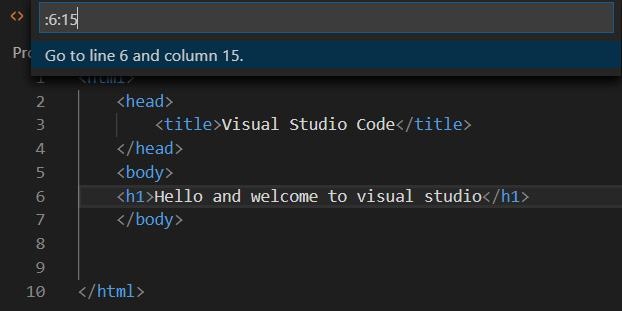
Figure 1.43 – Using the command palette to move cursor to a line and column

Figure 1.43 – Using the command palette to move cursor to a line and column

Go to symbol

To show the symbols used in your code and to navigate directly to a selected symbol, you can use Go to Symbol (@) in a File.

Also, while you are traversing, VS Code will highlight the code section, as illustrated in the following screenshot:
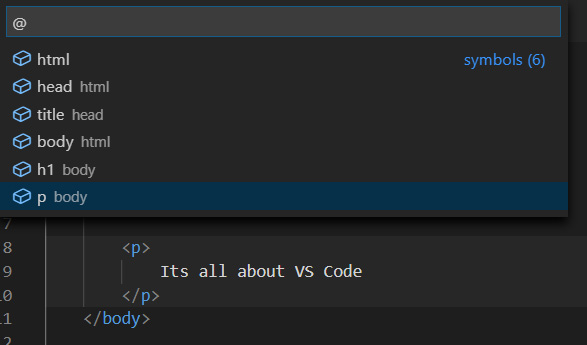
Figure 1.44 – Using the command palette to jump to a section of code

Figure 1.44 – Using the command palette to jump to a section of code

In the case of JavaScript, the command palette will show methods, as illustrated in the following screenshot:
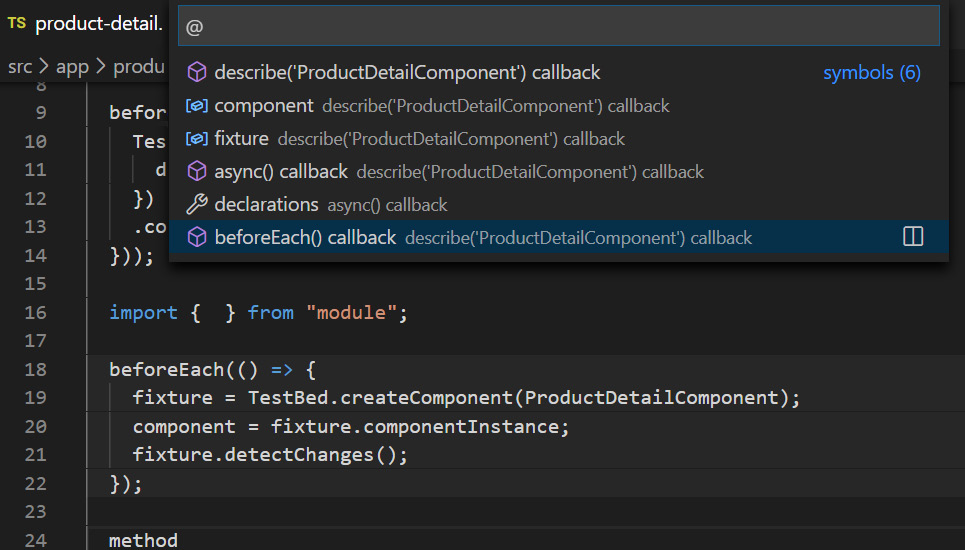
Figure 1.45 – Jump to code section in a JavaScript example

Figure 1.45 – Jump to code section in a JavaScript example

Using commands for navigation

Here are some useful commands for quick code navigation:

  • Ctrl/Command + F12: Use this command to select an object and jump to its implementation.
  • Ctrl/Command + Shift + F12: This is a quick way to peek into an implementation. The pop-up window also allows code editing. This is illustrated in the following screenshot:
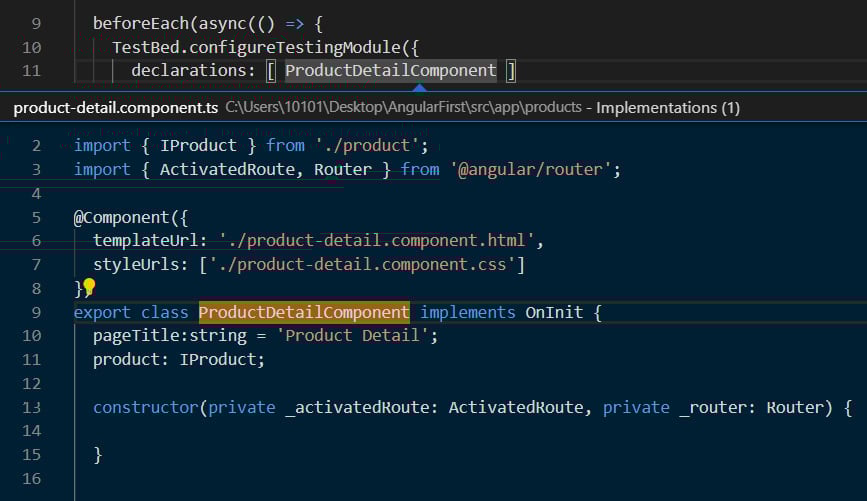
Figure 1.46 – Peek into an implementation

Figure 1.46 – Peek into an implementation

The preceding screenshot shows an example where the ProductDetailComponent implementation is open in Quick Peek mode.

Navigating between files

VS Code provides multiple options for navigating between different files. Let's assume you have a bunch of files open in your editor. To select a particular file from currently opened files, hold Ctrl and then press Tab. VS Code will open a list of files, and you can move your selection by holding Ctrl and pressing Tab. An example list of files can be seen in the following screenshot:
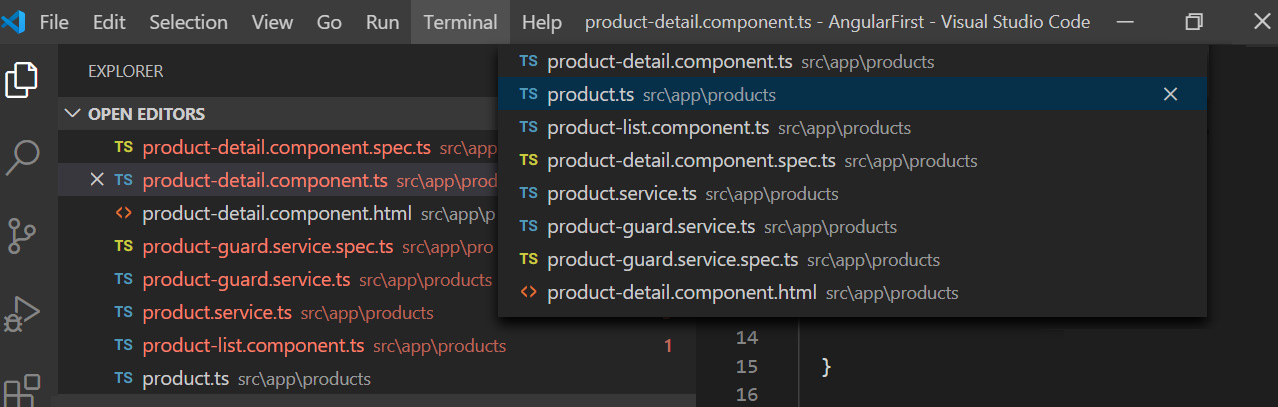
Figure 1.47 – Files listed for navigation

Figure 1.47 – Files listed for navigation

Apart from using Ctrl (hold) + Tab, you can also sequentially switch between multiple files opened in the editor.

Use Alt/Option + Right Arrow or Alt/Option + Left Arrow to switch from one file to other opened files.

Commenting code

Last but definitely not least, how to quickly comment and uncomment code by using the following keyboard shortcuts:

  • Ctrl/Command + K then C: Use this command to comment a line.
  • Ctrl/Command + K then U: Use this command to uncomment a line.
CONTINUE READING
83
Tech Concepts
36
Programming languages
73
Tech Tools
Icon Unlimited access to the largest independent learning library in tech of over 8,000 expert-authored tech books and videos.
Icon Innovative learning tools, including AI book assistants, code context explainers, and text-to-speech.
Icon 50+ new titles added per month and exclusive early access to books as they are being written.
Developing Multi-Platform Apps with Visual Studio Code
You have been reading a chapter from
Developing Multi-Platform Apps with Visual Studio Code
Published in: Sep 2020
Publisher: Packt
ISBN-13: 9781838822934
Register for a free Packt account to unlock a world of extra content!
A free Packt account unlocks extra newsletters, articles, discounted offers, and much more. Start advancing your knowledge today.
Unlock this book and the full library FREE for 7 days
Get unlimited access to 7000+ expert-authored eBooks and videos courses covering every tech area you can think of
Renews at €18.99/month. Cancel anytime
Modal Close icon
Modal Close icon