


Navigating around SQL Developer
SQL Developer has a selection of windows, navigators, and tabs. On start-up, you are presented with the main navigator toolbars and menus:
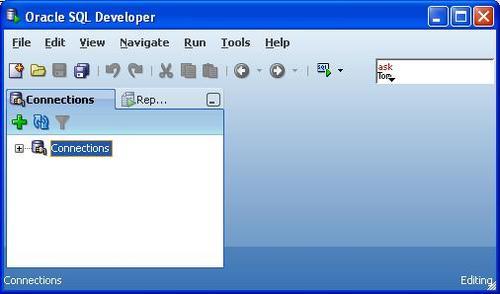
The two main navigators: Connections and Reports, are presented in a tabbed window. These and other navigators, such as the Versioning Navigator, are available through the main View menu. You can also open windows such as Snippets, Recent Objects, and Find DB Objects using the View menu.
Note
Any navigators that you open during a session, and that are still open when you close the product, are automatically opened when you restart the product.
Managing SQL Developer windows
With the exception of the SQL Worksheet and its associated tabs, all of the main tabbed dialogs can be minimized or maximized and accessed while docked or undocked. These menu controls are available through context menus in the tabs:
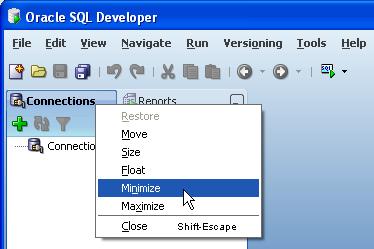
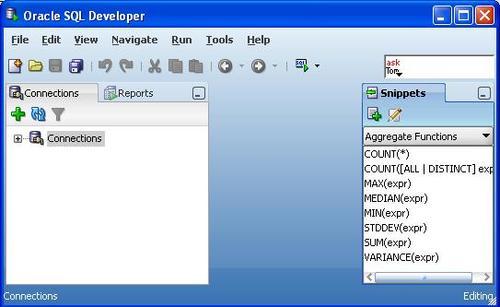
You can rearrange tabbed windows by selecting and dragging the tab into place. Once any window is minimized, roll your mouse over the minimized tab to display a floating window that stays active while your mouse lies over it and rolls back into place when you move off. This is very useful when working with temporary windows such as Snippets and Find DB Object. The following screenshot shows the floating window for the Snippets dialog. If you roll the mouse over the area, you can work in the window (for example, navigating about until you have located the snippet of code you are after, and then drag the code onto the worksheet). The window will minimize out of the way once you have moved off it.
You can undock the floating window, move it off to one side, and keep it undocked while you work with the SQL Worksheet. In a dual-monitor setup, you can drag the floating window onto one monitor, while working with the SQL Worksheet on the other monitor.
Tiling windows
Once you start working with connections, you have more windows and tabs to deal with, especially if you have more than one connection created. Select the HR_11g connection created in the previous section, expand the connection and Tables node, and select EMPLOYEES. In the table definition window, select the pin button, as shown below, to freeze the view.
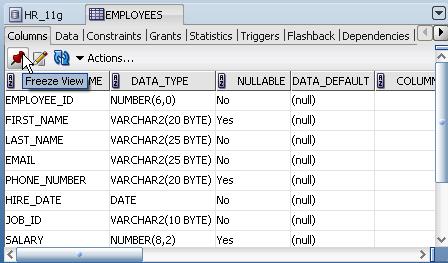
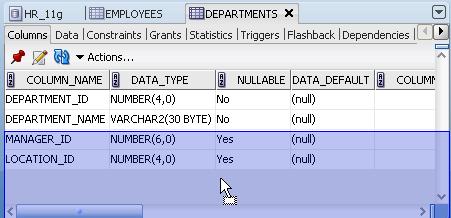
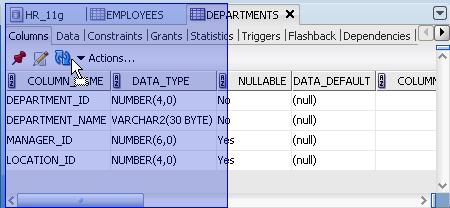
Now, select the DEPARTMENTS table. A second table definition window opens to display the details from the new table. Select the DEPARTMENTS tab and drag it down to the lower portion of the screen. Notice the shape of the dragged object change as you drag it slightly to the left, to the center, and the lower portion of the window. Each of the shapes represents a different layout position. Release the mouse to secure the new position. The screenshots, which follow, display two of the available positions:
Splitting documents
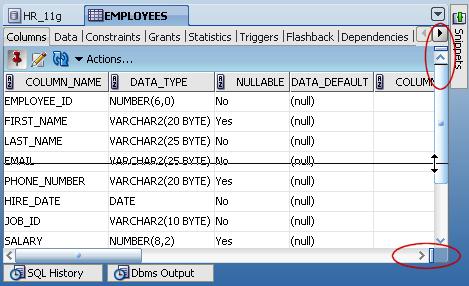
When you tile windows, you can compare the details of two tables. However, as each table has a selection of tabs, it's useful to be able to review details in the tabs without having to switch back and forth between tabs. As is true for other layout features, you can split the document using a menu, or by drag-and-drop. Each of the object definitions tabbed displays has a drag bar on the top and bottom right that you can select and drag to split the window horizontally, or vertically:
Maximizing detail
Almost all of the tabs in SQL Developer will maximize when double-clicked. There are a few that do not follow this rule, such as the tabs related to the SQL Worksheet. In general, this works for top-level tabs, which is any tab you can undock and move about, and not for secondary tabs. To maximize a tab, double-click on the tab. A second double-click will reverse the process.
Note
Double-click on the tab to maximize a top-level tab. Double-click again to revert to the previous layout.
Resetting the window layout
If you move your windows about a great deal, you may find that you want to get things back to the default settings.
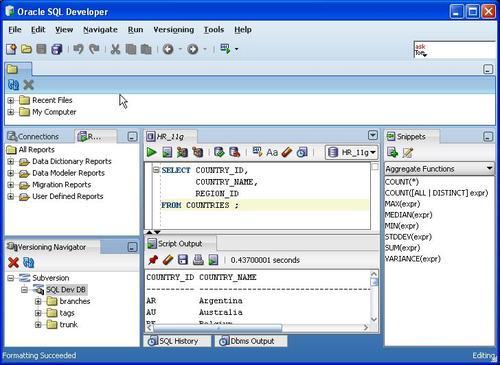
The example in the following screenshot displays the standard docked Connections and Reports windows to the left. We have also opened the Versioning Navigator, which by default docks below the connections. We have also docked the Snippets window to the right. These windows fill the columns to the left and right, leaving a central window for the editors and log files.
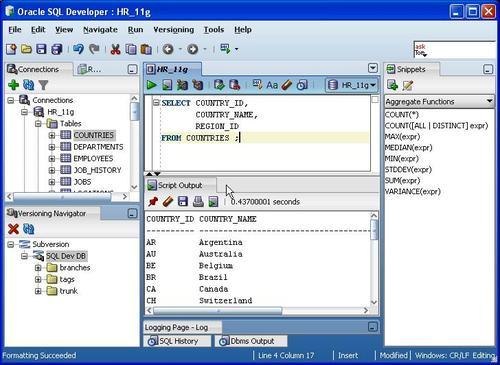
The layout is controlled by the window layout set in the preferences. Select Tools | Preferences, under the Environment node in the tree select Dockable Windows. The default layout, and the one that matches the example in the previous screenshot, is shown in the following screenshot:
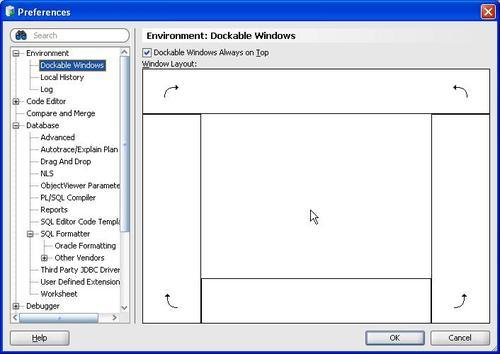
Each of the little curved arrows on the diagram is clickable, and as such controls the positioning of the windows. Clicking on the arrow extends or contracts the area taken up by the docked window.
In our example, and in the default SQL Developer environment, there is no full-docked window across the top of the screen. However, if you drag a window into the docked position below the main tool bar, it would stretch across the screen, as shown in the following screenshot:
If you find your windows are in a muddle, first verify that the Dockable Windows layout is what you want, and then drag the various dockable windows back into place. Some suggestions on the SQL Developer forum are to remove the system folder (it works, but that's an extreme solution).