(For more resources related to this topic, see here.)
Microsoft announced a three-tier RoleTailored client (RTC) with Version 2009. As from Version 2013, Microsoft offers only three-tier RTC with NAV. In RTC, the object of type "FORM" is replaced by "PAGE". Pages provide the core way to interact with an NAV RoleTailored client. The business logic called by the page is executed on the NAV Server tier, whereas previously, the form was used by the client system to execute the business logic.
A page and form share lots of similarities in terms of properties, triggers, and controls. Some controls and features are reintroduced with a new presentation style and name. For example, "buttons" become "actions", "Tab Control" becomes "FastTabs", and "Zoom" is known as "About this Page". The following screenshot will help you to understand new naming conventions of page controls:

The preceding screenshot is of the Role Center page for the Sales Order Processor profile. With NAV 2013, we received 21 profiles and 21 Role Center pages, designed considering each profile work area. The following screenshot also gives additional information about the same profile:

Updating the subform page from a parent page
The subform page only reloads data when it knows it needs to. Unfortunately, it is not very smart. This recipe will show you how to force a subform page to refresh itself.
How to do it...
- Create a new page from Object Designer.
- Choose the Create Blank Page option to design a page from scratch.
- Add the following global variables to the page:
| Name |
Type |
| A |
Integer |
| B |
Integer |
- Next, add a global function called SetValues.
- Add the following parameters to the function:
| Name |
Type |
| Aparam |
Integer |
| Bparam |
Integer |
- Now add the following code to the function.
A := Aparam;
B := Bparam;
- Add another global function called UpdateSelf.
- Then add the following code to the function:
CurrPage.UPDATE;
- From the Page Designer window, set the following page property (Shift+ F4):
| Property |
Value |
| PageType |
CardPart |
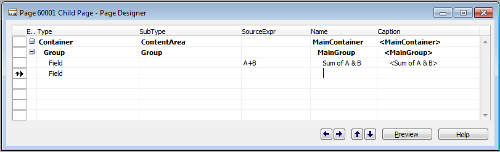
- Add the following variables in the Page Designer window:
| Type |
SubType |
SourceExpr |
Name |
| Container |
ContentArea |
|
MainContainer |
| Group |
Group |
|
MainGroup |
| Field |
|
A+B |
Sum of A & B |
- After the previous configuration and coding, Page Designer will look similar to the following screenshot:
- Save and close the page (for later use, remember the ID it is saved under).
- Now let's create another new page using Object Designer.
- Then add the following global variables:
| Name |
Type |
| A |
Integer |
| B |
Integer |
- Later, add the following variables in the Page Designer window:
| Type |
SubType |
SourceExpr |
Name |
| Container |
ContentArea |
|
MainContainer |
| Group |
Group |
|
MainGroup |
| Field |
|
A |
Value For A |
| Field |
|
B |
Value For B |
| Part |
Page |
|
ChildPage |
- Make sure all controls are indented under Container as shown in the following screenshot:

- Next, in the OnValidate trigger for each field, add the following code:
CurrPage.ChildPage.PAGE.SetValues(A,B);
CurrPage.ChildPage.PAGE.UpdateSelf;
- In the next row, add the value Part for the column Type, and for the column SubType add value as Page.
- Set the following properties for the Part section (Shift+ F4):
| Property |
Value |
| Name |
ChildPage |
| PagePartID |
The ID of the page you just created |
- Finally save and close the page.
- On execution of the page, you will see a window similar to the following screenshot:

How it works...
To understand the concepts behind this recipe, we will use the following figure:

The main page knows only about things that are directly on itself, that is, two integer variables and a subform page. The main page can request the subform page to return some values and can also tell the subform page to set values if it needs to, but it cannot do it directly. The subform page can only be of type CardPart or ListPart.
Also, the subform page knows only about things that are on its own page. These include the two integer variables (completely different than the two integer variables on the main page), the SetValues function, and the UpdateSelf function. While the main page can request information from the subform page, the opposite does not hold true. The subform page knows nothing about the main page.
That explains why we add code where we do. For the subform page to display the sum of A and B, we have to tell it what the values of A and B are. Remember that just changing the values on the main page is not enough. That's why we have the SetValues function. We call this function every time the values are changed (OnValidate) in the main form.
That again is not enough, though. Just because the values have changed in the subform page, it doesn't mean the subform page is smart enough to understand that it must display the new information. Ordinarily, you would have to click on the subform page (or select it; you can do anything that makes it the active control on the page) for it to refresh. You can also do this with code, using the CurrPage.UPDATE command.
Creating a FactBox page
In RTC, we can see small boxes on the right-hand side of the pages, which display brief information about the current record. To maintain the standard NAV GUI in customized pages, it is suggested to add FactBox related to the pages. In this recipe, we will create a FactBox page based on Item table and add it on the default Item List page.
How to do it...
- Create a new page from Object Designer.
- Leave the Table Name field blank and choose the Create Blank Page option to design a page from scratch.
- From the Page Designer window, set the following page properties (Shift+ F4):
| Property |
Value |
| PageType |
CardPart |
| SourceTable |
Item |
- Add the following variables in the Page Designer window:
| Type |
SubType |
SourceExpr |
Name |
| Container |
ContentArea |
|
MainContainer |
| Field |
|
"No." |
<No.> |
| Field |
|
Description |
<Description> |
| Field |
|
Inventory |
<Inventory> |
- The indented Page Designer window will look similar to the following screenshot:

- Save and close the page (for later use, remember the ID it is saved under).
- Choose page 31(Item List) in Object Designer and click on the Design button.
- At the end of Page Designer, under FactBoxArea, add a new Part of type Page.
- Now set the following properties for Part (Shift+ F4):
| Property |
Value |
| PagePartID |
The ID of the page you just created |
| SubPageLink |
No.=FIELD(No.) |
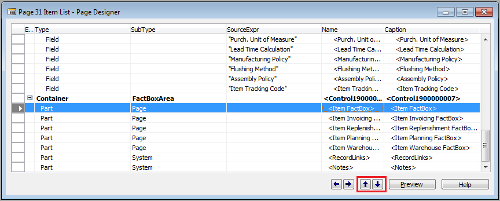
- To adjust the sequence of FactBoxes, use the up and down arrow buttons.
- Save, close, and run the page. You should find your FactBox in the Item List page.

How it works...
FactBox is nothing but a subform page; that's why the page type has to be a CardPart or ListPart page. We have created our page based on the Item table with three simple fields. As we are assigning the Inventory field directly to a control, even though it is of type flowfield, we do not need to explicitly calculate it using CALCFIELD.
To use our new subform page as FactBox, it's important to add it under a container of type FactBoxArea. To set the first position (by default), we used indentation buttons. Users can use the personalization functionality of RTC and rearrange the position of FactBox as per their convenience.
To associate the FactBox data with the main page's record, we need to set up the relation between the main page and the FactBox page. To achieve this, we used the SubPageLink property. If we do not set this property, we will see that of all the item records, FactBox displays information of only the first record.
There's more...
Microsoft suggests using the word "FactBox" as a suffix for all the FactBox pages. It will help to identify these pages easily.
See also
- Creating a Queue page
- Creating a Role Center page
Creating a Queue page
The Queue page is a part of the Role Center page. This recipe will help us to create a Queue page, which we will be utilizing in our next recipe, Creating a Role Center page.
How to do it...
- Create a new blank page from Object Designer.
- Set the properties of the page as follows:
| Property |
Value |
| Caption |
Activities |
| PageType |
CardPart |
| SourceTable |
Sales Cue |
- Add the following variables in the Page Designer window:
| Type |
SubType |
SourceExpr |
Name |
Caption |
| Container |
ContentArea |
|
MainContainer |
<MainContainer> |
| Group |
CueGroup |
|
ForReleaseGroup |
For Release |
| Field |
|
"Sales
Quotes - Open" |
OpenQuotes |
Open Sales Quotes |
| Field |
|
"Sales
Orders - Open" |
OpenOrders |
Open Sales Orders |
- Set the following property in the OpenQuotes line:
| Property |
Value |
| DrillDownPageID |
Sales Quotes |
- Set the following property in the OpenOrders line:
| Property |
Value |
| DrillDownPageID |
Sales List |
- After the previous configuration and coding, our page should look similar to the following screenshot:

- Keep the cursor on the ForReleaseGroup line and navigate to View | Control Actions.
- Then add the following variables:
| Type |
Name |
Caption |
| Action |
Action1 |
New Sales Quote |
| Action |
Action2 |
New Sales Order |
- Set the following property in the New Sales Quote line:
| Property |
Value |
| RunObject |
Page Sales Quotes |
- Set the following property in the New Sales Order line:
| Property |
Value |
| RunObject |
Page Sales Order |
- Compile, save, and close the page.
- When you run the page, you will see a window similar to the following screenshot:

How it works...
The first part of the Role Center is known as activities. This is where the users look to know what actions they need to perform. The activities are built on top of special tables known as cues. These cue tables are made mostly of FlowFields and FlowFilters. We are going to build our activities part on the Sales Cue table. It should display any Open Sales documents we are working on.
By adding the Group line to our page and specifying SubType as CueGroup, we tell the RTC to display the fields indented beneath it in a specific way. Activities are displayed as stacks of paper that grow and shrink based on the numbers returned by the FlowFields in the cue table. Additionally, in order to provide the same type of data access that you would gain on a form, we specify DrillDownFormID for each of the fields or activities. We can also define actions on our group lines. In this example we have created simple links to create new sales quotes and sales orders.
See also
- Creating a FactBox page
- Creating a Role Center page
- Adding a chart to the page
Creating a Role Center page
The Role Center is like a dashboard that displays data and functionality related to a specific user role. This recipe will show you how to create a Role Center page for the new RTC.
How to do it...
- Create a new page from Object Designer.
- Set the properties of the page as follows:
| Property |
Value |
| PageType |
RoleCenter |
Unlock access to the largest independent learning library in Tech for FREE!
Get unlimited access to 7500+ expert-authored eBooks and video courses covering every tech area you can think of.
Renews at $19.99/month. Cancel anytime
- Add the following variables in the Page Designer window:
| Type |
SubType |
SourceExpr |
Name |
| Container |
RoleCenterArea |
|
Content |
| Group |
Group |
|
LeftSide |
| Part |
Page |
|
Activities |
| Part |
System |
|
Outlook |
| Group |
Group |
|
RightSide |
| Part |
Page |
|
MyCustomers |
| Part |
Page |
|
MyItems |
| Part |
System |
|
MyNotes |
- All of the previous lines should be indented as shown in the following screenshot:

- Now set the following properties in the Activities line
| Property |
Value |
| PartType |
Page |
| PagePartID |
The Queue ID of the Activities page that we created in the previous recipe |
- Then set the following properties in the Outlook line:
| Property |
Value |
| PartType |
System |
| SystemPartID |
Outlook |
- Set the following properties in the MyCustomers line:
| Property |
Value |
| PartType |
Page |
| PagePartID |
My Customers |
- Set the following properties in the MyItems line:
| Property |
Value |
| PartType |
Page |
| PagePartID |
My Items |
- Set the following properties in the MyNotes line:
| Property |
Value |
| PartType |
System |
| SystemPartID |
Notes |
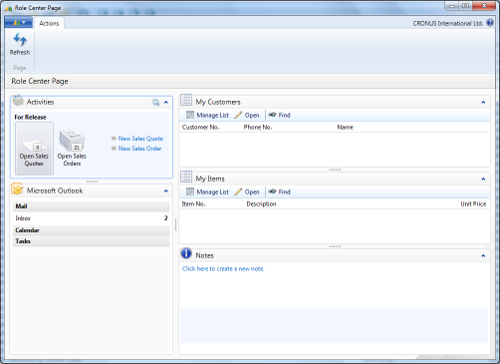
- Compile, save, and close the page. The resulting Role Center should look similar to the one shown in the following screenshot:
How it works...
We begin with a container, but this time we set the SubType field to RoleCenterArea. This essentially divides the page vertically into a left and right section. We add groups for each of these sections and then choose what to display.
Deciding what to display is fairly straightforward. Instead of adding fields to our group, we add parts. First we choose what type of part will be shown. For our activities, this will be a Page object, so we set the PartType property to Page and PagePartID to the object ID of the page. Directly beneath that part, we are displaying the built-in Outlook part. For this, we set the PartType property to System, because it comes with NAV, and the SystemPartID property to Outlook. The right-hand side is made up of similar parts.
For more details on the PartType option, visit the following URL:
http://msdn.microsoft.com/en-us/library/dd355029(v=nav.70).aspx
See also
- Creating a FactBox page
- Creating a Queue page
Creating a wizard page
A wizard is a page that takes you through specific sections using the Next and Back buttons. Here we will show you how to design a page that will do exactly that.
How to do it...
- Create a new blank page from Object Designer.
- Set the properties of the page as follows:
| Property |
Value |
| PageType |
NavigatePage |
- Create the following global variables:
| Name |
Type |
Length |
| FullName |
Text |
200 |
| Address |
Text |
200 |
| DateofBirth |
Date |
|
| ContactNo |
Text |
30 |
| BackEnable |
Boolean |
|
| NextEnable |
Boolean |
|
| FinishEnable |
Boolean |
|
| Step1Visible |
Boolean |
|
| Step2Visible |
Boolean |
|
| Step3Visible |
Boolean |
|
| Step4Visible |
Boolean |
|
- Add the following variables in Page Designer:
| Type |
SubType |
SourceExpr |
Name |
| Container |
ContentArea |
|
Content |
| Group |
Group |
|
Step1 |
| Field |
|
FullName |
Enter Your Full Name |
| Group |
Group |
|
Step2 |
| Field |
|
Address |
Enter Your Present Address |
| Group |
Group |
|
Step3 |
| Field |
|
DateofBirth |
Enter Your Date of Birth |
| Group |
Group |
|
Step4 |
| Field |
|
ContactNo |
Enter Your Contact no. |
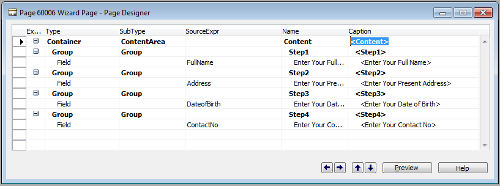
- They should be indented as shown in the following screenshot:
- Select Group and Step1 and set the Enable property with a value Step1Visible.
- Select Group and Step2 and set the Enable property with a value Step2Visible.
- Select Group and Step3 and set the Enable property with a value Step3Visible.
- Select Group and Step4 and set the Enable property with a value Step4Visible.
- Then navigate to View | Page Actions (Ctrl+ Alt+ F4) to add actions on the page.
- In Action Designer, add the following variables:
| Type |
Name |
Caption |
| Action |
Action1 |
&Back |
| Action |
Action2 |
&Next |
| Action |
Action3 |
&Finish |
- Set the following properties for Action1:
| Property |
Value |
| Enabled |
BackEnable |
| Image |
PreviousRecord |
| InFooterBar |
Yes |
- Set the following properties for Action2:
| Property |
Value |
| Enabled |
NextEnable |
| Image |
NextRecord |
| InFooterBar |
Yes |
- Set the following properties for Action3:
| Property |
Value |
| Enabled |
FinishEnable |
| Image |
Approve |
| InFooterBar |
Yes |
- Add this code on the action trigger of Action1:
DoStep(CurrentStep-1);
CurrPage.UPDATE;
- Add this code on the action trigger of Action2 and Action3:
DoStep(CurrentStep+1);
CurrPage.UPDATE;
- Next, create a new function DoStep.
- Add the following parameters to the function:
- Add the following code to the function:
CurrentStep:=Step;
CASE Step OF
1:
BEGIN
Step1Visible:=TRUE;
Step2Visible:=FALSE;
BackEnable := FALSE;
NextEnable := TRUE;
FinishEnable := FALSE;
END;
2:
BEGIN
Step2Visible:=TRUE;
Step1Visible:=FALSE;
Step3Visible:=FALSE;
BackEnable := TRUE;
NextEnable := TRUE;
FinishEnable := FALSE;
END;
3:
BEGIN
Step3Visible:=TRUE;
Step2Visible:=FALSE;
Step4Visible:=FALSE;
BackEnable := TRUE;
NextEnable := TRUE;
FinishEnable := FALSE;
END;
4:
BEGIN
Step4Visible:=TRUE;
Step3Visible:=FALSE;
BackEnable := TRUE;
NextEnable := FALSE;
FinishEnable := TRUE;
END;
5:
BEGIN
MESSAGE('%1%2%3%4',FullName,Address,
DateofBirth,ContactNo);
CurrPage.CLOSE;
END
END;
CurrPage.UPDATE;
- To start with step 1, add the following code to the OnOpenPage trigger:
DoStep(1);
- Compile, save, and close the page.
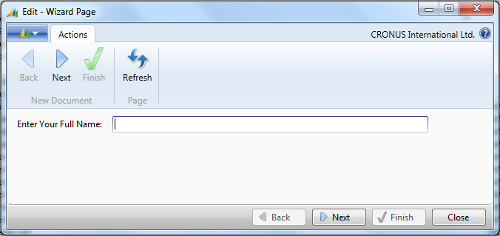
- When you run the page, you will see a window similar to the following screenshot:
How it works...
The page contains four steps, only one of which is visible at any given time. To control this, we assigned a Boolean variable to all the StepxVisible properties. To control the movement of steps, we need to control our actions. To achieve this, we added other Boolean variables to the Enable property of our actions.
Our custom function DoStep decides what should be visible and what should not. It is just a large CASE statement based on the Step variable. In the first frame, for example, we can't move backwards to disable the Back button. We can't finish until we get to the last frame, so the Finish button is disabled until that point.
In the Back and Next buttons, we decrement and increment the Step variable, so that the DoStep function knows what to do. To keep track of the current step, we assign a value to the global CurrentStep variable; on the back action, we subtract 1 whereas on the next action we add 1 into CurrentStep.
Summary
This article provides an overview of how to create different pages using RTC. The pages provide a core way to interact with NAV RTC.
Resources for Article :
Further resources on this subject:


 United States

 Great Britain
 India
India
 Germany
 France
 Canada
 Russia
 Spain
Spain
 Brazil
 Australia
 Singapore
 Canary Islands
 Hungary
 Ukraine
 Luxembourg
 Estonia
 Lithuania
 South Korea
 Turkey
 Switzerland
 Colombia
 Taiwan
 Chile
Chile
 Norway
 Ecuador
 Indonesia
 New Zealand
 Cyprus
 Denmark
 Finland
 Poland
 Malta
Malta
 Czechia
 Austria
 Sweden
 Italy
Italy
 Egypt
Egypt
 Belgium
 Portugal
 Slovenia
 Ireland
 Romania
 Greece
 Argentina
 Netherlands
 Bulgaria
 Latvia
 South Africa
 Malaysia
 Japan
Japan
 Slovakia
 Philippines
 Mexico
 Thailand