Search icon CANCEL
Subscription
0
Cart icon
Your Cart (0 item)
Close icon
You have no products in your basket yet
Save more on your purchases! discount-offer-chevron-icon
Savings automatically calculated. No voucher code required.
Arrow left icon
Explore Products
Best Sellers
New Releases
Books
Videos
Audiobooks
Learning Hub
Newsletter Hub
Free Learning
Arrow right icon
timer SALE ENDS IN
0 Days
:
00 Hours
:
00 Minutes
:
00 Seconds
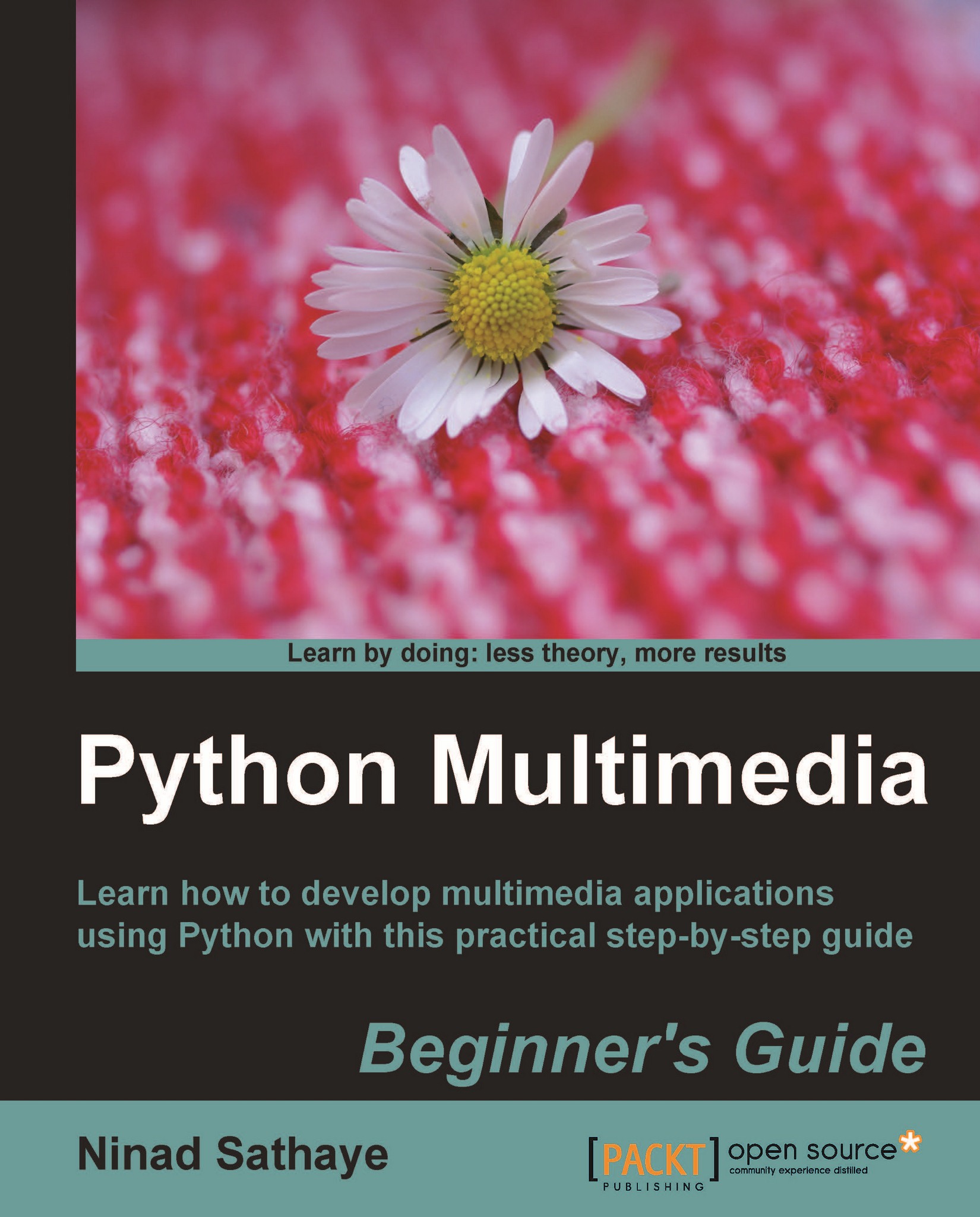
Python Multimedia
Python Multimedia

Python Multimedia: Learn how to develop Multimedia applications using Python with this practical step-by-step guide

Arrow left icon
Profile Icon Ninad Sathaye
Arrow right icon
Can$64.99
Full star icon Full star icon Full star icon Empty star icon Empty star icon 3 (3 Ratings)
Paperback Aug 2010 292 pages 1st Edition
eBook
Can$46.79 Can$51.99
Paperback
Can$64.99
Subscription
Free Trial
Arrow left icon
Profile Icon Ninad Sathaye
Arrow right icon
Can$64.99
Full star icon Full star icon Full star icon Empty star icon Empty star icon 3 (3 Ratings)
Paperback Aug 2010 292 pages 1st Edition
eBook
Can$46.79 Can$51.99
Paperback
Can$64.99
Subscription
Free Trial
eBook
Can$46.79 Can$51.99
Paperback
Can$64.99
Subscription
Free Trial

What do you get with Print?

Product feature icon Instant access to your digital copy whilst your Print order is Shipped
Product feature icon Paperback book shipped to your preferred address
Product feature icon Redeem a companion digital copy on all Print orders
Product feature icon Access this title in our online reader with advanced features
Product feature icon DRM FREE - Read whenever, wherever and however you want
Modal Close icon
Payment Processing...
tick Completed

Shipping Address

Billing Address

Shipping Methods
Table of content icon View table of contents Preview book icon Preview Book

Python Multimedia

Chapter 2. Working with Images

In this chapter, we will learn basic image conversion and manipulation techniques using the Python Imaging Library. The chapter ends with an exciting project where we create an image processing application.

In this chapter, we shall:

  • Learn various image I/O operations for reading and writing images using the Python Imaging Library (PIL)
  • With the help of several examples and code snippets, perform some basic manipulations on the image, such as resizing, rotating/ flipping, cropping, pasting, and so on.
  • Write an image-processing application by making use of PIL
  • Use the QT library as a frontend (GUI) for this application

So let's get on with it!

Installation prerequisites

Before we jump in to the main chapter, it is necessary to install the following packages.

Python

In this book we will use Python Version 2.6, or to be more specific, Version 2.6.4. It can be downloaded from the following location: http://python.org/download/releases/

Windows platform

For Windows, just download and install the platform-specific binary distribution of Python 2.6.4.

Other platforms

For other platforms, such as Linux, Python is probably already installed on your machine. If the installed version is not 2.6, build and install it from the source distribution. If you are using a package manager on a Linux system, search for Python 2.6. It is likely that you will find the Python distribution there. Then, for instance, Ubuntu users can install Python from the command prompt as:

$sudo apt-get python2.6

Note that for this, you must have administrative permission on the machine on which you are installing Python.

Python Imaging Library (PIL)

We will learn image-processing...

Reading and writing images

To manipulate an existing image, we must open it first for editing and we also require the ability to save the image in a suitable file format after making changes. The Image module in PIL provides methods to read and write images in the specified image file format. It supports a wide range of file formats.

To open an image, use Image.open method. Start the Python interpreter and write the following code. You should specify an appropriate path on your system as an argument to the Image.open method.

>>>import Image
>>>inputImage = Image.open("C:\\PythonTest\\image1.jpg")

This will open an image file by the name image1.jpg. If the file can't be opened, an IOError will be raised, otherwise, it returns an instance of class Image.

For saving image, use the save method of the Image class. Make sure you replace the following string with an appropriate /path/to/your/image/file.

>>>inputImage.save("C:\\PythonTest\\outputImage...

Time for action – image file converter

With this basic information, let's build a simple image file converter. This utility will batch-process image files and save them in a user-specified file format.

To get started, download the file ImageFileConverter.py from the Packt website, www.packtpub.com. This file can be run from the command line as:

python ImageConverter.py [arguments] 

Here, [arguments] are:

  • --input_dir: The directory path where the image files are located.
  • --input_format: The format of the image files to be converted. For example, jpg.
  • --output_dir: The location where you want to save the converted images.
  • --output_format: The output image format. For example, jpg, png, bmp, and so on.

The following screenshot shows the image conversion utility in action on Windows XP, that is, running image converter from the command line.

Here, it will batch-process all the .jpg images within C:\PythonTest\images and save them in png format in the directory C:\PythonTest\images\OUTPUT_IMAGES...

Time for action – creating a new image containing some text

As already stated, it is often useful to generate an image containing only some text or a common shape. Such an image can then be pasted onto another image at a desired angle and location. We will now create an image with text that reads, "Not really a fancy text!"

  1. Write the following code in a Python source file:
    1 import Image
    2 import ImageDraw
    3 txt = "Not really a fancy text!"
    4 size = (150, 50)
    5 color = (0, 100, 0)
    6 img = Image.new('RGB', size, color)
    7 imgDrawer = ImageDraw.Draw(img)
    8 imgDrawer.text((5, 20), txt)9 img.show()
  2. Let's analyze the code line by line. The first two lines import the necessary modules from PIL. The variable txt is the text we want to include in the image. On line 7, the new image is created using Image.new. Here we specify the mode and size arguments. The optional color argument is specified as a tuple with RGB values pertaining to the "dark green&quot...

Installation prerequisites


Before we jump in to the main chapter, it is necessary to install the following packages.

Python

In this book we will use Python Version 2.6, or to be more specific, Version 2.6.4. It can be downloaded from the following location: http://python.org/download/releases/

Windows platform

For Windows, just download and install the platform-specific binary distribution of Python 2.6.4.

Other platforms

For other platforms, such as Linux, Python is probably already installed on your machine. If the installed version is not 2.6, build and install it from the source distribution. If you are using a package manager on a Linux system, search for Python 2.6. It is likely that you will find the Python distribution there. Then, for instance, Ubuntu users can install Python from the command prompt as:

$sudo apt-get python2.6

Note that for this, you must have administrative permission on the machine on which you are installing Python.

Python Imaging Library (PIL)

We will learn image-processing...

Reading and writing images


To manipulate an existing image, we must open it first for editing and we also require the ability to save the image in a suitable file format after making changes. The Image module in PIL provides methods to read and write images in the specified image file format. It supports a wide range of file formats.

To open an image, use Image.open method. Start the Python interpreter and write the following code. You should specify an appropriate path on your system as an argument to the Image.open method.

>>>import Image
>>>inputImage = Image.open("C:\\PythonTest\\image1.jpg")

This will open an image file by the name image1.jpg. If the file can't be opened, an IOError will be raised, otherwise, it returns an instance of class Image.

For saving image, use the save method of the Image class. Make sure you replace the following string with an appropriate /path/to/your/image/file.

>>>inputImage.save("C:\\PythonTest\\outputImage.jpg")

You can view...

Time for action – image file converter


With this basic information, let's build a simple image file converter. This utility will batch-process image files and save them in a user-specified file format.

To get started, download the file ImageFileConverter.py from the Packt website, www.packtpub.com. This file can be run from the command line as:

python ImageConverter.py [arguments] 

Here, [arguments] are:

  • --input_dir: The directory path where the image files are located.

  • --input_format: The format of the image files to be converted. For example, jpg.

  • --output_dir: The location where you want to save the converted images.

  • --output_format: The output image format. For example, jpg, png, bmp, and so on.

The following screenshot shows the image conversion utility in action on Windows XP, that is, running image converter from the command line.

Here, it will batch-process all the .jpg images within C:\PythonTest\images and save them in png format in the directory C:\PythonTest\images\OUTPUT_IMAGES.

The...

Time for action – creating a new image containing some text


As already stated, it is often useful to generate an image containing only some text or a common shape. Such an image can then be pasted onto another image at a desired angle and location. We will now create an image with text that reads, "Not really a fancy text!"

  1. Write the following code in a Python source file:

    1 import Image
    2 import ImageDraw
    3 txt = "Not really a fancy text!"
    4 size = (150, 50)
    5 color = (0, 100, 0)
    6 img = Image.new('RGB', size, color)
    7 imgDrawer = ImageDraw.Draw(img)
    8 imgDrawer.text((5, 20), txt)9 img.show()
  2. Let's analyze the code line by line. The first two lines import the necessary modules from PIL. The variable txt is the text we want to include in the image. On line 7, the new image is created using Image.new. Here we specify the mode and size arguments. The optional color argument is specified as a tuple with RGB values pertaining to the "dark green" color.

  3. The ImageDraw module in PIL provides graphics...

Time for action – reading images from archives


Suppose there is an archive file images.tar containing image file image1.jpg. The following code snippet shows how to read image1.jpg from the tarball.

>>>import TarIO
>>>import Images
>>>fil = TarIO.TarIO("images.tar", "images/image1.jpg") 
>>>img = Image.open(fil)
>>>img.show()

What just happened?

We learned how to read an image located in an archived container.

Have a go hero – add new features to the image file converter

Modify the image conversion code so that it supports the following new functionality, which:

  1. Takes a ZIP file containing images as input

  2. Creates a TAR archive of the converted images

Basic image manipulations


Now that we know how to open and save images, let's learn some basic techniques to manipulate images. PIL supports a variety of geometric manipulation operations, such as resizing an image, rotating it by an angle, flipping it top to bottom or left to right, and so on. It also facilitates operations such as cropping, cutting and pasting pieces of images, and so on.

Resizing

Changing the dimensions of an image is one of the most frequently used image manipulation operations. The image resizing is accomplished using Image.resize in PIL. The following line of code explains how it is achieved.

foo = img.resize(size, filter)

Here, img is an image (an instance of class Image) and the result of resizing operation is stored in foo (another instance of class Image). The size argument is a tuple (width, height). Note that the size is specified in pixels. Thus, resizing the image means modifying the number of pixels in the image. This is also known as image re-sampling. The Image...

Time for action – resizing


Let's now resize images by modifying their pixel dimensions and applying various filters for re-sampling.

  1. Download the file ImageResizeExample.bmp from the Packt website. We will use this as the reference file to create scaled images. The original dimensions of ImageResizeExample.bmp are 200 x 212 pixels.

  2. Write the following code in a file or in Python interpreter. Replace the inPath and outPath strings with the appropriate image path on your machine.

    1 import Image
    2 inPath = "C:\\images\\ImageResizeExample.jpg"
    3 img = Image.open(inPath)
    4 width , height = (160, 160)
    5 size = (width, height)
    6 foo = img.resize(size)
    7 foo.show()
    8 outPath = "C:\\images\\foo.jpg"
    9 foo.save(outPath)
  3. The image specified by the inPath will be resized and saved as the image specified by the outPath. Line 6 in the code snippet does the resizing job and finally we save the new image on line 9. You can see how the resized image looks by calling foo.show().

  4. Let's now specify the filter argument...

Time for action – rotating


  1. Download the file Rotate.png from the Packt website. Alternatively, you can use any supported image file of your choice.

  2. Write the following code in Python interpreter or in a Python file. As always, specify the appropriate path strings for inPath and outPath variables.

    1 import Image
    2 inPath = "C:\\images\\Rotate.png"
    3 img = Image.open(inPath)
    4 deg = 45
    5 filterOpt = Image.BICUBIC
    6 outPath = "C:\\images\\Rotate_out.png"
    7 foo = img.rotate(deg, filterOpt)
    8 foo.save(outPath)
  3. Upon running this code, the output image, rotated by 45 degrees, is saved to the outPath. The filter option Image.BICUBIC ensures highest quality. The next illustration shows the original and the images rotated by 45 and 180 degrees respectively—the original and rotated images.

  4. There is another way to accomplish rotation for certain angles by using the Image.transpose functionality. The following code achieves a 270-degree rotation. Other valid options for rotation are Image.ROTATE_90 and Image...

Time for action – flipping


Imagine that you are building a symmetric image using a bunch of basic shapes. To create such an image, an operation that can flip (or mirror) the image would come in handy. So let's see how image flipping can be accomplished.

  1. Write the following code in a Python source file.

    1 import Image
    2 inPath = "C:\\images\\Flip.png"
    3 img = Image.open(inPath)
    4 outPath = "C:\\images\\Flip_out.png"
    5 foo = img.transpose(Image.FLIP_LEFT_RIGHT)
    6 foo.save(outPath)
  2. In this code, the image is flipped horizontally by calling the transpose method. To flip the image vertically, replace line 5 in the code with the following:

    foo = img.transpose(Image.FLIP_TOP_BOTTOM)
  3. The following illustration shows the output of the preceding code when the image is flipped horizontally and vertically.

  4. The same effect can be achieved using the ImageOps module. To flip the image horizontally, use ImageOps.mirror, and to flip the image vertically, use ImageOps.flip.

    import ImageOps
    
    # Flip image horizontally...

Time for action – capture screenshots at intervals


Imagine that you are developing an application, where, after certain time interval, the program needs to automatically capture the whole screen or a part of the screen. Let's develop code that achieves this.

  1. Write the following code in a Python source file. When the code is executed, it will capture part of the screen after every two seconds. The code will run for about three seconds.

    1 import ImageGrab
    2 import time
    3 startTime = time.clock()
    4 print "\n The start time is %s sec" % startTime
    5 # Define the four corners of the bounding box.
    6 # (in pixels)
    7 left = 150
    8 upper = 200
    9 right = 900
    10 lower = 700
    11 bbox = (left, upper, right, lower)
    12 
    13 while time.clock() < 3:
    14   print " \n Capturing screen at time %.4f sec" \
    15      %time.clock()
    16   screenShot = ImageGrab.grab(bbox)
    17   name = str("%.2f"%time.clock())+ "sec.png"
    18   screenShot.save("C:\\images\\output\\" + name)
    19   time.sleep(2)
  2. We will now review the important...

Time for action – cropping an image


This simple code snippet crops an image and applies some changes on the cropped portion.

  1. Download the file Crop.png from Packt website. The size of this image is 400 x 400 pixels. You can also use your own image file.

  2. Write the following code in a Python source file. Modify the path of the image file to an appropriate path.

    import Image
    img = Image.open("C:\\images\\Crop.png")
    left = 0
    upper = 0
    right = 180
    lower = 215
    bbox = (left, upper, right, lower)
    img = img.crop(bbox)
    img.show()
  3. This will crop a region of the image bounded by bbox. The specification of the bounding box is identical to what we have seen in the Capturing screenshots section. The output of this example is shown in the following illustration.

    Original image (left) and its cropped region (right).

What just happened?

In the previous section, we used Image.crop functionality to crop a region within an image and save the resultant image. In the next section, we will apply this while pasting a region...

Time for action – pasting: mirror the smiley face!


Consider the example in earlier section where we cropped a region of an image. The cropped region contained a smiley face. Let's modify the original image so that it has a 'reflection' of the smiley face.

  1. If not already, download the file Crop.png from the Packt website.

  2. Write this code by replacing the file path with appropriate file path on your system.

    1 import Image
    2 img = Image.open("C:\\images\\Crop.png")
    3 # Define the elements of a 4-tuple that represents
    4 # a bounding box ( region to be cropped)
    5 left = 0
    6 upper = 25
    7 right = 180
    8 lower = 210
    9 bbox = (left, upper, right, lower)
    10 # Crop the smiley face from the image
    11 smiley = img.crop(bbox_1)
    12 # Flip the image horizontally
    13 smiley = smiley.transpose(Image.FLIP_TOP_BOTTOM)
    14 # Define the box as a 2-tuple.
    15 bbox_2 = (0, 210)
    16 # Finally paste the 'smiley' on to the image.
    17 img.paste(smiley, bbox_2)
    18 img.save("C:\\images\\Pasted.png")
    19 img.show()
  3. First we open...

Project: Thumbnail Maker


Let's take up a project now. We will apply some of the operations we learned in this chapter to create a simple Thumbnail Maker utility. This application will accept an image as an input and will create a resized image of that image. Although we are calling it a thumbnail maker, it is a multi-purpose utility that implements some basic image-processing functionality.

Before proceeding further, make sure that you have installed all the packages discussed at the beginning of this chapter. The screenshot of the Thumbnail Maker dialog is show in the following illustration.

The Thumbnail Maker GUI has two components:

  1. The left panel is a 'control area', where you can specify certain image parameters along with options for input and output paths.

  2. A graphics area on the right-hand side where you can view the generated image.

In short, this is how it works:

  1. The application takes an image file as an input.

  2. It accepts user input for image parameters such as dimensions in pixel, filter...

Time for action – play with Thumbnail Maker application


First, we will run the Thumbnail Maker application as an end user. This warm-up exercise intends to give us a good understanding of how the application works. This, in turn, will help us develop/learn the involved code quickly. So get ready for action!

  1. Download the files ThumbnailMaker.py, ThumbnailMakeDialog.py, and Ui_ThumbnailMakerDialog.py from Packt website. Place these files in some directory.

  2. From the command prompt, change to this directory location and type the following command:

            python ThumbnailMakerDialog.py
    

    The Thumbnail Maker dialog that pops up was shown in the earlier screenshot. Next, we will specify the input-output paths and various image parameters. You can open any image file of your choice. Here, the flower image shown in some previous sections will be used as an input image. To specify an input image, click on the small button with three dots . It will open a file dialog. The following illustration shows...

Left arrow icon Right arrow icon

Key benefits

  • Use Python Imaging Library for digital image processing.
  • Create exciting 2D cartoon characters using Pyglet multimedia framework
  • Create GUI-based audio and video players using QT Phonon framework.
  • Get to grips with the primer on GStreamer multimedia framework and use this API for audio and video processing.

Description

Multimedia applications are used by a range of industries to enhance the visual appeal of a product. This book will teach the reader how to perform multimedia processing using Python. This step-by-step guide gives you hands-on experience for developing exciting multimedia applications using Python. This book will help you to build applications for processing images, creating 2D animations and processing audio and video. Writing applications that work with images, videos, and other sensory effects is great. Not every application gets to make full use of audio/visual effects, but a certain amount of multimedia makes any application a lot more appealing. There are numerous multimedia libraries for which Python bindings are available. These libraries enable working with different kinds of media, such as images, audio, video, games, and so on. This book introduces the reader to the most widely used open source libraries through several exciting, real world projects. Popular multimedia frameworks and libraries such as GStreamer,Pyglet, QT Phonon, and Python Imaging library are used to develop various multimedia applications.

Who is this book for?

This book is for Python developers who want to dip their toes into working with images, animations, audio and video processing using Python.

What you will learn

  • How to develop utilities for some frequently needed image processing operations such as resizing, brightness and contrast adjustment, flipping and rotating images, and so on.
  • How to digitally enhance images using image filters.
  • How to blend images together, creating watermarks, thumbnails, and so on.
  • How to write audio and video file format conversion utilities.
  • How to combine two or more audio tracks, mixing audio and video tracks.
  • How to develop an MP3 file cutter tool to extract a portion of audio.
  • How to separate audio and video tracks.
  • How to develop programs to record sound, visualize audio tracks, add special audio effects such as fading , echo, and so on.
  • How to save video frames as still images.
Estimated delivery fee Deliver to Canada

Economy delivery 10 - 13 business days

Can$24.95

Product Details

Country selected
Publication date, Length, Edition, Language, ISBN-13
Publication date : Aug 05, 2010
Length: 292 pages
Edition : 1st
Language : English
ISBN-13 : 9781849510165
Category :
Languages :
Tools :

What do you get with Print?

Product feature icon Instant access to your digital copy whilst your Print order is Shipped
Product feature icon Paperback book shipped to your preferred address
Product feature icon Redeem a companion digital copy on all Print orders
Product feature icon Access this title in our online reader with advanced features
Product feature icon DRM FREE - Read whenever, wherever and however you want
Modal Close icon
Payment Processing...
tick Completed

Shipping Address

Billing Address

Shipping Methods
Estimated delivery fee Deliver to Canada

Economy delivery 10 - 13 business days

Can$24.95

Product Details

Publication date : Aug 05, 2010
Length: 292 pages
Edition : 1st
Language : English
ISBN-13 : 9781849510165
Category :
Languages :
Tools :

Packt Subscriptions

See our plans and pricing
Modal Close icon
$19.99 billed monthly
Feature tick icon Unlimited access to Packt's library of 7,000+ practical books and videos
Feature tick icon Constantly refreshed with 50+ new titles a month
Feature tick icon Exclusive Early access to books as they're written
Feature tick icon Solve problems while you work with advanced search and reference features
Feature tick icon Offline reading on the mobile app
Feature tick icon Simple pricing, no contract
$199.99 billed annually
Feature tick icon Unlimited access to Packt's library of 7,000+ practical books and videos
Feature tick icon Constantly refreshed with 50+ new titles a month
Feature tick icon Exclusive Early access to books as they're written
Feature tick icon Solve problems while you work with advanced search and reference features
Feature tick icon Offline reading on the mobile app
Feature tick icon Choose a DRM-free eBook or Video every month to keep
Feature tick icon PLUS own as many other DRM-free eBooks or Videos as you like for just Can$6 each
Feature tick icon Exclusive print discounts
$279.99 billed in 18 months
Feature tick icon Unlimited access to Packt's library of 7,000+ practical books and videos
Feature tick icon Constantly refreshed with 50+ new titles a month
Feature tick icon Exclusive Early access to books as they're written
Feature tick icon Solve problems while you work with advanced search and reference features
Feature tick icon Offline reading on the mobile app
Feature tick icon Choose a DRM-free eBook or Video every month to keep
Feature tick icon PLUS own as many other DRM-free eBooks or Videos as you like for just Can$6 each
Feature tick icon Exclusive print discounts

Frequently bought together


Stars icon
Total Can$ 245.97
MySQL for Python
Can$73.99
Python Multimedia
Can$64.99
Python 3 Object Oriented Programming
Can$106.99
Total Can$ 245.97 Stars icon

Table of Contents

8 Chapters
1. Python and Multimedia Chevron down icon Chevron up icon
2. Working with Images Chevron down icon Chevron up icon
3. Enhancing Images Chevron down icon Chevron up icon
4. Fun with Animations Chevron down icon Chevron up icon
5. Working with Audios Chevron down icon Chevron up icon
6. Audio Controls and Effects Chevron down icon Chevron up icon
7. Working with Videos Chevron down icon Chevron up icon
8. GUI-based Media Players Using QT Phonon Chevron down icon Chevron up icon

Customer reviews

Rating distribution
Full star icon Full star icon Full star icon Empty star icon Empty star icon 3
(3 Ratings)
5 star 0%
4 star 0%
3 star 100%
2 star 0%
1 star 0%
Mike Driscoll Oct 07, 2010
Full star icon Full star icon Full star icon Empty star icon Empty star icon 3
Disclaimer: Packt Publishing gave me a free ebook copy of this book.Python Multimedia:Beginner's Guide is supposed to be for beginners, however if you don't know Python and how to install 3rd party modules, then you shouldn't be reading this book. The author does a pretty good job telling the reader how to install them though. Anyway, I found the chapters on the Python Imaging Library (PIL) and Pyglet to be the most interesting. The author gives multiple examples of each that are practical and give the reader some concrete things to do with the libraries.On the other hand, the book is poorly edited with lots of awkward prose that can make it difficult to read. There are also a couple instances where it looks like some automated system pasted error messages right in the text. I wrote a more in-depth review on my blog here:[...]
Amazon Verified review Amazon
Juho Vepsäläinen Sep 01, 2010
Full star icon Full star icon Full star icon Empty star icon Empty star icon 3
Disclaimer: I received a digital review copy of this book from the publisher, Packt Publishing.As can be inferred from the title the book has been aimed primarily for beginners. This shows in the pragmatic approach and verbose explanations used. The approach might have been even overly pragmatic as at times I felt it could have used separate sections for clarifying theoretical concepts used. As it is the theory has been interspersed within the examples discussed.The book provides a look at a nice variety of different multimedia related libraries ranging from PIL and Pyglet to GStreamer. In addition PyQt is used to construct several user interfaces.I think it would have been nice and fitting if the book had provided an overview of the available libraries and their capabilities. As it is it's up to the reader to seek them out and figure out which ones to use in case the ones reviewed in the book don't do the trick.There were times when the author's narrative felt a bit overbearing and perhaps too verbose. I would have appreciated smaller and more focused paragraphs to make it easier to read. I guess this is one of those issues that's just up to personal preference, though.
Amazon Verified review Amazon
Peter Gavin Mar 29, 2013
Full star icon Full star icon Full star icon Empty star icon Empty star icon 3
This book is that I read ever before unique and useful.Nice book I like it.Hope this book can upgrade version.
Amazon Verified review Amazon
Get free access to Packt library with over 7500+ books and video courses for 7 days!
Start Free Trial

FAQs

What is the digital copy I get with my Print order? Chevron down icon Chevron up icon

When you buy any Print edition of our Books, you can redeem (for free) the eBook edition of the Print Book you’ve purchased. This gives you instant access to your book when you make an order via PDF, EPUB or our online Reader experience.

What is the delivery time and cost of print book? Chevron down icon Chevron up icon

Shipping Details

USA:

'

Economy: Delivery to most addresses in the US within 10-15 business days

Premium: Trackable Delivery to most addresses in the US within 3-8 business days

UK:

Economy: Delivery to most addresses in the U.K. within 7-9 business days.
Shipments are not trackable

Premium: Trackable delivery to most addresses in the U.K. within 3-4 business days!
Add one extra business day for deliveries to Northern Ireland and Scottish Highlands and islands
EU:

Premium: Trackable delivery to most EU destinations within 4-9 business days.

Australia:

Economy: Can deliver to P. O. Boxes and private residences.
Trackable service with delivery to addresses in Australia only.
Delivery time ranges from 7-9 business days for VIC and 8-10 business days for Interstate metro
Delivery time is up to 15 business days for remote areas of WA, NT & QLD.

Premium: Delivery to addresses in Australia only
Trackable delivery to most P. O. Boxes and private residences in Australia within 4-5 days based on the distance to a destination following dispatch.

India:

Premium: Delivery to most Indian addresses within 5-6 business days

Rest of the World:

Premium: Countries in the American continent: Trackable delivery to most countries within 4-7 business days

Asia:

Premium: Delivery to most Asian addresses within 5-9 business days

Disclaimer:
All orders received before 5 PM U.K time would start printing from the next business day. So the estimated delivery times start from the next day as well. Orders received after 5 PM U.K time (in our internal systems) on a business day or anytime on the weekend will begin printing the second to next business day. For example, an order placed at 11 AM today will begin printing tomorrow, whereas an order placed at 9 PM tonight will begin printing the day after tomorrow.


Unfortunately, due to several restrictions, we are unable to ship to the following countries:

  1. Afghanistan
  2. American Samoa
  3. Belarus
  4. Brunei Darussalam
  5. Central African Republic
  6. The Democratic Republic of Congo
  7. Eritrea
  8. Guinea-bissau
  9. Iran
  10. Lebanon
  11. Libiya Arab Jamahriya
  12. Somalia
  13. Sudan
  14. Russian Federation
  15. Syrian Arab Republic
  16. Ukraine
  17. Venezuela
What is custom duty/charge? Chevron down icon Chevron up icon

Customs duty are charges levied on goods when they cross international borders. It is a tax that is imposed on imported goods. These duties are charged by special authorities and bodies created by local governments and are meant to protect local industries, economies, and businesses.

Do I have to pay customs charges for the print book order? Chevron down icon Chevron up icon

The orders shipped to the countries that are listed under EU27 will not bear custom charges. They are paid by Packt as part of the order.

List of EU27 countries: www.gov.uk/eu-eea:

A custom duty or localized taxes may be applicable on the shipment and would be charged by the recipient country outside of the EU27 which should be paid by the customer and these duties are not included in the shipping charges been charged on the order.

How do I know my custom duty charges? Chevron down icon Chevron up icon

The amount of duty payable varies greatly depending on the imported goods, the country of origin and several other factors like the total invoice amount or dimensions like weight, and other such criteria applicable in your country.

For example:

  • If you live in Mexico, and the declared value of your ordered items is over $ 50, for you to receive a package, you will have to pay additional import tax of 19% which will be $ 9.50 to the courier service.
  • Whereas if you live in Turkey, and the declared value of your ordered items is over € 22, for you to receive a package, you will have to pay additional import tax of 18% which will be € 3.96 to the courier service.
How can I cancel my order? Chevron down icon Chevron up icon

Cancellation Policy for Published Printed Books:

You can cancel any order within 1 hour of placing the order. Simply contact customercare@packt.com with your order details or payment transaction id. If your order has already started the shipment process, we will do our best to stop it. However, if it is already on the way to you then when you receive it, you can contact us at customercare@packt.com using the returns and refund process.

Please understand that Packt Publishing cannot provide refunds or cancel any order except for the cases described in our Return Policy (i.e. Packt Publishing agrees to replace your printed book because it arrives damaged or material defect in book), Packt Publishing will not accept returns.

What is your returns and refunds policy? Chevron down icon Chevron up icon

Return Policy:

We want you to be happy with your purchase from Packtpub.com. We will not hassle you with returning print books to us. If the print book you receive from us is incorrect, damaged, doesn't work or is unacceptably late, please contact Customer Relations Team on customercare@packt.com with the order number and issue details as explained below:

  1. If you ordered (eBook, Video or Print Book) incorrectly or accidentally, please contact Customer Relations Team on customercare@packt.com within one hour of placing the order and we will replace/refund you the item cost.
  2. Sadly, if your eBook or Video file is faulty or a fault occurs during the eBook or Video being made available to you, i.e. during download then you should contact Customer Relations Team within 14 days of purchase on customercare@packt.com who will be able to resolve this issue for you.
  3. You will have a choice of replacement or refund of the problem items.(damaged, defective or incorrect)
  4. Once Customer Care Team confirms that you will be refunded, you should receive the refund within 10 to 12 working days.
  5. If you are only requesting a refund of one book from a multiple order, then we will refund you the appropriate single item.
  6. Where the items were shipped under a free shipping offer, there will be no shipping costs to refund.

On the off chance your printed book arrives damaged, with book material defect, contact our Customer Relation Team on customercare@packt.com within 14 days of receipt of the book with appropriate evidence of damage and we will work with you to secure a replacement copy, if necessary. Please note that each printed book you order from us is individually made by Packt's professional book-printing partner which is on a print-on-demand basis.

What tax is charged? Chevron down icon Chevron up icon

Currently, no tax is charged on the purchase of any print book (subject to change based on the laws and regulations). A localized VAT fee is charged only to our European and UK customers on eBooks, Video and subscriptions that they buy. GST is charged to Indian customers for eBooks and video purchases.

What payment methods can I use? Chevron down icon Chevron up icon

You can pay with the following card types:

  1. Visa Debit
  2. Visa Credit
  3. MasterCard
  4. PayPal
What is the delivery time and cost of print books? Chevron down icon Chevron up icon

Shipping Details

USA:

'

Economy: Delivery to most addresses in the US within 10-15 business days

Premium: Trackable Delivery to most addresses in the US within 3-8 business days

UK:

Economy: Delivery to most addresses in the U.K. within 7-9 business days.
Shipments are not trackable

Premium: Trackable delivery to most addresses in the U.K. within 3-4 business days!
Add one extra business day for deliveries to Northern Ireland and Scottish Highlands and islands

EU:

Premium: Trackable delivery to most EU destinations within 4-9 business days.

Australia:

Economy: Can deliver to P. O. Boxes and private residences.
Trackable service with delivery to addresses in Australia only.
Delivery time ranges from 7-9 business days for VIC and 8-10 business days for Interstate metro
Delivery time is up to 15 business days for remote areas of WA, NT & QLD.

Premium: Delivery to addresses in Australia only
Trackable delivery to most P. O. Boxes and private residences in Australia within 4-5 days based on the distance to a destination following dispatch.

India:

Premium: Delivery to most Indian addresses within 5-6 business days

Rest of the World:

Premium: Countries in the American continent: Trackable delivery to most countries within 4-7 business days

Asia:

Premium: Delivery to most Asian addresses within 5-9 business days

Disclaimer:
All orders received before 5 PM U.K time would start printing from the next business day. So the estimated delivery times start from the next day as well. Orders received after 5 PM U.K time (in our internal systems) on a business day or anytime on the weekend will begin printing the second to next business day. For example, an order placed at 11 AM today will begin printing tomorrow, whereas an order placed at 9 PM tonight will begin printing the day after tomorrow.


Unfortunately, due to several restrictions, we are unable to ship to the following countries:

  1. Afghanistan
  2. American Samoa
  3. Belarus
  4. Brunei Darussalam
  5. Central African Republic
  6. The Democratic Republic of Congo
  7. Eritrea
  8. Guinea-bissau
  9. Iran
  10. Lebanon
  11. Libiya Arab Jamahriya
  12. Somalia
  13. Sudan
  14. Russian Federation
  15. Syrian Arab Republic
  16. Ukraine
  17. Venezuela
Modal Close icon
Modal Close icon