Search icon CANCEL
Subscription
0
Cart icon
Your Cart (0 item)
Close icon
You have no products in your basket yet
Arrow left icon
Explore Products
Best Sellers
New Releases
Books
Events
Videos
Audiobooks
Packt Hub
Free Learning
Arrow right icon
timer SALE ENDS IN
0 Days
:
00 Hours
:
00 Minutes
:
00 Seconds
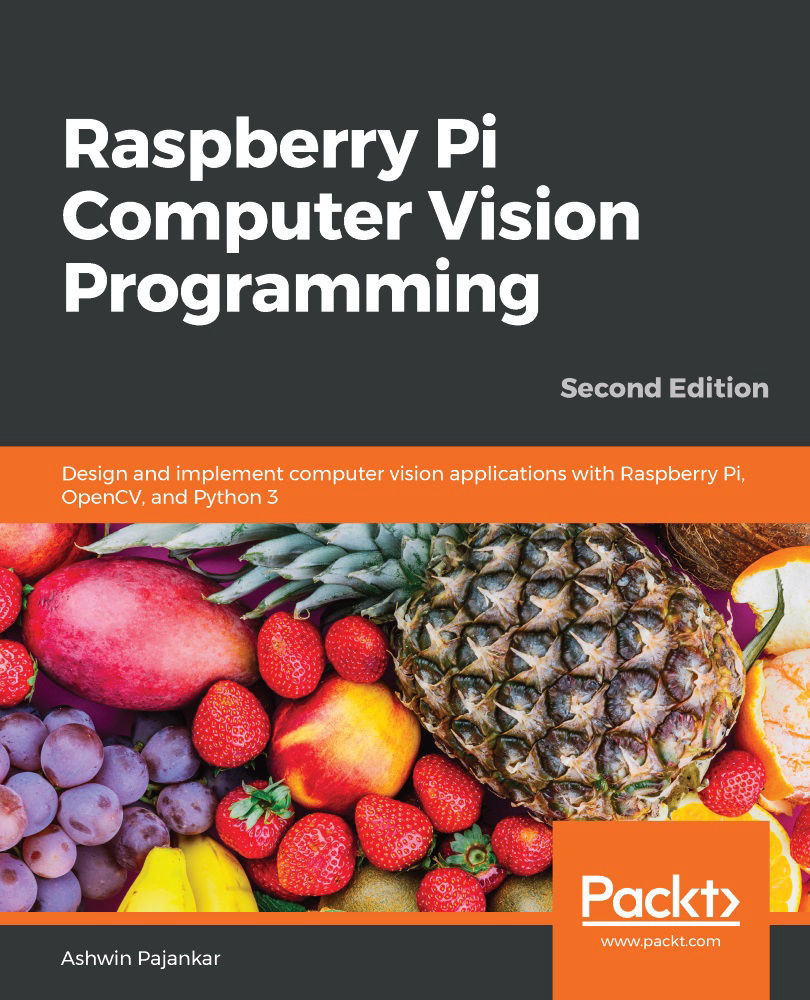
Raspberry Pi Computer Vision Programming

Raspberry Pi Computer Vision Programming: Design and implement computer vision applications with Raspberry Pi, OpenCV, and Python 3 , Second Edition

Arrow left icon
Profile Icon Ashwin Pajankar
Arrow right icon
€22.49 €24.99
Full star icon Full star icon Full star icon Half star icon Empty star icon 3.8 (4 Ratings)
eBook Jun 2020 306 pages 2nd Edition
eBook
€22.49 €24.99
Paperback
€30.99
eBook + Subscription
€24.99 Monthly
Arrow left icon
Profile Icon Ashwin Pajankar
Arrow right icon
€22.49 €24.99
Full star icon Full star icon Full star icon Half star icon Empty star icon 3.8 (4 Ratings)
eBook Jun 2020 306 pages 2nd Edition
eBook
€22.49 €24.99
Paperback
€30.99
eBook + Subscription
€24.99 Monthly
eBook
€22.49 €24.99
Paperback
€30.99
eBook + Subscription
€24.99 Monthly

What do you get with eBook?

Product feature icon Instant access to your Digital eBook purchase
Product feature icon Download this book in EPUB and PDF formats
Product feature icon Access this title in our online reader with advanced features
Product feature icon DRM FREE - Read whenever, wherever and however you want
Product feature icon AI Assistant (beta) to help accelerate your learning
Modal Close icon
Payment Processing...
tick Completed

Billing Address

Table of content icon View table of contents Preview book icon Preview Book

Raspberry Pi Computer Vision Programming

Chapter 2: Preparing the Raspberry Pi for Computer Vision

In the previous chapter, we learned the fundamentals of single-board computers, computer vision, and OpenCV. We learned the detailed specifications of the Raspberry Pi (RPi) 4B and the RPi Zero W. We also learned how to set up Raspbian OS on all the RPi boards models in detail.

In this chapter, we will learn how to prepare our RPi board for computer vision. Continuing from where we left off in the previous chapter, we will start by installing the OpenCV library for computer vision and the other necessary software for remotely accessing the desktop, as well as Command Prompt. We will learn how to transfer files between an RPi and a Windows PC. We will also learn how to exploit the computation power of the RPi by overclocking it and installing a heatsink on it to reduce the temperature of the processor.

The topics that we'll cover in this chapter are as follows:

  • Remotely logging into the RPi with SSH
  • Remote desktop access
  • Installing OpenCV on an RPi board
  • Heatsinks and overclocking the RPi 4B

Remotely logging into the RPi with SSH

We can remotely access the Command Prompt of the RPi board using various software from Windows. We can run all the Linux commands that do not involve the GUI remotely from Windows. As you may recall, we discussed how to enable SSH with the Raspberry Pi Configuration tool in Chapter 1, Introduction to Computer Vision and Raspberry Pi. It enables remote login through SSH.

In order to get started, follow these steps:

  1. First, we need to install any SSH software available for free. The most popular is PuTTY (https://www.putty.org/). I prefer to use another popular SSH client that comes with SFTP known as the Bitvise SSH client. You can download the installation file for Windows from https://www.bitvise.com/ssh-client-download and install it. After doing that, open the Bitvise SSH client. The following window will appear:
    Figure 2.1 – Bitwise Connection window

    Figure 2.1 – Bitwise Connection window

    Enter a hostname, username, and password. The hostname is nothing but the IPv4 address of our RPi board, which we learned how to find in Chapter 1, Introduction to Computer Vision and Raspberry Pi.

  2. After entering all the necessary information, click the Login button. This will start the RSA key exchange and display the following message box:
    Figure 2.2 – Message window for the first-time connection

    Figure 2.2 – Message window for the first-time connection

  3. Click the Accept and Save button. This will save the exchanged RSA keys. Note that this message box won't be displayed if we try to connect to Raspberry Pi again with the same Windows computer. After that, two separate windows will appear. The first is the Command Prompt of the Raspberry Pi. Just like LXTerminal, we can run Linux commands from here too:

    Figure 2.3 – Bitwise SSH window

  4. We can change the font and size of the text that appears here by changing the properties, which can be found by right-clicking the title bar. The following is the file transfer window:
Figure 2.4 – Bitwise FTP file transfer window

Figure 2.4 – Bitwise FTP file transfer window

On the left-hand pane, we have the Windows desktop and on the right-hand pane, we have /home/pi, the home directory of the pi user. We can transfer files between Windows and the RPi just by dragging and dropping them between these panes.

NOTE

We can access the Raspberry Pi Configuration Tool from the Command Prompt using the sudo raspi-config command. This is the command-line version of the tool.

This is how we can connect to the Command Prompt of the Raspbian OS remotely and transfer files. Next, we will learn how to remotely access the Raspbian OS desktop.

Remote desktop access

The Bitvise SSH client is great for file transfers and accessing the Command Prompt terminal of RPi. However, we need to use another piece of software to access the desktop of RPi remotely. There are two methods we can follow. The first one is VNC (we learned how to enable it in Chapter 1, Introduction to Computer Vision and Raspberry Pi, using the Raspberry Pi Configuration tool), while the other is using Windows' built-in Remote Desktop Connection utility. We can find it in the Windows search bar, as follows:

Figure 2.5 – Remote Desktop Connection option in the Windows search bar


Figure 2.5 – Remote Desktop Connection option in the Windows search bar

But before we can use it, we need to install xrdp on the RPi. Installing it is very easy. We just need to run the following command at LXTerminal on the RPi:

sudo apt-get install xrdp -y

Information

You might want to read more about xrdp at http://xrdp.org/.

Once xrdp has been installed on the RPi, you need to follow these steps:

  1. Open the Remote Desktop Connection application on your Windows PC:
    Figure 2.6 – Remote Desktop Connection

    Figure 2.6 – Remote Desktop Connection

  2. Enter the IP address and pi in the textboxes labeled Computer and User name. You might want to check the checkbox for Allow me to save credentials and save the connection settings too. Once we click the Connect button, the following window will appear:
    Figure 2.7 – Credentials for the Raspbian OS for Remote Desktop Connection

    Figure 2.7 – Credentials for the Raspbian OS for Remote Desktop Connection

  3. Enter the password and check the checkbox if you want to save the password for this connection. Click the OK button; the RPi remote desktop window will appear after a few moments. If you have less traffic on your LAN, then the working of Remote Desktop will be smooth. The following is a screenshot of the Remote Desktop window:
Figure 2.8 – Raspbian OS Remote Desktop

Figure 2.8 – Raspbian OS Remote Desktop

We can perform all the tasks related to the GUI from here. This means we don't need a separate display for the RPi board if we use Remote Desktop.

Installing OpenCV on an RPi board

Follow these steps to install OpenCV on the RPi:

  1. First, we need to install a few dependencies. Run the following command to install all these dependencies:
    sudo apt-get install -y libhdf5-dev libhdf5-serial-dev libatlas-base-dev libjasper-dev libqtgui4 libqt4-test
  2. Once the installation is successful, we can install OpenCV on the RPi:
    pip3 install opencv-python==4.0.1.24
  3. Once the installation of OpenCV is successful, we can verify it by running the following command:
    python3 -c "import cv2; print(cv2.__version__)"

    The following should be the output:

    4.0.1

This means that the installation is completed and that we can import OpenCV in our Python 3 programs.

Next, we will learn how to overclock the RPi 4B and how to install heatsink on it.

Heatsinks and overclocking RPi 4B

Overclocking means running the processors at higher speeds than those that are intended. When we overclock the processors, their temperature tends to rise and they radiate more heat. Raspberry Pi board models do not come with any built-in coolers. You can buy passive heatsinks from many online shops such as Amazon. The following is an example of a heatsink with a fan:

Figure 2.9 – Small heatsink for RPi

Figure 2.9 – Small heatsink for RPi

The heatsink fan can be powered by connecting it to a 5V or 3.3V power supply. The speed of the fan depends on the voltage, and we can connect it to the RPi power pins. We will learn more about the GPIO and the power pins of RPi in the next chapter. The best and the most effective heatsink that I found was the ICE Tower fan for the RPi 4B (https://www.seeedstudio.com/ICE-Tower-CPU-Cooling-Fan-for-Raspberry-pi-Support-Pi-4-p-4097.html).

The following is my own Pi with the ICE Tower mounted on it:

Figure 2.10 – ICE Tower installed on Raspberry Pi

Figure 2.10 – ICE Tower installed on Raspberry Pi

It comes with a booklet with easy installation instructions.

NOTE:

It is necessary to install an actively cooled heatsink and fan on the RPi's processor to overclock it. Overclocking any processor without adequate cooling may damage it.

We can overclock the CPU, GPU, and RAM of an RPi board. In this section, we will discuss how to overclock an RPi 4B board.

Make sure that you update the firmware with the following command:

sudo rpi-update

It is necessary to update the firmware before overclocking the Pi. Once you've done that, run the following command:

sudo nano /boot/config.txt

This will open /boot/config.txt using the nano text editor. At the end of the file, add the following lines:

over_voltage=6
arm_freq=2147 

In the first line, we are setting the overvoltage as overclocking requires additional power. In the next line, we are overriding the default clock frequencies of the CPU. Save the changes and reboot the RPi.

Often, the RPi may not boot back up. In that case, you might want to change the /boot/config.txt settings for overclocking (using a Windows PC) to over_voltage=2 and arm_freq=1750, respectively,

In the case that these setting too fail to boot the RPi, then comment both the lines and the RPi will boot up. Overclocking does not work stably with every processor.

When we run a computationally heavy process on the RPi board, all these additional megahertz will manifest themselves. We can monitor the clock in real time using the following command:

watch -n1 vcgencmd measure_clock arm

The output will cross the speed range of 2 billion (2 GHz) once we launch any heavy program on the RPi.

All this additional processing power we obtained by overclocking the RPi board will help us with our computer vision experiments.

Summary

In this chapter, we learned how to remotely log into the RPi and how to access the RPi desktop remotely with RDP. We also learned how to install OpenCV and how to verify it. Also, we learned how to overclock an RPi board.
We will be using all the skills we learned in this chapter throughout this book for accessing the Command Prompt and desktop of Raspbian OS remotely while writing programs for computer vision. We will also use file transfer quite a few times, as well as the OpenCV library in most programs.

In the next chapter, we will learn the basics of Python, NumPy, matplotlib, and the RPi GPIO library. We will also learn about the SciPy ecosystem.

Left arrow icon Right arrow icon
Download code icon Download Code

Key benefits

  • Explore the potential of computer vision with Raspberry Pi and Python programming
  • Perform computer vision tasks such as image processing and manipulation using OpenCV and Raspberry Pi
  • Discover easy-to-follow examples and screenshots to implement popular computer vision techniques and applications

Description

Raspberry Pi is one of the popular single-board computers of our generation. All the major image processing and computer vision algorithms and operations can be implemented easily with OpenCV on Raspberry Pi. This updated second edition is packed with cutting-edge examples and new topics, and covers the latest versions of key technologies such as Python 3, Raspberry Pi, and OpenCV. This book will equip you with the skills required to successfully design and implement your own OpenCV, Raspberry Pi, and Python-based computer vision projects. At the start, you'll learn the basics of Python 3, and the fundamentals of single-board computers and NumPy. Next, you'll discover how to install OpenCV 4 for Python 3 on Raspberry Pi, before covering major techniques and algorithms in image processing, manipulation, and computer vision. By working through the steps in each chapter, you'll understand essential OpenCV features. Later sections will take you through creating graphical user interface (GUI) apps with GPIO and OpenCV. You'll also learn to use the new computer vision library, Mahotas, to perform various image processing operations. Finally, you'll explore the Jupyter Notebook and how to set up a Windows computer and Ubuntu for computer vision. By the end of this book, you'll be able to confidently build and deploy computer vision apps.

Who is this book for?

This book is for beginners as well as experienced Raspberry Pi and Python 3 enthusiasts who are looking to explore the amazing world of computer vision. Working knowledge of the Python 3 programming language is assumed.

What you will learn

  • Set up a Raspberry Pi for computer vision applications
  • Perform basic image processing with libraries such as NumPy, Matplotlib, and OpenCV
  • Demonstrate arithmetical, logical, and other operations on images
  • Work with a USB webcam and the Raspberry Pi Camera Module
  • Implement low-pass and high-pass filters and understand their applications in image processing
  • Cover advanced techniques such as histogram equalization and morphological transformations
  • Create GUI apps with Python 3 and OpenCV
  • Perform machine learning with K-means clustering and image quantization

Product Details

Country selected
Publication date, Length, Edition, Language, ISBN-13
Publication date : Jun 29, 2020
Length: 306 pages
Edition : 2nd
Language : English
ISBN-13 : 9781800201026
Category :
Languages :
Tools :

What do you get with eBook?

Product feature icon Instant access to your Digital eBook purchase
Product feature icon Download this book in EPUB and PDF formats
Product feature icon Access this title in our online reader with advanced features
Product feature icon DRM FREE - Read whenever, wherever and however you want
Product feature icon AI Assistant (beta) to help accelerate your learning
Modal Close icon
Payment Processing...
tick Completed

Billing Address

Product Details

Publication date : Jun 29, 2020
Length: 306 pages
Edition : 2nd
Language : English
ISBN-13 : 9781800201026
Category :
Languages :
Tools :

Packt Subscriptions

See our plans and pricing
Modal Close icon
€18.99 billed monthly
Feature tick icon Unlimited access to Packt's library of 7,000+ practical books and videos
Feature tick icon Constantly refreshed with 50+ new titles a month
Feature tick icon Exclusive Early access to books as they're written
Feature tick icon Solve problems while you work with advanced search and reference features
Feature tick icon Offline reading on the mobile app
Feature tick icon Simple pricing, no contract
€189.99 billed annually
Feature tick icon Unlimited access to Packt's library of 7,000+ practical books and videos
Feature tick icon Constantly refreshed with 50+ new titles a month
Feature tick icon Exclusive Early access to books as they're written
Feature tick icon Solve problems while you work with advanced search and reference features
Feature tick icon Offline reading on the mobile app
Feature tick icon Choose a DRM-free eBook or Video every month to keep
Feature tick icon PLUS own as many other DRM-free eBooks or Videos as you like for just €5 each
Feature tick icon Exclusive print discounts
€264.99 billed in 18 months
Feature tick icon Unlimited access to Packt's library of 7,000+ practical books and videos
Feature tick icon Constantly refreshed with 50+ new titles a month
Feature tick icon Exclusive Early access to books as they're written
Feature tick icon Solve problems while you work with advanced search and reference features
Feature tick icon Offline reading on the mobile app
Feature tick icon Choose a DRM-free eBook or Video every month to keep
Feature tick icon PLUS own as many other DRM-free eBooks or Videos as you like for just €5 each
Feature tick icon Exclusive print discounts

Frequently bought together


Stars icon
Total 108.97
Raspberry Pi Computer Vision Programming
€30.99
Learning OpenCV 4 Computer Vision with Python 3
€38.99
Practical Python Programming for IoT
€38.99
Total 108.97 Stars icon

Table of Contents

14 Chapters
Chapter 1: Introduction to Computer Vision and the Raspberry Pi Chevron down icon Chevron up icon
Chapter 2: Preparing the Raspberry Pi for Computer Vision Chevron down icon Chevron up icon
Chapter 3: Introduction to Python Programming Chevron down icon Chevron up icon
Chapter 4: Getting Started with Computer Vision Chevron down icon Chevron up icon
Chapter 5: Basics of Image Processing Chevron down icon Chevron up icon
Chapter 6: Colorspaces, Transformations, and Thresholding Chevron down icon Chevron up icon
Chapter 7: Let's Make Some Noise Chevron down icon Chevron up icon
Chapter 8: High-Pass Filters and Feature Detection Chevron down icon Chevron up icon
Chapter 9: Image Restoration, Segmentation, and Depth Maps Chevron down icon Chevron up icon
Chapter 10: Histograms, Contours, and Morphological Transformations Chevron down icon Chevron up icon
Chapter 11: Real-Life Applications of Computer Vision Chevron down icon Chevron up icon
Chapter 12: Working with Mahotas and Jupyter Chevron down icon Chevron up icon
Chapter 13: Appendix Chevron down icon Chevron up icon
Other Books You May Enjoy Chevron down icon Chevron up icon

Customer reviews

Rating distribution
Full star icon Full star icon Full star icon Half star icon Empty star icon 3.8
(4 Ratings)
5 star 50%
4 star 0%
3 star 25%
2 star 25%
1 star 0%
Diane Lake Mar 17, 2021
Full star icon Full star icon Full star icon Full star icon Full star icon 5
I bought this book as an aid in a project I am developing using a Raspberry Pi. I chose the Pi because it is inexpensive but capable. My project is an automated telescope using the Pi and the Pi camera. I am new to the Pi and the Linux environment, but I have experience in software development.This book was very helpful for me because it covers a wide variety of computer vision topics and offers lots of well thought out code examples using Python, opencv, matplotlib, numpy and other computer vision software. I followed his examples on my RPi and found that they helped me get the format and arguments of opencv commands correctly to include little things like commas, parenthesis, brackets, optional arguments and the like. I have often noted that there is nothing as helpful in learning computer programming as a well commented simple example. Many books and user documents show code structure, but they are thin on examples or the examples are overly complex or arcane. The opencv documentation is not particularly friendly in those respects. He also has lots of tips for the user. I intend to use this book as a resource as I write the code for my project. He also helped me improve my basic understanding of the technical details of images and videos. So, thumbs up on a good and useful book.
Amazon Verified review Amazon
L. Bell Oct 30, 2020
Full star icon Full star icon Full star icon Full star icon Full star icon 5
This book was given to me by the publishing company in exchange for a fair review. I found that it is suitable for hobbyists or anyone looking to get started with Computer Vision on a Raspberry Pi, because it assumes no prior experience. The early chapters contain detailed instructions for installing and configuring Raspbian OS and OpenCV. The next several chapters teach the basics of OpenCV in detail, using algorithms that work well with constrained resources, as is the case when using a Raspberry Pi. The tutorial portion of the book concludes with some fun real-world projects including motion tracking and the chroma-key (i.e. green screen) effect. Attached are pictures from my implementation of those projects. The final chapter contains a discussion of Mahotas and Jupyter for readers who are still curious and want to expand their study of computer vision. Overall, the book contains a lot of code examples. The code is concise and easy to understand. There is link to the publisher’s GitHub repository where all of the code examples can be downloaded. The tutorials progress logically as each project builds on the concepts taught in previous tutorials. I did wish, however that the code had utilized color syntax highlighting, which would have made it easier to read. As a workaround, the reader can easily achieve this by viewing the code in an editor like Sublime or VS Code. I also wish there had been more real-word project examples as these projects are only contained in one of the final chapters. A similar book, Raspberry Pi for Computer Vision, from PyImageSearch has more real-world projects, but it is many times more expensive than this one. This book, therefore, offers good value for those who want to get started with Computer Vision on the Raspberry Pi, but not pay a lot of money up front.
Amazon Verified review Amazon
Kindle Customer Sep 14, 2021
Full star icon Full star icon Full star icon Empty star icon Empty star icon 3
This book is OK, nothing special. Too much fluff at the beginning about the different versions of the Raspberry Pi and the basics of Python Programming. I also think the chapters on Raspberry PI GPIO pins and programming were unnecessary. There is so much more to Open CV that could have been covered in this book.
Amazon Verified review Amazon
Justus Mar 26, 2022
Full star icon Full star icon Empty star icon Empty star icon Empty star icon 2
I am really wondering who this book was written for.On its first pages, it tries to explain how to connect your system to the RPi. Considering the tons of different scenarios, i.e., which OS you are using and which cables you have at your hands, this in itself fills over 20 pages. But most notably, the author does not mention the ability to connect to the RPi without having it connected to a display once, which was the case for me (no cables and screen available). So a quick Google search helped me immediately; I should have spared myself these pages in the book in hindsight.This feeling of "I could have found that out more efficiently through another medium" spread through the book. Reasons are:-The author rarely explains algorithms and their underlying concepts, but just commands you to "use function X from library Y". Besides, the "programming" shown is superficial in itself.-In my paperback version, the images are not in color - what a no-go when trying to explain RGB computer vision algorithms!-The text is super repetitive and redundant, there are mistakes in code and language. Usually, when I prefer book over video, language is the key. This book doesn't prevail.In conclusion, you will not learn a lot from this book. Most of it could be covered in a 90-minutes computer science lecture. So, I advice you to better go ahead and look for a nice lecture; even a good youtube video will totally suffice to replace this book!And by the way, to answer my opening question, I just noticed that the Preface does give one:"This book is for Python 3 developers, computer vision professionals, and Raspberry Pi enthusiasts [...]" - Hell no, I couldn't agree less!
Amazon Verified review Amazon
Get free access to Packt library with over 7500+ books and video courses for 7 days!
Start Free Trial

FAQs

How do I buy and download an eBook? Chevron down icon Chevron up icon

Where there is an eBook version of a title available, you can buy it from the book details for that title. Add either the standalone eBook or the eBook and print book bundle to your shopping cart. Your eBook will show in your cart as a product on its own. After completing checkout and payment in the normal way, you will receive your receipt on the screen containing a link to a personalised PDF download file. This link will remain active for 30 days. You can download backup copies of the file by logging in to your account at any time.

If you already have Adobe reader installed, then clicking on the link will download and open the PDF file directly. If you don't, then save the PDF file on your machine and download the Reader to view it.

Please Note: Packt eBooks are non-returnable and non-refundable.

Packt eBook and Licensing When you buy an eBook from Packt Publishing, completing your purchase means you accept the terms of our licence agreement. Please read the full text of the agreement. In it we have tried to balance the need for the ebook to be usable for you the reader with our needs to protect the rights of us as Publishers and of our authors. In summary, the agreement says:

  • You may make copies of your eBook for your own use onto any machine
  • You may not pass copies of the eBook on to anyone else
How can I make a purchase on your website? Chevron down icon Chevron up icon

If you want to purchase a video course, eBook or Bundle (Print+eBook) please follow below steps:

  1. Register on our website using your email address and the password.
  2. Search for the title by name or ISBN using the search option.
  3. Select the title you want to purchase.
  4. Choose the format you wish to purchase the title in; if you order the Print Book, you get a free eBook copy of the same title. 
  5. Proceed with the checkout process (payment to be made using Credit Card, Debit Cart, or PayPal)
Where can I access support around an eBook? Chevron down icon Chevron up icon
  • If you experience a problem with using or installing Adobe Reader, the contact Adobe directly.
  • To view the errata for the book, see www.packtpub.com/support and view the pages for the title you have.
  • To view your account details or to download a new copy of the book go to www.packtpub.com/account
  • To contact us directly if a problem is not resolved, use www.packtpub.com/contact-us
What eBook formats do Packt support? Chevron down icon Chevron up icon

Our eBooks are currently available in a variety of formats such as PDF and ePubs. In the future, this may well change with trends and development in technology, but please note that our PDFs are not Adobe eBook Reader format, which has greater restrictions on security.

You will need to use Adobe Reader v9 or later in order to read Packt's PDF eBooks.

What are the benefits of eBooks? Chevron down icon Chevron up icon
  • You can get the information you need immediately
  • You can easily take them with you on a laptop
  • You can download them an unlimited number of times
  • You can print them out
  • They are copy-paste enabled
  • They are searchable
  • There is no password protection
  • They are lower price than print
  • They save resources and space
What is an eBook? Chevron down icon Chevron up icon

Packt eBooks are a complete electronic version of the print edition, available in PDF and ePub formats. Every piece of content down to the page numbering is the same. Because we save the costs of printing and shipping the book to you, we are able to offer eBooks at a lower cost than print editions.

When you have purchased an eBook, simply login to your account and click on the link in Your Download Area. We recommend you saving the file to your hard drive before opening it.

For optimal viewing of our eBooks, we recommend you download and install the free Adobe Reader version 9.

Modal Close icon
Modal Close icon