Search icon CANCEL
Subscription
0
Cart icon
Your Cart (0 item)
Close icon
You have no products in your basket yet
Save more on your purchases! discount-offer-chevron-icon
Savings automatically calculated. No voucher code required.
Arrow left icon
Explore Products
Best Sellers
New Releases
Books
Videos
Audiobooks
Learning Hub
Newsletter Hub
Free Learning
Arrow right icon
timer SALE ENDS IN
0 Days
:
00 Hours
:
00 Minutes
:
00 Seconds
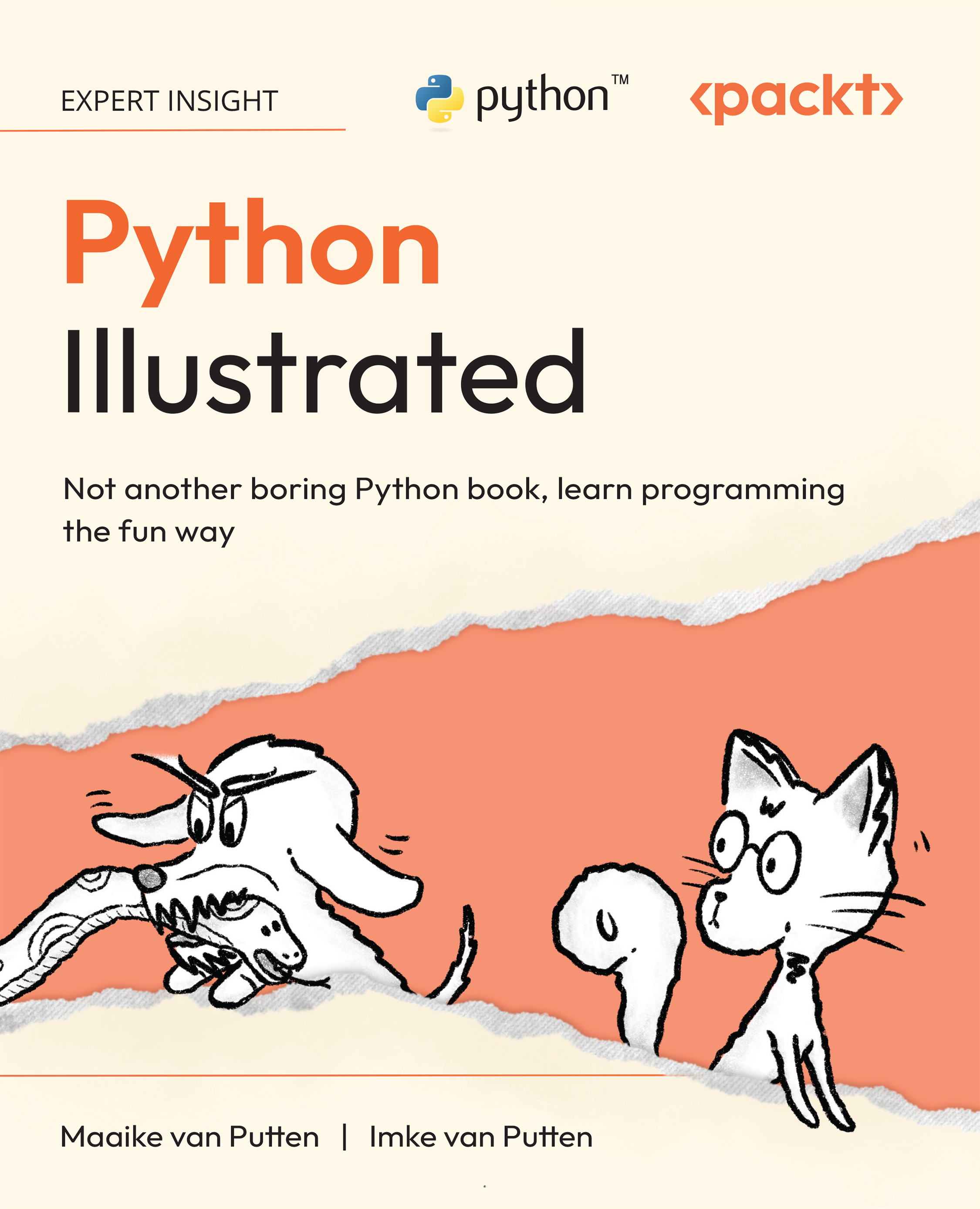
Python Illustrated
Python Illustrated

Python Illustrated: Not another boring Python book, learn programming the fun way

Arrow left icon
Profile Icon Maaike van Putten Profile Icon Imke van Putten
Arrow right icon
€21.59 €23.99
eBook Feb 2026 432 pages 1st Edition
eBook
€21.59 €23.99
Paperback
€29.99
Subscription
Free Trial
Renews at €18.99p/m
Arrow left icon
Profile Icon Maaike van Putten Profile Icon Imke van Putten
Arrow right icon
€21.59 €23.99
eBook Feb 2026 432 pages 1st Edition
eBook
€21.59 €23.99
Paperback
€29.99
Subscription
Free Trial
Renews at €18.99p/m
eBook
€21.59 €23.99
Paperback
€29.99
Subscription
Free Trial
Renews at €18.99p/m

What do you get with eBook?

Product feature icon Instant access to your Digital eBook purchase
Product feature icon Download this book in EPUB and PDF formats
Product feature icon Access this title in our online reader with advanced features
Product feature icon DRM FREE - Read whenever, wherever and however you want
Product feature icon AI Assistant (beta) to help accelerate your learning
Modal Close icon
Payment Processing...
tick Completed

Billing Address

Table of content icon View table of contents Preview book icon Preview Book

Python Illustrated

Get Your Computer Ready to Code Python

To make the most out of this book, it’s best to follow along on your computer. But you can’t just go ahead and write code on any computer; it’s often required to get your computer ready to go. You do this by installing some necessary programs. We’ll start by making sure you’re ready to code. After this chapter, you’ll have written your first line of code and run your first program. Exciting, isn’t it?

Exploring Python features

Before we get too excited and jump into the installation straight away, let’s take a sneak peek at what Python can do. Think of this as sniffing around before committing to the full pounce.

In short, here is why you’d want to learn Python as your programming language:

  • Python’s syntax is designed to be readable and straightforward. For a programming language, it’s simple. It’s like a warm sunbeam on the floor: inviting and comfortable.
  • From web development to data analysis, Python wears many hats. Or should I say, many collars? It’s a language that can be used for many different purposes and is therefore a great pick.
  • Python has a supportive and loving community. An active community means tons of libraries and frameworks to play with. If you get stuck, there’s practically always someone who has asked the same question before. And if not, they’re rushing to answer your question...

Technical requirements

What do you need to run Python? Well, if you really, really had to, you could even learn it on your phone, tablet, or Chromebook. It’s not ideal, but if you’re motivated enough, you can make it work. At the end of this chapter, I will show you how to set that up. I just wanted to start by telling you not to be discouraged by not having fancy gear; we can make this work with almost anything. Just skip to the end of this chapter if that’s you.

While phones and tablets might be possible, they’re far from ideal for coding Python. A bit more of a mainstream setup for learning Python is some sort of personal computer. Ideally, you have a laptop or PC with the following specifications:

  • Windows, macOS, or Linux as the operating system. Yes, even that old laptop in your closet might do.
  • 8 GB RAM is comfy, but if you have 4 GB RAM and an extra splash of patience, it can work as well.
  • An Intel i5 or equivalent...

The terminal

In movies, you might have seen scenes where hackers are doing their magic work, breaking into some sort of system. The application that they typically use when doing this is the terminal.

We might be less cool than those villains or superheroes in the movies, but we will use the terminal as well. When writing and running code, you’ll be using a terminal every now and then, or in some cases quite often.

At this point, you might not know what a terminal even is. In the next image, you can see a picture of a terminal.

A terminal is a different way of controlling your computer. As a user, you are used to giving your computer instructions with the mouse and the keyboard. For example, if you want to open your mailbox, you can click on the application icon. This mouse click is an instruction your computer understands, and it will proceed to open the mailbox.

By typing text in the terminal, you can also give your computer instructions. As a bonus...

Opening a terminal

Before we install Python, we’ll need to check whether Python is already installed. To do that, we’ll need a terminal. How to open a terminal depends on the system you’re using.

For Linux, depending on your distribution, you can use the shortcut Ctrl + Alt + T. If that doesn’t work, you can open the application menu (sometimes called Activities) and look for the applications. There, you can search for terminal. Click on the terminal icon. That should open the terminal.

For Windows, there are two built-in terminals: the command prompt and PowerShell. Either one of those is fine. You can open the command prompt with the shortcut Windows button + R. Or, you can type cmd in the search box in the start bar. If you don’t have a search box in the start bar, you’ll have to click on the Windows icon first and type it in the search box that pops up as part of the menu. Again, the terminal should open.

Lastly, for macOS...

Speaking the terminal’s language

The terminal might look like a dark and scary place, but it’s really just a simple conversation with your computer. You type a command, press Enter, and your computer responds. Each command is like a magic word that makes something happen. The terminal is in a certain folder on your computer. This is like when you have File Explorer or the Finder application open; you are in the folder that you see.

On mine, in the image with the command line, we are at the location ~. Which means that I’m currently in my home directory. The home directory is known as the default user folder. If you’re not sure where you are, you can ask the terminal where you are. Here’s how it’s done on macOS/Linux. In the terminal, type the following:

pwd

Then press Enter. This pwd stands for “print working directory.” In my case, you can see I’m in the user’s home directory, the user folder...

Is Python already purring on your system?

We can check whether Python is already curled up inside your computer – yes, I just mean installed. In the terminal, type the following commands and press Enter. These commands are like asking, “Hey computer, do we have Python here? If so, which version?”

On Windows, it is probably not installed:

python --version

If that doesn’t give a number, try the following:

py --version

On macOS/Linux, there might be a different version – for example, 2.7. In order to find that out, run the following:

python --version

If that doesn’t give a version number that starts with a 3, try typing the following:

python3 --version

If you need to add the 3, that’s no problem; python3 ensures you’re using Python 3. It’s like making sure your human is opening the right can of food (clearly tuna), not the old sardines.

The syntax of Python 2 is very different from...

Windows users: a tiny hiccup

Sometimes on Windows, typing python might open the Microsoft Store. That’s your computer’s way of saying Python isn’t installed, or it’s not set up quite right. No biggie – we’ll sort it out soon. Let’s close the Microsoft Store for now, and I’ll talk you through it in the rest of this chapter.

So, if Python is already installed and up to date, you’re ahead of the game! If not, we can install Python. It’s easier than convincing me to chase a laser pointer.

Installing Python

Now, let’s get Python installed on your machine. This works a little differently for each operating system. Let’s walk through it.

First, these are the steps for Windows users:

  1. We’ll start by downloading Python:
    • Go to the official Python website: python.org
    • Click on the Download Python 3.x.x button. There are many versions that will work, but I’d recommend grabbing the latest stable release. The x.x is not literal; I just cannot include it in a book because the numbers change so fast.
  2. Now that we have the executable downloaded, we can run the installer:
    • Open the downloaded .exe file.
    • Important: Check the box that says Add Python 3.x to PATH. This makes it easier to run Python from the command line.
    • Click on Install Now.
  3. Verify the installation:
    • If you have the Command Prompt still open, close it.
    • Open Command...

Writing our first program

It’s time to actually start coding. Traditionally, programmers start with a “Hello world!” program in whatever new language or framework they start using. But since I’m a cat, let’s make it more relevant. Python only needs one line of code for the first program, and that makes it one of the shortest first programs you can write. If you ever try a language such as C++, Java, or C#, you’ll really appreciate how straightforward Python is. Let’s see the steps for creating our first little program.

First, we need to create a new file. You know how Word documents have the .docx extension, text files have a .txt extension, and ZIP files have a .zip extension. A Python file has its own special extension as well, the .py extension. Let’s create a file and call it hello.py.

How do we create a file with this extension, you might wonder? Well, there are multiple options again. I’ll walk through one...

Running your first Python program

In order to run our program, we’re going to need the terminal again. So, let’s open the terminal as a first step. We have an additional challenge before we can run it: we need to find the file. Let’s start by asking ourselves the question, where is the file saved? Let’s say that, on my laptop (macOS), it’s stored here:

/Users/zia/Documents/pythoncourse

The easiest way to go there is by entering the full (absolute) path in the terminal, like this:

cd /Users/zia/Documents/pythoncourse

Let’s make sure we’re in the correct folder by asking where we are:

pwd

If you want to see the files that are in there, you can run the dir command for Windows and the ls command for macOS and Linux.

Now that we’re in the correct location, we’ll run the program. We do this by typing the python command, this time not followed by --version, but by the name of the file. So please...

Working with an IDE

As we have seen, writing code in a basic text editor works… But it’s as if you’re eating dry kibble when you could have had tuna. The tuna in this case would be the IDE. IDE stands for Integrated Development Environment. This special application, meant for coding, offers features such as syntax highlighting, code completion, and debugging tools.

It’s a little bit like choosing between Word and Notepad for writing books. Notepad will work, but it’s nicer to use a slightly more elaborate writing tool. Just like you have different applications that you could use for writing a book, there are different excellent options for writing Python. Here are some great choices that you can install on your computer:

  • PyCharm (by JetBrains)
  • IDLE
  • Atom
  • Sublime Text
  • Visual Studio Code

If you have a somewhat more basic machine, it might be a great option to work with IDLE. If you downloaded Python from...

Introducing Visual Studio Code (commonly called VS Code)

VS Code is a great choice for an IDE in general. It is free and relatively lightweight for your computer. It supports so many languages and frameworks. You won’t have to worry about frameworks yet; that is what we’ll use when we make more complex applications, such as web apps, later. It consists of a basic application that can be extended with many (free) plugins, called extensions. With the right extensions, VS Code is a really great tool for writing Python. Let’s walk you through how to install it.

First, we need to download it.

  • Visit code.visualstudio.com
  • Download the version for your operating system.
  • Now that it’s downloaded, it’s time to install VS Code:
  • Run the installer and follow the prompts.
  • After it’s installed, open VS Code.

We’ll install the Python extensions later – that’s our last step. But let’...

Creating and running a program with an IDE

Let’s recreate our hello.py program in VS Code. In order to do this, we’ll open a folder first. We have different options to do this. If you click on the file icon, there’s probably an Open Folder button that allows you to navigate to a folder that you’d like to open. It’s probably best to create a special folder for the examples in this book. Let’s say you choose the name python-illustrated. You’ll navigate to this folder (or create it on the spot), select it, and click Open.

Then, when the folder is open, make sure to be in the Explorer view by clicking on the files icon on the left. Next to the name of the folder, you will see icons. One of them is to create a new file. You can also right-click the mouse and choose New file in the Explorer view. Name the file hello.py.

It should open in the main area, the editor. In there, type the following:

print("Hello from VS Code!&quot...

Alternatives for when you can’t use a computer

Maybe you’re on the go, or perhaps your pet parrot spilled water on your laptop (it happens). Or, you have never had a PC or laptop. As long as you have a device with a browser, you can use any of these alternatives.

It all comes down to online Python interpreters. Not all of them are free, and they have different options. Some allow you to create an account where you can store and manage full projects (those are typically paid). There are basic online interpreters where all your progress is lost with a page refresh. These are typically free.

  • Repl.it: Visit repl.it to write and run Python code in your browser. You’ll have to sign up for an account.
  • Google Colab: This one is great for data science and machine learning, accessible via colab.research.google.com. However, it is perfectly fine for most of the examples in the book.

There are also mobile apps that you can install. Current examples...

Quiz

  1. What does cd mean in the terminal’s language?
    1. Command Directly
    2. Change Directory
    3. Create Directory
    4. Cute Dachshund
  2. What does the pwd command do in the terminal?
    1. It shows you the folder you’re in
    2. It prints all files in the current folder
    3. It runs your Python program
    4. It allows you to change your location using an absolute path
  3. Wiesje is trying to speak to the terminal on her macOS laptop – sorry, MacBook. She runs the dir command to see which files are in her current folder. Why is this not working?
    1. She hasn’t selected a folder first
    2. There might not be any files in the current folder
    3. MacBooks don’t have a terminal
    4. She’s using a Windows command
  4. What does the ~ mean in the terminal’s language?
    1. Python
    2. Current location...

Exercises

Let’s get some paws-on practice and get familiar with VS Code and the terminal.

1.1 Getting familiar with VS Code

If you’ve coded along with me (as you should have), you’ve already created a folder named python-illustrated for all the exercises in this book. Well, this is quite a big book with many exercises, so it’s probably best to organize them in some way. In order to do this, we’re going to create some sub-folders for each chapter.

Steps:

  1. If you haven’t already, create a folder called python-illustrated. If you want some extra practice, delete the folder you created earlier and go through the process again.
  2. Create a folder within this python-illustrated folder for the exercises for Chapter 1. Name it chatper-1.
  3. Oops, we just introduced a typo! Rename the folder to chapter-1.
  4. While we’re at it, let’s create a folder next to chapter-1 for Chapter 2. Name it chapter-2.
  5. ...

Summary

Congratulations on taking your first steps into the world of Python programming! Let’s purr over what we’ve learned in this chapter.

We discussed the importance of setting up your computer to ensure a smooth coding experience. Whether you’re on Windows, macOS, Linux, or even using less conventional devices, there’s a way to make it work. Remember, it’s not about having the fanciest gear but making the most of what you have.

Before we got to installing, we talked about the terminal, turning it from a mysterious hacker’s tool into a friendly way to communicate with your computer. You learned how to open it on your system and run basic commands. It’s like having a secret handshake with your machine!

Next, we checked whether we had Python installed already. You now know how to check whether Python is already lounging on your system and how to invite it over if it’s not. We want to use Python 3.10 or newer for...

Left arrow icon Right arrow icon
Download code icon Download Code

Key benefits

  • Follow an adorable, illustrated teaching cat with sharp coding instincts as your guide
  • Build confidence and coding skills with step-by-step explanations that gradually increase your understanding
  • Reinforce your learning through mini-projects and exercises at the end of every chapter
  • Purchase of the print or Kindle book includes a free PDF eBook

Description

This is not your average Python programming book, because the world doesn’t need another one of those. Instead, it’s an illustrated, fun, and hands-on guide that treats learning Python like the adventure it should be. It’s designed especially for beginners who want to understand how code works without getting overwhelmed. You’ll be guided by a cheeky, know-it-all cat who’s surprisingly good at teaching Python from scratch. Don’t worry about going through it alone; a slightly moody dachshund dog is your study buddy, learning right alongside you. Each chapter introduces a core programming concept, explains it with a playful twist, and reinforces it through human-friendly examples, analogies, and exercises. Whether you’re a software professional or someone who’s never written a single line of code, this book will help you build real Python coding skills… and even enjoy the process (shocking, right?). Forget dry tutorials and walls of text. Python Illustrated speaks to visual learners, creative thinkers, cat lovers, dog lovers, and anyone who prefers their learning with a dash of humor. From writing your first function to understanding object-oriented programming, you’ll build a solid foundation in Python (without the usual headaches).

Who is this book for?

This book is ideal for anyone with a sense of humour who’s new to Python or programming in general. It takes a step-by-step hands-on approach that will work for anyone with a practical mindset. Whether you're a student or a professional developer looking to expand your skill set, this book offers a comprehensive and enjoyable learning experience.

What you will learn

  • Set up Python and write your first program
  • Understand variables, data types, and conditional statements
  • Use loops, lists, dictionaries, and tuples to handle data efficiently
  • Write and use functions to create reusable code
  • Manage files and understand object-oriented programming and inheritance
  • Debug your Python code to ensure it works flawlessly
  • Discover how you can keep learning and building beyond this book

Product Details

Country selected
Publication date, Length, Edition, Language, ISBN-13
Publication date : Feb 25, 2026
Length: 432 pages
Edition : 1st
Language : English
ISBN-13 : 9781836646327
Category :
Languages :

What do you get with eBook?

Product feature icon Instant access to your Digital eBook purchase
Product feature icon Download this book in EPUB and PDF formats
Product feature icon Access this title in our online reader with advanced features
Product feature icon DRM FREE - Read whenever, wherever and however you want
Product feature icon AI Assistant (beta) to help accelerate your learning
Modal Close icon
Payment Processing...
tick Completed

Billing Address

Product Details

Publication date : Feb 25, 2026
Length: 432 pages
Edition : 1st
Language : English
ISBN-13 : 9781836646327
Category :
Languages :

Packt Subscriptions

See our plans and pricing
Modal Close icon
€18.99 billed monthly
Feature tick icon Unlimited access to Packt's library of 7,000+ practical books and videos
Feature tick icon Constantly refreshed with 50+ new titles a month
Feature tick icon Exclusive Early access to books as they're written
Feature tick icon Solve problems while you work with advanced search and reference features
Feature tick icon Offline reading on the mobile app
Feature tick icon Simple pricing, no contract
€189.99 billed annually
Feature tick icon Unlimited access to Packt's library of 7,000+ practical books and videos
Feature tick icon Constantly refreshed with 50+ new titles a month
Feature tick icon Exclusive Early access to books as they're written
Feature tick icon Solve problems while you work with advanced search and reference features
Feature tick icon Offline reading on the mobile app
Feature tick icon Choose a DRM-free eBook or Video every month to keep
Feature tick icon PLUS own as many other DRM-free eBooks or Videos as you like for just €5 each
Feature tick icon Exclusive print discounts
€264.99 billed in 18 months
Feature tick icon Unlimited access to Packt's library of 7,000+ practical books and videos
Feature tick icon Constantly refreshed with 50+ new titles a month
Feature tick icon Exclusive Early access to books as they're written
Feature tick icon Solve problems while you work with advanced search and reference features
Feature tick icon Offline reading on the mobile app
Feature tick icon Choose a DRM-free eBook or Video every month to keep
Feature tick icon PLUS own as many other DRM-free eBooks or Videos as you like for just €5 each
Feature tick icon Exclusive print discounts

Table of Contents

15 Chapters
Introduction Chevron down icon Chevron up icon
Get Your Computer Ready to Code Python Chevron down icon Chevron up icon
Understanding Variables and Data Types Chevron down icon Chevron up icon
Working with Conditional Statements Chevron down icon Chevron up icon
Using Lists, Tuples, and Dictionaries Chevron down icon Chevron up icon
Iterating with Loops Chevron down icon Chevron up icon
Writing Functions and Using Built-In Functions Chevron down icon Chevron up icon
Handling Files and Exceptions Chevron down icon Chevron up icon
Creating and Using Classes Chevron down icon Chevron up icon
Understanding Inheritance Chevron down icon Chevron up icon
Debugging Our Code Chevron down icon Chevron up icon
Next Steps Chevron down icon Chevron up icon
Unlock Your Exclusive Benefits Chevron down icon Chevron up icon
Other Books You May Enjoy Chevron down icon Chevron up icon
Index Chevron down icon Chevron up icon
Get free access to Packt library with over 7500+ books and video courses for 7 days!
Start Free Trial

FAQs

How do I buy and download an eBook? Chevron down icon Chevron up icon

Where there is an eBook version of a title available, you can buy it from the book details for that title. Add either the standalone eBook or the eBook and print book bundle to your shopping cart. Your eBook will show in your cart as a product on its own. After completing checkout and payment in the normal way, you will receive your receipt on the screen containing a link to a personalised PDF download file. This link will remain active for 30 days. You can download backup copies of the file by logging in to your account at any time.

If you already have Adobe reader installed, then clicking on the link will download and open the PDF file directly. If you don't, then save the PDF file on your machine and download the Reader to view it.

Please Note: Packt eBooks are non-returnable and non-refundable.

Packt eBook and Licensing When you buy an eBook from Packt Publishing, completing your purchase means you accept the terms of our licence agreement. Please read the full text of the agreement. In it we have tried to balance the need for the ebook to be usable for you the reader with our needs to protect the rights of us as Publishers and of our authors. In summary, the agreement says:

  • You may make copies of your eBook for your own use onto any machine
  • You may not pass copies of the eBook on to anyone else
How can I make a purchase on your website? Chevron down icon Chevron up icon

If you want to purchase a video course, eBook or Bundle (Print+eBook) please follow below steps:

  1. Register on our website using your email address and the password.
  2. Search for the title by name or ISBN using the search option.
  3. Select the title you want to purchase.
  4. Choose the format you wish to purchase the title in; if you order the Print Book, you get a free eBook copy of the same title. 
  5. Proceed with the checkout process (payment to be made using Credit Card, Debit Cart, or PayPal)
Where can I access support around an eBook? Chevron down icon Chevron up icon
  • If you experience a problem with using or installing Adobe Reader, the contact Adobe directly.
  • To view the errata for the book, see www.packtpub.com/support and view the pages for the title you have.
  • To view your account details or to download a new copy of the book go to www.packtpub.com/account
  • To contact us directly if a problem is not resolved, use www.packtpub.com/contact-us
What eBook formats do Packt support? Chevron down icon Chevron up icon

Our eBooks are currently available in a variety of formats such as PDF and ePubs. In the future, this may well change with trends and development in technology, but please note that our PDFs are not Adobe eBook Reader format, which has greater restrictions on security.

You will need to use Adobe Reader v9 or later in order to read Packt's PDF eBooks.

What are the benefits of eBooks? Chevron down icon Chevron up icon
  • You can get the information you need immediately
  • You can easily take them with you on a laptop
  • You can download them an unlimited number of times
  • You can print them out
  • They are copy-paste enabled
  • They are searchable
  • There is no password protection
  • They are lower price than print
  • They save resources and space
What is an eBook? Chevron down icon Chevron up icon

Packt eBooks are a complete electronic version of the print edition, available in PDF and ePub formats. Every piece of content down to the page numbering is the same. Because we save the costs of printing and shipping the book to you, we are able to offer eBooks at a lower cost than print editions.

When you have purchased an eBook, simply login to your account and click on the link in Your Download Area. We recommend you saving the file to your hard drive before opening it.

For optimal viewing of our eBooks, we recommend you download and install the free Adobe Reader version 9.

Modal Close icon
Modal Close icon