Search icon CANCEL
Subscription
0
Cart icon
Your Cart (0 item)
Close icon
You have no products in your basket yet
Arrow left icon
Explore Products
Best Sellers
New Releases
Books
Events
Videos
Audiobooks
Packt Hub
Free Learning
Arrow right icon
timer SALE ENDS IN
0 Days
:
00 Hours
:
00 Minutes
:
00 Seconds
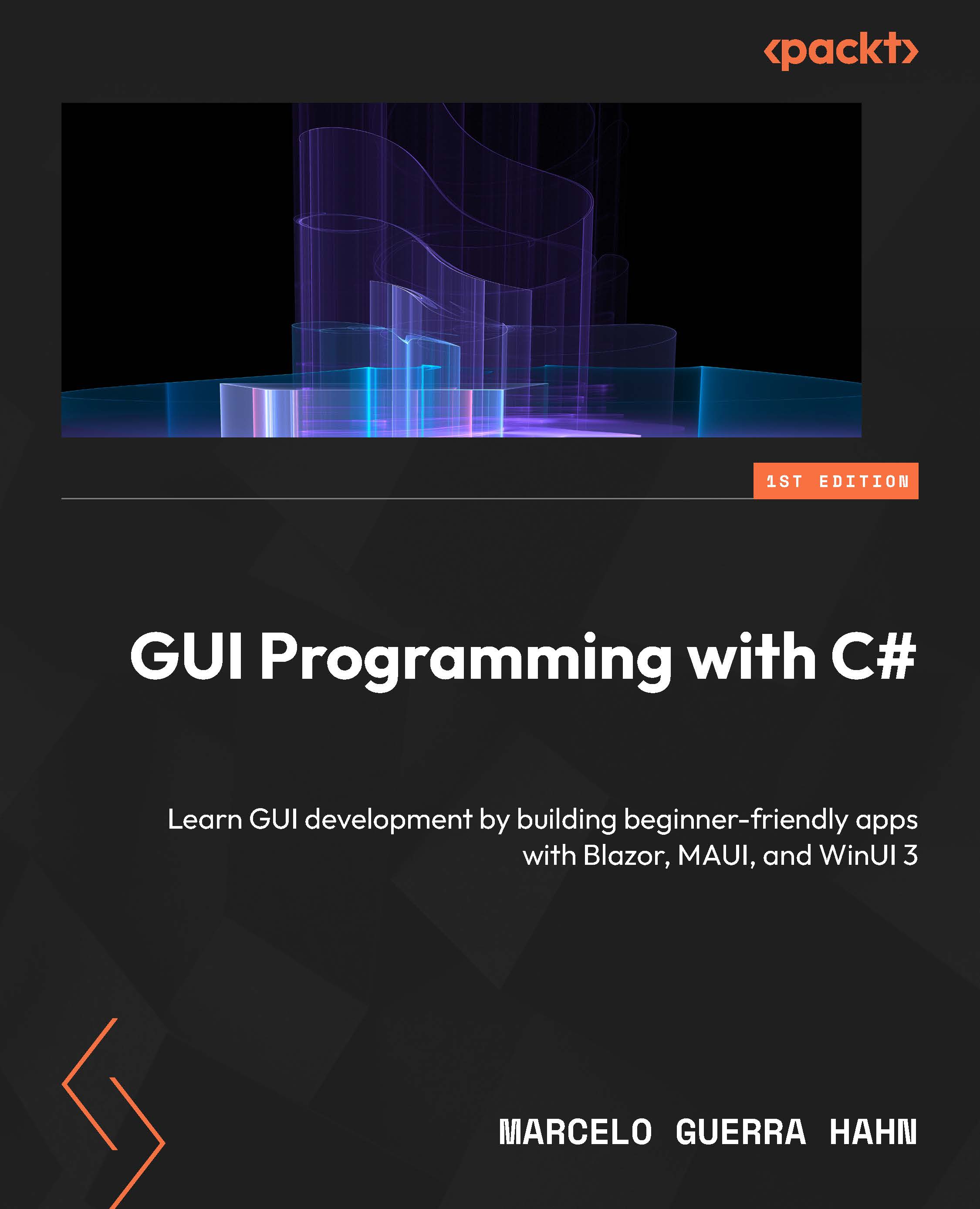
GUI Programming with C#

GUI Programming with C#: Learn GUI development by building beginner-friendly apps with Blazor, MAUI, and WinUI 3

Arrow left icon
Profile Icon Marcelo Guerra Hahn
Arrow right icon
₹2978.99
Full star icon Full star icon Full star icon Empty star icon Empty star icon 3 (1 Ratings)
Paperback Feb 2026 212 pages 1st Edition
eBook
₹999.99 ₹2382.99
Paperback
₹2978.99
Arrow left icon
Profile Icon Marcelo Guerra Hahn
Arrow right icon
₹2978.99
Full star icon Full star icon Full star icon Empty star icon Empty star icon 3 (1 Ratings)
Paperback Feb 2026 212 pages 1st Edition
eBook
₹999.99 ₹2382.99
Paperback
₹2978.99
eBook
₹999.99 ₹2382.99
Paperback
₹2978.99

What do you get with Print?

Product feature icon Instant access to your digital copy whilst your Print order is Shipped
Product feature icon Paperback book shipped to your preferred address
Product feature icon Redeem a companion digital copy on all Print orders
Product feature icon Access this title in our online reader with advanced features
Product feature icon DRM FREE - Read whenever, wherever and however you want
Modal Close icon
Payment Processing...
tick Completed

Shipping Address

Billing Address

Shipping Methods
Table of content icon View table of contents Preview book icon Preview Book

GUI Programming with C#

Introduction to GUI Development in C#

Graphical User Interfaces (GUIs) have changed how humans and computers interact. With GUIs, users do not need to learn complex commands to perform actions. Instead, they can carry them out with simple visual features such as icons, windows, and buttons. This has made it easier for users to understand and utilize software, significantly improving its wide availability and convenience. The primary distinction between conventional text-based UIs and GUIs is that GUIs allow users of different backgrounds to interact with various applications using symbols and images to carry out commands. This flexibility has transformed the computing world by enabling users with limited technical knowledge to carry out different tasks easily. GUIs are a crucial part of application development due to their ability to influence its various aspects, such as the following:

  • User experience: The convenient interfaces supplied by GUIs boost the user’s software programs quickly
  • Accessibility: The visual features, such as icons, windows, and buttons provided by GUIs allow individuals with limited technical knowledge to perform tasks quickly, making them more accessible
  • Throughput: Proficient GUIs allow users to perform complex tasks swiftly, streamlining the workflow and enhancing efficiency and productivity while developing software
  • Competitive advantage: Well-designed and accessible GUIs can differentiate products from competitors, giving them a significant edge in the market and contributing to success

In this chapter, we will cover the following main topics:

  • Developing GUIs in C#
  • Creating GUIs for different platforms in C#
  • Using Visual Studio to develop GUIs for different platforms in C#

Technical requirements

This chapter requires access to Visual Studio Community (https://visualstudio.microsoft.com/downloads/) with the following workloads installed:

  • ASP.NET and Web Development
  • .NET Multi-platform App UI (MAUI) Development
  • .NET desktop development
  • Universal Windows Platform (UWP) Development

The code shown in the examples can be found here: https://github.com/PacktPublishing/GUI-Programming-with-C-Sharp/tree/main/Chapter%201

Developing GUIs in C#

Modern software uses GUIs. GUIs allow users to perform their tasks effortlessly through user-friendly interactions. Microsoft developed the object-oriented programming language C# (pronounced C Sharp) as its preferred language for developing its products across various platforms.

The easy-to-use, contemporary, and versatile C# works in the context of the wide-ranging set of technologies offered by Microsoft’s platform. This platform is designed to support, among other features, cross-platform development. The simplicity of the C# syntax allows developers to use it for different programming tasks. Developers used to C, C++, or Java can easily transition to C# due to all of them being C-style languages with similar syntax basics, such as the use of curly braces.

C# is an object-oriented language supporting event-driven programming and has a rich library support that makes it appropriate for UI development. Let’s explore some of them:

  • Rich library support: C# is part of the .NET platform. This platform contains an extensive range of libraries. These libraries include large quantities of pre-written code. This code is exposed in the form of classes and interfaces that can be accessed through pre-compiled public APIs. This pre-existing code allows developers to focus on developing their application’s distinctive functionalities instead of rewriting already-available solutions.
  • Object-oriented programming: As an object-oriented programming language, C# includes classes, inheritance, and polymorphism. In C#, GUIs are represented as objects that contain and are near other objects and, in turn, allow users to invoke methods. This sequence of events enables developers to write modular code to handle the UI interactions and their effects.
  • Event-driven programming: Events represent user actions, sensor inputs, or commands from other programs. Events enable the fluid execution of a program through the use of event-driven programming. This programming style simplifies the development of GUI-driven functionality because user actions trigger events that lead to the execution of the corresponding code. To fully appreciate the benefits of event-driven programming, it is helpful to understand the concepts of tight and loose coupling. Event-driven programming supports loose coupling, where components interact through well-defined interfaces, enhancing modularity, flexibility, and maintainability.

To use these features to start creating GUIs, we will need a tool that can facilitate the process. The tool of choice for C# development is Visual Studio. In the next section, we will install Visual Studio and develop our first GUIs.

Installing Visual Studio

The first step to be able to create the application is to install Visual Studio. Different options for this are available, including Visual Studio Code, Visual Studio Community, Visual Studio Professional, and Visual Studio Enterprise. In this book, we will use Visual Studio Code and Community as they are free and include the features we will explore. To download Visual Studio, navigate to https://visualstudio.microsoft.com/ and follow these steps:

  1. Run the installer once the download is complete. The installation can be customized by picking specific workloads and components.
  2. Select C# Workload. Be careful when choosing the C# development workload during the installation. Make sure that you select the following workloads:
    1. .NET Multi-platform App UI development
    2. .NET desktop development
  3. Follow the prompts to complete the installation process. Once installed, click the Launch button to start.

Once in Visual Studio, we can explore its main components as they appear on the screen:

  • Solution Explorer: Displays the structure of the solution and projects. Files, folders, and project dependencies can be navigated from here.
Figure 1.1 – Solution Explorer

Figure 1.1 – Solution Explorer

  • Editor: The main area where the actual coding is done. It provides code completion, syntax highlighting, and other helpful tools to boost productivity.
Figure 1.2 – Code editor

Figure 1.2 – Code editor

  • Toolbox: Offers several elements, controls, and other features that may be dropped onto windows or forms.
Figure 1.3 – Toolbox

Figure 1.3 – Toolbox

  • Properties: Displays the properties of the currently selected item in the designer or code editor. You can use it to modify various properties of controls and components.
Figure 1.4 – Properties window

Figure 1.4 – Properties window

  • Designer: Developers can drag and drop controls across a form or window to build the user experience graphically. Developers can flip through the code view and design view to see the code.
Figure 1.5 – Designer window

Figure 1.5 – Designer window

Now that Visual Studio is installed, we can create our first UI.

Using Visual Studio to create a GUI in C#

We can create the first project by following these instructions.

  1. From the Start menu, select Create New Project.
  2. From the All languages drop-down menu, select C#.
  3. From All Platforms, select Windows.
  4. From All Project Types, select Desktop.
  5. From the list, choose Windows Form App (.NET).

    Note

    The .NET framework is now outdated and is only included here to show the foundations for the other technologies.

  1. Enter Hello World for Project Name.
  2. Click the Create button.

Visual Studio offers a smooth programming experience, which makes it the best option for C# GUI development. A blank Windows form is shown in Figure 1.6.

Figure 1.6 – Blank Windows form in Visual Studio

Figure 1.6 – Blank Windows form in Visual Studio

The next step is to add controls to the form. Those controls are added by dragging and dropping from Toolbox. Follow the steps below to complete the form.

  1. Select View and then Toolbox. From here, start adding controls to the form. For this example, drag and drop a label, a text box, and a button so the form looks like Figure 1.7. These elements are under the Common Controls section of the Toolbox and can also be found using the search box in it.
Figure 1.7 – Form with a label, text box, and button

Figure 1.7 – Form with a label, text box, and button

  1. Once the elements are in place, you can use the Properties window to change their properties. Make the following changes:
    1. Label:
      • Text: Name
    2. Textbox:
      • (Name): txtName
    3. Button
      • Text: Greet
      • (Name): btnGreet

After making those changes, the form should look like this:

Figure 1.8 – Controls with updated properties

Figure 1.8 – Controls with updated properties

Note that each of the elements in the form, including the form, are objects in an object-oriented hierarchy where all of them inherit from a class named Control, and the label, textbox, and button are contained in the form.

As mentioned before, C# uses events to manage the interactions, so we need to access the code for the event that indicates that the button has been clicked on to add the code that produces the interaction. To do that, double-click on the Greet button. The code editor shown in Figure 1.9 will be displayed.

Figure 1.9 – Code editor window showing the button click method

Figure 1.9 – Code editor window showing the button click method

Complete the code by showing a popup saying 'Hello' followed by the name inserted in the text box. The code should look as follows:

        private void btnGreet_Click(object sender, EventArgs e)
        {
            MessageBox.Show($"Hello {txtName.Text}");
        }

This code works as follows:

  • private void btnGreet_Click(object sender, EventArgs e): This event handler method gets called when the btnGreet button is clicked. The private keyword means this method is only accessible within the same class. The void term means this method doesn’t return any value. The parameter’s sender object and EventArgs e represent the control that fired the event and the event data, respectively.
  • MessageBox.Show($"Hello {txtName.Text}");: This line of code shows a message box with a greeting message. The MessageBox.Show() method displays a message box to the user. The message is "Hello" concatenated with the text from txtName. The txtName.Text part is the text property of a TextBox control named txtName, which contains the text entered by the user.

So, when the btnGreet button is clicked, a message box will appear saying “Hello” followed by whatever name the user has entered into the txtName text box. For example, if the user entered John into the txtName text box and then clicked the btnGreet button, a message box would appear saying “Hello John”.

This example, though simple, shows the main ideas behind designing a GUI in C#. Those steps include selecting the platform/technology to be used, creating the interactions by placing the UI elements in the desired locations, and programming the interactions by writing code to respond to user actions when interacting with the UI components.

Creating GUIs for different platforms in C#

As mentioned in the previous section, libraries play a key role in UI development. Many libraries have been used for this, and the libraries have evolved. Some older libraries include Windows Forms and Windows Presentation Foundation (WPF). In this book, we will not focus on those. Instead, we will expand on modern libraries, including Blazor, WebAssembly, .NET MAUI, and Windows UI Library 3 (WinUI 3).

Blazor

Microsoft offers a powerful frontend framework called Blazor. This framework can construct interactive client-side web GUIs. Blazor distinguishes itself from other frameworks because it allows developers to use C# and .NET to write the client-side part of the code without needing JavaScript. Developers familiar with C# and .NET can use their current skills and knowledge without the need to learn other GUI technologies. Blazor supports two hosting models: Blazor Server (SignalR-based) and Blazor WebAssembly (client-side in the browser). As a result, the learning period for developers new to web development is reduced, and the productivity of existing developers who are well versed in .NET and C# is increased.

Additionally, developers can make the most of the vast libraries offered by .NET, which boosts their productivity even more and increases the capabilities of their applications. Developers use the library SignalR, which allows them to streamline the process of adding real-time web functionality to their applications. Using this process, any changes happening on the server can be notified to the client using push notifications, which gives their applications the appearance of real-time responsiveness.

.NET MAUI

.NET MAUI allows developers to create mobile and desktop applications using C# and Extensible Application Markup Language (XAML).

XAML

XAML is a declarative XML-based language used to define the UI in .NET applications, particularly those developed with WPF and UWP. It allows developers to design UI elements and their properties in a structured and readable format, which can then be seamlessly integrated with the application’s backend logic written in languages such as C#.

.NET MAUI is an evolution of Xamarin.Forms and supports different operating systems, including Android, iOS, macOS, and Windows. The main advantage of using MAUI is that applications can be repackaged on any device, such as a smartphone, tablet, or desktop. As a result, developers no longer need to write platform-specific code for their applications, which helps them save precious time and resources. This also allows developers to concentrate all their effort on creating high-quality applications that could flawlessly work on all major platforms with the help of .NET MAUI.

WinUI 3

WinUI 3 builds modern native Windows applications. Although WinUI 3 is part of the Windows App SDK (formerly known as Project Reunion), it is shipped separately from the Windows operating system. As the next generation of the WinUI framework, WinUI 3 develops WinUI into a complete UX framework. Thus, WinUI is accessible as a UI layer for all desktop Windows apps. As it is separate from Windows SDKs, it can provide developers with a combined set of APIs and tools that they could utilize to develop production desktop apps. These apps were designed for Windows 10 and later versions and published in the Microsoft Store.

A vital feature of WinUI 3 is that developers can develop packaged and unpackaged C# and C++ WinUI 3 desktop apps with its help. The packaged applications include the package manifest and additional resources to let the developers turn the app into an MSIX package. Unpackaged applications, on the other hand, do not require a manifest or additional packaging, allowing developers to run and distribute their apps more flexibly without the constraints of the MSIX packaging process.

Creating Blazor, MAUI, and WinUI 3 GUIs

In this section, you’ll create the same Hello World form you created using a Windows form in Blazor and MAUI. We’ll implement it in WinUI 3 in a future chapter.

Blazor

To create the Hello World app in Blazor, create a new project in C# for Windows under the Cloud category and select Blazor Web App by following these steps:

  1. Select Create New Project and mark the options shown in the following screenshot:
Figure 1.10 – New Blazor Web App project options

Figure 1.10 – New Blazor Web App project options

  1. In the Project Configuration window, click Next.
  2. Find the Home.razor page in Solution Explorer, as shown here:
Figure 1.11 – Blazor solution

Figure 1.11 – Blazor solution

  1. Modify the code within the page so that it looks like the following:
    @page "/greet"
    <h3>Greet</h3>
    <input @bind="Name" placeholder="Enter your name" />
    <button @onclick="ShowGreeting">Greet</button>
    @if (!string.IsNullOrEmpty(Greeting))
    {
        <p>@Greeting</p>
    }
    @code {
        string Name { get; set; }
        string Greeting { get; set; }
        void ShowGreeting()
        {
            Greeting = $"Hello {Name}";
        }
    }
    
  2. Run the project. The screen in Figure 1.12 should display. At this point, you may receive one or more popups related to SSL certificates. If this happens, accept the requests. The component can be accessed through the /greet URL.
Figure 1.12 – Final Blazor GUI

Figure 1.12 – Final Blazor GUI

We will dedicate multiple chapters to Blazor. However, here is a short overview of the code:

  • @page "/greet" sets the route for this component. In this context, a route defines the URL path ("/"greet") that maps to and displays the specified component when accessed by the user.
  • The input element is data-bound to the Name property, updating the name whenever the user enters the field.
  • The button element has an @onclick directive that calls the ShowGreeting method when the button is clicked.
  • The ShowGreeting method sets the Greeting property to a string that includes the name entered by the user. This will in turn cause the string being displayed to update. This line will become important when debugging the code as it is the spot where the breakpoint can be set.
  • The @if block renders the greeting message only if it’s not null or empty.

When running the application, you can navigate to this component by entering /greet in your browser’s address bar. When you enter a name and click the Greet button, you should see the greeting message appear below the button. This is similar to the functionality of the Windows Forms code, but it uses Blazor and WebAssembly.

MAUI

To create the same form in .NET MAUI, follow these steps:

  1. Select Create New Project and select the following options:
Figure 1.13 – New MAUI  project options

Figure 1.13 – New MAUI project options

  1. Find the MainPage.xaml and MainPage.xaml.cs files in Solution Explorer, as seen in Figure 1.14.
Figure 1.14 – MAUI solution

Figure 1.14 – MAUI solution

  1. Modify the code in MainPage.xaml to look like the following code.
    <ContentPage xmlns="http://schemas.microsoft.com/dotnet/2021/maui"
                 xmlns:x="http://schemas.microsoft.com/winfx/2009/xaml"
                 x:Class= "HelloWorldMAUI.MainPage">
        <StackLayout Margin="20">
            <Entry x:Name="NameEntry" Placeholder="Enter your name" />
            <Button Text="Greet" Clicked="OnGreetButtonClicked" />
            <Label x:Name="GreetingLabel" />
        </StackLayout>
    </ContentPage>
    

In this code, note the following:

  • The Entry element is where the user can enter their name
  • The Button element has a Clicked event that calls the OnGreetButtonClicked method when the button is clicked
  • The Label element is where the greeting message will be displayed
  1. Modify the MainPage.xaml.cs code to look like the following one:
    namespace HelloWorldMAUI
    {
        public partial class MainPage : ContentPage
        {
            public MainPage()
            {
                InitializeComponent();
            }
            void OnGreetButtonClicked(object sender, EventArgs e)
            {
                GreetingLabel.Text = $"Hello {NameEntry.Text}";
            }
        }
    }
    
  2. Run the project. The form should look as shown in Figure 1.15:
Figure 1.15 – Final MAUI GUI

Figure 1.15 – Final MAUI GUI

In this code, the OnGreetButtonClicked method sets the Text property of the GreetingLabel to a string that includes the text entered in NameEntry.

So, when you enter a name and click the Greet button, you should see the greeting message on the label. This is similar to the event-driven implementation of the Windows form example.

WinUI 3

Chapter 8 will discuss the steps needed to run a WinUI 3 project. For comparison, the code looks as follows:

<Page
    x:Class= "HelloWorld.GreetPage"
    xmlns="http://schemas.microsoft.com/winfx/2006/xaml/presentation"
    xmlns:x="http://schemas.microsoft.com/winfx/2006/xaml">
    <StackPanel Margin="20">
        <TextBox x:Name="NameTextBox" PlaceholderText="Enter your name" />
        <Button Content="Greet" Click="OnGreetButtonClicked" />
        <TextBlock x:Name="GreetingTextBlock" />
    </StackPanel>
</Page>

In this code, note the following:

  • The TextBox element is where the user can enter their name
  • The Button element has a Click event that calls the OnGreetButtonClicked method when the button is clicked
  • The TextBlock element is where the greeting message will be displayed

Next, you have to implement the OnGreetButtonClicked method in the GreetPage.xaml.cs code-behind file. Here’s what the code might look like:

using Microsoft.UI.Xaml;
using Microsoft.UI.Xaml.Controls;
namespace YourNamespace
{
    public sealed partial class GreetPage : Page
    {
        public GreetPage()
        {
            this.InitializeComponent();
        }
        private void OnGreetButtonClicked(object sender, RoutedEventArgs e)
        {
            GreetingTextBlock.Text = $"Hello {NameTextBox.Text}";
        }
    }
}

In this code, the OnGreetButtonClicked method sets the Text property of GreetingTextBlock to a string that includes the text entered in NameTextBox.

So, when you enter a name and click the Greet button, you should see the greeting message appear in the text block. This is similar to the functionality of the Windows Forms, Blazor WebAssembly, and .NET MAUI code you provided, but in a WinUI 3 context.

Summary

In this chapter, we introduced the concept of GUI development using C#, a powerful and versatile programming language. We explored GUI development through various frameworks, namely, Windows Forms, Blazor, .NET MAUI, and WinUI 3. Each framework offers unique features and capabilities for creating robust and interactive UIs. Windows Forms, for instance, is a tried-and-true framework that has been used for many years to develop desktop applications. On the other hand, Razor is a newer framework designed for building dynamic web pages with C#. .NET MAUI and WinUI 3 are exciting frameworks that allow developers to create cross-platform applications with a single code base. You can write your application once and run it on multiple platforms, including Windows, macOS, iOS, and Android.

Throughout the chapter, we focused on practical implementation, demonstrating the creation of a simple Hello World application that illustrates key concepts in GUI development. By looking at the different implementations of this application across the four frameworks, we explored their similarities and differences. These comparisons will serve as the foundation for a deeper exploration of each framework and its functionality in future chapters.

The Blazor implementation is the one that deviates the most from a traditional C# implementation. MAUI and WinUI 3 are very similar and continue to evolve from their roots in Windows Forms.

In the next chapter, we will explore Blazor and WebAssembly in detail. These technologies are revolutionizing how we develop web applications, and we believe they hold exciting possibilities for the future of GUI development.

Left arrow icon Right arrow icon
Download code icon Download Code

Key benefits

  • Understand core GUI principles in C# through simple, guided examples
  • Build introductory apps with Blazor, .NET MAUI, and WinUI 3
  • Learn data binding and foundational MVVM concepts
  • Purchase of the print or Kindle book includes a free PDF eBook

Description

Developing graphical user interfaces in C# can feel overwhelming with so many frameworks and tools to choose from. This book simplifies the journey by teaching GUI fundamentals through small, structured, and practical examples. You start with core GUI concepts, event driven programming, and basic interface design. Then you build simple web apps using Blazor and WebAssembly, learning about components, rendering, and data binding. Next, you explore cross platform development with .NET MAUI, working with XAML, layouts, controls, and basic app logic. Finally, you create Windows desktop applications with WinUI 3, using common controls and foundational patterns such as MVVM and data binding. Rather than focusing on complex enterprise architecture, the book builds your skills step by step. Each chapter reinforces key ideas through clear examples designed to build confidence and practical understanding. Written by Marcelo, a developer with over 18 years of experience in C#, C++, Azure, and data driven systems, this book helps you gain clarity in GUI development. By the end, you will be able to create simple, well structured web and desktop interfaces in C# and understand the core concepts behind them.

Who is this book for?

This book is for C# developers who want a beginner-friendly introduction to GUI programming. It is suitable for junior developers, backend developers expanding into UI work, and learners who want to understand the foundations before exploring more advanced UI architecture. You should be comfortable with basic C# syntax, classes, and object-oriented programming concepts. No prior experience with Blazor, .NET MAUI, WinUI 3, XAML, or MVVM is required.

What you will learn

  • Understand core GUI concepts and event-driven programming in C#
  • Create beginner-friendly web interfaces using Blazor components
  • Build simple cross-platform apps with .NET MAUI and XAML
  • Handle user input, events, and basic UI logic in your applications
  • Develop Windows desktop interfaces with WinUI 3 controls
  • Apply data binding and introductory MVVM patterns
Estimated delivery fee Deliver to India

Premium delivery 5 - 8 business days

₹630.95
(Includes tracking information)

Product Details

Country selected
Publication date, Length, Edition, Language, ISBN-13
Publication date : Feb 27, 2026
Length: 212 pages
Edition : 1st
Language : English
ISBN-13 : 9781835882542
Category :
Languages :
Tools :

What do you get with Print?

Product feature icon Instant access to your digital copy whilst your Print order is Shipped
Product feature icon Paperback book shipped to your preferred address
Product feature icon Redeem a companion digital copy on all Print orders
Product feature icon Access this title in our online reader with advanced features
Product feature icon DRM FREE - Read whenever, wherever and however you want
Modal Close icon
Payment Processing...
tick Completed

Shipping Address

Billing Address

Shipping Methods
Estimated delivery fee Deliver to India

Premium delivery 5 - 8 business days

₹630.95
(Includes tracking information)

Product Details

Publication date : Feb 27, 2026
Length: 212 pages
Edition : 1st
Language : English
ISBN-13 : 9781835882542
Category :
Languages :
Tools :

Packt Subscriptions

See our plans and pricing
Modal Close icon
₹800 billed monthly
Feature tick icon Unlimited access to Packt's library of 7,000+ practical books and videos
Feature tick icon Constantly refreshed with 50+ new titles a month
Feature tick icon Exclusive Early access to books as they're written
Feature tick icon Solve problems while you work with advanced search and reference features
Feature tick icon Offline reading on the mobile app
Feature tick icon Simple pricing, no contract
₹4500 billed annually
Feature tick icon Unlimited access to Packt's library of 7,000+ practical books and videos
Feature tick icon Constantly refreshed with 50+ new titles a month
Feature tick icon Exclusive Early access to books as they're written
Feature tick icon Solve problems while you work with advanced search and reference features
Feature tick icon Offline reading on the mobile app
Feature tick icon Choose a DRM-free eBook or Video every month to keep
Feature tick icon PLUS own as many other DRM-free eBooks or Videos as you like for just ₹400 each
Feature tick icon Exclusive print discounts
₹5000 billed in 18 months
Feature tick icon Unlimited access to Packt's library of 7,000+ practical books and videos
Feature tick icon Constantly refreshed with 50+ new titles a month
Feature tick icon Exclusive Early access to books as they're written
Feature tick icon Solve problems while you work with advanced search and reference features
Feature tick icon Offline reading on the mobile app
Feature tick icon Choose a DRM-free eBook or Video every month to keep
Feature tick icon PLUS own as many other DRM-free eBooks or Videos as you like for just ₹400 each
Feature tick icon Exclusive print discounts

Table of Contents

12 Chapters
Introduction to GUI Development in C# Chevron down icon Chevron up icon
Introduction to Blazor and WebAssembly Chevron down icon Chevron up icon
Building Your First Blazor Web Application Chevron down icon Chevron up icon
Using Razor Components and Data Binding Chevron down icon Chevron up icon
Introduction to .NET MAUI Chevron down icon Chevron up icon
Creating Native, Cross-Platform Apps with .NET MAUI Chevron down icon Chevron up icon
Implementing MVVM and Data Binding in .NET MAUI Chevron down icon Chevron up icon
Getting Started with WinUI 3 and Visual Studio Chevron down icon Chevron up icon
Building a Modern Desktop App with WinUI 3 Chevron down icon Chevron up icon
Advanced WinUI Chevron down icon Chevron up icon
Other Books You May Enjoy Chevron down icon Chevron up icon
Index Chevron down icon Chevron up icon

Customer reviews

Rating distribution
Full star icon Full star icon Full star icon Empty star icon Empty star icon 3
(1 Ratings)
5 star 0%
4 star 0%
3 star 100%
2 star 0%
1 star 0%
Robert Makuch May 29, 2026
Full star icon Full star icon Full star icon Empty star icon Empty star icon 3
The book is somewhat vague in the procedures and methods used to create GUI interfaces. I was hoping that the book had step by step procedures to developing GUIs. There is a lot of material covered in the book but it is not explained for someone that wants to learn to create quality GUIs.
Feefo Verified review Feefo
Get free access to Packt library with over 7500+ books and video courses for 7 days!
Start Free Trial

FAQs

What is the digital copy I get with my Print order? Chevron down icon Chevron up icon

When you buy any Print edition of our Books, you can redeem (for free) the eBook edition of the Print Book you’ve purchased. This gives you instant access to your book when you make an order via PDF, EPUB or our online Reader experience.

What is the delivery time and cost of print book? Chevron down icon Chevron up icon

Shipping Details

USA:

'

Economy: Delivery to most addresses in the US within 10-15 business days

Premium: Trackable Delivery to most addresses in the US within 3-8 business days

UK:

Economy: Delivery to most addresses in the U.K. within 7-9 business days.
Shipments are not trackable

Premium: Trackable delivery to most addresses in the U.K. within 3-4 business days!
Add one extra business day for deliveries to Northern Ireland and Scottish Highlands and islands

EU:

Premium: Trackable delivery to most EU destinations within 4-9 business days.

Australia:

Economy: Can deliver to P. O. Boxes and private residences.
Trackable service with delivery to addresses in Australia only.
Delivery time ranges from 7-9 business days for VIC and 8-10 business days for Interstate metro
Delivery time is up to 15 business days for remote areas of WA, NT & QLD.

Premium: Delivery to addresses in Australia only
Trackable delivery to most P. O. Boxes and private residences in Australia within 4-5 days based on the distance to a destination following dispatch.

India:

Premium: Delivery to most Indian addresses within 5-6 business days

Rest of the World:

Premium: Countries in the American continent: Trackable delivery to most countries within 4-7 business days

Asia:

Premium: Delivery to most Asian addresses within 5-9 business days

Disclaimer:
All orders received before 5 PM U.K time would start printing from the next business day. So the estimated delivery times start from the next day as well. Orders received after 5 PM U.K time (in our internal systems) on a business day or anytime on the weekend will begin printing the second to next business day. For example, an order placed at 11 AM today will begin printing tomorrow, whereas an order placed at 9 PM tonight will begin printing the day after tomorrow.


Unfortunately, due to several restrictions, we are unable to ship to the following countries:

  1. Afghanistan
  2. American Samoa
  3. Belarus
  4. Brunei Darussalam
  5. Central African Republic
  6. The Democratic Republic of Congo
  7. Eritrea
  8. Guinea-bissau
  9. Iran
  10. Lebanon
  11. Libiya Arab Jamahriya
  12. Somalia
  13. Sudan
  14. Russian Federation
  15. Syrian Arab Republic
  16. Ukraine
  17. Venezuela
What is custom duty/charge? Chevron down icon Chevron up icon

Customs duty are charges levied on goods when they cross international borders. It is a tax that is imposed on imported goods. These duties are charged by special authorities and bodies created by local governments and are meant to protect local industries, economies, and businesses.

Do I have to pay customs charges for the print book order? Chevron down icon Chevron up icon

The orders shipped to the countries that are listed under EU27 will not bear custom charges. They are paid by Packt as part of the order.

List of EU27 countries: www.gov.uk/eu-eea:

A custom duty or localized taxes may be applicable on the shipment and would be charged by the recipient country outside of the EU27 which should be paid by the customer and these duties are not included in the shipping charges been charged on the order.

How do I know my custom duty charges? Chevron down icon Chevron up icon

The amount of duty payable varies greatly depending on the imported goods, the country of origin and several other factors like the total invoice amount or dimensions like weight, and other such criteria applicable in your country.

For example:

  • If you live in Mexico, and the declared value of your ordered items is over $ 50, for you to receive a package, you will have to pay additional import tax of 19% which will be $ 9.50 to the courier service.
  • Whereas if you live in Turkey, and the declared value of your ordered items is over € 22, for you to receive a package, you will have to pay additional import tax of 18% which will be € 3.96 to the courier service.
How can I cancel my order? Chevron down icon Chevron up icon

Cancellation Policy for Published Printed Books:

You can cancel any order within 1 hour of placing the order. Simply contact customercare@packt.com with your order details or payment transaction id. If your order has already started the shipment process, we will do our best to stop it. However, if it is already on the way to you then when you receive it, you can contact us at customercare@packt.com using the returns and refund process.

Please understand that Packt Publishing cannot provide refunds or cancel any order except for the cases described in our Return Policy (i.e. Packt Publishing agrees to replace your printed book because it arrives damaged or material defect in book), Packt Publishing will not accept returns.

What is your returns and refunds policy? Chevron down icon Chevron up icon

Return Policy:

We want you to be happy with your purchase from Packtpub.com. We will not hassle you with returning print books to us. If the print book you receive from us is incorrect, damaged, doesn't work or is unacceptably late, please contact Customer Relations Team on customercare@packt.com with the order number and issue details as explained below:

  1. If you ordered (eBook, Video or Print Book) incorrectly or accidentally, please contact Customer Relations Team on customercare@packt.com within one hour of placing the order and we will replace/refund you the item cost.
  2. Sadly, if your eBook or Video file is faulty or a fault occurs during the eBook or Video being made available to you, i.e. during download then you should contact Customer Relations Team within 14 days of purchase on customercare@packt.com who will be able to resolve this issue for you.
  3. You will have a choice of replacement or refund of the problem items.(damaged, defective or incorrect)
  4. Once Customer Care Team confirms that you will be refunded, you should receive the refund within 10 to 12 working days.
  5. If you are only requesting a refund of one book from a multiple order, then we will refund you the appropriate single item.
  6. Where the items were shipped under a free shipping offer, there will be no shipping costs to refund.

On the off chance your printed book arrives damaged, with book material defect, contact our Customer Relation Team on customercare@packt.com within 14 days of receipt of the book with appropriate evidence of damage and we will work with you to secure a replacement copy, if necessary. Please note that each printed book you order from us is individually made by Packt's professional book-printing partner which is on a print-on-demand basis.

What tax is charged? Chevron down icon Chevron up icon

Currently, no tax is charged on the purchase of any print book (subject to change based on the laws and regulations). A localized VAT fee is charged only to our European and UK customers on eBooks, Video and subscriptions that they buy. GST is charged to Indian customers for eBooks and video purchases.

What payment methods can I use? Chevron down icon Chevron up icon

You can pay with the following card types:

  1. Visa Debit
  2. Visa Credit
  3. MasterCard
  4. PayPal
What is the delivery time and cost of print books? Chevron down icon Chevron up icon

Shipping Details

USA:

'

Economy: Delivery to most addresses in the US within 10-15 business days

Premium: Trackable Delivery to most addresses in the US within 3-8 business days

UK:

Economy: Delivery to most addresses in the U.K. within 7-9 business days.
Shipments are not trackable

Premium: Trackable delivery to most addresses in the U.K. within 3-4 business days!
Add one extra business day for deliveries to Northern Ireland and Scottish Highlands and islands

EU:

Premium: Trackable delivery to most EU destinations within 4-9 business days.

Australia:

Economy: Can deliver to P. O. Boxes and private residences.
Trackable service with delivery to addresses in Australia only.
Delivery time ranges from 7-9 business days for VIC and 8-10 business days for Interstate metro
Delivery time is up to 15 business days for remote areas of WA, NT & QLD.

Premium: Delivery to addresses in Australia only
Trackable delivery to most P. O. Boxes and private residences in Australia within 4-5 days based on the distance to a destination following dispatch.

India:

Premium: Delivery to most Indian addresses within 5-6 business days

Rest of the World:

Premium: Countries in the American continent: Trackable delivery to most countries within 4-7 business days

Asia:

Premium: Delivery to most Asian addresses within 5-9 business days

Disclaimer:
All orders received before 5 PM U.K time would start printing from the next business day. So the estimated delivery times start from the next day as well. Orders received after 5 PM U.K time (in our internal systems) on a business day or anytime on the weekend will begin printing the second to next business day. For example, an order placed at 11 AM today will begin printing tomorrow, whereas an order placed at 9 PM tonight will begin printing the day after tomorrow.


Unfortunately, due to several restrictions, we are unable to ship to the following countries:

  1. Afghanistan
  2. American Samoa
  3. Belarus
  4. Brunei Darussalam
  5. Central African Republic
  6. The Democratic Republic of Congo
  7. Eritrea
  8. Guinea-bissau
  9. Iran
  10. Lebanon
  11. Libiya Arab Jamahriya
  12. Somalia
  13. Sudan
  14. Russian Federation
  15. Syrian Arab Republic
  16. Ukraine
  17. Venezuela
Modal Close icon
Modal Close icon