Search icon CANCEL
Subscription
0
Cart icon
Your Cart (0 item)
Close icon
You have no products in your basket yet
Save more on your purchases! discount-offer-chevron-icon
Savings automatically calculated. No voucher code required.
Arrow left icon
Explore Products
Best Sellers
New Releases
Books
Videos
Audiobooks
Learning Hub
Newsletter Hub
Free Learning
Arrow right icon
timer SALE ENDS IN
0 Days
:
00 Hours
:
00 Minutes
:
00 Seconds
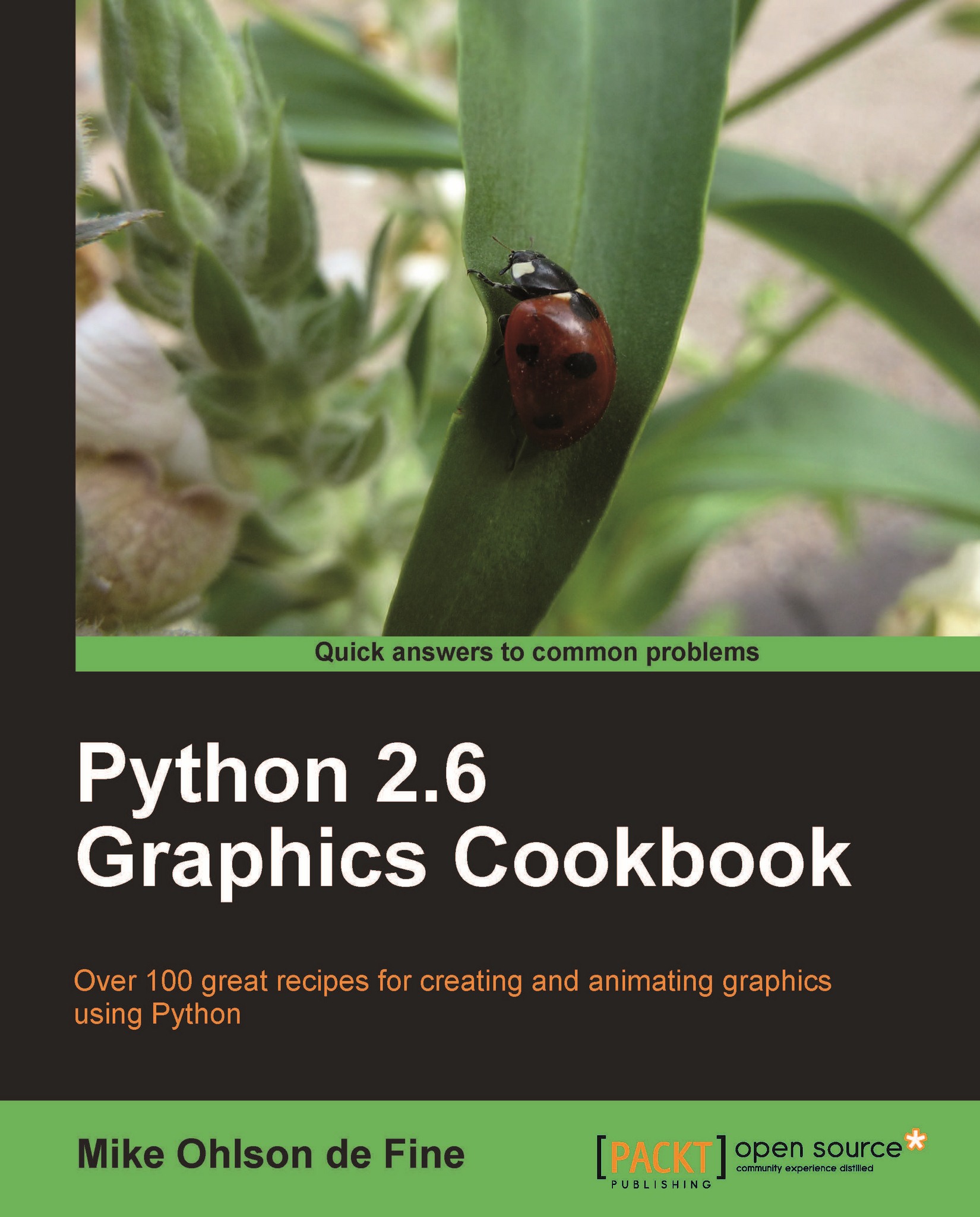
Python 2.6 Graphics Cookbook

Python 2.6 Graphics Cookbook: Learn how to use Python’s built-in graphics capabilities to create static and animated graphics for a range of real-world purposes. Over 100 recipes take you from basic shape creation to developing interactive GUIs.

eBook
$26.09 $28.99
Paperback
$48.99
Subscription
Free Trial
Renews at $19.99p/m

What do you get with Print?

Product feature icon Instant access to your digital copy whilst your Print order is Shipped
Product feature icon Paperback book shipped to your preferred address
Product feature icon Redeem a companion digital copy on all Print orders
Product feature icon Access this title in our online reader with advanced features
Product feature icon DRM FREE - Read whenever, wherever and however you want
OR
Modal Close icon
Payment Processing...
tick Completed

Shipping Address

Billing Address

Shipping Methods
Table of content icon View table of contents Preview book icon Preview Book

Python 2.6 Graphics Cookbook

Chapter 2. Drawing Fundamental Shapes

In this chapter, we will cover:

  • A straight line and the coordinate system

  • Drawing a dashed line

  • Lines of varying styles with arrows and endcaps

  • A two-segment line with a sharp bend

  • A line with a curved bend

  • Drawing intricate stored shapes - the curly vine

  • Drawing a rectangle

  • Drawing overlapping rectangles

  • Drawing concentric squares

  • A circle from an oval

  • A circle from an arc

  • Three ellipses

  • The simplest polygon

  • A star polygon

  • The art of cloning stars

Introduction


Graphics are all about pictures and drawings. In computer programs, a line is not drawn by a hand, holding a pencil, but by the manipulation of numbers on a screen. This chapter provides the fine-grained detail or atomic structure for the rest of the book. Here we lay down the most basic graphic building blocks in their simplest form. The most useful options are presented inside self-contained programs. You can if you want, use the code without understanding in detail how it works. You can learn by doing. You can learn by playing and play is the serious work that unskilled animals do in order to learn almost everything they need for survival.

You can cut and paste the code and it should just work without modification. The code is easily modified and you are encouraged to tinker with it and tweak the parameters inside the drawing methods. The more you tinker with it, the more you will understand.

The area of screen where lines and shapes are drawn is the canvas in Python. It is...

A straight line and the coordinate system


Draw a straight line on a canvas. It is important to understand that the start of the coordinate system is always at the top left-hand corner of the canvas as shown in the previous figure.

How to do it...

  1. In a text editor type the lines below that appear between the two #>>>>>>>>>>>>>>>>>>>>>>>>>>>>>>>>> divider/separators.

  2. Save this as a file named line_1.py, inside the directory called constr again.

  3. As before, open up an X terminal or DOS window if you are using MS Windows.

  4. Change directory (command cd /constr) into the directory constr - where line_1.py is located.

  5. Type python line_1.py and your program will execute. The result should look like the following screenshot:

    # line_1.py
    #>>>>>>>>>>>>>>>>>>>>>>>>>>>>>>>>>>        
    from Tkinter import *
    root...

Draw a dashed line


A straight dashed line, three pixels thick is drawn.

How to do it...

The instructions used in the previous example are used. The only change is in the name of the Python program. This time you should use the name dashed_line.py instead of line_1.py.

# dashed_line.py
#>>>>>>>>>>>>>>>>>>>>>>>>>>>>>>>>>>>>>>>>>>>
from Tkinter import *
root = Tk()
root.title('Dashed line')
cw = 800                                      # canvas width
ch = 200                                      # canvas height
canvas_1 = Canvas(root, width=cw, height=ch)
canvas_1.grid(row=0, column=1)

x_start = 10
y_start = 10
x_end = 500
y_end = 20
canvas_1.create_line(x_start, y_start, x_end,y_end,dash=(3,5), width = 3)
root.mainloop()#

How it works...

The new things here are the addition of some style specifications for the line.

dash=( 3,5) says that there should be three solid pixels...

Lines of varying styles with arrows and endcaps


Four lines are drawn in different styles. We see how attributes like color and end shape can be obtained. A Python for loop is used to make an interesting pattern using the specifications of the dash attribute. In addition the color of the canvas background has been made green.

How to do it...

The instructions used in recipe 1 should be used again.

Just use the name 4lines.py when you write, save, and execute this program.

Arrows and endcaps have been introduced into the line specifications.

#4lines.py
#>>>>>>>>>>>>>>>>>>>>>>>>>>>>>>>>>>>>>>>>>>>>>>
from Tkinter import *
root = Tk()
root.title('Different line styles')
cw = 280                                      # canvas width
ch = 120                                      # canvas height
canvas_1 = Canvas(root, width=cw, height=ch, background="spring \ green...

A two segment line with a sharp bend


Lines do not have to be straight. A more general type of line can be made up of many straight segments joined together. You simply decide where you want the points that join sections of the multi-segment line and the order in which they should be joined.

How to do it...

The instructions are the same as for recipe 1. Just use the name sharp_bend.py when you write, save, and execute this program.

Just make a list of the x,y pairs defining each point and place them in the sequence that you want them connected in. The list can be as long as you like.

#sharp_bend.py
#>>>>>>>>>>>
from Tkinter import *
root = Tk()
root.title('Sharp bend')
cw = 300                                      # canvas width
ch = 200                                      # canvas height
canvas_1 = Canvas(root, width=cw, height=ch, background="white")
canvas_1.grid(row=0, column=1)

x1 = 50
y1 = 10
x2 = 20
y2 = 80
x3 = 150
y3 = 60

canvas_1.create_line(x1,y1...

A line with a curved bend


The most interesting lines are curved. Change the straight, two-segment line of the previous example into a smooth curve that fits parallel to the ends of each segment. Tkinter makes the curve out of 12 straight segments. 12 segments is the default number. However, you can change it to any other sensible number.

How to do it...

Substitute the line canvas_1.create_line(x1,y1, x2,y2, x3,y3) with the line canvas_1.create_line(x1,y1, x2,y2, x3,y3, smooth="true").

The line is now curved. This is immensely useful when making drawings – we only need to specify a minimal number of points and Tkinter fits a curved shape to it.

How it works...

The program output for smooth="true" attribute is shown in the next screenshot. The smooth='true' attribute hides a large amount of serious mathematical curve manufacture taking place under the hood.

To fit a curve to a pair of intersecting lines requires the curve and the lines to run parallel at the beginning and end but in the middle an...

Drawing intricate shapes – the curly vine


The task here is to draw a complicated shape in such a way that you can use it as a framework to produce unlimited variety and beauty.

We start out with a pencil and paper and draw a curly growing vine shape and transfer it in the simplest and most direct way into some code that will draw it.

This is a very important example because it reveals the essential elegance of both Python and Tkinter. The central inspiring design philosophy of Python is captured in two words: simplicity and clarity. This is what makes Python one of the best computer coding languages ever conceived.

Getting ready

When they want to create a fresh design, most graphic artists start with a pencil and paper sketch because of the uncluttered subconscious freedom it gives. For this example, a complex curve was needed – the kind of organic design used in framing pictures in antique books.

The smooth line was drawn with a pencil on paper and marked off at roughly, evenly spaced intervals...

Draw a rectangle


Draw a basic rectangle by specifying its position, shape, and color attributes as named variables.

How to do it...

The instructions used in recipe 1 should be used.

Just use the name rectangle.py when you write, save, and execute this program.

# rectangle.py
#>>>>>>>>>>
from Tkinter import *
root = Tk()
root.title('Basic Rectangle')
cw = 200                                     # canvas width
ch =130                                      # canvas height
canvas_1 = Canvas(root, width=cw, height=200, background="white")
canvas_1.grid(row=0, column=1)

x_start = 10
y_start = 30
x_width =70
y_height = 90
kula ="darkblue"
canvas_1.create_rectangle( x_start,  y_start,\
 x_start + x_width, y_start + y_height, fill=kula)
root.mainloop()
#>>>>>>>>>>>>>>>>>>>>>>>>>>>>>>>>>>>>>>>>>>

How it works...

The results are given in the next screenshot...

Draw overlapping rectangles


Draw three overlapping rectangles by changing the numerical values defining their position, shape, and color variables.

How to do it...

As before the instructions used in recipe 1 should be used.

Just use the name 3rectangles.py when you write, save, and execute this program.

# 3rectangles.py
#>>>>>>>>>>>>>>>>>>>>>>>>>>>>>>>>>>>>>>>>>>>             
from Tkinter import *
root = Tk()
root.title('Overlapping rectangles')

cw = 240                                      # canvas width
ch = 180                                      # canvas height
canvas_1 = Canvas(root, width=cw, height=200, background="green")
canvas_1.grid(row=0, column=1)

# dark blue rectangle - painted first therefore at the bottom
x_start = 10
y_start = 30
x_width =70
y_height = 90
kula ="darkblue"
canvas_1.create_rectangle( x_start,  y_start,\
 x_start + x_width, y_start...

Draw concentric squares


Draw three concentric squares by changing the numerical values defining its position, shape, and color variables.

How to do it...

The instructions used in recipe 1 should be used.

Just use the name 3concentric_squares.py when you write, save, and execute this program.

# 3concentric_squares.py
#>>>>>>>>>>>>>>>>>
from Tkinter import *
root = Tk()
root.title('Concentric squares')

cw = 200                                      # canvas width
ch = 400                                      # canvas height
canvas_1 = Canvas(root, width=cw, height=200, background="green")
canvas_1.grid(row=0, column=1)

# dark blue
x_center=  100
y_center=  100
x_width=  100
y_height= 100
kula= "darkblue"
canvas_1.create_rectangle( x_center - x_width/2, \ 
  y_center -  y_height/2,\
  x_center + x_width/2,  y_center + y_height/2, fill=kula)

#dark red
x_width=  80
y_height= 80
kula ="darkred"
canvas_1.create_rectangle( x_center - x_width/2, \...

A circle from an oval


The best way to draw a circle is to use the Tkinter's create_oval() method from the canvas widget.

How to do it...

The instructions used in the first recipe should be used.

Just use the name circle_1.py when you write, save, and execute this program.

#circle_1.py
#>>>>>>>>>>>>>>
from Tkinter import *
root = Tk()
root.title('A circle')

cw = 150                                      # canvas width
ch = 140                                      # canvas height
canvas_1 = Canvas(root, width=cw, height=ch, background="white")
canvas_1.grid(row=0, column=1)                              

# specify bottom-left and top-right as a set of four numbers named # 'xy'
xy = 20, 20, 120, 120         

canvas_1.create_oval(xy)
root.mainloop()

How it works...

The results are given in the next screenshot, showing a basic circle.

A circle is just an ellipse whose height and width are equal. In the example here, we have created a circle with the a very...

A circle from an arc


Another way to make a circle is to use the create_arc() method. This method may appear to be a more natural way to make circles but it does not allow you to quite complete the circle. If you do try to the circle disappears.

How to do it...

The instructions used in the first example should be used.

Just use the name arc_circle.py when you write, save and execute this program.

# arc_circle.py
#>>>>>>>>>>>>>>>>>>>>>>>>>>>>>>>>>>>>>              
from Tkinter import *
root = Tk()
root.title('Should be a circle')
cw = 210                                      # canvas width
ch = 130                                      # canvas height
canvas_1 = Canvas(root, width=cw, height=ch, background="white")
canvas_1.grid(row=0, column=1)                              

xy = 20, 20, 320, 320         # bounding box from x0,y0 to x1, y1
 # The Arc is drawn  from start_angle, in degrees...

Three arc ellipses


Three elliptic arcs are drawn.

How to do it...

The instructions used in recipe 1 should be used.

Just use the name 3arc_ellipses.py when you write, save, and execute this program.

# 3arc_ellipses.py
#>>>>>>>>>>>>>>>>>>>>>>>>>>>>>>>>>>>>>>>>>            
from Tkinter import *
root = Tk()
root.title('3arc ellipses')

cw = 180                                      # canvas width
ch = 180                                      # canvas height
canvas_1 = Canvas(root, width=cw, height=ch)
canvas_1.grid(row=0, column=1)                              

xy_1 = 20,   80,  80, 20
xy_2 = 20,  130,  80, 100
xy_3 = 100, 130, 140, 20

canvas_1.create_arc(xy_1, start=20, extent=270, fill="red")
canvas_1.create_arc(xy_2, start=-50, extent=290, fill="cyan")
canvas_1.create_arc(xy_3, start=150, extent=-290, fill="blue")
root.mainloop()
#>>>>>>>>>&gt...

Polygons


Draw a polygon. A polygon is a closed, multi-sided figure. These sides are made up of straight line segments. The specification of points is identical to that of multi-segment lines.

How to do it...

The instructions used in recipe 1 should be used.

Just use the name triangle_polygon.py when you write, save, and execute this program.

# triangle_polygon.py
#>>>>>>>>>>>>>>>>         
from Tkinter import *
root = Tk()
root.title('triangle')

cw = 160                                     # canvas width
ch = 80                                      # canvas height
canvas_1 = Canvas(root, width=cw, height=ch, background="white")
canvas_1.grid(row=0, column=1)                              

# point 1      point 2    point 3
canvas_1.create_polygon(140,30,   130,70,    10,50,   fill="red")
root.mainloop()

How it works...

The results are given in the next screenshot, showing a polygon triangle.

The create_polygon() method draws a sequence of straight...

A star polygon


Draw a five-pointed star using named variables to specify the polygon attributes so that all the points or vertexes or tips of the star are defined with reference to a single start position. We refer to this position as the anchor position.

How to do it...

The instructions used in recipe 1 should be used.

Just use the name star_polygon.py when you write, save, and execute this program.

# star_polygon.py
#>>>>>>>>>>>>
 from Tkinter import *
root = Tk()
root.title(Polygon')
cw = 140                                     # canvas width
ch = 80                                      # canvas height
canvas_1 = Canvas(root, width=cw, height=ch, background="white")
canvas_1.grid(row=0, column=1)                              

# blue star, anchored to an anchor point.
x_anchor = 15
y_anchor = 50

canvas_1.create_polygon(x_anchor,           y_anchor,\
                                       x_anchor + 20,    y_anchor - 40,\
                              ...

Cloning and resizing stars


A technique of simultaneous re-positioning and resizing a set of stars is shown.

How to do it...

The instructions used in recipe 1 should be used.

Just use the name clone_stars.py when you write, save, and execute this program.

# clone_stars.py
#>>>>>>>>>>>>>>>>>>>>>>>>>>>>>>>>>>>>>>>
from Tkinter import *
root = Tk()
root.title('Re-sized and re-positioned polygon stars')

cw = 200                                      # canvas width
ch = 100                                      # canvas height
canvas_1 = Canvas(root, width=cw, height=ch, background="white")
canvas_1.grid(row=0, column=1)                              

# blue star, anchored to an anchor point.
x_anchor = 15
y_anchor = 150
size_scaling = 1

canvas_1.create_polygon(x_anchor,        y_anchor,\
                        x_anchor + 20 * size_scaling,   y_anchor - \ 40* size_scaling,\
     ...
Left arrow icon Right arrow icon

Key benefits

  • Create captivating graphics with ease and bring them to life using Python
  • Apply effects to your graphics using powerful Python methods
  • Develop vector as well as raster graphics and combine them to create wonders in the animation world
  • Create interactive GUIs to make your creation of graphics simpler
  • Part of Packt's Cookbook series: Each recipe is a carefully organized sequence of instructions to accomplish the task of creation and animation of graphics as efficiently as possible

Description

Python is a great object-oriented and interactive programming language that lets you develop graphics, both static and animated, using built-in vector graphics functions that are provided with Python. Python 2.6 Graphics Cookbook is a collection of straightforward recipes and illustrative screenshots for creating and animating graphic objects using the Python language. This book makes the process of developing graphics interesting and entertaining by working in a graphic workspace without the burden of mastering complicated language definitions and opaque examples. If you choose to work through all the recipes from the beginning, you will learn to install Python and create basic programs for making lines and shapes using the built-in Tkinter module. The confusing topic of color manipulation is explored in detail using existing Python tools as well as some new tools in the recipes. Next you will learn to manipulate font size, color, and placement of text as placing text exactly where you want on a screen can be tricky because font height, inter-character spacing, and text window dimensions all interfere with each other. Then you will learn how to animate graphics, for example having more than one independent graphic object co-exist and interact using various Python methods. You will also learn how you can work with raster images, such as converting their formats using the Python Imaging Library. Next you will learn how you can combine vector images with raster images so that you can animate the raster images with ease. You will also walk through a set of recipes with the help of which you can handle and manipulate blocks of raw data that may be hundreds of megabytes in size using datastreams, files, and hard drives. You will also learn how you can use Inkscape to dismantle existing images and use parts of them for your own graphics and Python programs. At the end of the book you will learn how you can create GUIs for different purposes.

Who is this book for?

If you are looking to create animated graphics to represent real-world scenarios then this book is for you. Teachers, scholars, students, and engineers who know it is possible to make fascinating models and demonstrations but have not found a handbook that pulls it all together in one place will find what they need in this recipe bank. Basic knowledge of Python programming is required and access to the Web and Google will be useful.

What you will learn

  • Install Python and create basic programs for making lines and shapes
  • Apply different colors to your graphics using widgets and schemes available with the Tkinter module
  • Work with raster images and animate them by combining vector images with raster images
  • Optimize the storage and retrieval of graphics using hard disks, datastreams, and so on
  • Develop GUIs for different purposes to enhance your interaction with the programs
  • Move graphic objects smoothly around a screen by adding minimum delay and shift
  • Explore alternative ways and means of getting graphic shape data into Tkinter programs
  • Create beautiful patterns by setting any number of pivot points in different directions
  • Use trajectory traces to examine the history of execution required for animating specific behavior of objects
Estimated delivery fee Deliver to United States

Economy delivery 10 - 13 business days

Free $6.95

Premium delivery 6 - 9 business days

$21.95
(Includes tracking information)

Product Details

Country selected
Publication date, Length, Edition, Language, ISBN-13
Publication date : Nov 24, 2010
Length: 260 pages
Edition : 1st
Language : English
ISBN-13 : 9781849513845
Category :
Languages :

What do you get with Print?

Product feature icon Instant access to your digital copy whilst your Print order is Shipped
Product feature icon Paperback book shipped to your preferred address
Product feature icon Redeem a companion digital copy on all Print orders
Product feature icon Access this title in our online reader with advanced features
Product feature icon DRM FREE - Read whenever, wherever and however you want
OR
Modal Close icon
Payment Processing...
tick Completed

Shipping Address

Billing Address

Shipping Methods
Estimated delivery fee Deliver to United States

Economy delivery 10 - 13 business days

Free $6.95

Premium delivery 6 - 9 business days

$21.95
(Includes tracking information)

Product Details

Publication date : Nov 24, 2010
Length: 260 pages
Edition : 1st
Language : English
ISBN-13 : 9781849513845
Category :
Languages :

Packt Subscriptions

See our plans and pricing
Modal Close icon
$19.99 billed monthly
Feature tick icon Unlimited access to Packt's library of 7,000+ practical books and videos
Feature tick icon Constantly refreshed with 50+ new titles a month
Feature tick icon Exclusive Early access to books as they're written
Feature tick icon Solve problems while you work with advanced search and reference features
Feature tick icon Offline reading on the mobile app
Feature tick icon Simple pricing, no contract
$199.99 billed annually
Feature tick icon Unlimited access to Packt's library of 7,000+ practical books and videos
Feature tick icon Constantly refreshed with 50+ new titles a month
Feature tick icon Exclusive Early access to books as they're written
Feature tick icon Solve problems while you work with advanced search and reference features
Feature tick icon Offline reading on the mobile app
Feature tick icon Choose a DRM-free eBook or Video every month to keep
Feature tick icon PLUS own as many other DRM-free eBooks or Videos as you like for just $5 each
Feature tick icon Exclusive print discounts
$279.99 billed in 18 months
Feature tick icon Unlimited access to Packt's library of 7,000+ practical books and videos
Feature tick icon Constantly refreshed with 50+ new titles a month
Feature tick icon Exclusive Early access to books as they're written
Feature tick icon Solve problems while you work with advanced search and reference features
Feature tick icon Offline reading on the mobile app
Feature tick icon Choose a DRM-free eBook or Video every month to keep
Feature tick icon PLUS own as many other DRM-free eBooks or Videos as you like for just $5 each
Feature tick icon Exclusive print discounts

Frequently bought together


Stars icon
Total $ 152.97
Python 3 Object Oriented Programming
$54.99
Python Multimedia
$48.99
Python 2.6 Graphics Cookbook
$48.99
Total $ 152.97 Stars icon

Table of Contents

11 Chapters
Start your Engines Chevron down icon Chevron up icon
Drawing Fundamental Shapes Chevron down icon Chevron up icon
Handling Text Chevron down icon Chevron up icon
Animation Principles Chevron down icon Chevron up icon
The Magic of Color Chevron down icon Chevron up icon
Working with Pictures Chevron down icon Chevron up icon
Combining Raster and Vector Pictures Chevron down icon Chevron up icon
Data In and Data Out Chevron down icon Chevron up icon
Exchanging Inkscape SVG Drawings with Tkinter Shapes Chevron down icon Chevron up icon
GUI Construction: Part 1 Chevron down icon Chevron up icon
GUI Construction: Part 2 Chevron down icon Chevron up icon

Customer reviews

Rating distribution
Full star icon Full star icon Full star icon Full star icon Full star icon 5
(2 Ratings)
5 star 100%
4 star 0%
3 star 0%
2 star 0%
1 star 0%
ltheoret Sep 08, 2017
Full star icon Full star icon Full star icon Full star icon Full star icon 5
clear an to the point.
Amazon Verified review Amazon
Jon Moore Sep 08, 2013
Full star icon Full star icon Full star icon Full star icon Full star icon 5
Book is excellent, well pitched, 'Theres more' - This is a brilliant addition/ feature. - Kindle version is badly formatted when reading Code, but general reading text is fine.Amazon have charged me an extra £7.00 for something - Publisher site is cheapest by far AND has links to the code, get ready for a lot of typing if you buy from here :(
Amazon Verified review Amazon
Get free access to Packt library with over 7500+ books and video courses for 7 days!
Start Free Trial

FAQs

What is the digital copy I get with my Print order? Chevron down icon Chevron up icon

When you buy any Print edition of our Books, you can redeem (for free) the eBook edition of the Print Book you’ve purchased. This gives you instant access to your book when you make an order via PDF, EPUB or our online Reader experience.

What is the delivery time and cost of print book? Chevron down icon Chevron up icon

Shipping Details

USA:

'

Economy: Delivery to most addresses in the US within 10-15 business days

Premium: Trackable Delivery to most addresses in the US within 3-8 business days

UK:

Economy: Delivery to most addresses in the U.K. within 7-9 business days.
Shipments are not trackable

Premium: Trackable delivery to most addresses in the U.K. within 3-4 business days!
Add one extra business day for deliveries to Northern Ireland and Scottish Highlands and islands


EU:

Premium: Trackable delivery to most EU destinations within 4-9 business days.

Australia:

Economy: Can deliver to P. O. Boxes and private residences.
Trackable service with delivery to addresses in Australia only.
Delivery time ranges from 7-9 business days for VIC and 8-10 business days for Interstate metro
Delivery time is up to 15 business days for remote areas of WA, NT & QLD.

Premium: Delivery to addresses in Australia only
Trackable delivery to most P. O. Boxes and private residences in Australia within 4-5 days based on the distance to a destination following dispatch.

India:

Premium: Delivery to most Indian addresses within 5-6 business days

Rest of the World:

Premium: Countries in the American continent: Trackable delivery to most countries within 4-7 business days

Asia:

Premium: Delivery to most Asian addresses within 5-9 business days

Disclaimer:
All orders received before 5 PM U.K time would start printing from the next business day. So the estimated delivery times start from the next day as well. Orders received after 5 PM U.K time (in our internal systems) on a business day or anytime on the weekend will begin printing the second to next business day. For example, an order placed at 11 AM today will begin printing tomorrow, whereas an order placed at 9 PM tonight will begin printing the day after tomorrow.


Unfortunately, due to several restrictions, we are unable to ship to the following countries:

  1. Afghanistan
  2. American Samoa
  3. Belarus
  4. Brunei Darussalam
  5. Central African Republic
  6. The Democratic Republic of Congo
  7. Eritrea
  8. Guinea-bissau
  9. Iran
  10. Lebanon
  11. Libiya Arab Jamahriya
  12. Somalia
  13. Sudan
  14. Russian Federation
  15. Syrian Arab Republic
  16. Ukraine
  17. Venezuela
What is custom duty/charge? Chevron down icon Chevron up icon

Customs duty are charges levied on goods when they cross international borders. It is a tax that is imposed on imported goods. These duties are charged by special authorities and bodies created by local governments and are meant to protect local industries, economies, and businesses.

Do I have to pay customs charges for the print book order? Chevron down icon Chevron up icon

The orders shipped to the countries that are listed under EU27 will not bear custom charges. They are paid by Packt as part of the order.

List of EU27 countries: www.gov.uk/eu-eea:

A custom duty or localized taxes may be applicable on the shipment and would be charged by the recipient country outside of the EU27 which should be paid by the customer and these duties are not included in the shipping charges been charged on the order.

How do I know my custom duty charges? Chevron down icon Chevron up icon

The amount of duty payable varies greatly depending on the imported goods, the country of origin and several other factors like the total invoice amount or dimensions like weight, and other such criteria applicable in your country.

For example:

  • If you live in Mexico, and the declared value of your ordered items is over $ 50, for you to receive a package, you will have to pay additional import tax of 19% which will be $ 9.50 to the courier service.
  • Whereas if you live in Turkey, and the declared value of your ordered items is over € 22, for you to receive a package, you will have to pay additional import tax of 18% which will be € 3.96 to the courier service.
How can I cancel my order? Chevron down icon Chevron up icon

Cancellation Policy for Published Printed Books:

You can cancel any order within 1 hour of placing the order. Simply contact customercare@packt.com with your order details or payment transaction id. If your order has already started the shipment process, we will do our best to stop it. However, if it is already on the way to you then when you receive it, you can contact us at customercare@packt.com using the returns and refund process.

Please understand that Packt Publishing cannot provide refunds or cancel any order except for the cases described in our Return Policy (i.e. Packt Publishing agrees to replace your printed book because it arrives damaged or material defect in book), Packt Publishing will not accept returns.

What is your returns and refunds policy? Chevron down icon Chevron up icon

Return Policy:

We want you to be happy with your purchase from Packtpub.com. We will not hassle you with returning print books to us. If the print book you receive from us is incorrect, damaged, doesn't work or is unacceptably late, please contact Customer Relations Team on customercare@packt.com with the order number and issue details as explained below:

  1. If you ordered (eBook, Video or Print Book) incorrectly or accidentally, please contact Customer Relations Team on customercare@packt.com within one hour of placing the order and we will replace/refund you the item cost.
  2. Sadly, if your eBook or Video file is faulty or a fault occurs during the eBook or Video being made available to you, i.e. during download then you should contact Customer Relations Team within 14 days of purchase on customercare@packt.com who will be able to resolve this issue for you.
  3. You will have a choice of replacement or refund of the problem items.(damaged, defective or incorrect)
  4. Once Customer Care Team confirms that you will be refunded, you should receive the refund within 10 to 12 working days.
  5. If you are only requesting a refund of one book from a multiple order, then we will refund you the appropriate single item.
  6. Where the items were shipped under a free shipping offer, there will be no shipping costs to refund.

On the off chance your printed book arrives damaged, with book material defect, contact our Customer Relation Team on customercare@packt.com within 14 days of receipt of the book with appropriate evidence of damage and we will work with you to secure a replacement copy, if necessary. Please note that each printed book you order from us is individually made by Packt's professional book-printing partner which is on a print-on-demand basis.

What tax is charged? Chevron down icon Chevron up icon

Currently, no tax is charged on the purchase of any print book (subject to change based on the laws and regulations). A localized VAT fee is charged only to our European and UK customers on eBooks, Video and subscriptions that they buy. GST is charged to Indian customers for eBooks and video purchases.

What payment methods can I use? Chevron down icon Chevron up icon

You can pay with the following card types:

  1. Visa Debit
  2. Visa Credit
  3. MasterCard
  4. PayPal
What is the delivery time and cost of print books? Chevron down icon Chevron up icon

Shipping Details

USA:

'

Economy: Delivery to most addresses in the US within 10-15 business days

Premium: Trackable Delivery to most addresses in the US within 3-8 business days

UK:

Economy: Delivery to most addresses in the U.K. within 7-9 business days.
Shipments are not trackable

Premium: Trackable delivery to most addresses in the U.K. within 3-4 business days!
Add one extra business day for deliveries to Northern Ireland and Scottish Highlands and islands

EU:

Premium: Trackable delivery to most EU destinations within 4-9 business days.

Australia:

Economy: Can deliver to P. O. Boxes and private residences.
Trackable service with delivery to addresses in Australia only.
Delivery time ranges from 7-9 business days for VIC and 8-10 business days for Interstate metro
Delivery time is up to 15 business days for remote areas of WA, NT & QLD.

Premium: Delivery to addresses in Australia only
Trackable delivery to most P. O. Boxes and private residences in Australia within 4-5 days based on the distance to a destination following dispatch.

India:

Premium: Delivery to most Indian addresses within 5-6 business days

Rest of the World:

Premium: Countries in the American continent: Trackable delivery to most countries within 4-7 business days

Asia:

Premium: Delivery to most Asian addresses within 5-9 business days

Disclaimer:
All orders received before 5 PM U.K time would start printing from the next business day. So the estimated delivery times start from the next day as well. Orders received after 5 PM U.K time (in our internal systems) on a business day or anytime on the weekend will begin printing the second to next business day. For example, an order placed at 11 AM today will begin printing tomorrow, whereas an order placed at 9 PM tonight will begin printing the day after tomorrow.


Unfortunately, due to several restrictions, we are unable to ship to the following countries:

  1. Afghanistan
  2. American Samoa
  3. Belarus
  4. Brunei Darussalam
  5. Central African Republic
  6. The Democratic Republic of Congo
  7. Eritrea
  8. Guinea-bissau
  9. Iran
  10. Lebanon
  11. Libiya Arab Jamahriya
  12. Somalia
  13. Sudan
  14. Russian Federation
  15. Syrian Arab Republic
  16. Ukraine
  17. Venezuela
Modal Close icon
Modal Close icon