Search icon CANCEL
Subscription
0
Cart icon
Your Cart (0 item)
Close icon
You have no products in your basket yet
Save more on your purchases! discount-offer-chevron-icon
Savings automatically calculated. No voucher code required.
Arrow left icon
Explore Products
Best Sellers
New Releases
Books
Videos
Audiobooks
Learning Hub
Newsletter Hub
Free Learning
Arrow right icon
timer SALE ENDS IN
0 Days
:
00 Hours
:
00 Minutes
:
00 Seconds
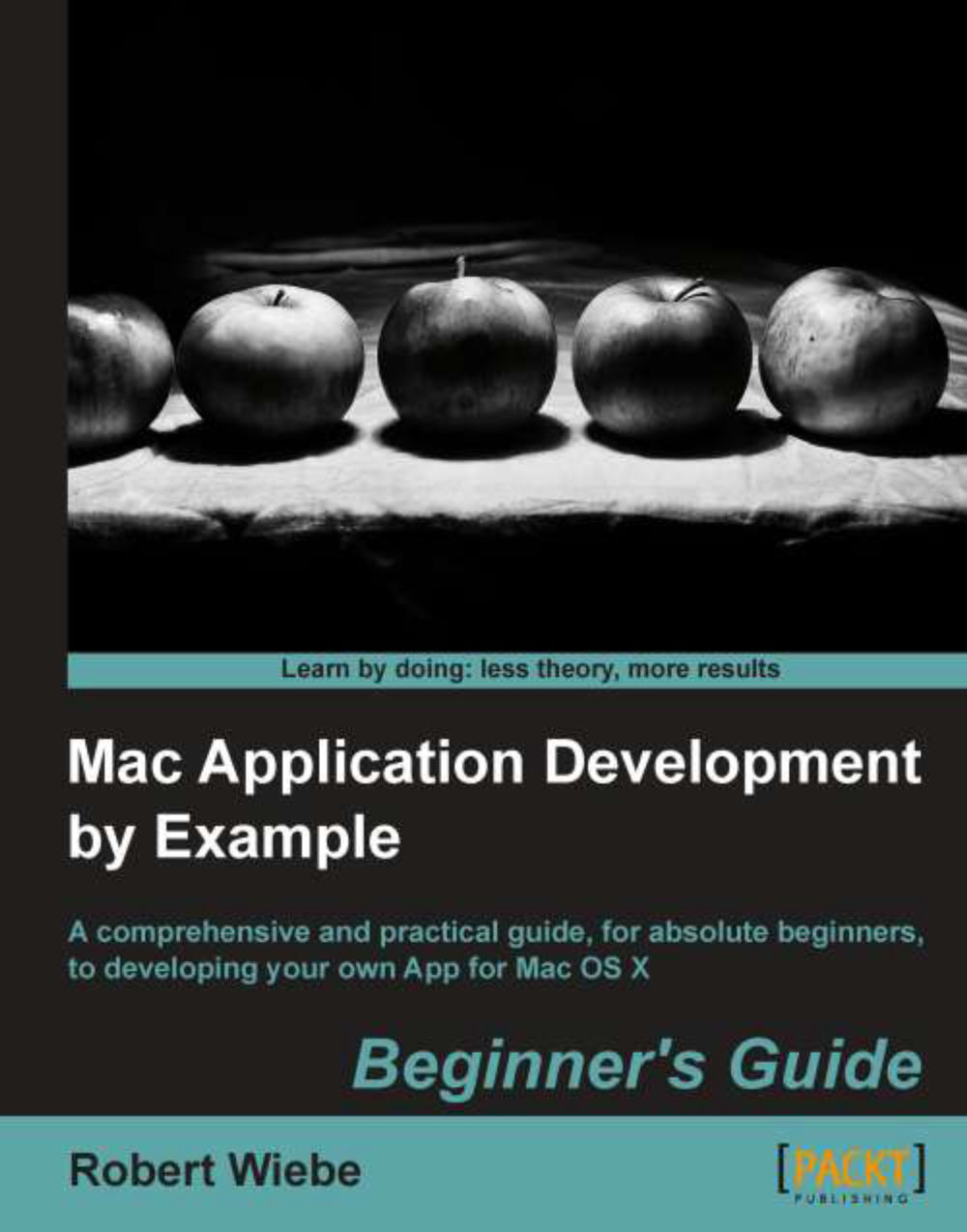
Mac Application Development by Example: Beginner's Guide

Mac Application Development by Example: Beginner's Guide: A comprehensive and practical guide, for absolute beginners, to developing your own App for Mac OS X book and ebook.

eBook
$26.09 $28.99
Paperback
$48.99
Subscription
Free Trial
Renews at $19.99p/m

What do you get with Print?

Product feature icon Instant access to your digital copy whilst your Print order is Shipped
Product feature icon Paperback book shipped to your preferred address
Product feature icon Redeem a companion digital copy on all Print orders
Product feature icon Access this title in our online reader with advanced features
Product feature icon DRM FREE - Read whenever, wherever and however you want
Modal Close icon
Payment Processing...
tick Completed

Shipping Address

Billing Address

Shipping Methods
Table of content icon View table of contents Preview book icon Preview Book

Mac Application Development by Example: Beginner's Guide

Chapter 1. Our First Program – SimpleCalc

This chapter will walk us through the steps needed to set up Xcode as well as the development of the SimpleCalc App. SimpleCalc will allow us to take two numbers and perform addition, subtraction, multiplication, and division. This App is intentionally kept simple because we have many things to learn about how to develop Apps in this chapter.

In this chapter, we shall learn the following:

  • Installing the Xcode App

  • Creating a new Xcode project

  • Configuring an Xcode project

  • Creating an App Icon

  • Configuring an Xcode target

  • Creating a user interface

  • Implementing a Mac OS X App behavior

  • Building and running a Mac OS X program

Locating developer tools


Before we start to develop our first Mac OS X program, we need to locate the tools needed to create programs. There are several different choices for software development on Mac OS X and the tools that we will select depend on the programming environment that we want to use. Because we want to write our programs using the native Objective-C programming language and the Cocoa frameworks we are going to use Apple's free Integrated Development Environment (IDE), called Xcode.

The code in this book has been developed and tested with Xcode 4.3.

Tip

Cocoa frameworks

The Cocoa frameworks consist of libraries, Application Programming Interfaces (APIs), and runtimes that form the development layer for all of Mac OS X. By developing with Cocoa, we will be creating applications the same way Mac OS X itself is created. Our application will automatically inherit the behavior and appearances of Mac OS X. Using Cocoa with Xcode IDE is the best way to create native Mac applications.

Time for action - Installing the Xcode App


For Mac OS X, Apple provides the Xcode IDE for free in the Mac OS X App store. We are going to install the Xcode IDE so that we can start making our first App. To do this, we need to follow these steps:

  1. Access the Mac App store by clicking on the Apple menu and selecting App Store.

  2. Search the App Store to locate the Xcode App.

  3. Install the Xcode App from the App store.

What just happened?

Because Apple distributes Xcode through the Mac App store, we were able to find and install developer tools in the same way we would find any App that is available in the store.

Working with projects


When we want to build a Mac OS X App, we need to first create an Xcode project. The Xcode project is the place that we keep all of the parts (code, icons, user interface, and images) that Xcode will put together to build our App.

Time for action - creating the SimpleCalc Xcode project


Now that we have installed Xcode, we can start using it to write our own Mac OS X App. Let's get started:

  1. To create a new Xcode project, launch the Xcode App and click the button titled Create a new Xcode project on the Welcome to Xcode window as shown in the following screenshot:

  2. When Xcode asks us to select a template, select Application under Mac OS X and Cocoa Application as the template. Then, click on the Next button.

  3. When we click the Next button, Xcode will ask us to select options for our new project. The options that we need to select are as follows:

    Option

    Value

    Description

    Product Name

    SimpleCalc

    The product name will be the name of your App program file that shows up in the Mac OS X Finder.

    Company Identifier

    com.yourdomain

    com.yourdomain The company identifier needs to be unique and typically uses the reverse domain notation. It can be anything but you should use a company identifier that will not conflict with an existing company. If you don't have an Internet domain name you can acquire one new or you can use com.yourlastname.first name.

    Class Prefix

    Your Initials

    (For consistency, throughout this book we will use BTS but when you develop your own code you should use your own initials)

    The class prefix is used to make sure any program classes that you create do not have the same name as any program classes that someone else may create.

  4. Finally, there are some checkboxes at the bottom of the options screen. The only one that needs to be checked is the option titled Use Automatic Reference Counting. This setting permits Xcode to automatically manage the memory that our program uses and helps keep programing simple because we do not need to think about destroying objects that our program creates. This checkbox, along with the rest of our settings, is shown in the following screenshot:

  5. Click on the Next button and Xcode will ask us where we want to save the new project that we are creating. While we can save projects anywhere that we like, a good place may be a new folder called projects in our Documents folder. Whatever we decide, when we have navigated to that folder, we need to click on the Create button as shown in the following screenshot:

    Tip

    Xcode automatically creates project subfolders

    We do not need to create a subfolder in the projects folder because Xcode will do that automatically using our product name. If we look for our project folder in the Finder, after Xcode has created it, we will find it in projects/SimpleCalc.

What just happened?

When we clicked on the Create button, Xcode created the new project from the template that we chose and displayed its main interface window.

Tip

Don't Panic

The main Xcode window can be quite overwhelming. The following screenshot shows the entire interface simply to give us an idea of its scope. We don't need to understand all of the sections or be intimidated by Xcode's main window. As we get deeper into programming, we will learn more about each part of the window.

As we progress in our App development and become more familiar with Xcode, we will become comfortable with the contents of this interface. Xcode's interface is very similar to iTunes. It contains the following:

  • A control area along the top where we can build and run ("play") or stop our App

  • A navigation area on the left where we can select different components of our project to inspect

  • An editing area in the center where we can modify different components that were selected in the navigation area

  • A utilities area on the right where we can inspect and change attributes of selected items

It is a good idea to take some time now to become familiar with the meaning of each of the little icons for the navigator section of the Xcode view, which appear across the top of the navigation area on the left-hand side of the window. The following table gives descriptions of these icons:

Icon

Description

Shows the project navigator, which lists all of the files in this project

Shows the symbol navigator, which lists all of the symbols (method names, property names, and so on) in this project

Shows the search navigator, which lists all of the search results for anything that we want to search for in the project

Shows the issue navigator, which lists all of the issues (typically error or warning)

Shows the debug navigator, which lists all of the App threads and symbols if a debug session is active

Shows the breakpoint navigator, which lists all of the places we want the App to stop at so that we can inspect its state during an active debug session

Shows the log navigator, which lists a log of the different activities that we have performed

Xcode will sometimes change the selected navigator based on actions that we perform or events that occur. It is useful to know that we can always switch back to the navigator that we want to see by clicking on the appropriate icon.

Understanding the Xcode project template


When we used Xcode to create a new project from a template, Xcode did a lot of things behind the scenes that we need to understand. The best way to understand what Xcode did is to look at the contents of the project navigator.

Time for action – examine the items in the project navigator


  1. In Xcode, open the SimpleCalc project.

  2. Click on the disclosure triangles beside each folder icon in the project navigator to reveal all of the items that Xcode created as shown in the following screenshot:

  3. We don't, yet, need to understand everything that the Xcode template has done for us, but it is important to understand each of the main types of files in these folders. The file type is determined by the file extension (.h, .m, .app, and so on).

What just happened?

We examined the contents of the Xcode project template and gained a better understanding of the different types of files that are needed to create a Mac OS X App. While it is not important, yet, to understand each of the different file types in detail, it is important to have an overview of all of the different components that are needed to create a Mac OS X App. As we develop our own Apps, we will acquire a much better understanding of these files and their contents.

Each file type is explained in the following table:

Extension

Description

.h

A program header file is used to separate the interface from the implementation. It defines what can be done but not how it is done.

.m

A program implementation file. It defines how things are done..

.xib

An Interface Builder file. It defines what the program interface, including windows, buttons, text fields, and so on will look like.

.plist

A property list. It contains a list of keys and corresponding values. The Info.plist includes important App information (like App name, App version, App copyright, and so on.)

.strings

A list of strings that are localizable ( translated into other languages). The InfoPlist.strings file contains localized versions of some of the strings found in the Info.plist file.

.pch

A precompiled header file. When we build our program the files are compiled into a single runnable file. Because compiling takes time, the compiler will precompile the .h files and save them in the .pch file. This is used to make building the App faster.

.rtf

A rich text formatted file. Rich text, differs from standard text, in that it can contain things like bold, italics, and embedded images. The Credits.rtf file is automatically displayed by the standard About window for our App.

.framework

A framework is a bundle (and a bundle is just a folder that looks like a file) that contains .h, .xib, and library files. Frameworks are provided by Apple to perform common functions (like displaying windows) so that we don't need to write that program code ourselves.

.app

An app is a bundle that contains everything our App needs to run.

Configuring an Xcode project


There are a lot of different things that we can configure in an Xcode project. As we create different projects, we will look at different aspects of what can be configured. For our SimpleCalc App, we are going to consider which the version of Mac OS X that we want the App to run which icon that we want the App to display.

By default, Xcode will configure our project to run only on the latest version of Mac OS X with the generic App Icon. Sometimes we may want our project to run on an earlier version of Mac OS X. For example, if we want to give our software to someone with an older computer or if we want to put our software in the Mac App store. This setting is called the Mac OS X deployment target.

We will always want to assign an icon to our App so that we can easily identify our App on the Mac desktop. This setting is called the App Icon.

Time for action - configuring the SimpleCalc Xcode project


To change the Mac OS X deployment target for our project we need to do the following:

  1. In the project navigator, click the folder icon to show the project navigator.

  2. In the project navigator, click on the very top item, just under the icons, named SimpleCalc.

  3. Under PROJECT, click on SimpleCalc.

  4. Under Deployment Target, click on the drop-down menu beside Mac OS X Deployment Target and select the oldest version of Mac OS X on which we want our App to run as shown in the following screenshot:

  5. Change TARGETS setting for the Organization of the Project Document to our name or the name of our company as shown in the following screenshot:

  6. Before we continue to configure our Xcode target, we need to take a small detour and create an App Icon. We are going to need our App Icon as part of the process of configuring an Xcode target.

  7. The first thing we need to do is create the icon. We can do this in any image editing program, from Illustrator, to Photoshop, to Gimp. The program that we use does not matter. What matters is that the image has a transparent background and that the image size is 512 x 512 pixels. We need to export our image in PNG format and it may look like the following image, which has been created in Photoshop Elements:

    Note

    Apple recommends we create App Icon images in a variety of different sizes ranging from 16 x 16 to 1024 x 1024. If we were building an App to deploy in the App Store, we would create more than a single 512 x 512 icon but for our SimpleCalc App a single icon is all we need.

  8. Once we have the image that we want to use as our icon, we need to save it in a folder named SimpleCalc.iconset with the name icon_512x512.png.

    Note

    The filename must be exact. If you name it anything other than icon_512x512.png the icon will not be correctly updated and you will see a generic icon instead of your App Icon.

  9. Once we have our PNG image saved in the iconset folder, we simply drag that folder to the App Icon section of our project target and Xcode will automatically convert it to a suitable .icns file as shown in the following screenshot:

  10. Because we have not provided all the required image sizes, Xcode will warn us that some image sizes are missing. For the purposes of our SimpleCalc App we can ignore these warnings but if we planned to deploy our App to the Mac OS X App Store we would create a PNG file for each required icon size and place it in our iconset folder prior to dragging the folder in to the App Icon section of the Target as shown in the following screenshot:

What just happened?

When we set up the Deployment Target and App Icon, we made changes to our Xcode project. Xcode will use those changes and apply them to the App when we build it so that the App is ready to run on the versions of Mac OS X that we need and the Finder will display our unique icon to identify our App on the desktop.

Have a go hero – make your own icon

Create your own 512 x 512 bitmapped image, save it in .png format, and put it in the iconset folder for the SimpleCalc App. You can use any image editing software that you like. You may want to create all of the required image sizes so that you don't get warnings from Xcode. The following screenshot shows the images of all required sizes present in the SimpleCals.iconset folder:

If you need a free bitmap editor take a look at Gimp for Mac OS X:

http://www.gimp.org/downloads/

Running an App


When we use an Xcode template to create an App, Xcode creates a project that will build a fully functional App. The App will display a menu bar, display a window, allow us to drag the window around and even present an About box when the About menu item is selected. An Xcode template is the perfect starting point for any App.

Time for action – run the SimpleCalc App


To run the SimpleCalc App that Xcode created from its template do the following steps:

  1. In the main Xcode window, click on the Run button as shown in the following screenshot:

  2. If we watch the Xcode status panel after clicking the Run button, we will (very briefly) see some messages that indicate Xcode is building our App as shown in the following screenshot:

  3. After the building of the App is complete, the SimpleCalc App will display its menu bar and main window. When the SimpleCalc App is running we can drag its main window around, click on its menus, display the About window, and quit the App by selecting Quit SimpleCalc from the App's menu as shown in the following screenshot:

What just happened?

Xcode created a fully functional App from its template and we were able to build and run the App. When the App was running, we were able to use its menu and move around its windows, and quit from the App back to Xcode.

Customizing an Xcode template's interface


When we create a project from an Xcode template, the resulting App needs to be customized to provide the interface that we want in our App. So as soon as we have created the basic project we need to make our interface changes.

Note

Because the sample program code used in this and the next section is both short and concise, the explanation of the code is included in the code as comments rather than using descriptive text surrounding the code. We can identify comments in the program code by looking for the // characters that start each line or the /* and */ characters that surround a block of comments in the code. We need to become comfortable with reading program code and distinguishing the comments in the code, from the code.

The way that we implement our features is to open the files created from the template and change their contents to include the new program code that implements the behaviors that we want to add.

Time for action – creating the SimpleCalc interface


  1. Open the SimpleCalc project in Xcode.

  2. Click on the item named BTSAppDelegate.h and add the highlighted new interface @property definitions and the button action interface definition for the SimpleCalc App. Notice they are placed in the template code after the window property and before the @end statement as shown in the following code snippet:

    @interface BTSAppDelegate : NSObject <NSApplicationDelegate>
    
    @property (assign) IBOutlet NSWindow *window;
    
    /*
        Create the user interface elements
     */
    
    // Buttons
    @property (assign) IBOutlet NSButton *mAdd;
    @property (assign) IBOutlet NSButton *mSubtract;
    @property (assign) IBOutlet NSButton *mMutliply;
    @property (assign) IBOutlet NSButton *mDivide;
    
    // Text Fields
    @property (assign) IBOutlet NSTextField *mValue1;
    @property (assign) IBOutlet NSTextField *mValue2;
    @property (assign) IBOutlet NSTextField *mResult;
    /*
     Create the App interface for the buttons
     */
    
    - (IBAction)myButtonAction:(id)sender;
    
    @end

    Click on the item named BTSAppDelegate.m and add the highlighted new interface @synthesize definitions and the button action implementation for the SimpleCalc App.

  3. Again notice the position of the code after the @implementation keyword and before the @end keyword as shown in the following code snippet:

    @implementation BTSAppDelegate
    
    /*
     Create the user interface setter and getter functions
     */
    
    // Buttons
    @synthesize mAdd;
    @synthesize mSubtract;
    @synthesize mMutliply;
    @synthesize mDivide;
    
    // Text Fields
    @synthesize mValue1;
    @synthesize mValue2;
    @synthesize mResult;
    
    - (void)applicationDidFinishLaunching:(NSNotification *)aNotification
    {
        // Insert code here to initialize your application
    }
    
    /*
     Create the App implementation for the buttons
     */
    
    - (IBAction)myButtonAction:(id)sender;
    {
        // For now, just beep
        NSBeep();
    }
    
    @end
  4. Click on the item named MainMenu.xib.

  5. Click the Show Document Outline button as shown in the following screenshot:

  6. Click on the Window - SimpleCalc tab in Objects to display the App window as shown in the following screenshot:

  7. Locate the Object Library option and scroll to find the Square Button shape as shown in the following screenshot:

  8. Click and drag a Square Button shape from the Object Library to the SimpleCalc window. Then drag three more buttons and place them beside the first button to form a row of buttons. Finally, resize the window so that it fits the four buttons as shown in the following screenshot:

  9. Double-click on the buttons one at a time and type the labels +, -, ÷, x respectively.

    Tip

    To enter the ÷ character, hold down the option key while pressing / on the keyboard.

  10. You will end up with something that looks like the following screenshot:

  11. Locate the Object Library and scroll to find the Text Field option.

  12. Drag two Text Field objects into the SimpleCalc window, and place them one below the other.

  13. Locate the Object Library and scroll to find the Horizontal Line option.

  14. Drag a Horizontal Line into the SimpleCalc window and position it below the two Text Field objects.

  15. Locate the Text Field object in the Object Library and drag a third Text Field into the SimpleCalc window.

  16. Click and drag to select all the Square Button objects and drag them up below the third Text Field.

  17. Resize the SimpleCalc window to fit the Text Field and Square Button objects. After you are done, you will have something like the following screenshot:

  18. Because we don't want our calculator window to change size, we need to set constraints. Click on the SimpleCalc window to select it, select Show the size inspector in the inspector pane, and under Constraints, enable both the Minimum Size and Maximum Size options as shown in the following screenshot:

  19. Right-click (or if you don't have a three-button mouse, hold down the Ctrl key and left click) on the + button and drag it to the App Delegate object as shown in the following screenshot:

  20. When the App Delegate object highlights, release the mouse button and select myButtonAction from the Received Actions selection pane as shown in the following screenshot:

  21. Repeat the process to connect the remaining three buttons to the – myButtonAction method.

  22. Right-click (or if you don't have a three-button mouse, hold down the Ctrl key and left click) on the App Delegate object and drag until the first Text Field is highlighted as shown in the following screenshot:

  23. Release the mouse button and select mValue1 from the Outlets selection pane as shown in the following screenshot:

  24. Repeat these steps to connect mValue2 to the second Text Field and mResult to the third Text Field.

What just happened?

We created the interface for our SimpleCalc App and connected the interface to the program code for our App. We also connected the App Delegate object to the Text Fields in the interface. Now when we run SimpleCalc we see the new interface and when we click any of the buttons we hear a system beep.

Customizing an Xcode template's implementation


When we create a project from an Xcode template, the resulting App needs to be customized to provide the behavior that we want in our App. So as soon as we have created the basic project we need to make our behavior changes.

Time for action – implement the SimpleCalc behavior


The following steps will help us implement the SimpleCalc behavior:

  1. Open the SimpleCalc project in Xcode.

  2. Click on the item named BTSAppDelegate.m and add an implementation for the myButtonAction: method. The code that we need to add is as follows:

    /*
     Create the App implementation for the buttons
     */
    
    - (IBAction)myButtonAction:(id)a_sender;
    {
        // For now, just beep
        // Comment out the beep, we don't need it
        // NSBeep();
        
        // Get the button title (+, -, x, or ÷) to
        // determine which operation the App will
        // preform
        NSString *l_operation = [a_sender title];
        
        // Get a double precision number from the
        // first text field
        double l_value1 = [mValue1 doubleValue];
        
        // Get a double precision number from the 
        // second text field
        double l_value2 = [mValue2 doubleValue];
        
        // Create a double precision variable to
        // hold the result of l_value1 <op> l_value2
        double l_result;
        
        // If the operation was addition, then
        // add the two values
        if ([@"+" isEqual: l_operation])
        {
            l_result = l_value1 + l_value2;
        }
        // If the operation was subtraction, then
        // subtract the two values
        else if ([@"-" isEqual: l_operation])
        {
            l_result = l_value1 - l_value2;        
        }
        // If the operation was multiplication, then
        // multiply the two values
        else if ([@"x" isEqual: l_operation])
        {
            l_result = l_value1 * l_value2;        
        }
        // The operation must have been division, so
        // divide the first value by the second value
        else
        {
            l_result = l_value1 / l_value2;        
        }
    
        // Set the result text field to the result
        [mResult setDoubleValue:l_result];
        
    }

    Tip

    Downloading the example code

    You can download the example code files for all Packt books you have purchased from your account at http://www.packtpub.com . If you purchased this book elsewhere, you can visit http://www.packtpub.com/support and register to have the files e-mailed directly to you.

What just happened?

We created and implemented the behavior for our SimpleCalc App (including removing the beep). Now when we run SimpleCalc we can enter two numbers and press one of the operation buttons to see the result as shown in the following screenshot:

Building an App


Once we can successfully run our App from Xcode and it is doing everything that we want it to do, it's time to build our App as a standalone package that we can install in our Applications folder.

Time for action – building and installing the SimpleCalc App


Let's learn how to build and install the SimpleCalc app:

  1. Open the SimpleCalc project in Xcode.

  2. Under the Product menu, select Clean.

  3. Under the Product menu, select Edit Scheme.

  4. In the scheme editing panel, select Run SimpleCalc.app, click on the pop-up menu for Build Configuration and select Release. Then click on the OK button as shown in the following screenshot:

  5. From the Product menu, select Build For and select Running as seen in the following screenshot:

  6. In the Project Navigator, right-click (or hold down the Ctrl key on the keyboard and left click if you don't have a three button mouse) on SimpleCalc.app and select Show in Finder as shown in the following screenshot:

What just happened?

We built a standalone Mac OS X App that we can copy from the Release folder to our Applications folder and double-click to run just like any standard Mac OS X App as shown in the following screenshot:

Summary


In this chapter, we have covered everything that we need to know to develop Mac OS X Apps.

Specifically, we covered how to install the Xcode IDE from the Mac App store and how to create a new Xcode project from a template. We then identified the different types of files needed to create a Mac OS X App. Then we customized the Xcode template and created a new icon for our App. Finally we created the user interface and actions for our App so that we could build it for installation into the Applications folder.

Now that we've learned how to develop a basic Mac OS X App, we need to take a small diversion in our route to learn what to do when the unexpected happens and the debugger appears when least expected – which is the topic of the next chapter.

Left arrow icon Right arrow icon

Key benefits

  • Start developing applications for Mac OS X
  • Learn how to take advantage of Mac features such as the iSight camera and the multi-touch trackpad
  • Use Xcode to its full potential to make tasks simpler

Description

It's never been more important to have the ability to develop an App for Mac OS X. Whether it's a System Preference, a business app that accesses information in the Cloud, or an application that uses multi-touch or uses a camera, you will have a solid foundation in app development to get the job done.Mac Application Development by Example takes you through all the aspects of using the Xcode development tool to produce complete working apps that cover a broad range of topics. This comprehensive book on developing applications covers everything a beginner needs to know and demonstrates the concepts using examples that take advantage of some of the most interesting hardware and software features available.You will discover the fundamental aspects of OS X development while investigating innovative platform features to create a final product which take advantage of the unique aspects of OS X.Learn how to use Xcode tools to create and share Mac OS X apps. Explore numerous OS X features including iCloud, multi-touch trackpad, and the iSight camera.This book provides you with an illustrated and annotated guide to bring your idea to life using fundamental concepts that work on Mac.

Who is this book for?

This book is for people who are programming beginners and have a great idea for a Mac OS X app and need to get started.

What you will learn

  • The basic concepts and tools and how to use them to create an OS X application
  • Access information from the Internet from within a business app to enhance its functionality
  • Store and retrieve information from Apple s iCloud server farm
  • Use the debugger to find and fix problems that cause an app to crash
  • Create a new System Preference that can change the fundamental way the Mac OS system behaves
  • Capture video from the iSight camera and save it as a Quicktime movie file
  • Implement a custom view and draw directly into it using the 2D drawing interfaces
  • Share your app with others in a Gatekeeper-aware and friendly manner
Estimated delivery fee Deliver to United States

Economy delivery 10 - 13 business days

Free $6.95

Premium delivery 6 - 9 business days

$21.95
(Includes tracking information)

Product Details

Country selected
Publication date, Length, Edition, Language, ISBN-13
Publication date : Dec 21, 2012
Length: 318 pages
Edition : 1st
Language : English
ISBN-13 : 9781849693820
Vendor :
Apple
Category :
Languages :
Tools :

What do you get with Print?

Product feature icon Instant access to your digital copy whilst your Print order is Shipped
Product feature icon Paperback book shipped to your preferred address
Product feature icon Redeem a companion digital copy on all Print orders
Product feature icon Access this title in our online reader with advanced features
Product feature icon DRM FREE - Read whenever, wherever and however you want
Modal Close icon
Payment Processing...
tick Completed

Shipping Address

Billing Address

Shipping Methods
Estimated delivery fee Deliver to United States

Economy delivery 10 - 13 business days

Free $6.95

Premium delivery 6 - 9 business days

$21.95
(Includes tracking information)

Product Details

Publication date : Dec 21, 2012
Length: 318 pages
Edition : 1st
Language : English
ISBN-13 : 9781849693820
Vendor :
Apple
Category :
Languages :
Tools :

Packt Subscriptions

See our plans and pricing
Modal Close icon
$19.99 billed monthly
Feature tick icon Unlimited access to Packt's library of 7,000+ practical books and videos
Feature tick icon Constantly refreshed with 50+ new titles a month
Feature tick icon Exclusive Early access to books as they're written
Feature tick icon Solve problems while you work with advanced search and reference features
Feature tick icon Offline reading on the mobile app
Feature tick icon Simple pricing, no contract
$199.99 billed annually
Feature tick icon Unlimited access to Packt's library of 7,000+ practical books and videos
Feature tick icon Constantly refreshed with 50+ new titles a month
Feature tick icon Exclusive Early access to books as they're written
Feature tick icon Solve problems while you work with advanced search and reference features
Feature tick icon Offline reading on the mobile app
Feature tick icon Choose a DRM-free eBook or Video every month to keep
Feature tick icon PLUS own as many other DRM-free eBooks or Videos as you like for just $5 each
Feature tick icon Exclusive print discounts
$279.99 billed in 18 months
Feature tick icon Unlimited access to Packt's library of 7,000+ practical books and videos
Feature tick icon Constantly refreshed with 50+ new titles a month
Feature tick icon Exclusive Early access to books as they're written
Feature tick icon Solve problems while you work with advanced search and reference features
Feature tick icon Offline reading on the mobile app
Feature tick icon Choose a DRM-free eBook or Video every month to keep
Feature tick icon PLUS own as many other DRM-free eBooks or Videos as you like for just $5 each
Feature tick icon Exclusive print discounts

Frequently bought together


Stars icon
Total $ 103.98
Mac Application Development by Example: Beginner's Guide
$48.99
iOS and OS X Network Programming Cookbook
$54.99
Total $ 103.98 Stars icon

Table of Contents

10 Chapters
Our First Program – SimpleCalc Chevron down icon Chevron up icon
Debugger – Finding and Fixing Problems Chevron down icon Chevron up icon
System Preferences – NewDefaults Chevron down icon Chevron up icon
Business Application – Global Currency Converter Chevron down icon Chevron up icon
Personal Information – Numbers in the iCloud Chevron down icon Chevron up icon
Painting – Multi-finger Paint Chevron down icon Chevron up icon
Capturing Still Images – iSight iMage cApture App Chevron down icon Chevron up icon
Video Recording – iSight Recorder Chevron down icon Chevron up icon
Video Recording – Full Screen iSight Recorder Chevron down icon Chevron up icon
Sharing Our App with Others – Becoming a Mac Developer Chevron down icon Chevron up icon

Customer reviews

Rating distribution
Full star icon Full star icon Full star icon Half star icon Empty star icon 3.5
(2 Ratings)
5 star 0%
4 star 50%
3 star 50%
2 star 0%
1 star 0%
Aaron Feb 28, 2013
Full star icon Full star icon Full star icon Full star icon Empty star icon 4
I'm not sure if the same thing is true for the print version of this book but when I went to my PacktPub.com account to download this book to put on my iPad, I found that they had the examples bundled up in a .zip file that I could download, why can't more books do this?! I often find that you end up copying out of the book and it either doesn't work or that you have not properly digested how it works. The advantage of having these demos ready to download is that you can straight away get working code which you can tear apart, change, modify and really get your hands on. I often find this the best learning approach, but it is not for everyone. The book does not cater either way (in a good way) if you want to learn step-by-step then you can, the book guides you though exactly how to do things and more importantly it explains to you what you are writing, why you need it and what it does for the application.Now I was testing out the ePub format on my iPad and did find a few formatting errors with the way the text and tables flow from page to page but it did not effect how the book read at all.I am fairly unfamiliar with the Xcode interface and I only know the basic locations of the popular buttons, I think the interface can be a little bit daunting to some. This book starts right at the beginning and does not expect you to know anything about the interface beforehand, it walks you through all of the things that you need to know and some of the others you will pickup along the way.One thing I did find really useful about the book is the fact that it is laid out in almost three simple steps for each part, it first walks through a little bit about what you are about to do and what it will do for the application, it then has a `Time for action' step which guides you through the actual process, and then the part that I like the most is the `What just happened?' part. That last part is something that I have found lacking in some of the other books I have read (not all though) is that they don't take the time to step back and pause for a second and explain exactly what you just did.
Amazon Verified review Amazon
Ted Nov 01, 2013
Full star icon Full star icon Full star icon Empty star icon Empty star icon 3
OK for beginners, but be aware of a couple of issues:Apple has changed a few things in Xcode 5.0 (latest version for Mavericks), which are not represented correctly in the book. One tricky item in particular is how outlets are assigned in IB for items in the view. The method in the book is no longer supported, so you will have to do some googling.Also, there are a lot of typo's, and missing lines of code in the book examples. If you want to compile and run the code as listed, you will have to add a few things. Not good for a beginner.I will admit, I have not downloaded the .zip file that is supposed to be available to see if that has the correct source code. So far I am on chapter 5 and have been able to figure out how to fix all the issues, as they are minor if you have some experience with XCode. If you are a true beginner, you may struggle with this.Other than those issues, I like the layout of actually creating working applications for each chapter, rather than theoretical ideas.
Amazon Verified review Amazon
Get free access to Packt library with over 7500+ books and video courses for 7 days!
Start Free Trial

FAQs

What is the digital copy I get with my Print order? Chevron down icon Chevron up icon

When you buy any Print edition of our Books, you can redeem (for free) the eBook edition of the Print Book you’ve purchased. This gives you instant access to your book when you make an order via PDF, EPUB or our online Reader experience.

What is the delivery time and cost of print book? Chevron down icon Chevron up icon

Shipping Details

USA:

'

Economy: Delivery to most addresses in the US within 10-15 business days

Premium: Trackable Delivery to most addresses in the US within 3-8 business days

UK:

Economy: Delivery to most addresses in the U.K. within 7-9 business days.
Shipments are not trackable

Premium: Trackable delivery to most addresses in the U.K. within 3-4 business days!
Add one extra business day for deliveries to Northern Ireland and Scottish Highlands and islands

EU:

Premium: Trackable delivery to most EU destinations within 4-9 business days.

Australia:

Economy: Can deliver to P. O. Boxes and private residences.
Trackable service with delivery to addresses in Australia only.
Delivery time ranges from 7-9 business days for VIC and 8-10 business days for Interstate metro
Delivery time is up to 15 business days for remote areas of WA, NT & QLD.

Premium: Delivery to addresses in Australia only
Trackable delivery to most P. O. Boxes and private residences in Australia within 4-5 days based on the distance to a destination following dispatch.

India:

Premium: Delivery to most Indian addresses within 5-6 business days

Rest of the World:

Premium: Countries in the American continent: Trackable delivery to most countries within 4-7 business days

Asia:

Premium: Delivery to most Asian addresses within 5-9 business days

Disclaimer:
All orders received before 5 PM U.K time would start printing from the next business day. So the estimated delivery times start from the next day as well. Orders received after 5 PM U.K time (in our internal systems) on a business day or anytime on the weekend will begin printing the second to next business day. For example, an order placed at 11 AM today will begin printing tomorrow, whereas an order placed at 9 PM tonight will begin printing the day after tomorrow.


Unfortunately, due to several restrictions, we are unable to ship to the following countries:

  1. Afghanistan
  2. American Samoa
  3. Belarus
  4. Brunei Darussalam
  5. Central African Republic
  6. The Democratic Republic of Congo
  7. Eritrea
  8. Guinea-bissau
  9. Iran
  10. Lebanon
  11. Libiya Arab Jamahriya
  12. Somalia
  13. Sudan
  14. Russian Federation
  15. Syrian Arab Republic
  16. Ukraine
  17. Venezuela
What is custom duty/charge? Chevron down icon Chevron up icon

Customs duty are charges levied on goods when they cross international borders. It is a tax that is imposed on imported goods. These duties are charged by special authorities and bodies created by local governments and are meant to protect local industries, economies, and businesses.

Do I have to pay customs charges for the print book order? Chevron down icon Chevron up icon

The orders shipped to the countries that are listed under EU27 will not bear custom charges. They are paid by Packt as part of the order.

List of EU27 countries: www.gov.uk/eu-eea:

A custom duty or localized taxes may be applicable on the shipment and would be charged by the recipient country outside of the EU27 which should be paid by the customer and these duties are not included in the shipping charges been charged on the order.

How do I know my custom duty charges? Chevron down icon Chevron up icon

The amount of duty payable varies greatly depending on the imported goods, the country of origin and several other factors like the total invoice amount or dimensions like weight, and other such criteria applicable in your country.

For example:

  • If you live in Mexico, and the declared value of your ordered items is over $ 50, for you to receive a package, you will have to pay additional import tax of 19% which will be $ 9.50 to the courier service.
  • Whereas if you live in Turkey, and the declared value of your ordered items is over € 22, for you to receive a package, you will have to pay additional import tax of 18% which will be € 3.96 to the courier service.
How can I cancel my order? Chevron down icon Chevron up icon

Cancellation Policy for Published Printed Books:

You can cancel any order within 1 hour of placing the order. Simply contact customercare@packt.com with your order details or payment transaction id. If your order has already started the shipment process, we will do our best to stop it. However, if it is already on the way to you then when you receive it, you can contact us at customercare@packt.com using the returns and refund process.

Please understand that Packt Publishing cannot provide refunds or cancel any order except for the cases described in our Return Policy (i.e. Packt Publishing agrees to replace your printed book because it arrives damaged or material defect in book), Packt Publishing will not accept returns.

What is your returns and refunds policy? Chevron down icon Chevron up icon

Return Policy:

We want you to be happy with your purchase from Packtpub.com. We will not hassle you with returning print books to us. If the print book you receive from us is incorrect, damaged, doesn't work or is unacceptably late, please contact Customer Relations Team on customercare@packt.com with the order number and issue details as explained below:

  1. If you ordered (eBook, Video or Print Book) incorrectly or accidentally, please contact Customer Relations Team on customercare@packt.com within one hour of placing the order and we will replace/refund you the item cost.
  2. Sadly, if your eBook or Video file is faulty or a fault occurs during the eBook or Video being made available to you, i.e. during download then you should contact Customer Relations Team within 14 days of purchase on customercare@packt.com who will be able to resolve this issue for you.
  3. You will have a choice of replacement or refund of the problem items.(damaged, defective or incorrect)
  4. Once Customer Care Team confirms that you will be refunded, you should receive the refund within 10 to 12 working days.
  5. If you are only requesting a refund of one book from a multiple order, then we will refund you the appropriate single item.
  6. Where the items were shipped under a free shipping offer, there will be no shipping costs to refund.

On the off chance your printed book arrives damaged, with book material defect, contact our Customer Relation Team on customercare@packt.com within 14 days of receipt of the book with appropriate evidence of damage and we will work with you to secure a replacement copy, if necessary. Please note that each printed book you order from us is individually made by Packt's professional book-printing partner which is on a print-on-demand basis.

What tax is charged? Chevron down icon Chevron up icon

Currently, no tax is charged on the purchase of any print book (subject to change based on the laws and regulations). A localized VAT fee is charged only to our European and UK customers on eBooks, Video and subscriptions that they buy. GST is charged to Indian customers for eBooks and video purchases.

What payment methods can I use? Chevron down icon Chevron up icon

You can pay with the following card types:

  1. Visa Debit
  2. Visa Credit
  3. MasterCard
  4. PayPal
What is the delivery time and cost of print books? Chevron down icon Chevron up icon

Shipping Details

USA:

'

Economy: Delivery to most addresses in the US within 10-15 business days

Premium: Trackable Delivery to most addresses in the US within 3-8 business days

UK:

Economy: Delivery to most addresses in the U.K. within 7-9 business days.
Shipments are not trackable

Premium: Trackable delivery to most addresses in the U.K. within 3-4 business days!
Add one extra business day for deliveries to Northern Ireland and Scottish Highlands and islands

EU:

Premium: Trackable delivery to most EU destinations within 4-9 business days.

Australia:

Economy: Can deliver to P. O. Boxes and private residences.
Trackable service with delivery to addresses in Australia only.
Delivery time ranges from 7-9 business days for VIC and 8-10 business days for Interstate metro
Delivery time is up to 15 business days for remote areas of WA, NT & QLD.

Premium: Delivery to addresses in Australia only
Trackable delivery to most P. O. Boxes and private residences in Australia within 4-5 days based on the distance to a destination following dispatch.

India:

Premium: Delivery to most Indian addresses within 5-6 business days

Rest of the World:

Premium: Countries in the American continent: Trackable delivery to most countries within 4-7 business days

Asia:

Premium: Delivery to most Asian addresses within 5-9 business days

Disclaimer:
All orders received before 5 PM U.K time would start printing from the next business day. So the estimated delivery times start from the next day as well. Orders received after 5 PM U.K time (in our internal systems) on a business day or anytime on the weekend will begin printing the second to next business day. For example, an order placed at 11 AM today will begin printing tomorrow, whereas an order placed at 9 PM tonight will begin printing the day after tomorrow.


Unfortunately, due to several restrictions, we are unable to ship to the following countries:

  1. Afghanistan
  2. American Samoa
  3. Belarus
  4. Brunei Darussalam
  5. Central African Republic
  6. The Democratic Republic of Congo
  7. Eritrea
  8. Guinea-bissau
  9. Iran
  10. Lebanon
  11. Libiya Arab Jamahriya
  12. Somalia
  13. Sudan
  14. Russian Federation
  15. Syrian Arab Republic
  16. Ukraine
  17. Venezuela
Modal Close icon
Modal Close icon