Search icon CANCEL
Subscription
0
Cart icon
Your Cart (0 item)
Close icon
You have no products in your basket yet
Save more on your purchases! discount-offer-chevron-icon
Savings automatically calculated. No voucher code required.
Arrow left icon
Explore Products
Best Sellers
New Releases
Books
Videos
Audiobooks
Learning Hub
Newsletter Hub
Free Learning
Arrow right icon
timer SALE ENDS IN
0 Days
:
00 Hours
:
00 Minutes
:
00 Seconds
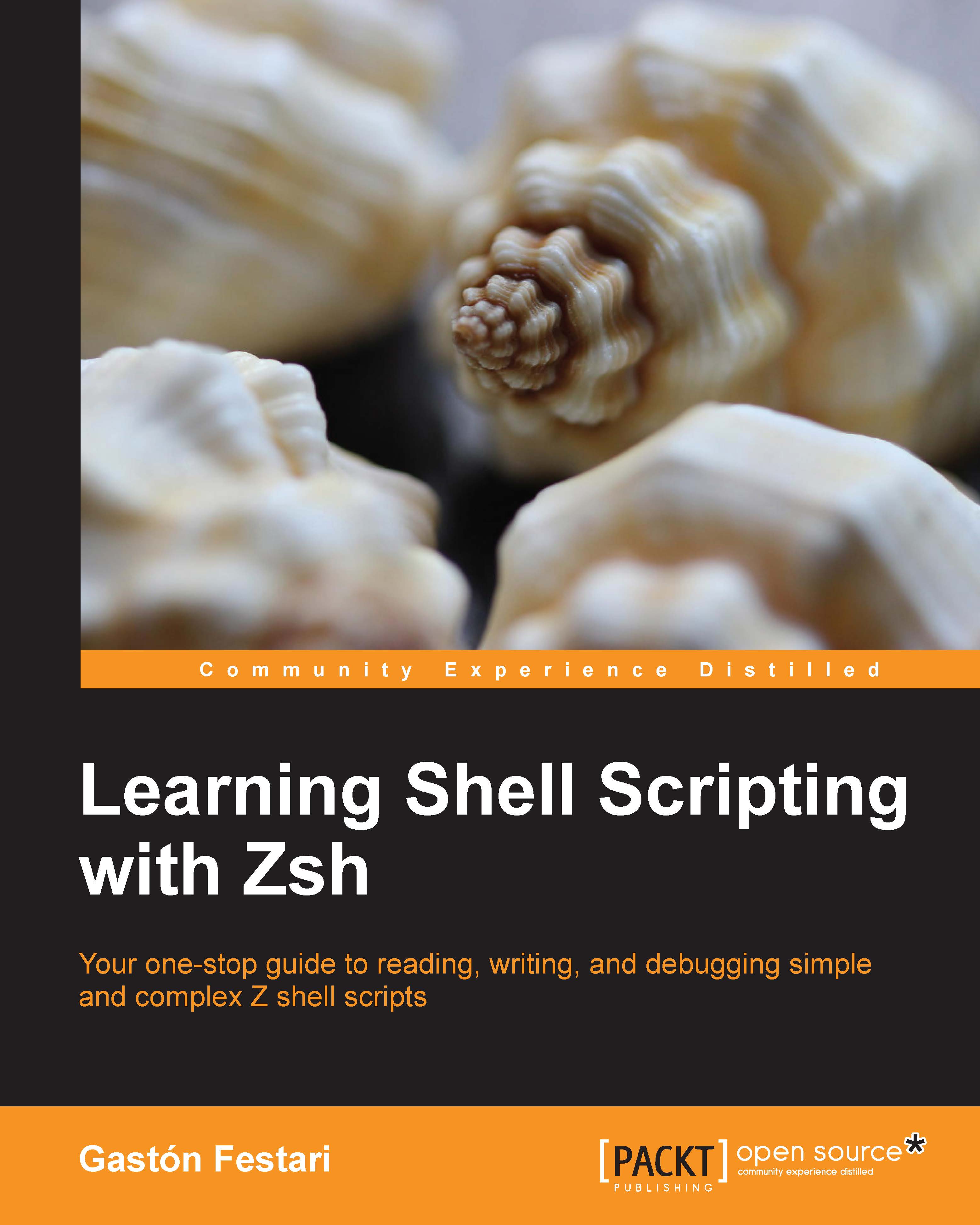
Learning Shell Scripting with Zsh

Learning Shell Scripting with Zsh: Your one-stop guide to reading, writing, and debugging simple and complex Z shell scripts.

eBook
$17.99 $19.99
Paperback
$26.39 $32.99
Subscription
Free Trial
Renews at $19.99p/m

What do you get with Print?

Product feature icon Instant access to your digital copy whilst your Print order is Shipped
Product feature icon Paperback book shipped to your preferred address
Product feature icon Redeem a companion digital copy on all Print orders
Product feature icon Access this title in our online reader with advanced features
Product feature icon DRM FREE - Read whenever, wherever and however you want
Modal Close icon
Payment Processing...
tick Completed

Shipping Address

Billing Address

Shipping Methods
Table of content icon View table of contents Preview book icon Preview Book

Learning Shell Scripting with Zsh

Chapter 1. Getting Started

So, what's the deal with Z shell? You probably have a solid notion of what to expect from a modern shell, so things such as command history, completion, and autocorrection will not wow you as much as someone who just discovered Bash. However, unlike some of the other available shells out there, Z shell (zsh) boasts of a really powerful scripting language and an incredible completion system. Actually, incredible doesn't even begin to describe it. Swift and effortless sounds a bit more appropriate. Zsh also incorporates—and arguably, improves on—many of the useful features of Bash, ksh, and csh, even going so far as to allow you to emulate these shells in your scripts for an extra layer of compatibility.

Once you discover things such as multiline editing or start relying on automatic spell correction though, I promise you will look back at your old days of keyboard mashing buttons and wonder why you didn't make the switch sooner. So let's get started with it, shall we?

In this chapter, we will start by getting to know zsh, with a quick glimpse at some of the features that make it unique. Before we embark on our adventure though, we will need to install and configure our new shell, so we can ensure everything is up and running smoothly. We then move on to the configuration—what are the startup files, and how to use the different styles, escape sequences, and conditional expressions in order to customize the prompt.

Installing zsh


Like most things on your system, zsh needs to be installed and maintained; so, in this section we will learn how to do that. Note though, in order to avoid introducing inconsistencies and/or incompatibilities into your operating system, the recommended way of installing zsh is straight from your package maintainer's available sources. Either refer to your system's documentation or head to zsh's home page (http://zsh.sourceforge.net) to learn more about the whole installation procedure.

Before getting started, it would be a good idea to check whether you will need to install or update your current installation of zsh, as the package could already be installed on some Unix systems. So, open up your favorite terminal emulator and type in the following command:

$ echo $SHELL

This should print out something like /bin/sh or /bin/bash on most systems, and this means that your current login shell is something other than zsh. If you see zsh in the result though, go ahead and call the following commands:

$ zsh --version
zsh 5.0.2 (x86_64-apple-darwin12.3.0)

With some luck (and a healthy regime of system updates on your side, of course), you should see zsh's version, something that pretty much resembles the previous snippet. If that's the case, you can go ahead and skip this section. Should your operating system greet you with a polite zsh not found message. That's ok though, otherwise you wouldn't be reading these lines. Let's get into the installation part of the deal, shall we?

Note

We'll use the latest stable release—version 5.0.2 as at the time of writing this book—as a reference in this book. So it is advisable to try and update your current installation if you are running a previous release. Refer to your package manager's documentation in order to update zsh.

Installing on Linux

Depending on which distribution of Linux your PC is currently sporting, zsh might (or might not) be in its repositories or, better yet, already installed on your OS. You should always refer to your OS's package listing in the rare event that zsh is unavailable.

On Debian and its multitude of derived distributions—such as Ubuntu and Linux Mint—you could get the whole installation process completed by simply opening a terminal and running the following commands:

$ sudo apt-get update
$ sudo apt-get install zsh

Depending on your flavor of Debian and its repositories, you could get any version of zsh ranging from 4.3.x to 5.0.0 and upwards (if using any current release, at least). Again, try to stick to the latest and greatest whenever possible.

Tip

You can always check the version of zsh by running zsh --version in the terminal.

Red Hat-based distributions such as Fedora will need you to input the following commands:

$ sudo yum check-update
$ sudo yum install zsh

Then, there are the openSuSE users:

$ sudo zypper refresh
$ sudo zypper install zsh

And let's not forget the Arch users:

$ sudo pacman -S zsh

Wait for the download and installation scripts/triggers to complete, go ahead, and skip to the next section.

Installing on OS X

Arguably, the easiest way to get your hands on zsh in OS X is either via Homebrew (http://www.brew.sh) or MacPorts (http://www.macports.org), package managers that aim to extend the default options available to OS X users. Unfortunately, neither of these options come bundled with OS X. You will need to install either of the solutions before you can go ahead and make do with the latest version of zsh (which remains 5.0.2 at the time of writing this book). So, open your terminal emulator of preference, and either type:

$ brew install zsh

or

$ sudo port install zsh

Wait for the download and installation scripts to finish, and then go ahead and jump straight into the next section. Also, refer to the documentation of each application in order to troubleshoot any kind of problems that could come up during the installation of the package.

Compiling from source

The official home for zsh is located at zsh.sourceforge.net, and this is where you should point your browser in order to get started with your building adventure. Keep in mind, though, that the recommended way of obtaining a zsh binary for your system is via the compiled binaries packages. If for some reason, however, you just want to get the latest and greatest and don't mind dealing with more bugs than those of a stable release, you most likely will need to clone the repo using the Git version control software:

$ git clone git://git.code.sf.net/p/zsh/code zsh

Make sure you check-out and track the master branch, which is where the latest goodies have been committed. Also, keep in mind that there are some dependencies that need to be met before you can build your fresh local copy of zsh. These are all well-documented in the many configuration files that have been cloned into your disk, so take a long, hard look at the README file before you attempt things such as building the configure script.

Note

Installing Git on your platform of choice goes beyond the scope of this book, but be rest assured that you won't have trouble following the instructions at http://www.git-scm.com.

First run


Now that zsh is on your system, how about we take it for a spin? Go ahead and open your terminal emulator of choice and call the following command:

$ zsh

Like many other applications these days, zsh has a first-run wizard (bear with me, it almost resembles one). This is one of those magic creatures whose sole purpose is to help us configure our tools on a swift swoop of questions and decision making. We'll skip the new user configuration this time, but feel free to choose whatever method works best for you, taking the question-by-question approach or just pressing Q on your keyboard to abort the operation. Just remember that the newuser module is called from <zshInstallFolder>/Functions/Newuser/zsh-newuser-install or <zshInstallFolder>/functions/zsh-newuser-install in OS X—should you require its services in the future.

In order to avoid having to skip the configuration options on each subsequent run, you can go ahead and create what is known as a startup file:

% touch ~/.zshrc

We just created our main preferences file; the problem is, it stands empty as it is. Let's go ahead and add some preferences, shall we?

Note

There will be plenty of references to zsh's options—the various settings that alter the shell's behavior—thus, now is as good a time as any to establish a couple of conventions. Firstly, the naming scheme is somewhat too forgiving—it is case-insensitive and ignores underscores and ignores underscores. As such, both the following option names mean the same.

SOME_OPTION and SOMEOPTION

Secondly, try to think of options as switches. As the name implies, they can either be turned on or off. Of the many ways that zsh provides to toggle its options, it is arguably easier to remember the setopt/unsetopt combo.

setopt SOME_OPTION # enables any option.
unsetopt SOME_OPTION # use this to disable an option.

Conversely, you can negate the behavior of an option by prepending NO to its name, thus making unsetopt SOME_OPTION mean the same as setopt NO_SOME_OPTION or, keeping in mind that underscores are only there for human readability, the same as setopt NOSOMEOPTION.

Just for sanity's sake and because I do love me some standards, we'll use ALL_CAPS_SNAKE_CASE for the options in this book.

Open ~/.zshrc with your favorite editor; you can use editors such as vim, Emacs, nano, or whatever kids find cool these days, and add the following line:

autoload -U promptinit # initialize the prompt system promptinit

Let's go over what we just typed: the first line of the code is our way to tell the shell to start its promptinit module—a series of functions that deal with handling the shell's various prompts and functionality. What you see right after the hash sign is just a comment to remind you of what the command is doing and why it is there. Finally, the last line is the one that actually calls and initializes the prompt module. It might not seem much, but it will come in handy when dealing with prompts, I promise.

Feel free to omit the comments and make sure you save your changes.

Note

Zsh will ignore each line that starts with a hash (#)—or pound—sign. This is really helpful for debugging preferences and, better yet, documenting your functionality. Consider the next example, with comments in bold:

# This is a comment and will be ignored by the shell.
HISTFILE=~/.zsh_history # sets the location of the history file

Making zsh your login shell

If there's something that shells take seriously, is their role. See, the thing with shells is that they like to hang out in very specific categories—they are either interactive or non-interactive, and then there are login shells.

As you might have guessed from their name, interactive shells allow you to interact with them; that is, they display a prompt, you enter a command, and they get back to you with an answer and a prompt that is ready for new input. On the other hand, Apply interactive shells get called to execute a script and go off their own merry way when the job is done.

Note

Put simply, a prompt usually is the blinking cursor that tells you a shell is ready for you.

What about login shells then? Well, unlike interactive shells, login shells are usually called when the user performs a login—be it either on the local machine or when using tools such as SSH, for example—and takes the trouble to go through your startup files and configuration bits and pieces of the shell. More importantly, your login shell doesn't necessarily need to be interactive.

In the previous section, we used a direct call to the binary zsh to start zsh. As you can imagine, this is but a temporary workaround, as typing the name of the shell every single time we want to use it seems a bit impractical, to say the least. Even worse is the thought of having your previous shell lurking beneath and ready to jump back at you as soon as you're done with zsh. If you don't trust me, go ahead and type exit; I'll wait. See that thing that's on your screen? That's your former command-line companion right there. Say your goodbyes and hop back into zsh by typing zsh and pressing return.

So what comes next is—you guessed it—getting rid of that old shell of yours and saving yourself the trouble of remembering to call zsh each time you want to use it.

Note

You can always trick zsh, and many other shells, into thinking it is a login shell by starting it with either the -l or --login flag. Open your terminal and type either of the following commands:

$ zsh -l

or

$ zsh --login

Voilà! A shell with a login complex.

Luckily for us, the Unix chsh command seems to be just what the doctor recommended, so go ahead and type the following in your terminal:

$ chsh -s $(which zsh)

In the previous snippet, we're telling the system to change the shell for the current user. The option -s is used here to specify the location of the shell binary. That fancy $() construct you see there is our way of telling the shell to expand the result of the command within the parentheses, which is the result of the command which zsh.

You might recall which from the previous section, when we required its services to figure out the location of our existing zsh installation. The job of which consists of shouting out loud the location of any program file in the user's $PATH environment variable. Thus, we can safely assume that if zsh is not there, something has taken a wrong turn somewhere and, perhaps, it's advisable to retrace our steps.

It's more than likely that changing your login shell will require it to run with elevated privileges, so make sure you are using an account with the appropriate permissions.

From now on, you'll be greeted by zsh by default on your system and every time you start your terminal emulator of choice. And likely so, you have installed and made zsh your login shell. Next up is tweaking it.

Shell options

Besides tricking zsh into thinking it's a login shell with the -l flag, there are many other helpful options you can set when invoking it. Namely, zsh -v will switch on the verbose mode, which will make the shell print out any line before it gets executed. Then, there's zsh -x—for xtrace—which can prove invaluable when debugging your scripts, or zsh -f that will start a clean instance of zsh using the default settings.

Any of these options can also be set after the shell has been started; you simply have to call the desired option flag via the set command. The following example triggers the verbose mode on a running session:

% set -v
% echo 'quite the echo in here'
> echo 'quite the echo in here'
> 'quite the echo in here'

Tip

Downloading the example code

You can download the example code files for all Packt books you have purchased from your account at http://www.packtpub.com. If you purchased this book elsewhere, you can visit http://www.packtpub.com/support and register to have the files e-mailed directly to you.

And, you can disable any option with the same set command and replacing the dash/minus sign with a plus sign as follows:

# disables verbose mode
% set +v

More info regarding the various shell options and their usage can be found in the zshoptions(1) manpage (man zshoptions).

The startup files

Like most login shells, zsh relies on a series of configuration files known as startup files, which contain the commands and preferences to be executed and set during the shell startup routine. We used the .zshrc file in the previous sections to avoid being bothered by the newuser function, but now that we have made zsh our login shell, it's time we take a closer look at what we can do with them.

Note

By default, zsh looks for startup files in the user's home directory, $HOME (or its alias, the more popular tilde, ~. We'll alternate their use in this text as the path to the current user's home folder on the system), environment variable. You can tell zsh to look for your configuration files in another folder by setting the parameter ZDOTDIR to a directory of your choice in your .zshenv file under $HOME:

ZDOTDIR=/etc/my_kewl_folder/.zshrc

During startup, zsh looks for, or sources, a very specific system and user set of filenames under /etc/. Right after this, each of these files have a user-editable doppelganger, typically located in $HOME, which gets read. There are some rules, however, that might make zsh skip some of these files altogether. The ordering of these files is really important, as setting an option in the wrong file can result in commands getting executed at the wrong time and some really funky behavior. Thus, try to keep in mind the following order when setting preferences on your files:

  • zshenv

  • zprofile

  • zshrc

  • zlogin

If zsh is not called as an interactive shell, zprofile and zshrc together with their counterparts in $HOME (~/.zprofile and ~/.zshrc) will not be sourced. In addition, if zsh is not called as a login shell, zlogin and $HOME/.zlogin will also be skipped.

Note

Depending on how you installed zsh, another directory besides /etc/ can be used when looking for the global files.

Typically, you'd only like to mess with your own user's preferences, so we'll focus on the startup files that reside under $HOME, those are as follows:

  • ~/.zshenv: This will be called immediately after /etc/zshenv. You should only add things such as the PATH settings and stuff you want to make available to any type of shell, whether it's interactive or not.

  • ~/.zprofile: This is the companion to /etc/zprofile and kind of the boring guy out of the startup files bunch. You should put here any scripts you want executed before ~/.zshrc.

  • ~/.zshrc: This is your workhorse. Most of your user settings and shell preferences end up here. Keep in mind it'll only be taken into account for interactive shells. As we'll see later on, you can declutter and expand its reach by sourcing multiple files.

  • ~/.zlogin: This will be executed right after ~/.zshrc and works pretty much like ~/.zprofile, so you should put the scripts that you want called after your main startup file here.

On the opposite corner of the startup files, there are the shutdown files. As you can imagine, this relatively smaller set of files gets called not only in a specific order but also during the logout sequence of the login shell. The shutdown files can be considered a subset of the startup files, so there's no need to lose sleep over them. The important thing to remember is that when you type logout in the command line, the settings stored in the user configurable ~/.zlogout file are read, followed by the installation file /etc/zlogout.

You can use the options RCS and GLOBAL_RCS to disable the loading mechanism of the startup files. This preference has to be unset on the system file /etc/zshenv as follows:

unset RCS # disables loading of files other than zshenv
unset GLOBAL_RCS # disables loading of files under /etc/

For instance, if the RCS option is unset in zshenv (the first file that is read), ~/.zshenv and all the remaining files will be skipped. Keep in mind though, that both of these options can be turned on again by any subsequent file that you load.

For example, if you have the following in /etc/shenv:

unset RCS
source my_options_file.zsh

And then in my_options_file.zsh add:

# some more options here
set RCS

Then, the shell will proceed and load .zshenv as if nothing happened. So, be careful!

We have taken a look at the startup files and their somewhat strict ordering; now, it's time we get up close and personal with the prompt.

The shell prompt


Give anyone enough time with a shell and, inevitably, the question of "how do I add colors to it?" is bound to come up. Luckily though, zsh boasts a truckload of configuration options and escape sequences that will let you do just that and even more. In this section, we'll delve into the nuts and bolts of options at your disposal to customize the prompt.

The prompt command

Zsh comes with a wide array of predefined prompt configurations that can be used as building blocks for something that more adequately meets your needs. Among other things, the utility prompt allows you to select your preferred theme. On a default installation, the various themes and user contributions are located under <zshFolder>/Functions/Prompts (or <zshFolder>/functions in OS X) and follow the naming scheme prompt_<theme>_setup. To have a look at what's included in the stock package, just type the following command:

$ prompt –p

And you should see a list of all the available prompt themes included with zsh. You can use the -p option together with a theme name to take a closer look at any of the themes:

$ prompt -p 

In order to use the prompt function, you will need to set up the promptinit module on your shell. The easiest way to do this is to add it to your .zshrc file. Take a look at the section First run if you haven't done so yet.

Note

You can refer to the PROMPT THEMES section under the zshcontrib(1) manpage in order to get more in-depth information regarding prompts on zsh. Just type man zshcontrib in your terminal to get started.

You can test drive any theme you like, applying it temporarily to your current shell by typing:

$ prompt <theme_name>

Some themes, such as adam1, can even accept some extra configuration parameters like the following:

$ prompt adam1 red yellow magenta # sets the 'adam1' theme

By default, zsh won't be too fond of comments typed in the command line. Luckily, you can alter this behavior by setting the following option in your .zshrc file:

setopt INTERACTIVE_COMMENTS  # allow inline comments like this one

In the previous snippet, we are passing a list of options to the theme, namely the colors red, yellow, and magenta. You can get a more thorough description of what's allowed for each prompt theme by calling the built-in help on any given theme:

$ prompt -h <theme_name>

Try this on your favorite themes and see what else can be tweaked out of them.

Once you have found a combination that suits you, you can go ahead and commit to those changes. Just open your .zshrc file with your editor and add the following line:

autoload -U promptinit
promptinit
prompt adam1 red yellow magenta

We took our previous preferences file and sparkled some color in the default prompt adam1. So, how about we tweak it to make it feel more like home?

Note

If you have invested a fair amount of time on customizing your prompt in your previous shell, it can be quite a headache trying to figure out the different rules set, so it can be ported to zsh. Luckily, zsh provides a series of tools for making the switch a more or less smooth experience. Located under <zshFolder>/Misc, you can use the bash2zshprompt or c2z scripts to migrate your Bash or csh preferences respectively. Note, however, that some distributions might be missing this, in which case you should head straight to the official repo and get your hands on a local copy. See the Compiling from source section for more information on how to get the zsh source code.

Customizing the prompt

Zsh boasts five different prompts you can tweak, each with its specific purpose. Although you probably won't have to worry about dealing with them in most usage scenarios, it is, nevertheless, important that we get to know their role. For a more detailed description of each of them, I suggest you take a look at man zshmisc.

Zsh likes to refer to its main prompt variable as $PS1 or its alias, $PROMPT (also $prompt). Rest assured though, both (actually the three of them, that is) are the same beast and are treated equally by zsh. Then there's $RPS1 that prints a prompt at the right-hand side of the screen. Unlike other prompts though, it automatically disappears whenever line width is needed.

$PS2 gets displayed whenever the shell is waiting for more input, such as at the start of some unfinished syntactic structure or when you add inline comments to the command line. $PS3 is used for making choices within a select loop control mechanism. Last but not the least, $PS4 really comes in handy for debugging scripts.

Overall, these are the set of tools we will be working with, extending their functionality beyond the basics with a nifty set of tools known as escape sequences.

Tip

You can use the source command to reload your zsh configuration files at any time. Just save your changes and call the following command:

$ source file_path/file_name

Remember to use double quotes if your file path includes spaces.

$ source "random folder/.zshenv"

Using escape sequences

Escape sequences are a set of predefined information shortcuts that can be added to zsh's prompt settings. They can show information such as the name of the machine to which you are logged on, the current date and time of the system, and even the current working directory. Most escape sequences are defined with a modulo or percent (%) operator, and some of them even take optional parameters to extend their functionality further.

For the magic to happen, however, we first need to add a new setting to our preferences file. Open .zshrc and add the following line:

setopt PROMPT_SUBST

By doing this, we're enabling the PROMPT_SUBST option. This will make zsh treat $PROMPT just as if it were a vanilla shell variable, and it will be checked against for command substitution, parameter and arithmetic expansion.

Next, we'll go through many of the available escape sequences and their meanings. Keep in mind that this is by no means a complete list of all the available options; as such, you can always refer to the zshmisc(1) manpage—particularly, the section titled Prompt Expansion—should you need a more comprehensive listing of the available options.

Shell state options

The following options serve as indicators for some aspects of the current state of the shell:

  • %#: This displays # if the shell is running with elevated privileges and displays % otherwise

  • %?: This shows the exit status code of the last command executed

  • %h or %!: This shows the current history event number

  • %L: This displays the current value of the $SHLVL variable

  • %j: This prints the number of jobs being executed

Login information options

The following options display more useful information about the host and machine on which the shell is currently running:

  • %M: This shows the machine's hostname.

  • %m: Same as the previous. Hostname is printed up to the first dot (.) separator. It takes an optional integer after % for the number of components to be displayed.

  • %n: This will have the same effect as printing environment variable $USERNAME.

Directory options

The following options provide information regarding the path of the current working directory ($PWD) and filesystem directories:

  • %d or %/: This shows the current directory. Works just as printing the $PWD environment variable.

  • %~: Same as the previous, but if the current directory is $HOME, ~ is displayed instead.

  • %c or %.: This lists the amount of directories trailing $PWD. It takes an integer as the parameter after %. Thus, %2c would show the two preceding directories to $PWD.

  • %C: Same as the previous, but directory names are not replaced with any symbols.

Date and time options

The following options provide miscellaneous date and time information:

  • %D: This prints the current system date in the yy-mm-dd format.

  • %W: Same as the previous but in mm/dd/yy format.

  • %w: This shows the date in day-dd format.

  • %T: This displays the current time of the day, 24-hour format.

  • %t or %@: Same as the previous, uses a 12-hour, am/pm format.

  • %*: Same as the previous, also displays seconds.

Text formatting options

Unlike the previous escape sequences, these need to be opened and closed around the desired part of the prompt. That is, in order to underline word, you need to type it as %Uword%u. Pay special attention to the difference in the case of the opening (UPPERCASE) and closing (lowercase) escape sequences, as shown in the following points:

  • %U %u: This enables underline mode.

  • %B %b: This enables boldface mode.

  • %K %k: This sets the background color. Use it as %K{red}%k.

  • %F %f: Like the the previous, but applies to the foreground color.

  • %S %s: This enables standout (highlight) mode.

When dealing with escape sequences, both % and ) are somewhat special as far as zsh is concerned; thus, remember to type %% if you need to display a literal % on your prompt. Likewise, a literal ) should be typed as %). This technique is commonly referred to as escaping characters.

Note

You can enable the PROMPT_BANG option on your zsh configuration to use a bang (!) in your prompt in order to display the current history event number instead of having to escape it (%!). Just remember to type !!, should you require a literal !.

setopt PROMPT_BANG # enables '!' substitution on prompt

Conditional expressions

We will conclude our trip of the escape sequences by taking a look at the escape sequences available for conditional expansion. Luckily though, most of it can be summed up as the following ternary expression:

%(X.true-text.false-text)

Basically, what this means is that if the condition X is true, do whatever is in true-text, otherwise do whatever is in false-text. The important thing to remember is that you should wrap your expression with %(), and that the dots (.) you see there are completely arbitrary, meaning you can replace both of them with whatever character you like.

Regarding the true-text/false-text expressions, the manpage (as when you visit man zshmisc) tells us that they can be replaced with the likes of !. This will evaluate to true if the shell is running with privileges or ?, which in turn can be preceded by an integer n and will evaluate to true only if the exit status of the last command matches. Thus, in order to display # as your main prompt to signal whether you are running on elevated privileges, with a bit of imagination, you can come up with things like the following:

PS1=%(!.#.>)

Likewise, you could use the following line to wrap the exit status of the last command that was run, if it was other than 0, that is:

PS1=%(?..(%?%))

Putting it all together

As you are more than aware by now, zsh has many great features built in its prompt themes. So many in fact, that most of the time our custom solutions might feel like reinventing the wheel. We still need to take a shot at building our own prompt though; so, how about using one of the included themes as a starting point?

Navigate to your zsh installation folder or repository clone, and navigate to the Prompts folder under Functions. As we saw earlier, all prompts come with a setup function that follows the prompt_<theme_name>_setup naming pattern. Look for the setup file for the SuSE theme and open it. It will most likely be under prompt_suse_setup.

What you see there is a shell function that goes by the same name as the file. A single call to this prompt_suse_setup function, with no parameters passed, is all that it takes to make two assignments—one for the PS1 prompt and the other for PS2. Have a look at the following code, which has been formatted for this example:

PS1="%n@%m:%~/ > "
PS2="> "

So let's get started with hacking that prompt to pieces, shall we? Open your .zshrc file, and remember you will be adding the following line after the call to promptinit. We can start by highlighting the username, just like in the adam1 prompt:

PS1="%K{yellow}%n%k@%m:%~/ > "

If you recall from the previous section, the %K%k escape sequence defines the background color. Highlighted in the code, we wrap the escape sequence, %n, to add some background color to the current session, $USERNAME. On the right-hand side of the @ symbol remains the short version of the machine name and some fancy line indicators, of course.

Let's add an error flag to the right-hand side, so we can check immediately for an abnormal command exit code:

RPS1="%(?..(%?%))"

If you feel like it, you can test our brand-new right-hand prompt by calling a program in a way that will end abnormally. Remember, an exit status of 0 is ok; everything else will trigger our prompt. Something such as ls some_nonexistent_folder should be enough:

gfestari@machine:~/ > ls nonexistent_folder
ls: cannot access nonexistent_folder: No such file or directory
gfestari@machine:~/ >                                  (2)

You can sparkle some color into our right-hand prompt like we did for PS1. When you are done with your tweaking, try to leave .zshrc resembling the following code as much as possible:

autoload -U promptinit
promptinit

PS1="%K{yellow}%n%k@%m:%~/ > "
PS2="> "
RPS1="%(?..(%?%))"

We left the autoload -U promtpinit and promptinit calls in the previous example, so the prompt module would be loaded and ready for use, should you eventually require its services. Note, however, that you do not require both these calls unless you are planning on using the prompt module.

Save your file and let's reload zsh configuration. We do this by sourcing the .zshrc file one more time. Be careful though as this could take a while depending on the links to other files you might have added:

% source ~/.zshrc

Tip

source has a leaner and meaner brother: the dot (.) alias. Now that you've met him, feel free to do things such as the following:

% . ~/.zshrc

How about we take advantage of the whole width of the terminal emulator's window? You know, because widescreen.

A particularly useful on-screen help is the current directory shortcut, which if you recall can be either %~ or %d. So, how about we add a bit more context information to that lazy right-hand side prompt?

RPS1=%~

Come on, I know you didn't just think it was going to be that easy, right? We are adding functionality here, so it's not just about ditching our exit status indicator. Think about it; we need to add the current working directory to that right-hand prompt. Your first guess might be along the lines of the following command:

# this won't work!
RPS1=%(?..(%?%)) %~

This is almost perfect, save for the fact that it won't work straightaway.

% source .zshrc
> job not found: ~

Bummer! However, the slight detail that's missing is the usage of double quotes. That's right, we can sneak those spaces through the shell's string processing and come out with no errors just by using double quotes, as follows:

RPS1="%(?..(%?%)) %~"

This will tell the prompt function to take the RPS1 variable as it is and to not worry about parsing multiple parameters.

And, that's it. You have your own version of the prompt on your brand-new installation of zsh. Although, you might be wondering what's the deal with the second prompt that we left there. I'll leave it for you to decide its fate, as I really like the current old-school > indicator.

Before we are done with this chapter however, I'd like to point you towards the PROMPT THEMES section in the zshcontrib(1) manpage. Go ahead and type man zshcontrib on the terminal emulator of your choice for more detailed information when creating your own prompt themes.

Summary


In this chapter, we took a head-first dive into zsh by learning the essentials regarding its features and replacing your previous login shell. We even went that extra mile and added a touch of homemade goodness by customizing the prompt with the various escape sequences and configuration options available. Just because my memory is really awful, here's a list of what's been covered so far:

  • We learned how to configure and set up zsh, so we could ditch your current shell and replace it with your brand-new installation of zsh

  • We met the startup files, and now we have a clear understanding of what goes on behind the curtains moments before your terminal emulator window pops up on screen

  • We got acquainted with the shell prompt, and discovered that zsh offers much more than meets the eye

  • We went one step further and customized the prompt after learning about escape sequences and conditional expressions

Now, your system should be all set and ready for what's left of this adventure. We still have plenty of ground to cover though, so we better get started with the next chapter, Alias and History, where we'll learn about the alias mechanism, how to create your own shortcuts for functions, and we'll start working with the shell's history log.

Left arrow icon Right arrow icon
Estimated delivery fee Deliver to United States

Economy delivery 10 - 13 business days

Free $6.95

Premium delivery 6 - 9 business days

$21.95
(Includes tracking information)

Product Details

Country selected
Publication date, Length, Edition, Language, ISBN-13
Publication date : Jan 15, 2014
Length: 132 pages
Edition :
Language : English
ISBN-13 : 9781783282937
Tools :

What do you get with Print?

Product feature icon Instant access to your digital copy whilst your Print order is Shipped
Product feature icon Paperback book shipped to your preferred address
Product feature icon Redeem a companion digital copy on all Print orders
Product feature icon Access this title in our online reader with advanced features
Product feature icon DRM FREE - Read whenever, wherever and however you want
Modal Close icon
Payment Processing...
tick Completed

Shipping Address

Billing Address

Shipping Methods
Estimated delivery fee Deliver to United States

Economy delivery 10 - 13 business days

Free $6.95

Premium delivery 6 - 9 business days

$21.95
(Includes tracking information)

Product Details

Publication date : Jan 15, 2014
Length: 132 pages
Edition :
Language : English
ISBN-13 : 9781783282937
Tools :

Packt Subscriptions

See our plans and pricing
Modal Close icon
$19.99 billed monthly
Feature tick icon Unlimited access to Packt's library of 7,000+ practical books and videos
Feature tick icon Constantly refreshed with 50+ new titles a month
Feature tick icon Exclusive Early access to books as they're written
Feature tick icon Solve problems while you work with advanced search and reference features
Feature tick icon Offline reading on the mobile app
Feature tick icon Simple pricing, no contract
$199.99 billed annually
Feature tick icon Unlimited access to Packt's library of 7,000+ practical books and videos
Feature tick icon Constantly refreshed with 50+ new titles a month
Feature tick icon Exclusive Early access to books as they're written
Feature tick icon Solve problems while you work with advanced search and reference features
Feature tick icon Offline reading on the mobile app
Feature tick icon Choose a DRM-free eBook or Video every month to keep
Feature tick icon PLUS own as many other DRM-free eBooks or Videos as you like for just $5 each
Feature tick icon Exclusive print discounts
$279.99 billed in 18 months
Feature tick icon Unlimited access to Packt's library of 7,000+ practical books and videos
Feature tick icon Constantly refreshed with 50+ new titles a month
Feature tick icon Exclusive Early access to books as they're written
Feature tick icon Solve problems while you work with advanced search and reference features
Feature tick icon Offline reading on the mobile app
Feature tick icon Choose a DRM-free eBook or Video every month to keep
Feature tick icon PLUS own as many other DRM-free eBooks or Videos as you like for just $5 each
Feature tick icon Exclusive print discounts

Frequently bought together


Stars icon
Total $ 89.57 111.97 22.40 saved
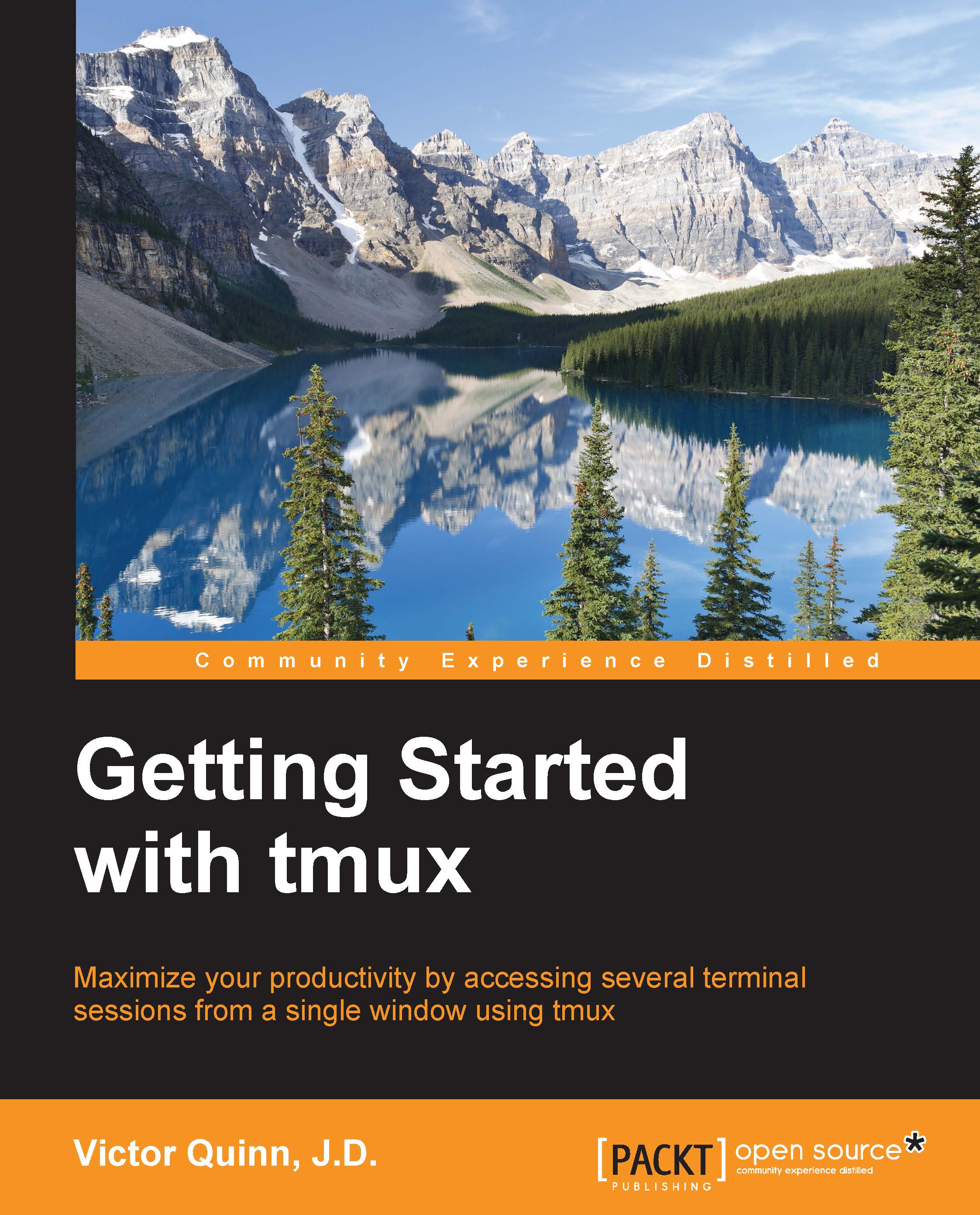
Getting Started with tmux
$23.99 $29.99
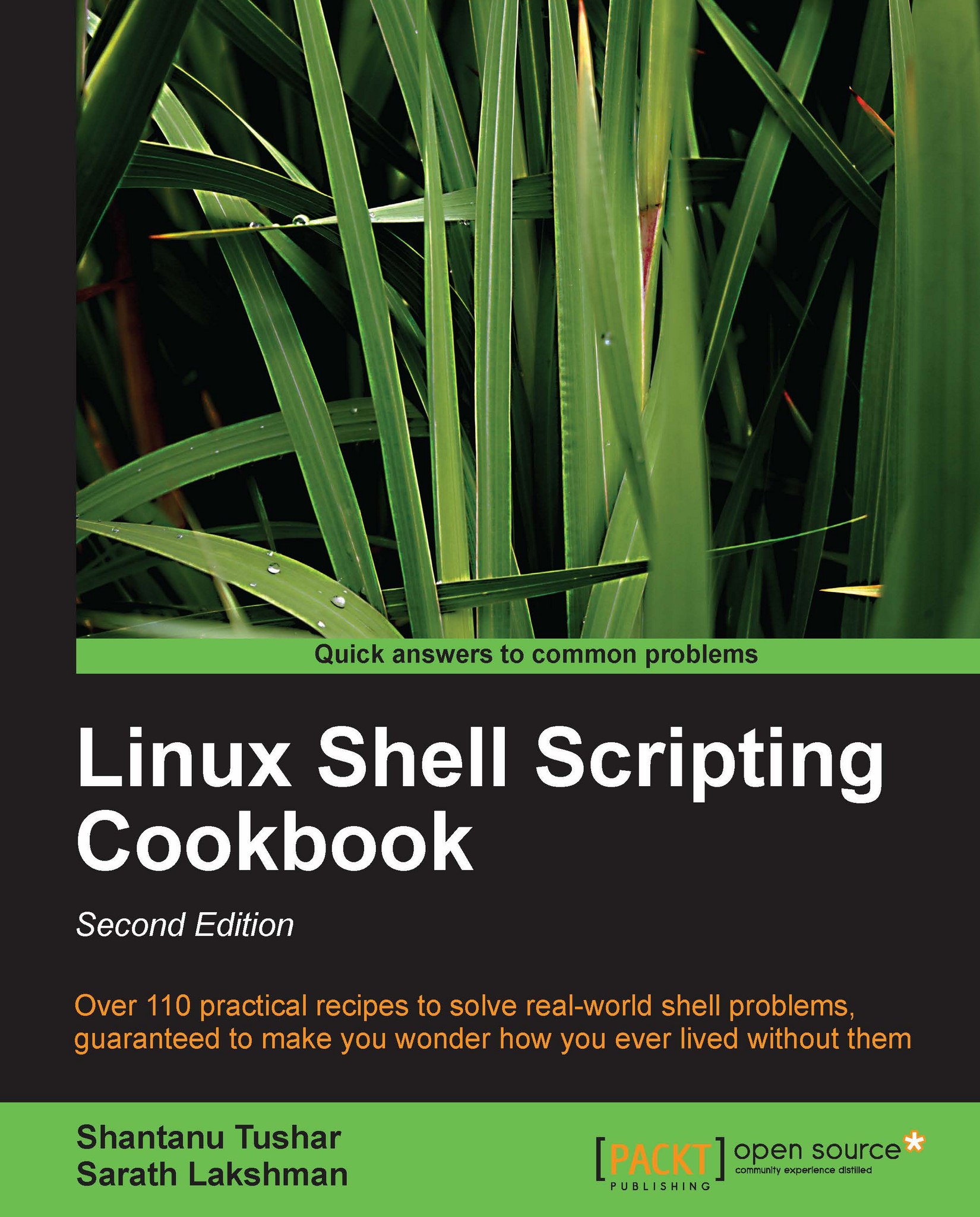
Linux Shell Scripting Cookbook, Second Edition
$39.19 $48.99
Learning Shell Scripting with Zsh
$26.39 $32.99
Total $ 89.57 111.97 22.40 saved Stars icon

Table of Contents

6 Chapters
Getting Started Chevron down icon Chevron up icon
Alias and History Chevron down icon Chevron up icon
Advanced Editing Chevron down icon Chevron up icon
Globbing Chevron down icon Chevron up icon
Completion Chevron down icon Chevron up icon
Tips and Tricks Chevron down icon Chevron up icon

Customer reviews

Top Reviews
Rating distribution
Full star icon Full star icon Half star icon Empty star icon Empty star icon 2.3
(9 Ratings)
5 star 22.2%
4 star 0%
3 star 11.1%
2 star 22.2%
1 star 44.4%
Filter icon Filter
Top Reviews

Filter reviews by


Norbert Kurz Feb 03, 2014
Full star icon Full star icon Full star icon Full star icon Full star icon 5
I always use the bash for my daily work as a System Operator but always heared that the Z shell should be more powerful. And indeed it is. With this book as a good introduction to the alternative shell I mastered the Zsh very quick. This Book ist perfect if you have no knowledge of Zsh and maybe a bit bash knowledge, so if you are new or want to change the shell this should be the book of your choice. But it is not a Linux reference so if you want to learn Linux you should buy something else. The explanations are easy to understand and everything is also explained with an example. The only thing which can be a bit disturbing are the jokes, they can be funny but I won't promise it.So I can recommend this book to anyone who has at least a bit of Linux knowledge and wants to learn the Z Shell. I can't guarantee you that you will enjoy the jokes but you will certainly learn how to use the best shell in an easy and memorizable way. The Author did a good Job
Amazon Verified review Amazon
software_craftsman Dec 02, 2018
Full star icon Full star icon Full star icon Full star icon Full star icon 5
I thought it was a gentle introduction zsh abilities and is succinct in explaining the capabilities of the zsh. Good overall book
Amazon Verified review Amazon
Luca Ferrari Dec 05, 2017
Full star icon Full star icon Full star icon Empty star icon Empty star icon 3
In the beginning it was a little boring, but then it goes into the trickery of zsh making you more aware of what you can do with such an amazing shell.
Amazon Verified review Amazon
C. Neukirchen Mar 16, 2014
Full star icon Full star icon Empty star icon Empty star icon Empty star icon 2
[Full disclosure: I have received a digital copy of the book in exchange forthis review.]The book is titled "Learning Shell Scripting with Zsh: Your one-stopguide to reading, writing, and debugging simple and complex Z shellscripts" which could not be more wrong. A far more appropriate titlewould have been: "Getting started with Zsh: Your guide to interactive useand first steps of customization".A first glance through the table of contents proves me right: Thereare chapters on "Getting started", "Alias and History", "AdvancedEditing", "Globbing", "Completion", and "Tips and Tricks", but noexplicit mention of writing shell scripts for purposes other thancustomization of an interactive shell.I'm not completely sure of the target audience: The book assumes basicfamiliarity with (Bourne) shell already, half-heartedly explains pipesor redirections as well as how to define shell functions, bute.g. there is no mention of how to pass or parse arguments. After asingle example of a very simple completion function in Chapter 5 (withexplanation), the reader is assumed know enough for writing his owncompletions. I highly doubt that.I found the book riddled with small mistakes, imprecise to wrongexplanations and plain terribly sloppy typesetting of the codeexamples, which hurts particularly in a book about shell where syntaxis lax but proper newlines matter.Examples are often not very well chosen and occasionally confusingeven to me, who is very familiar with the topic.The over-emphatic style with its needless rambling and cheeky languagedoes not save the book but probably annoys the reader even more. (Ihope not to ever read "You know, because widescreen." in a bookagain.) Without, a lot more actual content and perhaps a realintroduction to shell *usage* would have fit into these compact 118pages.The book finishes with a recommendation to read "From Bash To Z Shell"next. All I can recommend is: better skip this book completely andstart with that one if you are interested in a good book about zsh.
Amazon Verified review Amazon
Andrew George Oct 27, 2021
Full star icon Full star icon Empty star icon Empty star icon Empty star icon 2
I'm not sure if it's the book or the subject. There isn't anything on function arguments and the majority of the content is focused on stupid customization. While personalized systems can improve the efficiency of operation, there isn't much point if the system cannot be used to automate a process. Bash in a nutshell was a bit dense for the subject, but one need not finish the book before the subject matter can be put to use.
Amazon Verified review Amazon
Get free access to Packt library with over 7500+ books and video courses for 7 days!
Start Free Trial

FAQs

What is the digital copy I get with my Print order? Chevron down icon Chevron up icon

When you buy any Print edition of our Books, you can redeem (for free) the eBook edition of the Print Book you’ve purchased. This gives you instant access to your book when you make an order via PDF, EPUB or our online Reader experience.

What is the delivery time and cost of print book? Chevron down icon Chevron up icon

Shipping Details

USA:

'

Economy: Delivery to most addresses in the US within 10-15 business days

Premium: Trackable Delivery to most addresses in the US within 3-8 business days

UK:

Economy: Delivery to most addresses in the U.K. within 7-9 business days.
Shipments are not trackable

Premium: Trackable delivery to most addresses in the U.K. within 3-4 business days!
Add one extra business day for deliveries to Northern Ireland and Scottish Highlands and islands

EU:

Premium: Trackable delivery to most EU destinations within 4-9 business days.

Australia:

Economy: Can deliver to P. O. Boxes and private residences.
Trackable service with delivery to addresses in Australia only.
Delivery time ranges from 7-9 business days for VIC and 8-10 business days for Interstate metro
Delivery time is up to 15 business days for remote areas of WA, NT & QLD.

Premium: Delivery to addresses in Australia only
Trackable delivery to most P. O. Boxes and private residences in Australia within 4-5 days based on the distance to a destination following dispatch.

India:

Premium: Delivery to most Indian addresses within 5-6 business days

Rest of the World:

Premium: Countries in the American continent: Trackable delivery to most countries within 4-7 business days

Asia:

Premium: Delivery to most Asian addresses within 5-9 business days

Disclaimer:
All orders received before 5 PM U.K time would start printing from the next business day. So the estimated delivery times start from the next day as well. Orders received after 5 PM U.K time (in our internal systems) on a business day or anytime on the weekend will begin printing the second to next business day. For example, an order placed at 11 AM today will begin printing tomorrow, whereas an order placed at 9 PM tonight will begin printing the day after tomorrow.


Unfortunately, due to several restrictions, we are unable to ship to the following countries:

  1. Afghanistan
  2. American Samoa
  3. Belarus
  4. Brunei Darussalam
  5. Central African Republic
  6. The Democratic Republic of Congo
  7. Eritrea
  8. Guinea-bissau
  9. Iran
  10. Lebanon
  11. Libiya Arab Jamahriya
  12. Somalia
  13. Sudan
  14. Russian Federation
  15. Syrian Arab Republic
  16. Ukraine
  17. Venezuela
What is custom duty/charge? Chevron down icon Chevron up icon

Customs duty are charges levied on goods when they cross international borders. It is a tax that is imposed on imported goods. These duties are charged by special authorities and bodies created by local governments and are meant to protect local industries, economies, and businesses.

Do I have to pay customs charges for the print book order? Chevron down icon Chevron up icon

The orders shipped to the countries that are listed under EU27 will not bear custom charges. They are paid by Packt as part of the order.

List of EU27 countries: www.gov.uk/eu-eea:

A custom duty or localized taxes may be applicable on the shipment and would be charged by the recipient country outside of the EU27 which should be paid by the customer and these duties are not included in the shipping charges been charged on the order.

How do I know my custom duty charges? Chevron down icon Chevron up icon

The amount of duty payable varies greatly depending on the imported goods, the country of origin and several other factors like the total invoice amount or dimensions like weight, and other such criteria applicable in your country.

For example:

  • If you live in Mexico, and the declared value of your ordered items is over $ 50, for you to receive a package, you will have to pay additional import tax of 19% which will be $ 9.50 to the courier service.
  • Whereas if you live in Turkey, and the declared value of your ordered items is over € 22, for you to receive a package, you will have to pay additional import tax of 18% which will be € 3.96 to the courier service.
How can I cancel my order? Chevron down icon Chevron up icon

Cancellation Policy for Published Printed Books:

You can cancel any order within 1 hour of placing the order. Simply contact customercare@packt.com with your order details or payment transaction id. If your order has already started the shipment process, we will do our best to stop it. However, if it is already on the way to you then when you receive it, you can contact us at customercare@packt.com using the returns and refund process.

Please understand that Packt Publishing cannot provide refunds or cancel any order except for the cases described in our Return Policy (i.e. Packt Publishing agrees to replace your printed book because it arrives damaged or material defect in book), Packt Publishing will not accept returns.

What is your returns and refunds policy? Chevron down icon Chevron up icon

Return Policy:

We want you to be happy with your purchase from Packtpub.com. We will not hassle you with returning print books to us. If the print book you receive from us is incorrect, damaged, doesn't work or is unacceptably late, please contact Customer Relations Team on customercare@packt.com with the order number and issue details as explained below:

  1. If you ordered (eBook, Video or Print Book) incorrectly or accidentally, please contact Customer Relations Team on customercare@packt.com within one hour of placing the order and we will replace/refund you the item cost.
  2. Sadly, if your eBook or Video file is faulty or a fault occurs during the eBook or Video being made available to you, i.e. during download then you should contact Customer Relations Team within 14 days of purchase on customercare@packt.com who will be able to resolve this issue for you.
  3. You will have a choice of replacement or refund of the problem items.(damaged, defective or incorrect)
  4. Once Customer Care Team confirms that you will be refunded, you should receive the refund within 10 to 12 working days.
  5. If you are only requesting a refund of one book from a multiple order, then we will refund you the appropriate single item.
  6. Where the items were shipped under a free shipping offer, there will be no shipping costs to refund.

On the off chance your printed book arrives damaged, with book material defect, contact our Customer Relation Team on customercare@packt.com within 14 days of receipt of the book with appropriate evidence of damage and we will work with you to secure a replacement copy, if necessary. Please note that each printed book you order from us is individually made by Packt's professional book-printing partner which is on a print-on-demand basis.

What tax is charged? Chevron down icon Chevron up icon

Currently, no tax is charged on the purchase of any print book (subject to change based on the laws and regulations). A localized VAT fee is charged only to our European and UK customers on eBooks, Video and subscriptions that they buy. GST is charged to Indian customers for eBooks and video purchases.

What payment methods can I use? Chevron down icon Chevron up icon

You can pay with the following card types:

  1. Visa Debit
  2. Visa Credit
  3. MasterCard
  4. PayPal
What is the delivery time and cost of print books? Chevron down icon Chevron up icon

Shipping Details

USA:

'

Economy: Delivery to most addresses in the US within 10-15 business days

Premium: Trackable Delivery to most addresses in the US within 3-8 business days

UK:

Economy: Delivery to most addresses in the U.K. within 7-9 business days.
Shipments are not trackable

Premium: Trackable delivery to most addresses in the U.K. within 3-4 business days!
Add one extra business day for deliveries to Northern Ireland and Scottish Highlands and islands

EU:

Premium: Trackable delivery to most EU destinations within 4-9 business days.

Australia:

Economy: Can deliver to P. O. Boxes and private residences.
Trackable service with delivery to addresses in Australia only.
Delivery time ranges from 7-9 business days for VIC and 8-10 business days for Interstate metro
Delivery time is up to 15 business days for remote areas of WA, NT & QLD.

Premium: Delivery to addresses in Australia only
Trackable delivery to most P. O. Boxes and private residences in Australia within 4-5 days based on the distance to a destination following dispatch.

India:

Premium: Delivery to most Indian addresses within 5-6 business days

Rest of the World:

Premium: Countries in the American continent: Trackable delivery to most countries within 4-7 business days

Asia:

Premium: Delivery to most Asian addresses within 5-9 business days

Disclaimer:
All orders received before 5 PM U.K time would start printing from the next business day. So the estimated delivery times start from the next day as well. Orders received after 5 PM U.K time (in our internal systems) on a business day or anytime on the weekend will begin printing the second to next business day. For example, an order placed at 11 AM today will begin printing tomorrow, whereas an order placed at 9 PM tonight will begin printing the day after tomorrow.


Unfortunately, due to several restrictions, we are unable to ship to the following countries:

  1. Afghanistan
  2. American Samoa
  3. Belarus
  4. Brunei Darussalam
  5. Central African Republic
  6. The Democratic Republic of Congo
  7. Eritrea
  8. Guinea-bissau
  9. Iran
  10. Lebanon
  11. Libiya Arab Jamahriya
  12. Somalia
  13. Sudan
  14. Russian Federation
  15. Syrian Arab Republic
  16. Ukraine
  17. Venezuela
Modal Close icon
Modal Close icon