Search icon CANCEL
Subscription
0
Cart icon
Your Cart (0 item)
Close icon
You have no products in your basket yet
Save more on your purchases! discount-offer-chevron-icon
Savings automatically calculated. No voucher code required.
Arrow left icon
Explore Products
Best Sellers
New Releases
Books
Videos
Audiobooks
Learning Hub
Newsletter Hub
Free Learning
Arrow right icon
timer SALE ENDS IN
0 Days
:
00 Hours
:
00 Minutes
:
00 Seconds
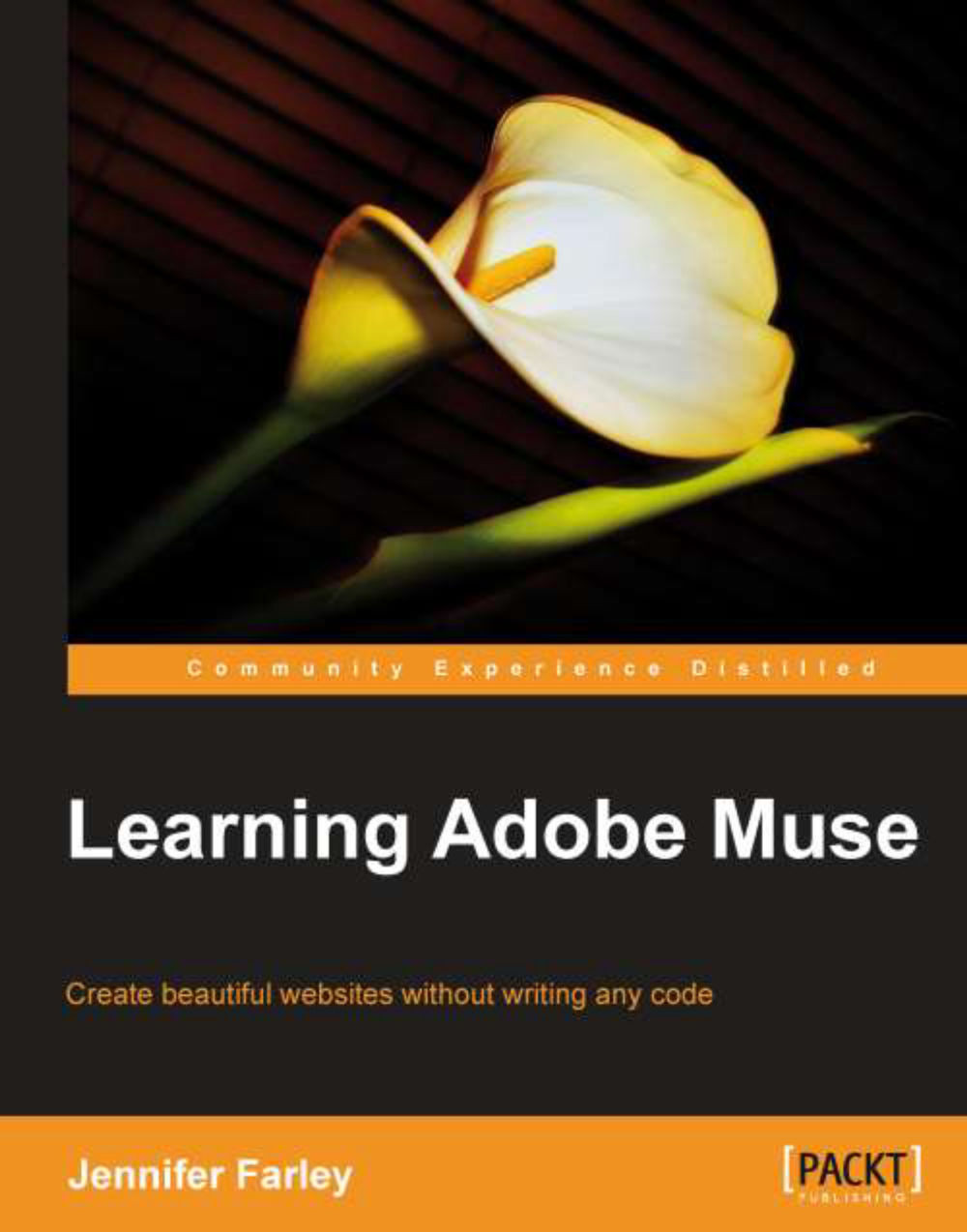
Learning Adobe Muse
Learning Adobe Muse

Learning Adobe Muse: Create beautiful websites without writing any code with this book and ebook.

eBook
$20.29 $28.99
Paperback
$48.99
Subscription
Free Trial
Renews at $19.99p/m

What do you get with Print?

Product feature icon Instant access to your digital copy whilst your Print order is Shipped
Product feature icon Paperback book shipped to your preferred address
Product feature icon Redeem a companion digital copy on all Print orders
Product feature icon Access this title in our online reader with advanced features
Product feature icon DRM FREE - Read whenever, wherever and however you want
Modal Close icon
Payment Processing...
tick Completed

Shipping Address

Billing Address

Shipping Methods
Table of content icon View table of contents Preview book icon Preview Book

Learning Adobe Muse

Chapter 1. Welcome to Muse

Welcome friends, to Adobe Muse! As we work our way through this book, we will learn how to use Adobe's latest web design software to create eye-catching websites. All without writing any code.

Examples of some of the interesting ways in which people have used Muse include portfolio-style websites for photographers, illustrators, and designers and interactive brochure style sites for all kinds of service providers. If you would like to see some examples of how other designers have used Muse to create their websites, check out Muse Showcase at http://www.adobe.com/products/muse/showcase.html.

In this chapter, you will learn:

  • What Muse is

  • How to get around the workspace

  • How to save your site

  • How to select tools

  • How to work with panels

What is this Muse you speak of?


Muse is a brand new offering from the software design company, Adobe. The idea behind it is to allow designers to create websites as easily as we can create layouts for print. Known as a WYSIWYG (What You See Is What You Get) web design tool, Muse allows us to build entire sites without worrying about HTML, CSS, JavaScript, or jQuery—all of which have the ability to leave a designer in a cold sweat.

If you are a graphic designer and have used Adobe InDesign, Illustrator, or Photoshop, you will find that you will have a certain level of familiarity with Muse. The interface is similar to others from the Adobe stable and the ability to drag-and-drop elements into your layout is what makes Muse special. You can focus on the look and feel, while Muse creates the code behind the scenes.

The following are some of Muse's features:

  • Plan, design, and publish: Starting your website with a plan is always a good idea and that's the first step in the Muse workflow.

  • Easy layout of text and images: You don't have to worry about adding DIV tags, Padding, and Margin attributes in order to place your design elements on the page. You can drag-and-drop where you want and precisely control your layouts.

  • Add interactivity: Muse lets you add rollovers and button states created with the Photoshop layers. Arbitrary HTML and Muse widgets allow you to set up more advanced interactive features such as accordion panels, custom lightboxes, and menus.

  • Automatically-generated menus: As you add pages to your site, Muse will update the navigation menus on the fly.

  • Publishing is easy: While you focus on creating a compelling and beautifully designed site, Muse automatically generates all the HTML, CSS, and scripting required to make it function. You can publish your site from within Muse if you host it with Adobe, or you can export your site and host it with any service provider of your choice.

So let's get started.

Where to find Muse

In order to follow along and work with the program, the first step is to download the software to your computer. There are two ways to buy Muse: either by paying monthly or yearly as part of Adobe's Creative Suite, or you can just try it out as a thirty-day trial. Either way, you can download the software from http://www.adobe.com/products/muse.html and install it on your system. Muse is available for Mac and Windows.

The Muse workspace

A good worker knows their tools, so we're going to take a little time to find our way around the tools and panels that make up the Muse workspace.

The Muse workspace lets you plan, design, preview, and publish web pages and site assets. The toolbars and panels allow us quick access to the most common operations for creating and editing documents. Multiple documents can be displayed in the workspace and we can jump from one page to another by clicking on the tab that identifies that page.

The Welcome screen

The very first time you open Muse you will be greeted by the Welcome screen. This screen provides quick access to recently opened sites and easy creation of new sites. It also provides a direct connection to the Adobe Muse site where you can learn more about the program. A link provides information on the most current version available.

The Welcome screen will continue to appear every time you start Muse from the application icon in Windows or Mac OS. If you open a Muse file directly from a folder on your computer then the site will open without showing the Welcome Screen.

  1. 1. To disable the Welcome screen, select Don't Show Again and close it.

  2. 2. To re-enable the Welcome screen, enable the Show Welcome Screen option in the Edit menu.

To open a recent site

Click on the site name on the left-hand side of the Welcome screen. If the site you want to work on is not listed there, click on the Open icon and browse through your folders to find the Muse site.

To create a new site

For creating a site, follow the given steps:

  1. 1. Click on the Site icon under Create New on the Welcome Screen or choose File | New Site from the main menu.

  2. 2. A New Site dialog box opens, which allows us to set up the dimensions of our site, the number of columns, and margin and padding settings.

    If you are a graphic designer used to working with units such as millimeters, centimeters, inches, points or picas, you may be wondering what units are used here. All units are in pixels as Muse is intended entirely for screen-based design work.

    The fields in the screenshots can be described as follows:

    • Page Width: This specifies the width of the container that will hold your web page's content.

    • Min Height: This specifies the minimum height of your page. As you add content, your page will stretch but this value ensures each page will always have a minimum height.

    • Columns: This specifies the number of columns that are used for guides to align objects in the design mode.

    • Column Width: This is the width of each column.

    • Gutter: This specifies the gap between columns.

    • Center Horizontally: Leave this checked so that the container, which holds your web page content, sits in the centre of the user's screen regardless of their screen resolution. This is a standard practice when designing websites.

    • Margins: This defines the space between the edge of your page container and other outer elements.

    • Padding: This defines the space between the edge of the page container and the content inside the container.

      Note

      The settings you specify in the New Site and Site Properties dialog boxes apply to all pages and master pages throughout the new site. However, you can customize properties for individual and master pages. We'll look at how to do that shortly. It is a good practice to set your site dimensions when you start a project, just as you would if you were designing for a printed page, but don't worry if you find you need to change the settings later. You can access this dialog box at any time by choosing File | Site Properties or by right-clicking (Windows)/Ctrl + clicking (Mac) the page or master page in the Plan view.

  3. 3. For this example, we'll set the Width as 960 pixels, Height as 800 pixels, all Margins as 20 pixels, Top Padding as 10 pixels, and Bottom Padding as 20 pixels. Type the numbers in the fields or click on the up and down arrows next to each field to increase or decrease the current values.

  4. 4. Click on OK to complete your initial site's setup.

Views

After clicking on OK, the next screen you'll see is the Plan view. The Plan view displays your site plan—an overview of how your website is organized. When you first create a new site, Muse automatically generates a Home page, also called the index page, that is linked to the Master Page design. Plan view is the default view when you open a Muse site.

At this stage, your Plan view will only have a single page: the home page, which appears as a thumbnail on the upper section of the Plan view. Beneath that you should see your Master pages. In this case you will have one master page, named A-Master. The Master pages act as templates to share common design elements such as headers, footers and logos that are required on more than one web page.

A Muse site has five views: Plan, Design, Preview, Publish, and Manage. You can switch between any of the views by clicking the links at the top of the interface. The fourth link, Publish, opens the Sign In window which starts the publishing process. We'll talk about these views in more detail in later chapters.

Saving your site

Before we go any further it's a good idea to save our site.

  1. 1. Choose File | Save. The Save Muse File As dialog box opens. Type in a name for your site; let's call it MyFirstWebSite.muse.

  2. 2. Navigate to the location on your computer where you want to save your sample project and then click on Save.

Opening a page in Design view

With our site saved, we can move into the Design view and check out the rest of the Muse workspace. While still in the Plan view, double-click on the homepage thumbnail to open that page.

Note

You can also switch to the Design view by clicking on Design at the top of the Muse window.

The Design view is where most of the heavy lifting of the design work takes place. This is where we add our text, images, and multimedia widgets to our web page.

The Design view workspace encompasses everything you see when you open or create a new document:

  • Views

  • Toolbox

  • Document window

  • Panels

  • Menus

  • Control panel

With your homepage open, notice that tabs appear for your selected page and for your site plan. You can open multiple pages in Muse and each one will appear with its own tab. To jump from a page to another page or to the site plan, simply click on the page name tab.

As shown in the previous screenshot, the letters indicate the different components of the Muse workspace, as follows:

  • A: Menu

  • B: Views

  • C: Control Panel

  • D: Toolbar

  • E: Document window

  • F: Panels

The toolbar

The toolbar contains tools for selecting objects, working with type, cropping, and drawing rectangles. It sits at the top of screen, to the right of the Views section. It contains some tools you may be familiar with if you've used other Adobe programs.

The following is a brief overview of the function of each tool:

  • Selection tool: It lets you select objects on a page

  • Crop tool: It lets you crop images on a page

  • Text tool: It lets you create a text area where you can add text to a page

  • Zoom tool: It lets you zoom in or out from the page

  • Hand tool: It lets you pan around the page by dragging

  • Rectangle tool: It lets you create rectangular, round rectangular, or circular objects that can be filled with colors or images

Using the tools

To use a tool, simply click on the tool using the mouse or press the appropriate shortcut key. You can find the shortcuts for each tool by positioning your mouse over the tool icon. A tool tip appears, revealing the tool's name and its shortcut. For example, follow the given steps:

  1. 1. Position your mouse over Zoom Tool.

  2. 2. Click on Zoom Tool to select it, as shown in the following screenshot:

  3. 3. Roll your mouse over each of the tools and pause to see each tool's name and shortcut. Make a mental note of each shortcut.

Even at this early stage, it's worth making an effort to remember the shortcut for each one (and there are only a few tools here in comparison with other Adobe programs). You'll find that your workflow speeds up considerably as you work with one hand on your mouse and the other hand ready on the keyboard to press shortcuts.

The Control Panel

The Control Panel (Window | Control) gives you quick access to options and commands related to the current page item or objects you select. The Control Panel is context-sensitive, so depending on which tool you have selected or which object you have clicked in the document window, the options displayed will vary. To get more information about each option, hover over an icon or the option's label to see a tool tip.

Click on Type Tool (T). Notice how the options on the Control Panel change.

Panels

Panels give us speedy access to additional tools and features. By default, the panels sit together in a dock on the right-hand side of the screen. This is not a permanent position; the panels are actually floating and are independent of the document window. We can customize the workspace by changing each panel's location and reorganizing them to suit our own needs. In the following screenshot, the Swatches, Character Styles, and Spacing panels are currently active. By clicking on the name in any Panel tab, that particular panel becomes active. Unlike other Adobe software you may have used, individual panels cannot be separated; they are "stuck" together.

Click on the Text tab, the Paragraph tab, and the Wrap tab in order to activate them.

Expanding and collapsing panels

The panels take up a small chunk of the real estate on your screen, however, you may not always want them to appear fully expanded. We can reduce the amount of space they take up by collapsing them to show icons without names. The following steps show how to expand and collapse all the panels in the dock:

  1. 1. Click on the double arrow to the right of the panels' names to collapse the panel, as shown in the following screenshot:

  2. 2. To expand the panels, click again on the double arrow at the top of the icons.

Another way to save space is to collapse the panels so that only the tab and panel name are visible. To do this, perform the following steps:

  1. 1. Click on the tab name. The tab itself will be highlighted but the controls and features in the panel will be hidden.

  2. 2. Click on the tab name a second time to expand the panel again.

  3. 3. To resize a panel, drag the bottom edge of the expanded panel.

Hide all panels

You may not want to see any panels while you're working on your design. To hide all the panels choose Window | Hide Panels. When you're ready, you can show them again by choosing Window | Show Panels.

Open a panel

If you can't see any particular panel in the panel groups, you can find a full list of panels under the Window menu. To open a panel that isn't showing in the workspace, choose Window | Fill to open the Fill panel.

If the panel name has a check mark under the Window menu, this means it is already active on the screen and that particular panel will appear highlighted in its panel group.

Rearranging panels

To move a panel into another group, drag the panel's tab. As you drag, you'll see a ghosted version of the panel and a blue highlighted drop zone appears in the group, which indicates the area where you can drop the panel. You can move a panel up or down within the dock by dragging it to the narrow blue drop zone.

As an exercise, try dragging the Fill panel downwards to join the group below it.

The document window

The document window is the white page in the middle of your screen and this, of course, is where all the action happens. We can see blue guidelines indicating the number of columns, the gutter size, and the margins. In the following screenshot, we can see a setup using three columns with space between them (known as the gutter) and the margin around the edge of the content area:

Rulers, guides, and grids

Rulers and guides are a designer's best friend, whether you are working with print or on the Web. By default, Muse displays rulers along the top and left side of the workspace. As mentioned earlier, the measurement units used are pixels. To show or hide rulers, choose View | Show/Hide Rulers.

Muse also displays five guides that define the page size, the header, and the footer. We haven't yet defined a header and footer height so you should see guides with handles for dragging the top of the page, the bottom of the page, and the bottom of the browser.

When you use the mouse to hover over guides along the left side of the workspace, you'll see a tool tip about the purpose and functionality of each guide.

The top and two bottom guides help you to determine your overall page size. If you want to change the size of your page without going back to the Site Properties dialog box, you can drag the first guide up, or the fourth guide down to extend the content area of your page. To show or hide page guides, choose View | Show/Hide Guides.

Header and footer guides

The second and third guides on the page define the bottom of your header and the top of your footer, respectively. These guides become editable only after you have defined your header and footer in the master page. We'll discuss that in more detail in a future chapter. On normal pages, the header and footer guides are displayed for visual reference, but they cannot be dragged to a new location. To show or hide header and footer guides, choose View | Show/Hide Header and Footer or Ctrl + Shift + ;/Cmd + Shift + ;.

Grid overlay

Many people think about web design layouts in terms of columns. Three-column and two-column layouts are very popular but it's important to remember that thinking about rows and columns together gives us a grid—an important tool to help designers create elegant and attractive layouts. Muse provides a grid overlay.

To show or hide the grid overlay, choose View | Show/Hide Grid Overlay or press Ctrl + '/Cmd + '.

Zooming

While viewing content in the document window, it's important that we have the ability to zoom in and zoom out as we work on our design.

Changing magnification

There are a number of ways to change the magnification or zoom level. You can do any of the following:

  • Select the Zoom tool (Z). The cursor changes to a magnifying glass with a + symbol inside it. Click on the document window to zoom in at the point of clicking. Keep clicking to be able to zoom into a magnification of up to 4000%.

  • To zoom out while using the Zoom tool, hold down the Alt key (Win)/Option key (Mac) while clicking. The cursor will change to a magnifying glass with a symbol inside it.

  • Choose the magnification level directly from the drop-down box beside the toolbar. The drop-down box offers values from 50% to 400% but you can type in any magnification level between 10% to 4000%.

  • Choose View | Zoom In or View | Zoom Out.

  • Use the shortcuts Ctrl + = (Win)/Cmd + = (Mac) to zoom in and Ctrl + - (Win)/Cmd + - (Mac) to zoom out.

  • Use Ctrl + 0 (Win)/Cmd + 0 (Mac) to fit the page inside your window and Ctrl + 1 (Win)/Cmd + 1 (Mac) to view the page at its actual size.

Undoing actions

In an ideal world, we could put together our websites without making any mistakes. Unfortunately, we do not live in that world and sometimes we need to backtrack or undo some of our actions. Thankfully, Muse allows us to step back and undo multiple actions. In fact, you are allowed to undo up to the last 20 actions. If you make a mistake you can do one of the following:

  • Choose Edit | Undo (Action) or

  • Hit Ctrl + Z (Win)/Cmd + Z (Mac)

If you want to redo something you have just undone, you can do one of the following:

  • Choose Edit | Redo (Action) or

  • Hit Ctrl + Shift + Z (Win)/Cmd + Shift + Z (Mac)

Getting help and more resources

For complete and up-to-date information about using Muse panels, tools, and other application features, visit the Adobe website. To search for information in Muse Help and support documents, as well as other websites relevant to Muse users, choose Help | Muse Help. You can narrow your search results to view only Adobe Help and support documents, as well.

For additional resources, such as tips and techniques and the latest product information, check out the Muse Community Feedback page at http://forums.adobe.com/community/muse.

Muse updates

As Adobe updates the software, you will see a message on the the Muse Welcome screen informing you there is a new version available. This message only appears when you have an active Internet connection.

Summary


In this chapter, we have discussed how Muse enables us to create websites without writing code. We have also familiarized ourselves with the Muse workspace, its tools, panels, and the document window and we looked at shortcuts for each of the tools. Remember, it is worthwhile to learn these shortcuts to speed up your workflow.

In the next chapter, we'll look at the Muse workflow, which is based on a typical web designer's workflow from the initial concept to the final website. We'll look at the steps of planning, creating, designing, and publishing.

Left arrow icon Right arrow icon

Key benefits

  • A step by step guide to using Adobe's latest design tool to build websites
  • A thorough coverage of all the features introduced in Adobe Muse
  • Design tips and advice for new designers

Description

Adobe Muse is an exciting new tool from the world's foremost design software company which allows users to create beautiful and fully functioning websites without writing any code. It provides graphic designers the power to use their print design skills over the Web. This book will help web designers as well as graphic designers to master Adobe Muse quickly. It will provide step-by-step instructions that guide you through building a website with Adobe Muse."Learning Adobe Muse" will teach you how to plan, design and publish websites using Adobe Muse. It starts by covering the tools and interface of the program and moves on to the concepts you'll need to understand for laying out your web pages. You'll learn how to format text using reusable styles, add images, create a clean navigation system, and add interactive elements such as panels and slideshows to your pages and all this without writing a single line of code!By the end of the book you will have created a smartlydesigned, fully-functioning website.

Who is this book for?

This book is written for beginner web designers and also graphic designers who are interested in using their print design skills on the Web. It will teach you how to quickly build websites without the need to learn HTML or CSS.

What you will learn

  • Plan a website from scratch.
  • Create a functioning website prototype
  • Use master pages to apply a common look and feel across the website
  • Apply effects such as drop shadows, bevel, and glow
  • Add interactive elements to your site including an image slideshow
  • Design tips and advice for new designers and graphic designers moving from print to the web
  • Preview and test your website
  • Publish your site with Business Catalyst or a third party hosting provider
Estimated delivery fee Deliver to United States

Economy delivery 10 - 13 business days

Free $6.95

Premium delivery 6 - 9 business days

$21.95
(Includes tracking information)

Product Details

Country selected
Publication date, Length, Edition, Language, ISBN-13
Publication date : Sep 25, 2012
Length: 268 pages
Edition : 1st
Language : English
ISBN-13 : 9781849693141
Vendor :
Adobe
Concepts :
Tools :

What do you get with Print?

Product feature icon Instant access to your digital copy whilst your Print order is Shipped
Product feature icon Paperback book shipped to your preferred address
Product feature icon Redeem a companion digital copy on all Print orders
Product feature icon Access this title in our online reader with advanced features
Product feature icon DRM FREE - Read whenever, wherever and however you want
Modal Close icon
Payment Processing...
tick Completed

Shipping Address

Billing Address

Shipping Methods
Estimated delivery fee Deliver to United States

Economy delivery 10 - 13 business days

Free $6.95

Premium delivery 6 - 9 business days

$21.95
(Includes tracking information)

Product Details

Publication date : Sep 25, 2012
Length: 268 pages
Edition : 1st
Language : English
ISBN-13 : 9781849693141
Vendor :
Adobe
Concepts :
Tools :

Packt Subscriptions

See our plans and pricing
Modal Close icon
$19.99 billed monthly
Feature tick icon Unlimited access to Packt's library of 7,000+ practical books and videos
Feature tick icon Constantly refreshed with 50+ new titles a month
Feature tick icon Exclusive Early access to books as they're written
Feature tick icon Solve problems while you work with advanced search and reference features
Feature tick icon Offline reading on the mobile app
Feature tick icon Simple pricing, no contract
$199.99 billed annually
Feature tick icon Unlimited access to Packt's library of 7,000+ practical books and videos
Feature tick icon Constantly refreshed with 50+ new titles a month
Feature tick icon Exclusive Early access to books as they're written
Feature tick icon Solve problems while you work with advanced search and reference features
Feature tick icon Offline reading on the mobile app
Feature tick icon Choose a DRM-free eBook or Video every month to keep
Feature tick icon PLUS own as many other DRM-free eBooks or Videos as you like for just $5 each
Feature tick icon Exclusive print discounts
$279.99 billed in 18 months
Feature tick icon Unlimited access to Packt's library of 7,000+ practical books and videos
Feature tick icon Constantly refreshed with 50+ new titles a month
Feature tick icon Exclusive Early access to books as they're written
Feature tick icon Solve problems while you work with advanced search and reference features
Feature tick icon Offline reading on the mobile app
Feature tick icon Choose a DRM-free eBook or Video every month to keep
Feature tick icon PLUS own as many other DRM-free eBooks or Videos as you like for just $5 each
Feature tick icon Exclusive print discounts

Frequently bought together


Stars icon
Total $ 136.97
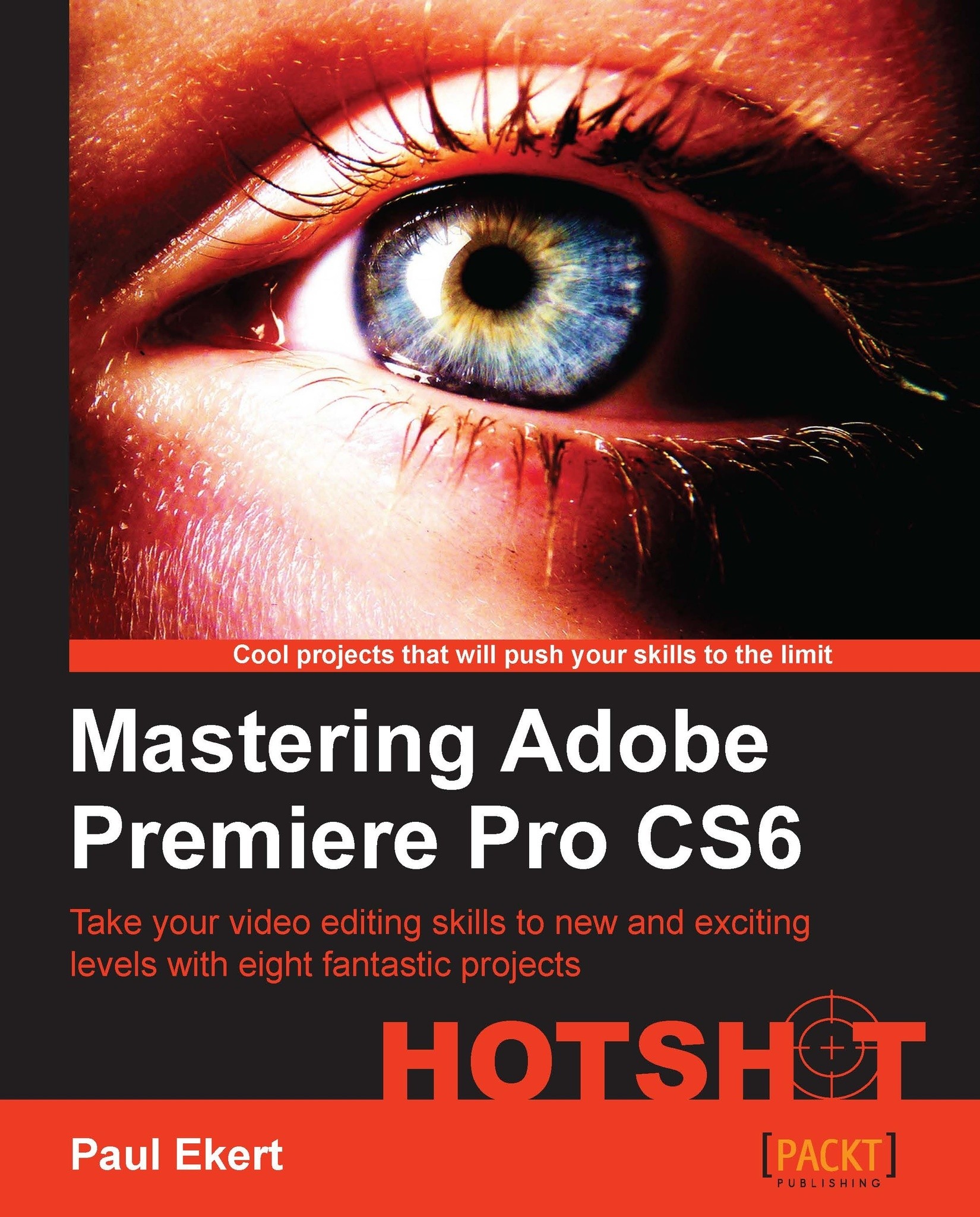
Mastering Adobe Premiere Pro CS6 Hotshot
$54.99
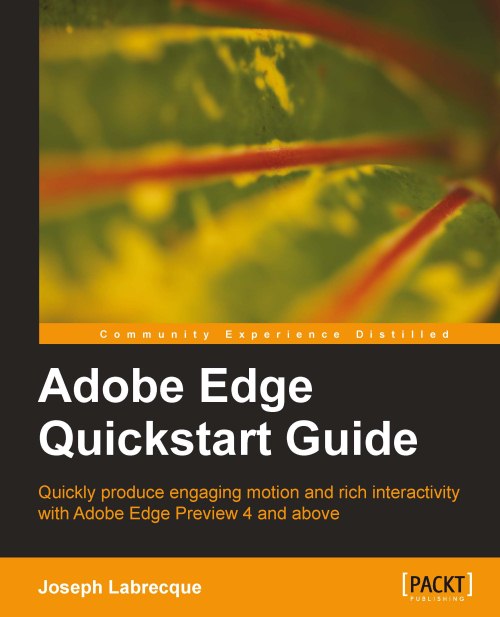
Adobe Edge Quickstart Guide
$32.99
Learning Adobe Muse
$48.99
Total $ 136.97 Stars icon

Table of Contents

12 Chapters
Welcome to Muse Chevron down icon Chevron up icon
The Muse Workflow Chevron down icon Chevron up icon
Planning Your Site Chevron down icon Chevron up icon
Powerful Pages Chevron down icon Chevron up icon
The Joy of Rectangles Chevron down icon Chevron up icon
Typography, Muse, and the Web Chevron down icon Chevron up icon
Working with Images Chevron down icon Chevron up icon
Customizing with Widgets—Menus and Panels Chevron down icon Chevron up icon
More Widgets—Compositions and Slideshows Chevron down icon Chevron up icon
Muse, Meet the Adobe Creative Suite Chevron down icon Chevron up icon
Previewing and Testing Your Site Chevron down icon Chevron up icon
Publishing Your Site Chevron down icon Chevron up icon

Customer reviews

Rating distribution
Full star icon Full star icon Full star icon Full star icon Half star icon 4.2
(5 Ratings)
5 star 40%
4 star 40%
3 star 20%
2 star 0%
1 star 0%
C. Moeller Feb 08, 2013
Full star icon Full star icon Full star icon Full star icon Full star icon 5
If you have wanted to create websites, but would rather focus on design instead of needing to first learn HTML and CSS, Adobe Muse will get you there, and this book will teach you how to use it.The book walks you through learning the interface and panels, but also uses goes through many examples, showing how you can create content, styling, and different effects in Muse.The book is catered more towards beginners, showing you concepts that are valuable outside even using Muse, such as planning out the design of your site, wireframing before creating, and teaching you how to create websites efficiently. You will learn everything you need to learn to get a website online, adding text, images, styling, adding widgets, how to test your site for multiple browsers, and even ways to publish your final site online.If you're a designer, and interested in using Muse to speed up your workflow, or if you are a beginner who hasn't created a website before, but interested in learning valuable tools without learning HTML and CSS up front, this is a great book to get you going.
Amazon Verified review Amazon
Gary Adkins Jan 18, 2014
Full star icon Full star icon Full star icon Full star icon Full star icon 5
This book is written clearly and logically. I refer back to it often when I need the details of what I am doing in Muse.
Amazon Verified review Amazon
R.A. Stammerjohan Dec 22, 2013
Full star icon Full star icon Full star icon Full star icon Empty star icon 4
Well written, clear & comprehensive. Even though it is understandably a bit out of date, as Muse continues to add improvements, it still does a very good job of covering most of the basics. It is also a pretty fast read, serving as a good primer to read before starting to use Adobe Muse. I still periodically refer to it when I forget some of the basics. Worth the significant expense. I would have given it five stars if it had been just a little more expansive.
Amazon Verified review Amazon
Stuphot Jan 20, 2014
Full star icon Full star icon Full star icon Full star icon Empty star icon 4
I kept the e-version of this book open in another window as I ploughed through my learning curve with Muse, mostly using it for reference. It worked very well for me. Clearly written and nicely pout together. I'd look forward to an update (at an upgrade price!).
Amazon Verified review Amazon
Paul D Christopher Apr 10, 2014
Full star icon Full star icon Full star icon Empty star icon Empty star icon 3
The book is reasonably well written and provides a logical learning progression. However there are inconsistencies in the references in the lessons, and Muse has upgraded so that the screen shots in the tutorial don't match what is on screen. But the most disappointing issue is that the downloadable file that supposedly contains the images and text to be used in the lessons is woefully incomplete. I emailed the publisher and got a reply saying that someone would look into the matter and get back to me. That was five days ago. I also emailed Ms. Farley directly requesting the complete file but received no response at all. There are several Muse books on the market. I'd try another.
Amazon Verified review Amazon
Get free access to Packt library with over 7500+ books and video courses for 7 days!
Start Free Trial

FAQs

What is the digital copy I get with my Print order? Chevron down icon Chevron up icon

When you buy any Print edition of our Books, you can redeem (for free) the eBook edition of the Print Book you’ve purchased. This gives you instant access to your book when you make an order via PDF, EPUB or our online Reader experience.

What is the delivery time and cost of print book? Chevron down icon Chevron up icon

Shipping Details

USA:

'

Economy: Delivery to most addresses in the US within 10-15 business days

Premium: Trackable Delivery to most addresses in the US within 3-8 business days

UK:

Economy: Delivery to most addresses in the U.K. within 7-9 business days.
Shipments are not trackable

Premium: Trackable delivery to most addresses in the U.K. within 3-4 business days!
Add one extra business day for deliveries to Northern Ireland and Scottish Highlands and islands

EU:

Premium: Trackable delivery to most EU destinations within 4-9 business days.

Australia:

Economy: Can deliver to P. O. Boxes and private residences.
Trackable service with delivery to addresses in Australia only.
Delivery time ranges from 7-9 business days for VIC and 8-10 business days for Interstate metro
Delivery time is up to 15 business days for remote areas of WA, NT & QLD.

Premium: Delivery to addresses in Australia only
Trackable delivery to most P. O. Boxes and private residences in Australia within 4-5 days based on the distance to a destination following dispatch.

India:

Premium: Delivery to most Indian addresses within 5-6 business days

Rest of the World:

Premium: Countries in the American continent: Trackable delivery to most countries within 4-7 business days

Asia:

Premium: Delivery to most Asian addresses within 5-9 business days

Disclaimer:
All orders received before 5 PM U.K time would start printing from the next business day. So the estimated delivery times start from the next day as well. Orders received after 5 PM U.K time (in our internal systems) on a business day or anytime on the weekend will begin printing the second to next business day. For example, an order placed at 11 AM today will begin printing tomorrow, whereas an order placed at 9 PM tonight will begin printing the day after tomorrow.


Unfortunately, due to several restrictions, we are unable to ship to the following countries:

  1. Afghanistan
  2. American Samoa
  3. Belarus
  4. Brunei Darussalam
  5. Central African Republic
  6. The Democratic Republic of Congo
  7. Eritrea
  8. Guinea-bissau
  9. Iran
  10. Lebanon
  11. Libiya Arab Jamahriya
  12. Somalia
  13. Sudan
  14. Russian Federation
  15. Syrian Arab Republic
  16. Ukraine
  17. Venezuela
What is custom duty/charge? Chevron down icon Chevron up icon

Customs duty are charges levied on goods when they cross international borders. It is a tax that is imposed on imported goods. These duties are charged by special authorities and bodies created by local governments and are meant to protect local industries, economies, and businesses.

Do I have to pay customs charges for the print book order? Chevron down icon Chevron up icon

The orders shipped to the countries that are listed under EU27 will not bear custom charges. They are paid by Packt as part of the order.

List of EU27 countries: www.gov.uk/eu-eea:

A custom duty or localized taxes may be applicable on the shipment and would be charged by the recipient country outside of the EU27 which should be paid by the customer and these duties are not included in the shipping charges been charged on the order.

How do I know my custom duty charges? Chevron down icon Chevron up icon

The amount of duty payable varies greatly depending on the imported goods, the country of origin and several other factors like the total invoice amount or dimensions like weight, and other such criteria applicable in your country.

For example:

  • If you live in Mexico, and the declared value of your ordered items is over $ 50, for you to receive a package, you will have to pay additional import tax of 19% which will be $ 9.50 to the courier service.
  • Whereas if you live in Turkey, and the declared value of your ordered items is over € 22, for you to receive a package, you will have to pay additional import tax of 18% which will be € 3.96 to the courier service.
How can I cancel my order? Chevron down icon Chevron up icon

Cancellation Policy for Published Printed Books:

You can cancel any order within 1 hour of placing the order. Simply contact customercare@packt.com with your order details or payment transaction id. If your order has already started the shipment process, we will do our best to stop it. However, if it is already on the way to you then when you receive it, you can contact us at customercare@packt.com using the returns and refund process.

Please understand that Packt Publishing cannot provide refunds or cancel any order except for the cases described in our Return Policy (i.e. Packt Publishing agrees to replace your printed book because it arrives damaged or material defect in book), Packt Publishing will not accept returns.

What is your returns and refunds policy? Chevron down icon Chevron up icon

Return Policy:

We want you to be happy with your purchase from Packtpub.com. We will not hassle you with returning print books to us. If the print book you receive from us is incorrect, damaged, doesn't work or is unacceptably late, please contact Customer Relations Team on customercare@packt.com with the order number and issue details as explained below:

  1. If you ordered (eBook, Video or Print Book) incorrectly or accidentally, please contact Customer Relations Team on customercare@packt.com within one hour of placing the order and we will replace/refund you the item cost.
  2. Sadly, if your eBook or Video file is faulty or a fault occurs during the eBook or Video being made available to you, i.e. during download then you should contact Customer Relations Team within 14 days of purchase on customercare@packt.com who will be able to resolve this issue for you.
  3. You will have a choice of replacement or refund of the problem items.(damaged, defective or incorrect)
  4. Once Customer Care Team confirms that you will be refunded, you should receive the refund within 10 to 12 working days.
  5. If you are only requesting a refund of one book from a multiple order, then we will refund you the appropriate single item.
  6. Where the items were shipped under a free shipping offer, there will be no shipping costs to refund.

On the off chance your printed book arrives damaged, with book material defect, contact our Customer Relation Team on customercare@packt.com within 14 days of receipt of the book with appropriate evidence of damage and we will work with you to secure a replacement copy, if necessary. Please note that each printed book you order from us is individually made by Packt's professional book-printing partner which is on a print-on-demand basis.

What tax is charged? Chevron down icon Chevron up icon

Currently, no tax is charged on the purchase of any print book (subject to change based on the laws and regulations). A localized VAT fee is charged only to our European and UK customers on eBooks, Video and subscriptions that they buy. GST is charged to Indian customers for eBooks and video purchases.

What payment methods can I use? Chevron down icon Chevron up icon

You can pay with the following card types:

  1. Visa Debit
  2. Visa Credit
  3. MasterCard
  4. PayPal
What is the delivery time and cost of print books? Chevron down icon Chevron up icon

Shipping Details

USA:

'

Economy: Delivery to most addresses in the US within 10-15 business days

Premium: Trackable Delivery to most addresses in the US within 3-8 business days

UK:

Economy: Delivery to most addresses in the U.K. within 7-9 business days.
Shipments are not trackable

Premium: Trackable delivery to most addresses in the U.K. within 3-4 business days!
Add one extra business day for deliveries to Northern Ireland and Scottish Highlands and islands

EU:

Premium: Trackable delivery to most EU destinations within 4-9 business days.

Australia:

Economy: Can deliver to P. O. Boxes and private residences.
Trackable service with delivery to addresses in Australia only.
Delivery time ranges from 7-9 business days for VIC and 8-10 business days for Interstate metro
Delivery time is up to 15 business days for remote areas of WA, NT & QLD.

Premium: Delivery to addresses in Australia only
Trackable delivery to most P. O. Boxes and private residences in Australia within 4-5 days based on the distance to a destination following dispatch.

India:

Premium: Delivery to most Indian addresses within 5-6 business days

Rest of the World:

Premium: Countries in the American continent: Trackable delivery to most countries within 4-7 business days

Asia:

Premium: Delivery to most Asian addresses within 5-9 business days

Disclaimer:
All orders received before 5 PM U.K time would start printing from the next business day. So the estimated delivery times start from the next day as well. Orders received after 5 PM U.K time (in our internal systems) on a business day or anytime on the weekend will begin printing the second to next business day. For example, an order placed at 11 AM today will begin printing tomorrow, whereas an order placed at 9 PM tonight will begin printing the day after tomorrow.


Unfortunately, due to several restrictions, we are unable to ship to the following countries:

  1. Afghanistan
  2. American Samoa
  3. Belarus
  4. Brunei Darussalam
  5. Central African Republic
  6. The Democratic Republic of Congo
  7. Eritrea
  8. Guinea-bissau
  9. Iran
  10. Lebanon
  11. Libiya Arab Jamahriya
  12. Somalia
  13. Sudan
  14. Russian Federation
  15. Syrian Arab Republic
  16. Ukraine
  17. Venezuela
Modal Close icon
Modal Close icon