Search icon CANCEL
Subscription
0
Cart icon
Your Cart (0 item)
Close icon
You have no products in your basket yet
Arrow left icon
Explore Products
Best Sellers
New Releases
Books
Events
Videos
Audiobooks
Packt Hub
Free Learning
Arrow right icon
timer SALE ENDS IN
0 Days
:
00 Hours
:
00 Minutes
:
00 Seconds
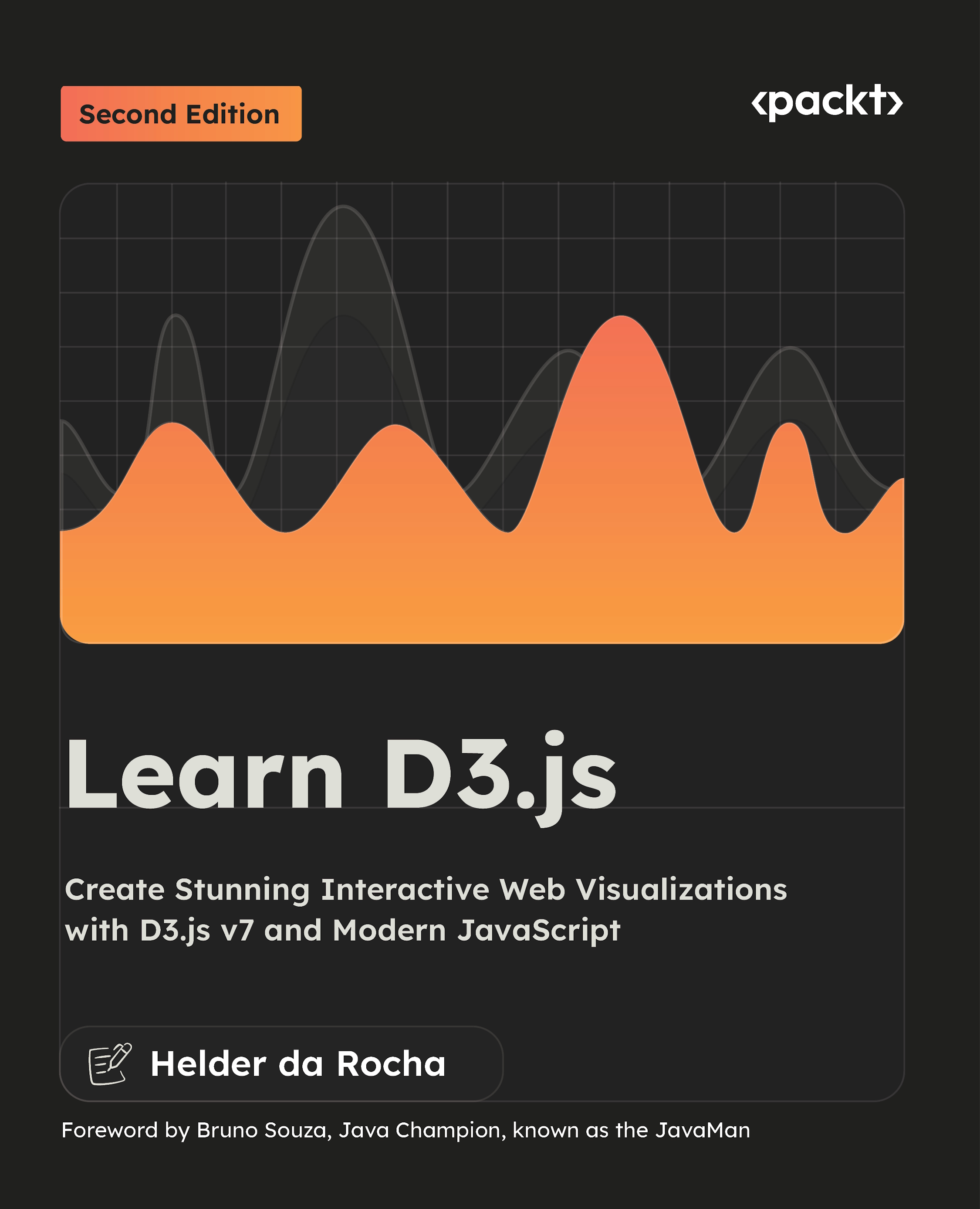
Learn D3.js
Learn D3.js

Learn D3.js: Create Stunning Interactive Web Visualizations with D3.js v7 and Modern JavaScript , Second Edition

Arrow left icon
Profile Icon Helder da Rocha
Arrow right icon
$49.99
Paperback Jun 2026 582 pages 2nd Edition
eBook
$29.99 $39.99
Paperback
$49.99
Arrow left icon
Profile Icon Helder da Rocha
Arrow right icon
$49.99
Paperback Jun 2026 582 pages 2nd Edition
eBook
$29.99 $39.99
Paperback
$49.99
eBook
$29.99 $39.99
Paperback
$49.99

What do you get with Print?

Product feature icon Instant access to your digital copy whilst your Print order is Shipped
Product feature icon Colour book shipped to your preferred address
Product feature icon Redeem a companion digital copy on all Print orders
Product feature icon Access this title in our online reader with advanced features
Product feature icon DRM FREE - Read whenever, wherever and however you want
Modal Close icon
Payment Processing...
tick Completed

Shipping Address

Billing Address

Shipping Methods
Table of content icon View table of contents Preview book icon Preview Book

Learn D3.js

Data-driven documents

The goal of this chapter is to introduce the d3.js JavaScript library, outline its main features, explain how it works, and show how it drives data to create interactive visualizations. Additionally, this chapter provides instructions for setting up a basic environment where you can practice with D3 and explore the examples and exercises in this book, either by configuring a local workspace on your computer or using an online JavaScript platform. To verify your setup, you will create a simple D3 application.

At the end of this chapter, you will also find a brief overview of the library’s modular architecture. D3 is a huge library containing an integrated set of tools that will help you bind data to graphical elements in a web page and create interactive and animated scatterplots, bar charts, hierarchical node-link diagrams, networks, chord diagrams, sunburst charts, thematic geographic maps, or any interactive data visualization you can imagine. These tools are organized into versioned modules with detailed GitHub documentation. We will cover most of these modules in the book.

In this chapter we will cover the following topics:

  • What is D3?
  • Using D3
  • Setting up a development environment for D3
  • Hello, world!
  • Exploring D3’s modules

When you finish this chapter, you will have set up an environment where you can start coding with D3 and use it to create a simple application. You will also have a general understanding of the library and its modules.

What is D3?

D3, which stands for Data-driven documents, is a JavaScript library used to create interactive web-based data visualizations. Based on open web standards, it provides a core mechanism that seamlessly selects and binds dynamic data to graphical elements in HTML, CSS, and scalable vector graphics (SVG), allowing their appearance and behavior to be controlled by the data. Created by Mike Bostock, Jeff Heer, and Vadim Ogievetsky in 2001, it’s currently used in hundreds of thousands of websites and is one of the most popular JavaScript data visualization libraries in the world.

D3 is widely used by data scientists, data journalists, educators, artists, and web developers to create interactive visualizations. Many award-winning interactive visualizations were created with D3. It is also free and open source. You can use it in any project, commercial or not. Its source code is distributed on GitHub and maintained by an active community of developers worldwide.

A JavaScript library

D3 is a JavaScript library, but not a charting library. It consists of a collection of integrated JavaScript tools for manipulating the data structures required to create data visualizations. To create a chart using D3, you code in JavaScript and use web standards such as HTML, CSS, or SVG for the graphics. There are no ready-to-use templates to create bar, pie, or line charts, but it comes with tools that help you prepare data, bind it to HTML or SVG elements, and do most of the hard work for you, such as compute arc angles for pie charts, generate SVG paths, scale the data, animate transitions, and so on.

Although D3 requires more coding than a typical charting library such as Chart.js, it allows you to go way beyond trivial charts. You can use it to design original visualizations that you won’t find in any charting library or service. With D3, any graphical element can be bound to any data structure. It doesn’t restrict your creativity in any way.

A toolkit for interactive web-based data visualizations

Most of the tools provided by D3 are focused on data and ways to interact with it. The library’s core is a fluent API for selecting nodes and controlling the document object model (DOM), replacing the DOM API entirely. It includes the data-driven mechanism that gives D3 its name, allowing the binding of data to DOM elements, transforming styles and attributes based on that data. This API also handles event binding, dispatching, and creating animated transitions.

The data visualization toolkit comes with layout generators for many different types of charts, scales, axis generators, map projections, shape generators, color schemes, and other tools that can be applied to selected DOM nodes and data. They help rearrange the data structures so that they are easier to plot.

The D3 library also includes a set of tools to asynchronously load and parse different data formats, such as JSON and CSV, manipulate objects and arrays, generate data sequences and random numbers, perform interpolation, and locale formatting. Some of these features already exist in JavaScript or in other popular frameworks, but the tools provided by D3 are usually simpler and integrate nicely with the D3 workflow.

How does D3 work?

Figure 1.1 shows a simplified view of D3’s architecture. As implied by the name of the library, it’s the data that drives the documents that display visualizations. By adding, changing, and removing data, you directly affect the way your chart is displayed.

Figure 1.1 – D3.js architecture

Figure 1.1 – D3.js architecture

Data is usually provided as a JavaScript array or object, either generated locally or loaded from an external file. A typical script uses W3C selectors to select HTML or SVG elements and bind them to individual data items, removing, updating, or appending graphical elements automatically when necessary.

Selectors are used to select one or more elements and create what D3 calls a selection object, which can then be used to apply styles and change the attributes of the selected elements. By binding an array to this selection, each data item maps to an element, allowing callback functions to set data-driven styles, attributes, and transforms.

You can select elements not yet in the DOM and bind them to a data array. This creates a selection object that appends new elements for each data item. The data can be used to set their content, styles, and attributes. D3 synchronizes the data with elements, removing extra elements when the dataset shrinks and adding new ones when it grows.

Does it sound complex? It will be much easier to understand when you code, run, and see the results. Now that you have a basic idea of how D3 works, let’s see it in action!

Using D3

D3 can be used in any environment that runs JavaScript. You can set up a local development environment or use online platforms. A local setup requires downloading the d3.js library, either from the d3js.org site, from a content delivery network (CDN), or using an node package manager (npm) installation script.

The D3 site, shown in Figure 1.2, is a great place to start exploring data visualizations created with this library. It includes detailed documentation, tutorials for all levels, and many interactive examples.

Click any hexagon to load a page with a D3 app and source code. Most are tutorials with GitHub code, published via the Observable platform (observablehq.com), featuring interactive notebooks that allow users to edit code and preview changes in real time. Many of these tutorials were published by creators and key contributors of the D3 library, such as Mike Bostock, Jason Davies, and Philippe Riviere.

Figure 1.2 – The D3.js website (d3js.org) is a showcase of data visualizations created with D3

Figure 1.2 – The D3.js website (d3js.org) is a showcase of data visualizations created with D3

Before setting up your workspace, take some time to explore these examples and see what types of visualizations you can create with D3.

Now, let’s set up an environment and get started!

Setting up a development environment for D3

Using D3 in a local environment provides complete control over your code and its organization. It also simplifies debugging and code reuse. Although there is a small task of setting it up, there are excellent free integrated development environments (IDEs) available for immediate coding.

Experienced frontend developers who already use an IDE and a local Node.js environment can add D3 to their project with the npm (see Chapter 20). This advanced setup is not covered in this book.

If you already have a local working environment for HTML and JavaScript, you can skip this section. If you don’t, this section will help you set one up.

Choosing an IDE

Use any code editor or IDE that supports code highlighting for HTML and JavaScript and features an embedded web server. The most popular ones, at the time of writing, are as follows:

Both IDEs integrate with tools to help you write and preview your code, including web servers, AI assistants, code formatters, auto-completion, linting, and debugging. These features are included in WebStorm and can be installed in Visual Studio using plugins. Although Visual Studio requires plugins for a full IDE experience, installing and configuring them is a task you only need to do once.

To preview your files in a browser, you need a web server. WebStorm already comes with one out of the box. For Visual Studio, you need to install a plugin: from the main menu, select View | Extensions, then in the search field, type Live Server, choose the most popular one (by Ritwick Dey), and click Install. You will need to restart the app.

Setting up a project folder

To create data visualizations that will run locally, find a place to store your files, then create or choose a folder for storing your visualizations. For this section, it is assumed that you have created a d3-projects/ folder somewhere on your computer.

Data visualizations are typically stored in project folders containing scripts, HTML pages, data files, and other resources. Our first project will be placed in a folder named helloworld/, which should be created inside your d3-projects/ directory.

If you are using WebStorm, choose File | New Project to create the new project by selecting the helloworld/ folder you just created (if you didn’t create the folder yet, WebStorm will create it for you). After your project is loaded, its contents (a folder and some files generated by WebStorm) will be shown in the project explorer panel, and you can start creating new files and writing code.

For example, to create an HTML file, right-click on the project folder’s name, select New | HTML File from the menu, and choose a name (e.g., index). This will generate an HTML file with the basic structure. You can edit the code and modify it as you wish. To preview, click anywhere in the editor and choose a browser icon (or the local preview icon) from the floating menu to see the result through a web server (Figure 1.3).

Figure 1.3 – Creating a project in WebStorm

Figure 1.3 – Creating a project in WebStorm

If you are using Visual Studio, select File | Open Folder to open your project folder. An empty project explorer panel will be shown, where you can create folders and files.

To create an HTML file, right-click anywhere in the panel and select New File…, then write the name of the file including the .html extension (e.g., index.html). After it is loaded, type ! in the editor to instantly generate HTML boilerplate code. If you installed the LiveServer plugin, click on Go Live at the bottom-right of the editor window to preview the page in your default browser, via a web server, as shown in Figure 1.4.

Figure 1.4 – Creating a project in Visual Studio Code

Figure 1.4 – Creating a project in Visual Studio Code

Next, you’ll create a simple D3 application and test your installation.

Using the code examples

This book comes with code examples that you can run and modify while you learn D3. The easiest way to obtain a local copy is by cloning its GitHub repository. This can be done using the Git client tools included in WebStorm or Visual Studio. To download all the code examples for this book, choose Clone Git Repository from the Welcome screen in Visual Studio, or click the Clone Repository button in the Projects tab after opening WebStorm. Then, insert the following URL: https://github.com/PacktPublishing/Learn-D3.js-Second-Edition.

You will also need to select a folder on your computer where the files will be stored. Once you have downloaded a local copy of the repository, you can browse, load, and preview the files, which are organized in folders for each chapter.

Alternative development environments

If you don’t want to set up a local environment right now, you can still learn D3 using online JavaScript editors like CodePen (codepen.io) and JSFiddle (jsfiddle.net), as shown in Figure 1.5.

These environments are free to use, require no configuration, and are great for sharing code and experimenting with small code examples. Both provide separate tabs or windows for HTML, CSS, and JavaScript and show the results in a preview tab as you code.

You can use online environments to start learning D3, but they may become harder to manage as your code grows, making it harder to debug code and load multiple files and external libraries.

Figure 1.5 – Using an online code editor

Figure 1.5 – Using an online code editor

Another option is the Observable platform, which is the most popular online environment for D3. It hosts notebooks, which are pages that contain executable cells containing code and text. This platform is excellent for collaboration and requires no setup for D3 visualizations. To start, create a free account, a new notebook, and add JavaScript, Markdown, and HTML cells. Figure 1.6 illustrates some of these steps.

Figure 1.6 – Using an Observable notebook

Figure 1.6 – Using an Observable notebook

Although this platform may seem like the ideal environment to develop data visualizations, it also comes with a learning curve. It uses a reactive programming model, which differs from the way JavaScript runs in a web page, and you won’t be able to use browser debugging tools. Key differences also exist in how you assign variables, write code, and handle asynchronous processes, such as file loading, animations, event handling, and so on. You can use Observable notebooks to experiment with D3 and run data visualizations of any size, but for starters, especially if you don’t have much experience with JavaScript, it’s best to learn D3 using a normal JavaScript environment.

Now that you have a development environment set up, it’s time to start coding in D3!

Hello, world!

Let’s use D3 to create a very simple data-driven visualization to test your installation. This is a hands-on section, so you can code and view the results in real time as you read.

Although these steps assume you are using a local environment, you can also follow these examples in CodePen, JSFiddle, or by editing cells in an Observable notebook. All files created in this section are available from the book’s GitHub repository in the Chapter01/HelloWorld/ folder. There are also links in the HelloWorld/README.md file for the code on online platforms.

Adding the SVG container

The SVG container is created in an HTML page. Create a simple HTML file, as described in the previous section, and place an <svg> tag inside <body>, as shown here:

<!DOCTYPE html>
<html lang="en">
<head>
    <title>Hello World D3</title>
</head>
<body>
    <svg id="chart" width="600" height="200"></svg>
</body>
</html>

Quick tip: Enhance your coding experience with the AI Code Explainer and Quick Copy features. Open this book in the next-gen Packt Reader. Click the Copy button

(1) to quickly copy code into your coding environment, or click the Explain button

(2) to get the AI assistant to explain a block of code to you.

A white background with a black text

AI-generated content may be incorrect.

The next-gen Packt Reader is included for free with the purchase of this book. Scan the QR code OR go to packtpub.com/unlock, then use the search bar to find this book by name. Double-check the edition shown to make sure you get the right one.

A qr code on a white background

AI-generated content may be incorrect.

If you are using an online editor, you don’t need to write the HTML code. Just include the following SVG tag in the HTML tab:

<svg id="chart" width="600" height="200"></svg>

In an Observable notebook, add the preceding line to a new HTML cell (see Figure 1.6).

This step produces a blank page. In the next step, we will start drawing something in it.

Drawing a dot with SVG

SVG is a web standard for creating line art with XML tags. D3 visualizations often use SVG extensively. The preceding code creates a 600x200 pixel SVG viewport where you can draw graphics. Let’s draw a circle in it by declaring a <circle> element inside the <svg> element like this:

<svg id="chart" width="600" height="200">
    <circle r="10" cy="100" cx="100" />
</svg>

The <circle> element requires three attributes: cx and cy for the x,y position of its center (100,100), in pixels, starting at the top left, and r for the circle’s radius (10 pixels). Load the file in your browser, and you should see the black circle shown in Figure 1.7:

Figure 1.7 – A dot on a screen created with SVG. Code: HelloWorld/1-svg-circle.html

Figure 1.7 – A dot on a screen created with SVG. Code: HelloWorld/1-svg-circle.html

In an online editor or in an Observable notebook, you will see the result as soon as you finish typing or click a button to run your code.

If you want to draw many circles in different positions and diameters, all you need to do is repeat the <circle> tag with different attributes for r, cx, and cy. But this is much easier with programming. We will do this with D3, so let’s now load the D3 library.

Setting up an HTML page to use D3

In this step, we will draw that same circle using JavaScript and the D3 library.

First, remove the <circle> element from your <svg> block. It should now be empty. Then, add the following highlighted code to your HTML page:

<!DOCTYPE html>
<html lang="en">
<head>
    <title>Hello World D3 </title>
</head>
<body>
<svg id="chart" width="600" height="200"></svg>
<script type="module">
    import * as d3 from "https://cdn.skypack.dev/d3@7";
    // type your code here
</script>
</body>
</html>

This will download the library from a public CDN URL, making it available in the script.

If you are using an online editor, add the import line to your JavaScript tab. In an Observable notebook, you don’t have to set up anything, since D3 is natively installed.

All the rest of the code in this section should be typed in the <script type="module"> block after the import line.

Now, let’s proceed and draw something using D3.

Drawing a dot with D3

To begin the process of drawing a dot with D3, add the following code in your <script>:

d3.select("#chart")
  .append("circle")
      .attr("r", 10)
      .attr("cy", 100)
      .attr("cx", 100);

This is a single command that runs a sequence of operations (methods). The line d3.select("#chart") will select the <svg> identified by the ID #chart. The append() method attaches a child <circle> element to it, and the remaining lines set attributes for the circle’s radius ("r") and coordinates of its origin ("cx" and "cy").

If you are using an Observable notebook, create a new JavaScript cell for this code.

Important note

This is a single line of code. It’s broken into separate, indented lines to make it easier to read. Each indent represents a different context.

If your configuration is working correctly, when you preview the page containing this code in a browser (or in the preview tab, if you are using an online IDE), you should see the same circle that was previously created with SVG.

That’s it. Your D3 installation is working! The following sections will add a few more D3 features to this example. Don’t worry if you don’t understand all the details.

You will find this code in HelloWorld/2-d3-append.html with additional comments.

Now, let’s add more data and display a series of dots based on it.

Adding more data

Of course, you don’t need D3 to draw a single black dot on the screen, so let’s do something a bit more complex. Add the following line inside your <script> block, right after the import (before your code):

const values = [100, 200, 300, 350, 375, 400, 500];

If you are using an Observable notebook, create a JavaScript cell to add the preceding code without the const keyword.

This line declares a 7-element integer array. It will be used as data to generate a series of circles. Now, make the following highlighted changes in your previous code:

d3.select("#chart")
  .selectAll("circle")
     .data( values )
        .join("circle")
           .attr("r", 10)
           .attr("cy", 100)
           .attr("cx", d => d)

Compare this to the code from the previous section: append() was replaced with three new methods, and the second parameter of the third attr() now contains an arrow function returning the received data. Here’s a quick description of what this code does:

  1. The first method, selectAll(), creates an empty selection of <circle> objects.
  2. The data() method receives the array created previously (values).
  3. The join() method binds the data to the selection and creates an array of seven <circle> elements to be appended to the <svg> viewport (#chart).
  4. The attr() methods set the circle’s attributes as before, but this time, it is applied to seven circles. Each circle will have a different cx attribute because of the d => d parameter (in case you are not familiar with arrow functions, this is the same as function(d) { return d; }).

When you run the code, you should now see seven dots on the screen (Figure 1.8): the same number of elements in the array.

Figure 1.8 – Dots with positions driven by the data. Code: HelloWorld/4-binding-data.html

Figure 1.8 – Dots with positions driven by the data. Code: HelloWorld/4-binding-data.html

Each dot is placed at a different horizontal position, defined by the cx property of the <circle>. Positions are data values from the array. We used the data array to drive the position of each circle. Try changing the values in the array (any values between 0 and 600) or add/remove values to see how this affects the displayed circles.

Our next step is to deal with data changes.

Updating data

Let’s see an example of how D3 updates the data bound to graphical elements. Still inside the <script> block (or tab, if you are using an online editor), skip a line and add the following code after the code you typed in the previous section:

function update(dataset) {
    d3.select("#chart").selectAll("circle")
        .data(dataset)
          .attr("r", 5)
          .attr("cx", d => d)
          .style("fill", "red")
}

In an Observable notebook, create a new JavaScript cell to add the preceding code.

This code declares a function that receives a dataset and passes it to the selection of all circles in the SVG. The data() method is now used to rebind the selection with this dataset. The two attr() methods that follow are applied to each circle, changing its attributes. The first reduces the r attribute to 5 pixels, and the second replaces the cx attribute of each circle with values from the dataset. There is one more method: style(), which changes the fill color using CSS.

Now, add this array declaration anywhere in your code (outside the update() function). A good place is in a line after the values array:

const newArray = [225, 425, 125, 50, 450, 75, 325]; // new data

In an Observable notebook, place it in a new JavaScript cell (and don’t use const).

Finally, include the following timeout at the end of your script. It calls update() after 2 seconds (2,000 milliseconds), passing the newArray dataset as the argument:

setTimeout(update, 2000, newArray);

When this code runs, the dots will be displayed as before, but two seconds later, the circles will shrink, become red, and move to different positions, as shown in Figure 1.9.

Figure 1.9 – Dots change color, size, and position. Code: HelloWorld/5-updating.html

Figure 1.9 – Dots change color, size, and position. Code: HelloWorld/5-updating.html

When the function is called, the data() method in update() will bind the new array to the selection, updating the circles attributes. A join() command is not necessary here because there aren’t elements to be added or removed: all existing circles are reused.

See HelloWorld/5-updating.html for all the code we wrote so far.

Now, let’s make the transition to the new data smoother using an animation.

Animated transitions

A cool feature of D3 is how simple it is to animate transitions. You just need to chain a transition() command before changing attributes and styles. A default transition takes ¼ of a second, but you can make it a little longer by setting its duration.

Include the following line between the data() method and the first attr() of your update() function to add a 1-second transition (1,000 milliseconds):

.transition().duration(1000)

Your update() function should now look like this (see HelloWorld/6-transition.html). The code that was added is highlighted:

function update(dataset) {
   d3.select("#chart")
     .selectAll("circle")
        .data(dataset)
           .transition().duration(1000)
              .attr("r", 5).attr("cx", d => d).style("fill", "red")
}

Now, after two seconds, the dots will spend one more second changing color, shrinking, and moving to their new positions. Congratulations. You created a full D3 application, complete with data updates and animated transitions.

Before concluding this chapter, let’s briefly review the modules in the D3 library.

Exploring D3’s modules

Functions, methods, and properties of the D3 library are organized into modules. There are over 40 modules (Figure 1.10). When you import the d3.js library, you automatically load the 29 modules that make up the default bundle.

Figure 1.10 – Modules in D3.js v7 showing dependencies and inclusion in the default bundle

Figure 1.10 – Modules in D3.js v7 showing dependencies and inclusion in the default bundle

Modules that are not part of the default bundle need to be imported separately.

You don’t always need the full d3.js bundle. Any SVG can be created by importing just the d3-selection module separately. In the following code, for example, version 3 of this module is used to provide methods such as d3.append() and d3.select():

<script type="module">
    import * as d3 from "https://cdn.skypack.dev/d3-selection@3";
    d3.select("body").append("svg").append("circle")
      .attr("r",20).attr("x",50).attr("y",50);
</script>

Using separate modules, however, is not trivial. Omitting a required module, loading them in the wrong order, assigning prefixes incorrectly, or using incompatible versions can cause hard-to-find errors.

Most examples in this book import the entire d3.js bundle. This avoids configuration errors that may distract us from our primary goal, which is to learn how to use the D3 library efficiently. When modules that are not part of the default bundle are required, we will show you exactly how to import them correctly. See the Imports/ folder (in this chapter’s repository) for different ways to include the D3 library in a web application.

It’s still important to have a general overview of the modules provided by the D3 library, since the official documentation is organized per module. Most chapters in this book are also dedicated to specific modules. In the repository’s Appendix/ folder you will find a quick reference of D3’s modules in the Modules/ subfolder.

Summary

This chapter provided a general introduction to the D3.js library, describing its architecture and modules, and showing how to set up a small D3 application that, although very simple, demonstrated one of the central paradigms in D3, which is driving the appearance of a visualization using arbitrary data.

You now have a working development environment and a foundation to build on. In the coming chapters, you'll dive deeper into the tools and techniques that make D3 one of the most powerful data visualization libraries available.

The next two chapters cover key web technologies – JavaScript and SVG – that you will need throughout the rest of this book.

Chapter 2 reviews the fundamental data structures in ES 2019 JavaScript. It also includes a short reference about the DOM, the Canvas API, and common data formats such as JSON and CSV.

Chapter 3 is a hands-on introduction to SVG, showing how to create shapes using SVG tags and attributes and using SVG DOM functions. SVG is the graphics format used by D3 for nearly all its output.

Both chapters are optional if you're already comfortable with these topics. Each appears in this book as a summary, with a topic overview to help you decide how much you need. You can access or download the full tutorial versions, complete with runnable code examples, from this book's GitHub repository.

If you are already comfortable with JavaScript and SVG, you can skip directly to Chapter 4, where you'll build your first complete D3 visualization.

Get This Book's PDF Version and Exclusive Extras

Scan the QR code (or go to packtpub.com/unlock). Search for this book by name, confirm the edition, and then follow the steps on the page.

Note: Keep your invoice handy. Purchases made directly from Packt don’t require an invoice.

Left arrow icon Right arrow icon
Download code icon Download Code

Key benefits

  • Build dynamic, data-driven visualizations using D3.js v7 and ES2019+
  • Create D3 data visualizations, including charts, maps, and networks
  • Master data visualization with JavaScript through hands-on examples

Description

Learn D3.js, Second Edition, is a fully updated guide to building interactive, standards-compliant data visualizations for the web using D3.js v7 and modern JavaScript. Whether you're a developer, designer, data journalist, or analyst, this book will help you master the core techniques for transforming data into compelling, meaningful visuals. Starting with fundamentals like selections, data binding, and SVG, the book progressively covers scales, axes, animations, hierarchical data, and geographical maps. Each chapter includes short examples and a hands-on project with downloadable code you can run, modify, and use in your own work. This new edition introduces improved chapter structure, updated code samples using ES2019 standards, and better formatting for readability. Chapters were completely rewritten to focus on the most important topics first, with suggested exercises after each section, complete with commented solutions and online step-by-step tutorials. All code snippets are drawn from real-world D3 data visualization projects available in a GitHub repository, which also includes bonus content on integrating D3 into applications and migrating legacy code. With its practical approach, this book remains one of the most respected resources for learning D3.js and creating interactive data visualizations with JavaScript.

Who is this book for?

This book is for web developers, data journalists, designers, analysts, and anyone who wants to create interactive, web-based data visualizations. A basic understanding of HTML, CSS, and JavaScript is recommended. No prior knowledge of SVG or D3 is required.

What you will learn

  • Bind data to DOM elements and apply transitions and styles
  • Build interactive bar, line, pie, scatter, tree, and animated network charts
  • Implement interactive behaviors with zoom, drag, and tooltips
  • Visualize hierarchical data, flows, and maps using D3 layouts and projections
  • Use D3 with HTML5 Canvas for high-performance rendering
  • Create thematic geographic maps using standard GeoJSON and TopoJSON shapefiles
  • Complete 100+ exercises with commented templates and solutions
  • Build full visualizations through 10 guided online exercises
Estimated delivery fee Deliver to United States

Economy delivery 10 - 13 business days

Free $6.95

Premium delivery 6 - 9 business days

$21.95
(Includes tracking information)

Product Details

Country selected
Publication date, Length, Edition, Language, ISBN-13
Publication date : Jun 26, 2026
Length: 582 pages
Edition : 2nd
Language : English
ISBN-13 : 9781837636860
Category :
Tools :

What do you get with Print?

Product feature icon Instant access to your digital copy whilst your Print order is Shipped
Product feature icon Colour book shipped to your preferred address
Product feature icon Redeem a companion digital copy on all Print orders
Product feature icon Access this title in our online reader with advanced features
Product feature icon DRM FREE - Read whenever, wherever and however you want
Modal Close icon
Payment Processing...
tick Completed

Shipping Address

Billing Address

Shipping Methods
Estimated delivery fee Deliver to United States

Economy delivery 10 - 13 business days

Free $6.95

Premium delivery 6 - 9 business days

$21.95
(Includes tracking information)

Product Details

Publication date : Jun 26, 2026
Length: 582 pages
Edition : 2nd
Language : English
ISBN-13 : 9781837636860
Category :
Tools :

Packt Subscriptions

See our plans and pricing
Modal Close icon
$19.99 billed monthly
Feature tick icon Unlimited access to Packt's library of 7,000+ practical books and videos
Feature tick icon Constantly refreshed with 50+ new titles a month
Feature tick icon Exclusive Early access to books as they're written
Feature tick icon Solve problems while you work with advanced search and reference features
Feature tick icon Offline reading on the mobile app
Feature tick icon Simple pricing, no contract
$199.99 billed annually
Feature tick icon Unlimited access to Packt's library of 7,000+ practical books and videos
Feature tick icon Constantly refreshed with 50+ new titles a month
Feature tick icon Exclusive Early access to books as they're written
Feature tick icon Solve problems while you work with advanced search and reference features
Feature tick icon Offline reading on the mobile app
Feature tick icon Choose a DRM-free eBook or Video every month to keep
Feature tick icon PLUS own as many other DRM-free eBooks or Videos as you like for just $5 each
Feature tick icon Exclusive print discounts
$279.99 billed in 18 months
Feature tick icon Unlimited access to Packt's library of 7,000+ practical books and videos
Feature tick icon Constantly refreshed with 50+ new titles a month
Feature tick icon Exclusive Early access to books as they're written
Feature tick icon Solve problems while you work with advanced search and reference features
Feature tick icon Offline reading on the mobile app
Feature tick icon Choose a DRM-free eBook or Video every month to keep
Feature tick icon PLUS own as many other DRM-free eBooks or Videos as you like for just $5 each
Feature tick icon Exclusive print discounts

Table of Contents

26 Chapters
Part 1: Getting Started with D3 Chevron down icon Chevron up icon
Chapter 1: Data-driven documents Chevron down icon Chevron up icon
Chapter 2: Essential JavaScript for D3 (Online) Chevron down icon Chevron up icon
Chapter 3: Essential SVG for D3 (Online) Chevron down icon Chevron up icon
Chapter 4: Quick Start Chevron down icon Chevron up icon
Part 2: Core D3 Chevron down icon Chevron up icon
Chapter 5: Loading and Parsing Data Chevron down icon Chevron up icon
Chapter 6: Selections and Data Binding Chevron down icon Chevron up icon
Chapter 7: Working with Data Chevron down icon Chevron up icon
Chapter 8: Axes Chevron down icon Chevron up icon
Chapter 9: Scales Chevron down icon Chevron up icon
Chapter 10: Colors Chevron down icon Chevron up icon
Chapter 11: Creating Line and Area Charts Chevron down icon Chevron up icon
Chapter 12: Creating Pies and Stacks Chevron down icon Chevron up icon
Chapter 13: Transitions and Animation Chevron down icon Chevron up icon
Chapter 14: Events and Interactivity Chevron down icon Chevron up icon
Part 3: Advanced D3 Chevron down icon Chevron up icon
Chapter 15: Creating Tree Visualizations Chevron down icon Chevron up icon
Chapter 16: Creating Partitions and Enclosures Chevron down icon Chevron up icon
Chapter 17: Visualizing Flows and Networks Chevron down icon Chevron up icon
Chapter 18: Force-Directed Networks Chevron down icon Chevron up icon
Chapter 19: Cartographical Visualizations Chevron down icon Chevron up icon
Chapter 20: References and Additional Resources Chevron down icon Chevron up icon
Chapter 21: Unlock Your Exclusive Benefits Chevron down icon Chevron up icon
Index Chevron down icon Chevron up icon
Other Books You May Enjoy Chevron down icon Chevron up icon
Get free access to Packt library with over 7500+ books and video courses for 7 days!
Start Free Trial

FAQs

What is the digital copy I get with my Print order? Chevron down icon Chevron up icon

When you buy any Print edition of our Books, you can redeem (for free) the eBook edition of the Print Book you’ve purchased. This gives you instant access to your book when you make an order via PDF, EPUB or our online Reader experience.

What is the delivery time and cost of print book? Chevron down icon Chevron up icon

Shipping Details

USA:

'

Economy: Delivery to most addresses in the US within 10-15 business days

Premium: Trackable Delivery to most addresses in the US within 3-8 business days

UK:

Economy: Delivery to most addresses in the U.K. within 7-9 business days.
Shipments are not trackable

Premium: Trackable delivery to most addresses in the U.K. within 3-4 business days!
Add one extra business day for deliveries to Northern Ireland and Scottish Highlands and islands

EU:

Premium: Trackable delivery to most EU destinations within 4-9 business days.

Australia:

Economy: Can deliver to P. O. Boxes and private residences.
Trackable service with delivery to addresses in Australia only.
Delivery time ranges from 7-9 business days for VIC and 8-10 business days for Interstate metro
Delivery time is up to 15 business days for remote areas of WA, NT & QLD.

Premium: Delivery to addresses in Australia only
Trackable delivery to most P. O. Boxes and private residences in Australia within 4-5 days based on the distance to a destination following dispatch.

India:

Premium: Delivery to most Indian addresses within 5-6 business days

Rest of the World:

Premium: Countries in the American continent: Trackable delivery to most countries within 4-7 business days

Asia:

Premium: Delivery to most Asian addresses within 5-9 business days

Disclaimer:
All orders received before 5 PM U.K time would start printing from the next business day. So the estimated delivery times start from the next day as well. Orders received after 5 PM U.K time (in our internal systems) on a business day or anytime on the weekend will begin printing the second to next business day. For example, an order placed at 11 AM today will begin printing tomorrow, whereas an order placed at 9 PM tonight will begin printing the day after tomorrow.


Unfortunately, due to several restrictions, we are unable to ship to the following countries:

  1. Afghanistan
  2. American Samoa
  3. Belarus
  4. Brunei Darussalam
  5. Central African Republic
  6. The Democratic Republic of Congo
  7. Eritrea
  8. Guinea-bissau
  9. Iran
  10. Lebanon
  11. Libiya Arab Jamahriya
  12. Somalia
  13. Sudan
  14. Russian Federation
  15. Syrian Arab Republic
  16. Ukraine
  17. Venezuela
What is custom duty/charge? Chevron down icon Chevron up icon

Customs duty are charges levied on goods when they cross international borders. It is a tax that is imposed on imported goods. These duties are charged by special authorities and bodies created by local governments and are meant to protect local industries, economies, and businesses.

Do I have to pay customs charges for the print book order? Chevron down icon Chevron up icon

The orders shipped to the countries that are listed under EU27 will not bear custom charges. They are paid by Packt as part of the order.

List of EU27 countries: www.gov.uk/eu-eea:

A custom duty or localized taxes may be applicable on the shipment and would be charged by the recipient country outside of the EU27 which should be paid by the customer and these duties are not included in the shipping charges been charged on the order.

How do I know my custom duty charges? Chevron down icon Chevron up icon

The amount of duty payable varies greatly depending on the imported goods, the country of origin and several other factors like the total invoice amount or dimensions like weight, and other such criteria applicable in your country.

For example:

  • If you live in Mexico, and the declared value of your ordered items is over $ 50, for you to receive a package, you will have to pay additional import tax of 19% which will be $ 9.50 to the courier service.
  • Whereas if you live in Turkey, and the declared value of your ordered items is over € 22, for you to receive a package, you will have to pay additional import tax of 18% which will be € 3.96 to the courier service.
How can I cancel my order? Chevron down icon Chevron up icon

Cancellation Policy for Published Printed Books:

You can cancel any order within 1 hour of placing the order. Simply contact customercare@packt.com with your order details or payment transaction id. If your order has already started the shipment process, we will do our best to stop it. However, if it is already on the way to you then when you receive it, you can contact us at customercare@packt.com using the returns and refund process.

Please understand that Packt Publishing cannot provide refunds or cancel any order except for the cases described in our Return Policy (i.e. Packt Publishing agrees to replace your printed book because it arrives damaged or material defect in book), Packt Publishing will not accept returns.

What is your returns and refunds policy? Chevron down icon Chevron up icon

Return Policy:

We want you to be happy with your purchase from Packtpub.com. We will not hassle you with returning print books to us. If the print book you receive from us is incorrect, damaged, doesn't work or is unacceptably late, please contact Customer Relations Team on customercare@packt.com with the order number and issue details as explained below:

  1. If you ordered (eBook, Video or Print Book) incorrectly or accidentally, please contact Customer Relations Team on customercare@packt.com within one hour of placing the order and we will replace/refund you the item cost.
  2. Sadly, if your eBook or Video file is faulty or a fault occurs during the eBook or Video being made available to you, i.e. during download then you should contact Customer Relations Team within 14 days of purchase on customercare@packt.com who will be able to resolve this issue for you.
  3. You will have a choice of replacement or refund of the problem items.(damaged, defective or incorrect)
  4. Once Customer Care Team confirms that you will be refunded, you should receive the refund within 10 to 12 working days.
  5. If you are only requesting a refund of one book from a multiple order, then we will refund you the appropriate single item.
  6. Where the items were shipped under a free shipping offer, there will be no shipping costs to refund.

On the off chance your printed book arrives damaged, with book material defect, contact our Customer Relation Team on customercare@packt.com within 14 days of receipt of the book with appropriate evidence of damage and we will work with you to secure a replacement copy, if necessary. Please note that each printed book you order from us is individually made by Packt's professional book-printing partner which is on a print-on-demand basis.

What tax is charged? Chevron down icon Chevron up icon

Currently, no tax is charged on the purchase of any print book (subject to change based on the laws and regulations). A localized VAT fee is charged only to our European and UK customers on eBooks, Video and subscriptions that they buy. GST is charged to Indian customers for eBooks and video purchases.

What payment methods can I use? Chevron down icon Chevron up icon

You can pay with the following card types:

  1. Visa Debit
  2. Visa Credit
  3. MasterCard
  4. PayPal
What is the delivery time and cost of print books? Chevron down icon Chevron up icon

Shipping Details

USA:

'

Economy: Delivery to most addresses in the US within 10-15 business days

Premium: Trackable Delivery to most addresses in the US within 3-8 business days

UK:

Economy: Delivery to most addresses in the U.K. within 7-9 business days.
Shipments are not trackable

Premium: Trackable delivery to most addresses in the U.K. within 3-4 business days!
Add one extra business day for deliveries to Northern Ireland and Scottish Highlands and islands

EU:

Premium: Trackable delivery to most EU destinations within 4-9 business days.

Australia:

Economy: Can deliver to P. O. Boxes and private residences.
Trackable service with delivery to addresses in Australia only.
Delivery time ranges from 7-9 business days for VIC and 8-10 business days for Interstate metro
Delivery time is up to 15 business days for remote areas of WA, NT & QLD.

Premium: Delivery to addresses in Australia only
Trackable delivery to most P. O. Boxes and private residences in Australia within 4-5 days based on the distance to a destination following dispatch.

India:

Premium: Delivery to most Indian addresses within 5-6 business days

Rest of the World:

Premium: Countries in the American continent: Trackable delivery to most countries within 4-7 business days

Asia:

Premium: Delivery to most Asian addresses within 5-9 business days

Disclaimer:
All orders received before 5 PM U.K time would start printing from the next business day. So the estimated delivery times start from the next day as well. Orders received after 5 PM U.K time (in our internal systems) on a business day or anytime on the weekend will begin printing the second to next business day. For example, an order placed at 11 AM today will begin printing tomorrow, whereas an order placed at 9 PM tonight will begin printing the day after tomorrow.


Unfortunately, due to several restrictions, we are unable to ship to the following countries:

  1. Afghanistan
  2. American Samoa
  3. Belarus
  4. Brunei Darussalam
  5. Central African Republic
  6. The Democratic Republic of Congo
  7. Eritrea
  8. Guinea-bissau
  9. Iran
  10. Lebanon
  11. Libiya Arab Jamahriya
  12. Somalia
  13. Sudan
  14. Russian Federation
  15. Syrian Arab Republic
  16. Ukraine
  17. Venezuela
Modal Close icon
Modal Close icon