Search icon CANCEL
Subscription
0
Cart icon
Your Cart (0 item)
Close icon
You have no products in your basket yet
Save more on your purchases! discount-offer-chevron-icon
Savings automatically calculated. No voucher code required.
Arrow left icon
Explore Products
Best Sellers
New Releases
Books
Videos
Audiobooks
Learning Hub
Newsletter Hub
Free Learning
Arrow right icon
timer SALE ENDS IN
0 Days
:
00 Hours
:
00 Minutes
:
00 Seconds
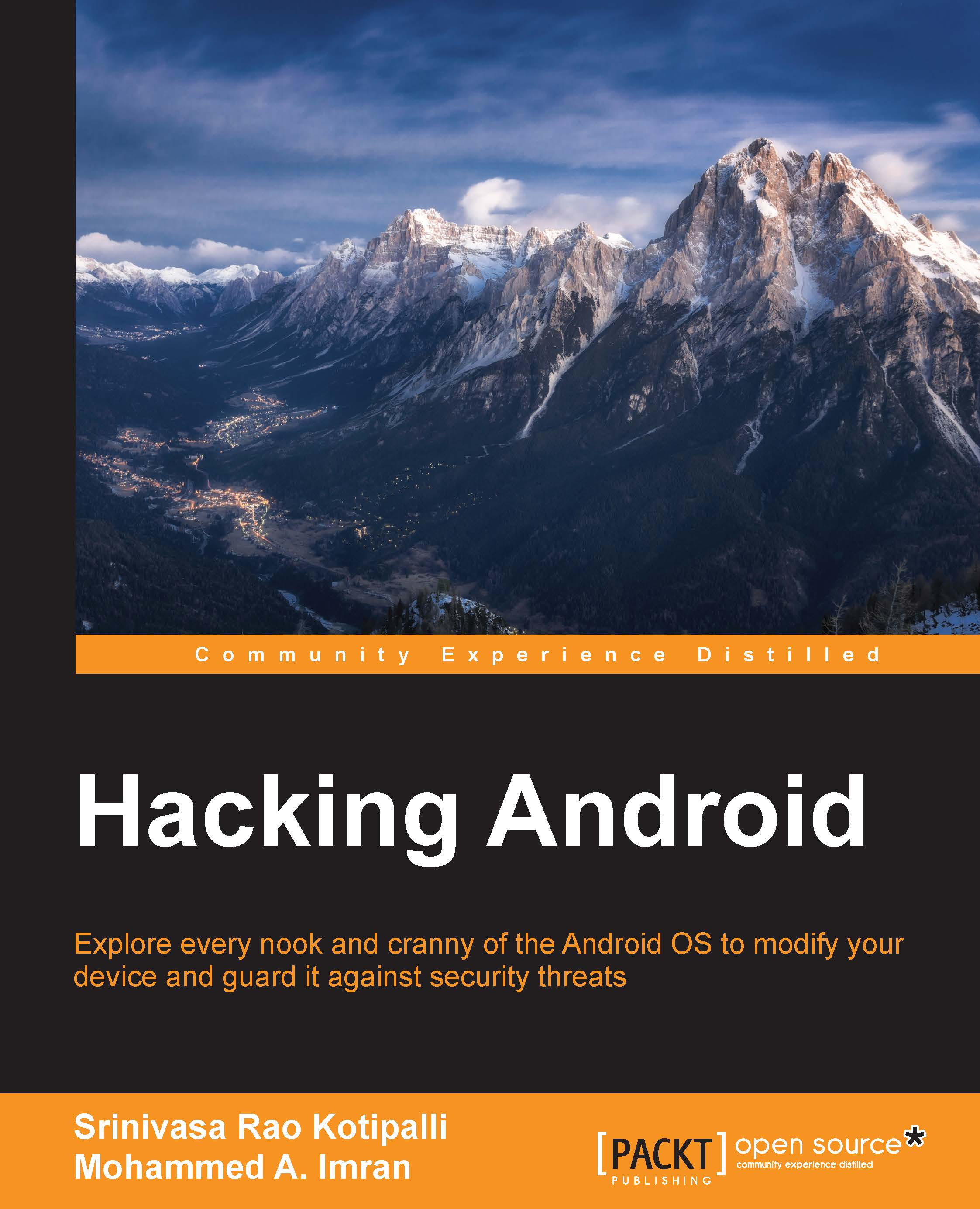
Hacking Android
Hacking Android

Hacking Android: Explore every nook and cranny of the Android OS to modify your device and guard it against security threats

Arrow left icon
Profile Icon Mohammed A. Imran Profile Icon Rao Kotipalli
Arrow right icon
$48.99
Full star icon Full star icon Full star icon Full star icon Half star icon 4.4 (5 Ratings)
Paperback Jul 2016 376 pages 1st Edition
eBook
$9.99 $39.99
Paperback
$48.99
Subscription
Free Trial
Renews at $19.99p/m
Arrow left icon
Profile Icon Mohammed A. Imran Profile Icon Rao Kotipalli
Arrow right icon
$48.99
Full star icon Full star icon Full star icon Full star icon Half star icon 4.4 (5 Ratings)
Paperback Jul 2016 376 pages 1st Edition
eBook
$9.99 $39.99
Paperback
$48.99
Subscription
Free Trial
Renews at $19.99p/m
eBook
$9.99 $39.99
Paperback
$48.99
Subscription
Free Trial
Renews at $19.99p/m

What do you get with Print?

Product feature icon Instant access to your digital copy whilst your Print order is Shipped
Product feature icon Paperback book shipped to your preferred address
Product feature icon Redeem a companion digital copy on all Print orders
Product feature icon Access this title in our online reader with advanced features
Product feature icon DRM FREE - Read whenever, wherever and however you want
Modal Close icon
Payment Processing...
tick Completed

Shipping Address

Billing Address

Shipping Methods
Table of content icon View table of contents Preview book icon Preview Book

Hacking Android

Chapter 1. Setting Up the Lab

In this chapter, we will set up a lab with all the tools that are required for the rest of the book. This first chapter is an essential part of the book for those who are new to Android security. It will help us to have an arsenal of tools required for Android security in one place. These are some of the major topics that we will discuss in this chapter:

  • Setting up the Android environment
  • Installing the tools required for app assessments
  • Installing the tools required for assessing the security of the mobile backend
  • Installing vulnerable apps
  • An introduction to Android Debug Bridge (adb)

Installing the required tools

This section explains the tools required for the rest of the chapters. We will start with setting up Android Studio, which is required for developing Android apps, and then move on to creating an Android Virtual Device (AVD). Finally, we will install the necessary tools to assess the security of Android devices and apps. Most of the installation steps shown here are for the Windows platform. If tools are used on other platforms, it will be mentioned explicitly.

Java

Java is one of the necessary dependencies for some of the tools, such as Android Studio and Burp Suite. So, download and install Java from the following link:

https://java.com/en/download/

The following are the steps to install Java:

  1. Run the installer:
    Java
  2. Leave all the settings as defaults unless you have a reason to change it. Click Next till you see the following screen:
    Java
  3. The preceding screenshot shows the path to your Java installation. Make sure that you are OK with the path shown here. If not, go back and change it according to your needs.
    Java
  4. Follow the steps shown by the installer and continue with the installation until the following window appears:
    Java
  5. This finishes the installation. Just click the Close button and check your Java installation by opening a new command prompt and running the following command:
    Java

That finishes our first installation in this book.

Android Studio

The next tool to be installed is Android Studio. Android Studio is the official IDE for Android application development, based on IntelliJ IDEA. Eclipse used to be the IDE for Android Application development before Android Studio was introduced. Android Studio was in early access preview stage, starting with version 0.1 in May 2013, and then entered beta stage starting with version 0.8, which was released in June 2014. The first stable build was released in December 2014, starting with version 1.0.

Download and install Android Studio from the following link:

https://developer.android.com/sdk/index.html

  1. Download Android Studio and run the installer:
    Android Studio
  2. Click Next till the following window appears:
    Android Studio

    This window shows us the options for the tools to be installed. It is suggested you check all of them to install Android SDK, Android Virtual Device, and Intel@HAXM, which is used for hardware acceleration and necessary to run x86-based emulators with Android Studio.

  3. Agree to the License Agreement and proceed with the installation:
    Android Studio
  4. Choose the installation location for Android Studio and the Android SDK. If you don't have any specific choices, leave them to the default values. Please keep a note of the location of your Android SDK to add it to your system environment variables, so that we can access tools such as adb, sqlite3 client, and so on from anywhere on the command prompt:
    Android Studio
  5. Allocate the RAM based on your available system memory; however, a minimum of 2 GB is recommended:
    Android Studio
  6. The following step allows us to choose the name for Android Studio in the start menu. Again, you can leave it to the default value if you don't have any specific choice:
    Android Studio
  7. Continue the installation by clicking Next till the following screen appears. This finishes our Android Studio installation:
    Android Studio
  8. When you click Finish in the preceding window, the following screen will be shown. If you have installed an older version of Android Studio, choose its location to import your previous settings. If this is a fresh installation on this machine, choose I do not have a previous version of Studio or I do not want to import my settings:
    Android Studio
  9. Clicking the OK button will start Android Studio, as shown here:
    Android Studio
  10. Once it is loaded, we will be greeted with a window, where we need to choose the UI theme. Select one of the themes and click Next.
    Android Studio
  11. Clicking Next in the previous window will download the latest SDK components and the emulator, as shown in the following screenshot:
    Android Studio
  12. Finally, click Finish and you should be greeted with the following window. This completes our installation:
    Android Studio
  13. To create a new sample application, click Start a new Android Studio project:
    Android Studio
  14. Choose a name for your app under Application name. Let's name it HelloWorld. Also choose a sample company domain name. Let's name it test.com. Leave the other options to their defaults and click Next:
    Android Studio
  15. The following screen shows the Minimum SDK version for our app. We choose to make it API Level 15, as it supports a higher number of devices:
    Android Studio
  16. Select a Blank Activity, as shown here, and click Next:
    Android Studio
  17. You can choose a name for your activity if you wish. We will leave the options to their defaults:
    Android Studio
  18. Finally, click Finish to complete the setup. It will take some time to initialize the emulator and build our first Hello World app:
    Android Studio

Wait for all initialization to finish when you see the previous screen. In future chapters, we will see how this app is compiled and run in an emulator.

Setting up an AVD

To get hands-on experience of most of the concepts in this book, readers must have an emulator or a real Android device (preferably a rooted device) up and running. So, let's see how to create an emulator using the setup we have from the previous installation:

  1. Click the AVD Manager icon at the top of the Android Studio interface, shown in the following image:
    Setting up an AVD
  2. This will open the following window. There is one emulator by default, which was created during Android Studio's installation process:
    Setting up an AVD
  3. Click the Create Virtual Device button in the bottom-left corner of the previous window. This will display the following window:
    Setting up an AVD
  4. Now, choose your device. I chose a device with the following specs, to create an emulator of a small size:
    Setting up an AVD
  5. Click Next and you will see the following window. If you check Show downloadable system Images, you will see more options for your system images. We can leave it to the default of x86 for now.

    Note

    SDK Manager helps us to manage all system images and SDKs installed on the system.

    Setting up an AVD
  6. Finally, give your AVD a name and click Finish. In our case, we named it Lab Device:
    Setting up an AVD
  7. Once you are done with the previous steps, you should see an additional virtual device, shown here:
    Setting up an AVD
  8. Select the emulator of your choice and click the Play button to start the emulator:
    Setting up an AVD

When it's ready, you should see an emulator, as shown here:

Setting up an AVD

Real device

It is recommended you have a real device along with an emulator to follow some of the concepts shown in this book.

The authors have used the following device for some of their demonstrations with real devices: Sony Xperia model c1504, rooted:

Real device

Apktool

Apktool is one of the most important tools that must be included in an Android penetration tester's arsenal. We will use this tool later for Android application reverse engineering, and for creating malware by infecting legitimate apps.

Download the latest version of Apktool from the following link (please download Apktool 2.0.2 or later to avoid some issues that exist in older versions):

http://ibotpeaches.github.io/Apktool/

We downloaded and saved it in the C:\APKTOOL directory, as shown in the following screenshot:

Apktool

Now, we can go ahead and launch Apktool, using the following command to see the available options:

java –jar apktool_2.0.2.jar  --help
Apktool

This completes the setup of Apktool. We will explore Apktool further in future chapters.

Dex2jar/JD-GUI

Dex2jar and JD-GUI are two different tools that are often used for reverse engineering Android apps. Dex2jar converts .dex files to .jar. JD-GUI is a Java decompiler that can decompile .jar files to the original Java source.

Download both the tools from the links provided. No installation is required for these tools, as they are executables:

http://sourceforge.net/projects/dex2jar/

http://jd.benow.ca

Dex2jar/JD-GUI

Burp Suite

Burp Suite is without a doubt one of the most important tools for any penetration testing engagement. Android apps are not an exemption. This section shows how we can set up Burp Suite to view the HTTP traffic from an emulator:

  1. Download the latest version of Burp Suite from the official website:

    http://portswigger.net/burp/download.html

  2. To launch Burp Suite, double-click on the downloaded file, or simply run the following command, assuming that the downloaded file is in the current working directory:
    Burp Suite
  3. The preceding command launches Burp Suite and you should see the following screen:
    Burp Suite
  4. Now we need to configure Burp by navigating to Proxy | Options. The default configuration looks like this:
    Burp Suite
  5. We have to click the Edit button to check the Invisible option. We can do this by clicking the Edit button, navigating to Request handling and then checking Support invisible proxying (enable only if needed). This is shown in the following figure:
    Burp Suite
  6. Now, let's start our emulator in order to configure it to send its traffic through Burp Suite.

Configuring the AVD

Now the AVD has to be configured in such a way that traffic from the device goes through the proxy:

  1. Navigate to Home | Menu | Settings | Wireless & networks | Mobile Networks |Access Point Names.
  2. Here we will configure the following proxy settings:
    • Proxy
    • Port

    The following figure shows the IP address of the workstation. This is required to configure the AVD:

    Configuring the AVD
  3. Enter the IP address of the system here:
    Configuring the AVD
  4. After entering the IP address of the system, enter the port number, 8080, as shown here:
    Configuring the AVD

Once this is done, all the HTTP traffic from the device will be sent via the Burp proxy on your machine. We will make use of this setup extensively when we discuss weak server-side controls.

Drozer

Drozer is a tool used for automated Android app assessments. The following are the steps to get Drozer up and running.

Prerequisites

Following are the requirements for setting up:

  • A workstation (in my case Windows 7) with the following:
    • JRE or JDK
    • Android SDK
  • An Android device or emulator running Android 2.1 or later.
  1. First, grab a copy of the Drozer installer and Agent.apk from the following link:

    https://www.mwrinfosecurity.com/products/drozer/community-edition/

  2. Download the appropriate version of Drozer if you are working with a different setup than what we are using in this book.
  3. After downloading, run the Drozer installer. Installation uses the usual Windows installation wizard, as shown here:
    Prerequisites
  4. Click Next and choose the destination location for Drozer installation:
    Prerequisites
  5. As shown in the preceding screenshot, the default location is C:\drozer. It is recommended you use the default location if you would like to configure your system identical to ours. Follow the wizard's instructions to complete the installation. The installation window is shown in the following screenshot for your reference:
    Prerequisites
  6. Click Finish to complete the process:
    Prerequisites

The preceding installation process automatically installs all the required Python dependencies and sets up a complete Python environment.

To check the validity of the installation, perform the following steps:

  1. Start a new command prompt and run the drozer.bat file, as shown in the following screenshot:
    Prerequisites
  2. Now, install the agent.apk file we downloaded earlier onto your emulator. We can install .apk files using the adb command:
    adb install agent.apk
    
    Prerequisites
  3. To start working with Drozer for your assessments, we need to connect the Drozer console on the workstation to the agent on the emulator. To do this, start the agent on your emulator and run the following command to port forward. Make sure you are running the embedded server when launching the agent.
    Prerequisites
    adb forward tcp:31415 tcp:31415
    

    As we can see, the command completed successfully without any errors:

    Prerequisites
  4. Now, we can simply run the following command to connect to the agent from the workstation:
    [path to drozer dir]\drozer.bat console connect
    

    We should now be presented with the Drozer console, as shown here:

    Prerequisites

QARK (No support for windows)

According to their official GitHub page, QARK is an easy-to-use tool capable of finding common security vulnerabilities in Android applications. Unlike commercial products, it is 100% free to use. QARK features educational information allowing security reviewers to locate precise, in-depth explanations of vulnerabilities. QARK automates the use of multiple decompilers, leveraging their combined outputs to produce superior results when decompiling APKs.

QARK uses static analysis techniques to find vulnerabilities in Android apps and source code.

Getting ready

As of writing this, QARK only supports Linux and Mac:

  1. QARK can be downloaded from the following link:

    https://github.com/linkedin/qark/

  2. Extract QARK's contents, as shown here:
    Getting ready

    Tip

    Make sure that you have all the dependencies mentioned in the GitHub page to run QARK.

  3. Navigate to the QARK directory and type in the following command:
    python qark.py
    

This will launch an interactive QARK console, shown in the following screenshot:

Getting ready

Advanced REST Client for Chrome

Advanced REST Client is an add-on for Chrome. This is useful for penetration testing REST APIs, which are often a part of mobile applications:

  1. Install the Google Chrome browser.
  2. Open the following URL:

    https://chrome.google.com/webstore/category/apps

  3. Search for Advanced REST client. You should see the following Chrome extension. Click the ADD TO CHROME button to add it to your browser:
    Advanced REST Client for Chrome
  4. It will prompt you for your confirmation, as shown in the following screenshot:
    Advanced REST Client for Chrome
  5. Once you are done adding this extension to Google Chrome, you should have the add-on available, as shown here:
    Advanced REST Client for Chrome

Droid Explorer

Most of the time in this book, we will use command line tools to explore the Android filesystem, pulling/pushing data from/to the device. If you are a GUI lover, you will appreciate using Droid Explorer, a GUI tool to explore the Android filesystem on rooted devices.

Droid Explorer can be downloaded from the following link:

http://de.codeplex.com

Droid Explorer

Cydia Substrate and Introspy

Introspy is a blackbox tool which helps us to understand what an Android application is doing at runtime, and enables us to identify potential security issues.

Introspy Android consists of two modules:

  • Tracer: the GUI interface. It lets us select the target application(s) and the kinds of test we want to perform.
    • Cydia Substrate Extension (core): This is the core engine of the tool and is used to hook the applications; it lets us analyze the application at runtime to identify vulnerabilities.
  • Analyser: This tool helps us to analyze the database saved by Tracer to create reports for our further analysis.

Follow this process to set up Introspy:

  1. Download Introspy Tracer from the following link:

    https://github.com/iSECPartners/Introspy-Android

  2. Download Introspy Analyzer from the following link:

    https://github.com/iSECPartners/Introspy-Analyzer

  3. Installing Cydia Substrate for Android is a requirement in order to successfully install Introspy. Let's download it from the Android Play Store and install it:
    Cydia Substrate and Introspy
  4. Now, install Introspy-Android Config.apk and Introspy-Android Core.apk, which we downloaded in step 1. These are the commands to install them using adb:
    adb install Introspy-Android Config.apk
    adb install Introspy-Android Core.apk
    

You should see the following icons if the installation was successful:

Cydia Substrate and Introspy

SQLite browser

We often come across SQLite databases when dealing with Android applications. SQLite browser is a tool that can be used to connect to SQLite databases. It allows us to perform database operations using some eye candy:

  1. SQLite browser can be downloaded from the following link:

    http://sqlitebrowser.org

  2. Run the installer and continue with the setup (it is straightforward):
    SQLite browser
  3. Once finished with the installation, you should see the following interface:
    SQLite browser

Frida

Frida is a framework developed for the dynamic instrumentation of apps on various platforms, which includes support for Android, iOS, Windows and Mac. This tool helps us hook into the apps and performs runtime manipulation.

Some important links are as follows:

https://github.com/frida/frida

http://www.frida.re/docs/android/

The following section shows how to set up Frida. We have used a Mac in this example.

Prerequisites:

  • Frida client: This will be running on the workstation
  • Frida server: This will be running on the device

Setting up Frida server

  1. Download Frida server onto your local machine using the following command:
    curl -O http://build.frida.re/frida/android/arm/bin/frida-server
    
    
    $ curl -O http://build.frida.re/frida/android/arm/bin/frida-server
      % Total    % Received % Xferd  Average Speed   Time    Time     Time  Current
                                     Dload  Upload   Total   Spent    Left  Speed
    100 12.0M  100 12.0M    0     0   232k      0  0:00:53  0:00:53 --:--:--  166k
    $
    

    This step should download the frida-server binary to the workstation and into the current directory.

  2. Give Frida server execute permissions using the following command:
    chmod +x frida-server
    
  3. Push the frida-server binary to the device using adb push, as shown here:
    $ adb push frida-server /data/local/tmp/
    
  4. Now, get a shell on the device with root privileges and run frida-server as shown here:
    $ adb shell
    shell@android:/ $ su
    root@android:/ # cd /data/local/tmp
    root@android:/data/local/tmp # ./frida-server & 
    [1] 5376
    root@android:/data/local/tmp #
    

Setting up frida-client

Installing frida-client is as simple as issuing the following command:

$ sudo pip install frida
Password:
Downloading/unpacking frida
  Downloading frida-5.0.10.zip
  Running setup.py (path:/private/tmp/pip_build_root/frida/setup.py) egg_info for package frida
    
Downloading/unpacking colorama>=0.2.7 (from frida)
  Downloading colorama-0.3.3.tar.gz
  Running setup.py (path:/private/tmp/pip_build_root/colorama/setup.py) egg_info for package colorama
    
Downloading/unpacking prompt-toolkit>=0.38 (from frida)
  Downloading prompt_toolkit-0.53-py2-none-any.whl (188kB): 188kB downloaded
Downloading/unpacking pygments>=2.0.2 (from frida)
  Downloading Pygments-2.0.2-py2-none-any.whl (672kB): 672kB downloaded
Requirement already satisfied (use --upgrade to upgrade): six>=1.9.0 in /Library/Python/2.7/site-packages/six-1.9.0-py2.7.egg (from prompt-toolkit>=0.38->frida)
Downloading/unpacking wcwidth (from prompt-toolkit>=0.38->frida)
  Downloading wcwidth-0.1.5-py2.py3-none-any.whl
Installing collected packages: frida, colorama, prompt-toolkit, pygments, wcwidth
  Running setup.py install for frida
    downloading prebuilt extension from https://pypi.python.org/packages/2.7/f/frida/frida-5.0.10-py2.7-macosx-10.11-intel.egg
    extracting prebuilt extension
    
    Installing frida-ls-devices script to /usr/local/bin
    Installing frida script to /usr/local/bin
    Installing frida-ps script to /usr/local/bin
    Installing frida-trace script to /usr/local/bin
    Installing frida-discover script to /usr/local/bin
  Running setup.py install for colorama
    
Successfully installed frida colorama prompt-toolkit pygments wcwidth
Cleaning up...
$

Testing the setup

Now the client and server are ready. We need to configure port forward with adb before we can start using them. Use the following commands to enable port forwarding:

$ adb forward tcp:27042 tcp:27042
$ adb forward tcp:27043 tcp:27043

Now, type in —help to check the Frida client options:

$ frida-ps --help
Usage: frida-ps [options]

Options:
  --version           show program's version number and exit
  -h, --help          show this help message and exit
  -D ID, --device=ID  connect to device with the given ID
  -U, --usb           connect to USB device
  -R, --remote        connect to remote device
  -a, --applications  list only applications
  -i, --installed     include all installed applications
$

As we can see in the preceding output, we can use –R to connect to the remote device. This acts as a basic test for testing our setup:

$ frida-ps -R
  PID  Name
-----  ----------------------------------------
  177  ATFWD-daemon
  233  adbd
 4722  android.process.media
  174  cnd
  663  com.android.phone
 4430  com.android.settings
  757  com.android.smspush
  512  com.android.systemui
  .
  .
  .
  .
  .
  .
  138  vold
  2533  wpa_supplicant
  158  zygote
$

As we can see, a list of running processes has been listed down.

Vulnerable apps

We will be using various vulnerable Android applications to showcase typical attacks on Android apps. These provide a safe and legal environment for readers to learn about Android security:

Kali Linux

Kali Linux is a penetration testing distribution often used by security professionals to perform various security tests.

It is suggested that readers install a copy of Kali Linux in VirtualBox or VMware to prepare for network-level attacks on Android devices. Kali Linux can be downloaded from the following link:

https://www.kali.org/downloads/

ADB Primer

adb is an essential tool for penetration testing Android apps. We will use this utility in multiple scenarios during our journey through this book. This tool comes preinstalled with the Android SDK and it is located in the "platform-tools" directory of the Android SDK. We added its path to the environment variables during the SDK installation process. Let us see some of the applications of this utility.

Checking for connected devices

We can use adb to list the devices that are connected to the workstation using the following command:

adb devices
Checking for connected devices

As we can see in the preceding screenshot, there is an emulator running on the laptop.

Note

Note: If you have connected your phone to the workstation, and if adb is not listing your phone, please check the following:

  • USB debugging is enabled on your phone
  • Appropriate drivers for your device are installed on the workstation

Getting a shell

We can use adb to get a shell on the emulator or device using the following command:

adb shell
Getting a shell

The preceding command will get a shell for the connected device.

The command to get a shell for an emulator when a real device and emulator are connected is as follows:

adb –e shell

The command to get a shell for a real device when a real device and emulator are connected is as follows:

adb –d shell

The command to get a shell for a specific target when multiple devices/emulators are connected is as follows:

adb –s [name of the device]

Listing the packages

When you have access to a shell on an Android device using adb, you can interact with the device using tools available via the shell. "Listing the installed packages" is one such example that uses pm, which stands for package manager.

We can use the following command to list all the packages installed on the device:

pm list packages
Listing the packages

Pushing files to the device

We can push data from the workstation to the device using the following syntax:

adb push [file on the local machine] [location on the device]

Let's see this in action. At the moment, I have a file called test.txt in my current directory:

Pushing files to the device

Let's move the test.txt file to the emulator. Type in the following command:

adb push test.txt /data/local/tmp
Pushing files to the device

Note

Note: /data/local/tmp is one of the writable directories on Android devices.

Pulling files from the device

We can also use adb to pull files/data from the device to our workstation using the following syntax:

adb pull [file on the device]

Let us first delete the test.txt file from the current directory:

Pulling files from the device

Now, type in the following command to pull the file located at /data/local/tmp directory to the device:

adb pull /data/local/tmp/test.txt
Pulling files from the device

Installing apps using adb

As we have seen in one of the previous sections of this chapter, we can also install apps using the following syntax:

adb install [filename.apk]

Let's install the Drozer agent app using the following command:

Installing apps using adb

As we can see, we have successfully installed this app.

Note

Note: If we install an app that is already installed on the target device/emulator, adb throws a failure error as shown following. The existing app has to be deleted before we proceed to install the app again.

Installing apps using adb

Troubleshooting adb connections

It is often the case that adb does not recognize your emulator, even if it's up and running. To troubleshoot this, we can run the following command to get a the list of devices attached to your machine.

The following command kills the adb daemon on the device and restarts it for us:

adb kill-server
Troubleshooting adb connections

Summary

In this chapter, we have installed the tools necessary to do security assessments for Android mobile applications and services. We have installed static tools such as JD-GUI and dex2jar, which help us to do static analysis without running the app, and we have also managed to install Dynamic Analysis tools such as Frida and emulators, which will help us with dynamic analysis when the app is running.

In the next chapter, we will discuss the concept of Android rooting.

Left arrow icon Right arrow icon
Download code icon Download Code

Key benefits

  • Understand and counteract against offensive security threats to your applications
  • *Maximize your device’s power and potential to suit your needs and curiosity
  • See exactly how your smartphone’s OS is put together (and where the seams are)

Description

With the mass explosion of Android mobile phones in the world, mobile devices have become an integral part of our everyday lives. Security of Android devices is a broad subject that should be part of our everyday lives to defend against ever-growing smartphone attacks. Everyone, starting with end users all the way up to developers and security professionals should care about android security. Hacking Android is a step-by-step guide that will get you started with Android security. You’ll begin your journey at the absolute basics, and then will slowly gear up to the concepts of Android rooting, application security assessments, malware, infecting APK files, and fuzzing. On this journey you’ll get to grips with various tools and techniques that can be used in your everyday pentests. You’ll gain the skills necessary to perform Android application vulnerability assessment and penetration testing and will create an Android pentesting lab.

Who is this book for?

This book is for anyone who wants to learn about Android security. Software developers, QA professionals, and beginner- to intermediate-level security professionals will find this book helpful. Basic knowledge of Android programming would be a plus.

What you will learn

  • * Acquaint yourself with the fundamental building blocks of Android Apps in the right way
  • * Pentest Android apps and perform various attacks in the real world using real case studies
  • * Take a look at how your personal data can be stolen by malicious attackers
  • * Understand the offensive maneuvers that hackers use
  • * Discover how to defend against threats
  • * Get to know the basic concepts of Android rooting
  • * See how developers make mistakes that allow attackers to steal data from phones
  • * Grasp ways to secure your Android apps and devices
  • * Find out how remote attacks are possible on Android devices
Estimated delivery fee Deliver to United States

Economy delivery 10 - 13 business days

Free $6.95

Premium delivery 6 - 9 business days

$21.95
(Includes tracking information)

Product Details

Country selected
Publication date, Length, Edition, Language, ISBN-13
Publication date : Jul 28, 2016
Length: 376 pages
Edition : 1st
Language : English
ISBN-13 : 9781785883149
Vendor :
Google
Category :
Languages :
Tools :

What do you get with Print?

Product feature icon Instant access to your digital copy whilst your Print order is Shipped
Product feature icon Paperback book shipped to your preferred address
Product feature icon Redeem a companion digital copy on all Print orders
Product feature icon Access this title in our online reader with advanced features
Product feature icon DRM FREE - Read whenever, wherever and however you want
Modal Close icon
Payment Processing...
tick Completed

Shipping Address

Billing Address

Shipping Methods
Estimated delivery fee Deliver to United States

Economy delivery 10 - 13 business days

Free $6.95

Premium delivery 6 - 9 business days

$21.95
(Includes tracking information)

Product Details

Publication date : Jul 28, 2016
Length: 376 pages
Edition : 1st
Language : English
ISBN-13 : 9781785883149
Vendor :
Google
Category :
Languages :
Tools :

Packt Subscriptions

See our plans and pricing
Modal Close icon
$19.99 billed monthly
Feature tick icon Unlimited access to Packt's library of 7,000+ practical books and videos
Feature tick icon Constantly refreshed with 50+ new titles a month
Feature tick icon Exclusive Early access to books as they're written
Feature tick icon Solve problems while you work with advanced search and reference features
Feature tick icon Offline reading on the mobile app
Feature tick icon Simple pricing, no contract
$199.99 billed annually
Feature tick icon Unlimited access to Packt's library of 7,000+ practical books and videos
Feature tick icon Constantly refreshed with 50+ new titles a month
Feature tick icon Exclusive Early access to books as they're written
Feature tick icon Solve problems while you work with advanced search and reference features
Feature tick icon Offline reading on the mobile app
Feature tick icon Choose a DRM-free eBook or Video every month to keep
Feature tick icon PLUS own as many other DRM-free eBooks or Videos as you like for just $5 each
Feature tick icon Exclusive print discounts
$279.99 billed in 18 months
Feature tick icon Unlimited access to Packt's library of 7,000+ practical books and videos
Feature tick icon Constantly refreshed with 50+ new titles a month
Feature tick icon Exclusive Early access to books as they're written
Feature tick icon Solve problems while you work with advanced search and reference features
Feature tick icon Offline reading on the mobile app
Feature tick icon Choose a DRM-free eBook or Video every month to keep
Feature tick icon PLUS own as many other DRM-free eBooks or Videos as you like for just $5 each
Feature tick icon Exclusive print discounts

Frequently bought together


Stars icon
Total $ 152.97
Android Application Development Cookbook
$48.99
Android High Performance Programming
$54.99
Hacking Android
$48.99
Total $ 152.97 Stars icon

Table of Contents

11 Chapters
1. Setting Up the Lab Chevron down icon Chevron up icon
2. Android Rooting Chevron down icon Chevron up icon
3. Fundamental Building Blocks of Android Apps Chevron down icon Chevron up icon
4. Overview of Attacking Android Apps Chevron down icon Chevron up icon
5. Data Storage and Its Security Chevron down icon Chevron up icon
6. Server-Side Attacks Chevron down icon Chevron up icon
7. Client-Side Attacks – Static Analysis Techniques Chevron down icon Chevron up icon
8. Client-Side Attacks – Dynamic Analysis Techniques Chevron down icon Chevron up icon
9. Android Malware Chevron down icon Chevron up icon
10. Attacks on Android Devices Chevron down icon Chevron up icon
Index Chevron down icon Chevron up icon

Customer reviews

Rating distribution
Full star icon Full star icon Full star icon Full star icon Half star icon 4.4
(5 Ratings)
5 star 80%
4 star 0%
3 star 0%
2 star 20%
1 star 0%
Alejandro Caceres Jan 12, 2018
Full star icon Full star icon Full star icon Full star icon Full star icon 5
I really enjoyed this book! It was a quick read and more for the beginner-intermediate level hacker looking to hack around on android. If you're a pro with mobile hacking you'll probably just be bored reading this :). It goes through permissions schemes, the various directories where stuff is stored and how to look for vulnerabilities. It was a super fast read, the author explains himself very clearly and concisely while still making it enjoyable. It was just a cool book.
Amazon Verified review Amazon
Putfoo Sep 16, 2016
Full star icon Full star icon Full star icon Full star icon Full star icon 5
Got a chance to read this book and I must say this is one of the best books in the recent past on hacking android apps. The book covers most of the latest attacks and also has details on how to playaround with various tools available for android pen testing. The best part about the book is that the language is simple and the content is easy to understand even for non english speakers. Also, worth mentioning the point that techies who are not good with Android Pen testing can also read the book and get an idea about most of the vulenrabilities. I would definitely love to recommend this book to everyone who works on android applications.Value for money 5/5Content in the book 4/5Language used by the author 4.5/5Examples given in the book 4.5/5Tools given in the book 4/5
Amazon Verified review Amazon
AP Nov 09, 2016
Full star icon Full star icon Full star icon Full star icon Full star icon 5
I'm really glad I've found and purchased this book it gave me valuable insight into hacking Android application. The book is concise but filled with practical knowledge. It was fun to read (In each chapter I found something interesting). If you're looking for hands-on reversing of Android applications this is the book you should read. Thank you authors! awesome job!
Amazon Verified review Amazon
AP Nov 02, 2016
Full star icon Full star icon Full star icon Full star icon Full star icon 5
I'm really glad I've found and purchased this book it gave me valuable insight into hacking Android application. The book is concise but filled with practical knowledge. It was fun to read (In each chapter I found something interesting). If you're looking for hands-on reversing of Android applications this is the book you should read. Thank you authors! awesome job!
Amazon Verified review Amazon
Phil Rossini Jan 15, 2018
Full star icon Full star icon Empty star icon Empty star icon Empty star icon 2
This is one of the most frustrating books I have read on security! I'm spending more time trying to debug why the tools are not running correctly than I am running exercises on cracking mobile devices!! The guidance on how to set up the testing lab is very basic and does not go into detail or troubleshooting options should you encounter errors. If you are new to pen testing I don't think you will get much out of this book and in many ways may inhibit your learning!
Amazon Verified review Amazon
Get free access to Packt library with over 7500+ books and video courses for 7 days!
Start Free Trial

FAQs

What is the digital copy I get with my Print order? Chevron down icon Chevron up icon

When you buy any Print edition of our Books, you can redeem (for free) the eBook edition of the Print Book you’ve purchased. This gives you instant access to your book when you make an order via PDF, EPUB or our online Reader experience.

What is the delivery time and cost of print book? Chevron down icon Chevron up icon

Shipping Details

USA:

'

Economy: Delivery to most addresses in the US within 10-15 business days

Premium: Trackable Delivery to most addresses in the US within 3-8 business days

UK:

Economy: Delivery to most addresses in the U.K. within 7-9 business days.
Shipments are not trackable

Premium: Trackable delivery to most addresses in the U.K. within 3-4 business days!
Add one extra business day for deliveries to Northern Ireland and Scottish Highlands and islands

EU:

Premium: Trackable delivery to most EU destinations within 4-9 business days.

Australia:

Economy: Can deliver to P. O. Boxes and private residences.

Trackable service with delivery to addresses in Australia only.
Delivery time ranges from 7-9 business days for VIC and 8-10 business days for Interstate metro
Delivery time is up to 15 business days for remote areas of WA, NT & QLD.

Premium: Delivery to addresses in Australia only
Trackable delivery to most P. O. Boxes and private residences in Australia within 4-5 days based on the distance to a destination following dispatch.

India:

Premium: Delivery to most Indian addresses within 5-6 business days

Rest of the World:

Premium: Countries in the American continent: Trackable delivery to most countries within 4-7 business days

Asia:

Premium: Delivery to most Asian addresses within 5-9 business days

Disclaimer:
All orders received before 5 PM U.K time would start printing from the next business day. So the estimated delivery times start from the next day as well. Orders received after 5 PM U.K time (in our internal systems) on a business day or anytime on the weekend will begin printing the second to next business day. For example, an order placed at 11 AM today will begin printing tomorrow, whereas an order placed at 9 PM tonight will begin printing the day after tomorrow.


Unfortunately, due to several restrictions, we are unable to ship to the following countries:

  1. Afghanistan
  2. American Samoa
  3. Belarus
  4. Brunei Darussalam
  5. Central African Republic
  6. The Democratic Republic of Congo
  7. Eritrea
  8. Guinea-bissau
  9. Iran
  10. Lebanon
  11. Libiya Arab Jamahriya
  12. Somalia
  13. Sudan
  14. Russian Federation
  15. Syrian Arab Republic
  16. Ukraine
  17. Venezuela
What is custom duty/charge? Chevron down icon Chevron up icon

Customs duty are charges levied on goods when they cross international borders. It is a tax that is imposed on imported goods. These duties are charged by special authorities and bodies created by local governments and are meant to protect local industries, economies, and businesses.

Do I have to pay customs charges for the print book order? Chevron down icon Chevron up icon

The orders shipped to the countries that are listed under EU27 will not bear custom charges. They are paid by Packt as part of the order.

List of EU27 countries: www.gov.uk/eu-eea:

A custom duty or localized taxes may be applicable on the shipment and would be charged by the recipient country outside of the EU27 which should be paid by the customer and these duties are not included in the shipping charges been charged on the order.

How do I know my custom duty charges? Chevron down icon Chevron up icon

The amount of duty payable varies greatly depending on the imported goods, the country of origin and several other factors like the total invoice amount or dimensions like weight, and other such criteria applicable in your country.

For example:

  • If you live in Mexico, and the declared value of your ordered items is over $ 50, for you to receive a package, you will have to pay additional import tax of 19% which will be $ 9.50 to the courier service.
  • Whereas if you live in Turkey, and the declared value of your ordered items is over € 22, for you to receive a package, you will have to pay additional import tax of 18% which will be € 3.96 to the courier service.
How can I cancel my order? Chevron down icon Chevron up icon

Cancellation Policy for Published Printed Books:

You can cancel any order within 1 hour of placing the order. Simply contact customercare@packt.com with your order details or payment transaction id. If your order has already started the shipment process, we will do our best to stop it. However, if it is already on the way to you then when you receive it, you can contact us at customercare@packt.com using the returns and refund process.

Please understand that Packt Publishing cannot provide refunds or cancel any order except for the cases described in our Return Policy (i.e. Packt Publishing agrees to replace your printed book because it arrives damaged or material defect in book), Packt Publishing will not accept returns.

What is your returns and refunds policy? Chevron down icon Chevron up icon

Return Policy:

We want you to be happy with your purchase from Packtpub.com. We will not hassle you with returning print books to us. If the print book you receive from us is incorrect, damaged, doesn't work or is unacceptably late, please contact Customer Relations Team on customercare@packt.com with the order number and issue details as explained below:

  1. If you ordered (eBook, Video or Print Book) incorrectly or accidentally, please contact Customer Relations Team on customercare@packt.com within one hour of placing the order and we will replace/refund you the item cost.
  2. Sadly, if your eBook or Video file is faulty or a fault occurs during the eBook or Video being made available to you, i.e. during download then you should contact Customer Relations Team within 14 days of purchase on customercare@packt.com who will be able to resolve this issue for you.
  3. You will have a choice of replacement or refund of the problem items.(damaged, defective or incorrect)
  4. Once Customer Care Team confirms that you will be refunded, you should receive the refund within 10 to 12 working days.
  5. If you are only requesting a refund of one book from a multiple order, then we will refund you the appropriate single item.
  6. Where the items were shipped under a free shipping offer, there will be no shipping costs to refund.

On the off chance your printed book arrives damaged, with book material defect, contact our Customer Relation Team on customercare@packt.com within 14 days of receipt of the book with appropriate evidence of damage and we will work with you to secure a replacement copy, if necessary. Please note that each printed book you order from us is individually made by Packt's professional book-printing partner which is on a print-on-demand basis.

What tax is charged? Chevron down icon Chevron up icon

Currently, no tax is charged on the purchase of any print book (subject to change based on the laws and regulations). A localized VAT fee is charged only to our European and UK customers on eBooks, Video and subscriptions that they buy. GST is charged to Indian customers for eBooks and video purchases.

What payment methods can I use? Chevron down icon Chevron up icon

You can pay with the following card types:

  1. Visa Debit
  2. Visa Credit
  3. MasterCard
  4. PayPal
What is the delivery time and cost of print books? Chevron down icon Chevron up icon

Shipping Details

USA:

'

Economy: Delivery to most addresses in the US within 10-15 business days

Premium: Trackable Delivery to most addresses in the US within 3-8 business days

UK:

Economy: Delivery to most addresses in the U.K. within 7-9 business days.
Shipments are not trackable

Premium: Trackable delivery to most addresses in the U.K. within 3-4 business days!
Add one extra business day for deliveries to Northern Ireland and Scottish Highlands and islands

EU:

Premium: Trackable delivery to most EU destinations within 4-9 business days.

Australia:

Economy: Can deliver to P. O. Boxes and private residences.
Trackable service with delivery to addresses in Australia only.
Delivery time ranges from 7-9 business days for VIC and 8-10 business days for Interstate metro
Delivery time is up to 15 business days for remote areas of WA, NT & QLD.

Premium: Delivery to addresses in Australia only
Trackable delivery to most P. O. Boxes and private residences in Australia within 4-5 days based on the distance to a destination following dispatch.

India:

Premium: Delivery to most Indian addresses within 5-6 business days

Rest of the World:

Premium: Countries in the American continent: Trackable delivery to most countries within 4-7 business days

Asia:

Premium: Delivery to most Asian addresses within 5-9 business days

Disclaimer:
All orders received before 5 PM U.K time would start printing from the next business day. So the estimated delivery times start from the next day as well. Orders received after 5 PM U.K time (in our internal systems) on a business day or anytime on the weekend will begin printing the second to next business day. For example, an order placed at 11 AM today will begin printing tomorrow, whereas an order placed at 9 PM tonight will begin printing the day after tomorrow.


Unfortunately, due to several restrictions, we are unable to ship to the following countries:

  1. Afghanistan
  2. American Samoa
  3. Belarus
  4. Brunei Darussalam
  5. Central African Republic
  6. The Democratic Republic of Congo
  7. Eritrea
  8. Guinea-bissau
  9. Iran
  10. Lebanon
  11. Libiya Arab Jamahriya
  12. Somalia
  13. Sudan
  14. Russian Federation
  15. Syrian Arab Republic
  16. Ukraine
  17. Venezuela
Modal Close icon
Modal Close icon