Search icon CANCEL
Subscription
0
Cart icon
Your Cart (0 item)
Close icon
You have no products in your basket yet
Arrow left icon
Explore Products
Best Sellers
New Releases
Books
Events
Videos
Audiobooks
Packt Hub
Free Learning
Arrow right icon
timer SALE ENDS IN
0 Days
:
00 Hours
:
00 Minutes
:
00 Seconds
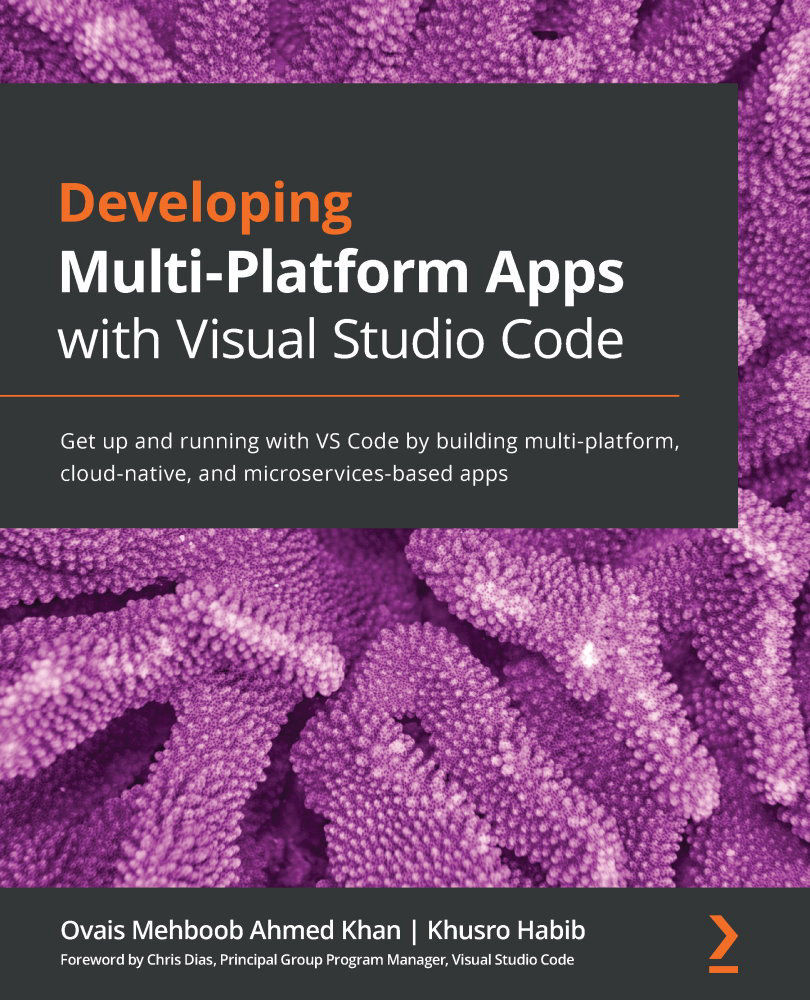
Developing Multi-Platform Apps with Visual Studio Code

Developing Multi-Platform Apps with Visual Studio Code: Get up and running with VS Code by building multi-platform, cloud-native, and microservices-based apps

Arrow left icon
Profile Icon Ovais Mehboob Ahmed Khan Profile Icon Khusro Habib
Arrow right icon
$19.99 per month
Full star icon Full star icon Full star icon Full star icon Half star icon 4.9 (7 Ratings)
Paperback Sep 2020 334 pages 1st Edition
eBook
$34.19 $37.99
Paperback
$50.99
Paperback + Subscription
$29.99 Monthly
Table of content icon View table of contents Preview book icon Preview Book

Developing Multi-Platform Apps with Visual Studio Code

Chapter 1: Getting Started with Visual Studio Code

Visual Studio Code or, as it is mostly called, VS Code, is one of the most popular coding tools today. It focuses on being fast and extendible, and can build up to the needs of a wider developer community.

Earlier, the focus was on providing developers with an extensive development environment that could integrate the complete software development life cycle, from writing code to deploying the solution. To increase productivity, several in-built features were provided to automate repetitive tasks. Most of the environments supported a particular language and an abundance of prebuilt features for that language.

As the industry moved from thick installable clients to web-based applications, the choice of development platforms and tools also changed. These browser-based web applications that were developed using HyperText Markup Language (HTML), Cascading Style Sheets (CSS), and JavaScript did not require heavy integrated development environments, but rather, simple and plain editors.

Looking at this change, Microsoft released its first cross-platform and multi-language support editor in 2015, called VS Code.

VS Code is a fast and lightweight editor that follows the concept of take what you need. The extension framework provides flexibility and has created a marketplace where extensive tooling features are available for use. It also allows the automation of build processes and has strong integration with Git for version control management. It allows developers to install and build an environment according to their specific needs.

In this chapter, we will take you through the basics of an editor and walk through the key difference between an editor and an Integrated Development Environment (IDE). To get acquainted with VS Code, we will start by setting up the environment and exploring several options. Finally, we will highlight some tips and tricks that can increase your productivity. At the end of this chapter, you will be up and running with VS Code, have a good knowledge of how to configure the tool, and will be aware of some neat tricks. So, let's get started.

The main topics covered in this chapter are the following:  

  • Discussing editors and IDEs
  • Discussing basic features of VS Code
  • Setting up VS Code
  • Exploring the VS Code layout
  • Editing and code navigation in VS Code

Discussing editors and IDEs

Our focus in is this book is to explore and learn VS Code, but before we do that, let's discuss the difference between an editor and IDE and try to understand where and how VS Code is positioned for developers.

Over time, several languages and frameworks have become available for developers to work with. Along with these languages, a considerable amount of effort has been put in place to create the right tool to increase developer productivity and support the complete development life cycle.

These tools can be categorized into editors and IDEs.

Editors support a variety of languages, work around files and folders, and they are limited in terms of projects or solutions. They are lightweight and predominantly keyboard-centric, which allows developers to work faster.

IDEs support code editing, compiling, and debugging, as well as code execution. They are mainly specific to a particular language or a few selective languages. They usually work with project or solution files, provide support while writing code in terms of IntelliSense, and build processes that are well integrated into the environment. They provide language-specific wizards to help in generating the project skeleton and code while providing support for Application Life Cycle Management (ALM). In summary, IDEs provide extensive productivity features but are limited to a set of languages and frameworks.

VS Code falls between the editor and IDE space. It's lightweight and fast, yet provides support for several languages through a set of easily installable VS Code extensions. It's a cross-platform editor supporting Windows, macOS, and Linux operating systems, and provides features to cover the complete development life cycle.

Discussing basic features of VS Code

With a brief introduction to development tools, we will now start off our learning journey by exploring some basic features of VS Code.

Files and folders

Unlike an IDE, VS Code does not depend on creating a solution or a project file. Your project is your folder, with subfolders and files in it. You can use the File menu and Open File... or Open Folder to start editing, as illustrated in the following screenshot:

Figure 1.1 – File menu in VS Code editor

Figure 1.1 – File menu in VS Code editor

Opening the folder will load all the files of the folder in VS Code. You can open multiple folders at a time. These folders will be available in the left pane of the editor.

Workspace

Often, your product will be organized into multiple interlinked projects. In this case, VS Code provides an option to combine these folders in a workspace. This way, when you open a workspace, it will open all the related project folders.

To do this, you can simply select the Add Folder to Workspace… option and then use Save Workspace As… to save your workspace. This will generate a file of type .code-workspace that will contain all the folder names included in this workspace, as illustrated in the following screenshot:

Figure 1.2 – Project folders and the workspace file

Figure 1.2 – Project folders and the workspace file

Opening the workspace in the editor will open the linked project folders. The following screenshot shows how the workspace and folders are linked together in VS Code:

Figure 1.3 – Project folders part of workspace in the editor

Figure 1.3 – Project folders part of workspace in the editor

The following code snippet shows the content of the .code-workspace file, for the preceding two projects:

{
	''folders'': [
		{
			''path'': ''Project 1''
		},
		{
			''path'': ''Project 2''
		}
	],
	''settings'': {}
}

The .code-workspace file stores the path of folders linked in the workspace.

IntelliSense

One of the most powerful features for any developer is code completion: it comes in very handy when the development environment prompts the methods or attributes of a class, or suggests a list of keywords matching with what you are typing.

VS Code provides out-of-the-box IntelliSense for JavaScript, TypeScript, Javascript Object Notation (JSON), HTML, CSS, and Sassy CSS (SCSS). If this list does not satisfy your requirements, you can add a language extension of your choice from the marketplace. Just as with any other IDE, use Ctrl + spacebar to trigger the IntelliSense for the context.

Tasks

Compared to editors, IDEs provide automated and well-integrated processes that increase the productivity of a developer. These can include build processes, linting, and deployment, among others. VS Code provides similar functionality through its Tasks framework, which is illustrated in the following screenshot:

Figure 1.4 – Command Palette showing the Tasks option

Figure 1.4 – Command Palette showing the Tasks option

Based on the files in your projects, it can detect tasks for build tools such as gulp, grunt, jake, and npm and also provides an option to create your own task runners using predefined templates. You can also link your tasks to the overall build process, which is triggered by Ctrl + Shift + B. Have a look at the following screenshot:

Figure 1.5 – Select a task template

Figure 1.5 – Select a task template

The preceding screenshot shows the list of task templates to choose from.

Debugging

Another important feature of VS Code is the ability to debug code. Using VS Code, you can debug Node.js, JavaScript, and TypeScript out of the box, as illustrated in the following screenshot:

Figure 1.6 – Multiplatform debugging support

Figure 1.6 – Multiplatform debugging support

Apart from the preceding code base, you can install debugger extensions from the marketplace within the tool, as illustrated in the following screenshot:

Figure 1.7 – Debugger extensions on marketplace

Figure 1.7 – Debugger extensions on marketplace

Chapter 6, Debugging Techniques, is dedicated to exploring debugging in detail with VS Code.

Version control

VS Code integrates Git for version control. You can quickly initialize your Git repository by calling the command palette with Ctrl + Shift + P or Command + Shift + P and selecting Git: Initialize Repository, as illustrated in the following screenshot:

Figure 1.8 – Initialize Git repository using the command palette

Figure 1.8 – Initialize Git repository using the command palette

To clone a repository, call the command palette and select Git: Clone, VS Code will request you to enter the Uniform Resource Locator (URL). After entering the URL, you can specify the folder or directory where you want your code to be cloned. The Git: Clone functionality can be seen in the following screenshot:

Figure 1.9 – Clone Git repository using the command palette

Figure 1.9 – Clone Git repository using the command palette

Additionally, you can also search for your favorite source code management tool extensions, as illustrated in the following screenshot:

Figure 1.10 – Integrate other source code management extensions from marketplace

Figure 1.10 – Integrate other source code management extensions from marketplace

The preceding screenshot shows a list of source code management extensions available in VS Code.

Keyboard shortcuts

Keyboard shortcuts provide quick accessibility of features; using them, you can navigate to options using commands instead of menus. To view a complete list of keyboard shortcuts, you can go to Files | Preferences | Keyboard Shortcuts. You can also use the pencil icon to change the shortcut.

We have now explored some basic features of VS Code. Next, let's move toward setting up our VS Code environment.

Setting up VS Code

VS Code is a cross-platform editor and supports Windows, macOS, and Linux OS. You can start by visiting https://code.visualstudio.com.

Based on the operating system (OS) you are using, the website will prompt you to download for your OS. If you would like to download for another OS, you can click on other platforms or press the down arrow button that shows next to the OS name, as illustrated in the following screenshot:

Figure 1.11 – Different versions of VS Code for different OSes

Figure 1.11 – Different versions of VS Code for different OSes

There are two versions available for download. The stable version is updated every month with new features, whereas the insiders version is a nightly build that provides an early peak into the upcoming features. Both versions can run side by side on the same machine.

Launching VS Code

By now, you should have downloaded your copy of VS Code and followed the guided installation wizard to set up your environment. Next, let's start off by looking into different ways of launching VS Code and explore some command-line options.

The simplest way of starting VS Code is by running the code . command.

This will open up a new instance of VS Code. If this command does not work in your macOS installation, you can follow the next steps. For Linux, you can visit https://code.visualstudio.com and look for Setup | Linux.

Setting up the command line for macOS

If you already have a Bash profile, please skip Steps 1 and 2. Otherwise, proceed as follows:

  1. Write the cd ~/ command to go to your home folder.
  2. Write the touch .bash_profile command to create a new file.
  3. Then, on the terminal window, write the following commands:
    cat << EOF >> ~/.bash_profile
    #Add Visual Studio Code (code)
    Export PATH=''\$PATH:/Applications/Visual Studio Code.app/Contents/Resources/app/bin
    EOF
  4. Close the terminal window and reopen to check whether the code . command works.

Now that your command line is set up and working, let's look at some different ways of launching VS Code.

The following command launches the code and opens the directory in VS Code where this is run:

code .

The –r variant allows you to open the specified workspace file in an already loaded VS Code instance; you can replace the workspace file with any file you would like to edit, as illustrated in the following code snippet:

code -r ''c:\My VS Code Projects\my project workspace.code-workspace'' 

The –n addition allows you to open a new instance of VS Code, as illustrated in the following code snippet:

code -n ''c:\My VS Code Projects\Project 1''

If you would like to open a particular file and go to a specific row and column, use the –g addition. The following command will launch a new instance of VS Code; open the launch.json file and place the cursor on row 5 and column 10:

code -n -g ''c:\My VS Code Projects\Project 1\.vscode\launch.json'':5:10Exploring VS Code Layout

In this section, we will explore the editor's layout and the different panes. To get you familiar with the editor, we will go through the different sections of the editor and explain their utility. The layout of the editor can be seen in the following screenshot:

Figure 1.12 – VS Code editor layout

Figure 1.12 – VS Code editor layout

The most prominent section of the editor is the big pane on the right. This is the place where you edit code. Files selected from the EXPLORER are opened in this pane. You can open multiple files for editing at the same time.

Activity Bar

The toolbar on the left is called the Activity Bar. The Activity Bar provides quick access to important features of the tool.

The first button, , is the explorer, where you see the folders and files loaded in VS Code, as illustrated in the following screenshot:

Figure 1.13 – Explorer

Figure 1.13 – Explorer

The number on the button shows the number of files changed and not saved. If Auto Save is enabled from File | Auto Save then this will not be shown, as every time a change is made, VS Code automatically saves it.

The search button allows you to search in files and folders. It searches the text inside a file. As you type, VS Code will filter the list of files containing the entered text, as illustrated in the following screenshot:

Figure 1.14 – Search text in files and folders

Figure 1.14 – Search text in files and folders

The next button is for version control. Git is very well integrated in the tool and provides some handy features.

If you have already initialized a Git repository or cloned an existing one, the source control button shows the changes made. We will be discussing Git in more detail in Chapter 8, Git and Azure DevOps. The button is illustrated in the following screenshot:

Figure 1.15 – Changes made to Git

Figure 1.15 – Changes made to Git

To run and debug your code, use the debug button , which allows you to run the program and provides the usual debugging features. This is illustrated in the following screenshot:

Figure 1.16 – Debugger

Figure 1.16 – Debugger

To manage your extensions in VS Code, you can use the extension button , which is illustrated in the following screenshot:

Figure 1.17 – Extensions pane

Figure 1.17 – Extensions pane

In Chapter 2, Extensions in Visual Studio Code, we will explore extensions in more detail.

Status Bar

At the bottom is the Status Bar. It contains the Git branch you are working on and errors and warnings, with an option to directly drill down to them. On the right, VS Code will show the type of file you are working with, a feedback option, and a notification button.

Quick Links

On the top-right corner (Figure 1.12), you have an option to see the code changes by pressing the Open Changes button , and you will be able to edit two objects side by side by pressing the Split Editor button .

Panel

The panel displays errors and warnings and debug-related information, and integrates a terminal window, as illustrated in the following screenshot:

Figure 1.18 – VS Code panel

Figure 1.18 – VS Code panel

Integrated terminal

VS Code integrates a terminal window inside the editor. This is a very handy feature as you don't need to open a terminal window separately to run command-line instructions. Most of the frameworks and platforms provide command-line tooling, and this feature really comes in handy. One such example is while creating your Angular frontend using the Angular command-line interface (CLI).

VS Code provides an option to create several terminal windows for the same project. The shortcut key for creating a new terminal window is Ctrl + `; for adding a new terminal window, the shortcut key is Ctrl + Shift + `.

You can also select your default terminal window, as illustrated in the following screenshot:

Figure 1.19 – Option to select the default shell

Figure 1.19 – Option to select the default shell

Once you press the Select Default Shell option from the menu, VS Code will show a menu to change your default shell, as illustrated in the following screenshot:

Figure 1.20 – Command Palette with a list of options for the terminal shell

Figure 1.20 – Command Palette with a list of options for the terminal shell

Similarly, by pressing the button in Figure 1.19, you can create a new terminal window. VS Code will list the open project folders in the command palette to let you select which project you would like to create in the terminal window.

With Ctrl/Command + Shift + 5, you can split the bottom pane to show two terminal windows side by side. The same can be achieved by pressing the button in Figure 1.19. It is possible to open several terminal windows side by side. To switch focus between the terminals, use Alt/Option + Right Arrow Key or Alt/Option + Left Arrow Key.

Split Editor

We have talked about the option to edit two documents side by side. VS Code takes this feature to the next level and allows a developer to open several windows side by side, as follows:

  • Ctrl/Command + 2: This will open up the second editor.
  • Ctrl/Command + 3: This opens up the third editor, all side by side.

You can go up to Ctrl/Command + 8. Each editor window is identified by the same keystroke, Ctrl/Command + <number>, which will allow you to switch between the editors.

Use Ctrl/Command + W to close the editor window; the one currently selected is closed.

Command palette

The command palette is one of the most important sections of the editor. VS Code is fast and focuses on keyboard-centric navigation; the command palette is the center piece of this editor.

You can quickly call the command palette by pressing Ctrl + Shift + P on Windows and Command + Shift + P on macOS.

On pressing this command, you will see a window pop up at the top of the editor initialized with a > sign, as illustrated in the following screenshot:

Figure 1.21 – Quick way to call a VS Code function using the command palette

Figure 1.21 – Quick way to call a VS Code function using the command palette

This is a quick way of calling most of the editor options.

Search option: After you have opened the command palette, remove the > sign. Then, you will be able to search for files in the project. This is illustrated in the following screenshot:

Figure 1.22 – Search for files using the command palette

Figure 1.22 – Search for files using the command palette

Help (?): After opening the command palette, type the question mark sign: you will see a list of commands you can run. This is illustrated in the following screenshot:

Figure 1.23 – List of commands

Figure 1.23 – List of commands

Caret (>) sign: This is the same as Ctrl/Command + Shift + P. From there, you can run any command (for example, running a task), as illustrated in the following screenshot:

Figure 1.24 – Command palette with default caret sign

Figure 1.24 – Command palette with default caret sign

debug: Use the debug command to launch the debugger or add a debug configuration, as illustrated in the following screenshot:

Figure 1.25 – Debugging options in the command palette

Figure 1.25 – Debugging options in the command palette

ext: This command helps you manage and install extensions, as illustrated in the following screenshot:

Figure 1.26 – Using the command palette to call extensions

Figure 1.26 – Using the command palette to call extensions

We are almost done with the layout options in VS Code—let's explore themes before we close out this section.

Themes

Another important customization feature of the tool is the ability to set themes. Some developers like a dark colored environment, while others prefer light colors. VS Code provides you with a list of themes to choose from.

You can set your preferred theme by calling the command palette. Press Ctrl/Command + Shift + P to call the command palette, type theme, and then select Preferences: Color Theme, as illustrated in the following screenshot:

Figure 1.27 – Calling theme settings from the command palette

Figure 1.27 – Calling theme settings from the command palette

Here is a sample screenshot of the list of themes you will get to choose from:

Figure 1.28 – List of themes to choose from in VS Code

Figure 1.28 – List of themes to choose from in VS Code

We are now familiar with the editor's layout. Next, let's look at some important editing features of VS Code.

Basic editing in VS Code

VS Code comes with some great options, which will enable you to code faster. Let's look at some of the options.

Generating HTML

The Emmet 2.0 extension is built into the editor, and helps you to quickly write HTML code.

Here are some examples.

To create a table with five rows having two columns in each row, you can use the following statement:

table>tr*5>td*3 

This is what the table looks like:

Figure 1.29 – Generate HTML using the Emmet extension

Figure 1.29 – Generate HTML using the Emmet extension

As shown in the preceding screenshot, you will notice that VS Code starts showing you the HTML it will generate. Press Enter to generate the HTML.

In case you want to add a class attribute to the tag, use a dot (.) after the tag name. An example of this can be seen in the following code snippet:

table>tr*5.myclass>td*2

This will generate the same table as in Figure 1.29, with myclass placed as a class attribute for the <tr/> tag. The cursor will be placed between the first <td></td> tag; use Tab to navigate to the next <td/> tags for faster editing.

Multi-cursor editing

One of the most important features of VS Code is the multi-select cursor. It has several variants, which we will explore now, as follows:

  • Alt/Option + Ctrl/Command + Down Arrow Key: This option will allow you to place a cursor on multiple lines at the same place. In the following screenshot, you can notice the cursor is placed on five different lines at the same spot:
Figure 1.30 – Multi-cursor editing on the same position

Figure 1.30 – Multi-cursor editing on the same position

  • Ctrl/Command + Shift + L: This command will allow you to select multiple occurrences of the same text and edit at the same time. Pressing the arrow key will keep the cursors active and allow quick multi-cursor editing. Press Esc to remove the cursors. This is illustrated in the following screenshot:
Figure 1.31 – Multi-cursor editing of the same text

Figure 1.31 – Multi-cursor editing of the same text

  • Alt/Option + mouse click: This option will allow you to place cursors at specific points and edit at the same time. Press Esc to remove the cursor. This is illustrated in the following screenshot:
Figure 1.32 – Multi-cursor editing by placing cursor on mouse clicks

Figure 1.32 – Multi-cursor editing by placing cursor on mouse clicks

  • Ctrl/Command + D: Highlight a text item and then, on each press of Ctrl/Command+D, the system will move the cursor to select the same text item. If you would like to skip a specific selection, press Ctrl/Command + K, and then continue with Ctrl/Command + D.
  • Alt/Option + Shift + Down Arrow Key: Place the cursor on a particular line and press the command to duplicate the same line.
  • Alt/Option + Down Arrow Key: Place the cursor on a particular line and press the command to move the line below. The same works for multiple selected lines.

Code refactoring

While writing code, there are opportunities when the code written can be further optimized to increase readability and maintainability. Readable code is easier to change. It allows other developers to easily find the required code section and make changes as required. In a software development life cycle, having to often maintain or change code is more time consuming then first writing it.

VS Code provides some nice code refactoring features. Support for JavaScript and TypeScript is built into the tool. Let's go through a few examples.

Extracting to a constant

Once you select a section of code, a light bulb appears on the left; on clicking that, you will see a context menu open up with some refactoring options. Once you select the Extract to constant in module scope option, VS Code will create a constant and replace it with the string literals—for example, 'Product List!', shown as follows:

Figure 1.33 – Extract to constant

Figure 1.33 – Extract to constant

The following screenshot shows the refactored code. Here, string literals have been replaced with a constant variable:

Figure 1.34 – Extract to constant refactored code

Figure 1.34 – Extract to constant refactored code

Apart from extract to constant, another option is extracting code to a method.

Extracting to a method

Most of the time while writing code, you come across a piece of code that can be reused. This code is extracted into a method to avoid code duplication. This enhances code maintainability, since future changes are not required to be done in several places.

VS Code provides a very easy-to-use and quick way to extract your code into reusable methods.

In the following example, the displayed success message is selected. A light bulb appears on the left and shows an Extract to method in class option:

Figure 1.35 – Reusable code can be extracted to a method

Figure 1.35 – Reusable code can be extracted to a method

Once you select this option, VS Code will ask for a method name as an input, as illustrated in the following screenshot:

Figure 1.36 – Reusable code can be extracted to a method

Figure 1.36 – Reusable code can be extracted to a method

On entering the method name, and as shown in preceding screenshot, the selected piece of code will be extracted into a method, and a method call will be placed in the same section.

Renaming symbols

It is often the case that while writing code, you might feel the need to rename some used variables. These variables are used in several places, and Find and Replace seems to be a hectic option.

VS Code here provides a quick Rename Symbol option.

Select the variable to be changed and press F2. VS Code will ask for the new variable, as illustrated in the following screenshot:

Figure 1.37 – Rename variable using F2

Figure 1.37 – Rename variable using F2

On pressing Enter, the variable name is replaced throughout the file, as illustrated in the following screenshot:

Figure 1.38 – Variable name changed to newVariableName

Figure 1.38 – Variable name changed to newVariableName

The preceding screenshot shows pageTitle changed to newVariableName.

Refactoring extensions

Furthermore, VS Code supports refactoring for other languages with extensions. You can search the refactoring extension for your language on the VS Code extension marketplace.

Snippets

Code snippets help you code faster—these are predefined code templates that VS Code suggests while writing code. The following is an example of a method template—on pressing Tab, the code on the right will be inserted:

Figure 1.39 – Code snippets

Figure 1.39 – Code snippets

Apart from the predefined templates, there are several extensions available that will come with their own code snippets.

Custom snippets

Snippets help you to be quick in writing repetitive code, and in case the out-of-the-box snippets do not satisfy your requirements, VS Code provides you with an option to define your own custom snippets, called User Snippet.

Let's create a user snippet for HTML code.

Go to File | Preferences | User Snippet. The command pallet will pop up. Enter html and press Enter, as illustrated in the following screenshot:

Figure 1.40 – Create custom HTML code snippets

Figure 1.40 – Create custom HTML code snippets

The html.json file contains the HTML user snippets. We will create a snippet that will generate a table. The list that follows details the different parts of a user snippet.

In our example, the following applies:

  • table-snippet: This is the name of the snippet.
  • prefix: The name mentioned in this section is used to call the snippet.
  • description: This will be displayed in the pop-up window.
  • body: This is the place where you write your code template. It's an array that will contain the line of code to be inserted when you call the snippet. \t is used for code indentation.

Copy and paste the following code into an html.json file:

    ''table-snippet'':{
        ''prefix'': ''mytable'',
        ''description'': ''Table Snippet'',
        ''body'': [
            ''<table>'',
            ''\t<tr>'',
            ''\t\t<td>Column 1</td>'',
            ''\t\t<td>Column 2</td>'',
            ''\t</tr>'',
            ''</table>'',
        ]
    }

So, our snippet is created. Next, we will call it. If the following code does not work for you, restart VS Code.

As soon as you start typing mytable, VS Code suggests the code snippet you created, as illustrated in the following screenshot:

Figure 1.41 – Calling the custom HTML code snippet created earlier

Figure 1.41 – Calling the custom HTML code snippet created earlier

On pressing Tab, the code will be inserted, as illustrated in the following screenshot:

Figure 1.42 – Code created from the custom HTML code snippet

Figure 1.42 – Code created from the custom HTML code snippet

The preceding screenshot shows the table generated from User Snippet.

Editing and code navigation in VS Code

While writing code, developers are often working with several files at the same time. Quickly navigating between files or within the same file is an important feature.

VS Code offers multiple options for code navigation—let's explore them one by one.

Go to line

To move the cursor to a particular line and column, use the Goto (:) Line command, as illustrated in the following screenshot:

Figure 1.43 – Using the command palette to move cursor to a line and column

Figure 1.43 – Using the command palette to move cursor to a line and column

Go to symbol

To show the symbols used in your code and to navigate directly to a selected symbol, you can use Go to Symbol (@) in a File.

Also, while you are traversing, VS Code will highlight the code section, as illustrated in the following screenshot:

Figure 1.44 – Using the command palette to jump to a section of code

Figure 1.44 – Using the command palette to jump to a section of code

In the case of JavaScript, the command palette will show methods, as illustrated in the following screenshot:

Figure 1.45 – Jump to code section in a JavaScript example

Figure 1.45 – Jump to code section in a JavaScript example

Using commands for navigation

Here are some useful commands for quick code navigation:

  • Ctrl/Command + F12: Use this command to select an object and jump to its implementation.
  • Ctrl/Command + Shift + F12: This is a quick way to peek into an implementation. The pop-up window also allows code editing. This is illustrated in the following screenshot:
Figure 1.46 – Peek into an implementation

Figure 1.46 – Peek into an implementation

The preceding screenshot shows an example where the ProductDetailComponent implementation is open in Quick Peek mode.

Navigating between files

VS Code provides multiple options for navigating between different files. Let's assume you have a bunch of files open in your editor. To select a particular file from currently opened files, hold Ctrl and then press Tab. VS Code will open a list of files, and you can move your selection by holding Ctrl and pressing Tab. An example list of files can be seen in the following screenshot:

Figure 1.47 – Files listed for navigation

Figure 1.47 – Files listed for navigation

Apart from using Ctrl (hold) + Tab, you can also sequentially switch between multiple files opened in the editor.

Use Alt/Option + Right Arrow or Alt/Option + Left Arrow to switch from one file to other opened files.

Commenting code

Last but definitely not least, how to quickly comment and uncomment code by using the following keyboard shortcuts:

  • Ctrl/Command + K then C: Use this command to comment a line.
  • Ctrl/Command + K then U: Use this command to uncomment a line.

Summary

In this chapter, we started by looking at the editor and IDE space, and where VS Code falls. Then, we looked at the basic features of VS Code and moved on to setting up our environment. With VS Code being a multiplatform editor, we explained some steps related to macOS, and also provided guidance in case you are using a Linux OS. Next, we explored multiple ways of launching VS Code and also looked at several command-line options. Explaining the overall layout, we then moved on to showcasing some editing and code refactoring features. Finally, we closed out the chapter by looking at quick code navigation features.

By the end of this chapter, you should now have a basic background about development tools and a more detailed knowledge of VS Code as an editor. We learned about the basic features, layout, editing, and code navigation options.

Next, we will look in further detail at the VS Code extensions framework and how it can help you in enhancing your development experience.

Left arrow icon Right arrow icon
Download code icon Download Code

Key benefits

  • Leverage the power of the free, cross-platform, and highly customizable code editor to build modern web and cloud applications
  • Edit, debug and deploy on Microsoft Azure with Visual Studio Code
  • Learn how to customize features and install a wide variety of third-party extensions

Description

Microsoft Visual Studio Code is a powerful, lightweight code editor for modern web and cloud development. It is a source code editor that can be used with a variety of programming languages, which works on multiple platforms such as Linux, Windows, and macOS. This book provides extensive coverage of the tools, functionalities, and extensions available within the VS Code environment that will help you build multi-platform apps with ease. You’ll start with the installation of VS Code and learn about various tools and features that are essential for development. Progressing through the chapters, you'll explore the user interface while understanding tips and tricks for increasing productivity. Next, you’ll delve into VS Code extensions and discover how they can make life easier for developers. Later, the book shows you how to develop a sample application with different programming languages, tools, and runtimes to display how VS code can be used effectively for development, before helping you get to grips with source code version management and deployment on Azure with VS Code. Finally, you’ll build on your skills by focusing on remote development with VS Code. By the end of this book, you’ll have the knowledge you need to use Visual Studio Code as your primary tool for software development.

Who is this book for?

This book is for software developers, web developers and polyglot programmers, who are working with any language or framework such as Python, Java, Node.js, or .NET and are looking to learn how they can create multi-platform, microservices based, cloud-native applications while effectively using Visual Studio Code for editing, debugging, version management and deployment. Basic software development skills are a must to grasp the concepts covered in this book.

What you will learn

  • Explore various editing, formatting, and navigational features of VS Code
  • Understand how to add, delete, and configure extensions in VS Code
  • Develop web APIs using Node.js, Java, and Python in VS Code
  • Develop background service in .NET Core and explore Dapr
  • Delve into debugging techniques such as breakpoints, log points, and data inspection
  • Use Git with Azure DevOps to share and synchronize code with VS Code
  • Create custom extensions in VS Code to increase developer productivity
  • Understand the concepts of remote development using VS Code

Product Details

Country selected
Publication date, Length, Edition, Language, ISBN-13
Publication date : Sep 18, 2020
Length: 334 pages
Edition : 1st
Language : English
ISBN-13 : 9781838822934
Vendor :
Microsoft
Category :
Languages :

Product Details

Publication date : Sep 18, 2020
Length: 334 pages
Edition : 1st
Language : English
ISBN-13 : 9781838822934
Vendor :
Microsoft
Category :
Languages :

Packt Subscriptions

See our plans and pricing
Modal Close icon
$19.99 billed monthly
Feature tick icon Unlimited access to Packt's library of 7,000+ practical books and videos
Feature tick icon Constantly refreshed with 50+ new titles a month
Feature tick icon Exclusive Early access to books as they're written
Feature tick icon Solve problems while you work with advanced search and reference features
Feature tick icon Offline reading on the mobile app
Feature tick icon Simple pricing, no contract
$199.99 billed annually
Feature tick icon Unlimited access to Packt's library of 7,000+ practical books and videos
Feature tick icon Constantly refreshed with 50+ new titles a month
Feature tick icon Exclusive Early access to books as they're written
Feature tick icon Solve problems while you work with advanced search and reference features
Feature tick icon Offline reading on the mobile app
Feature tick icon Choose a DRM-free eBook or Video every month to keep
Feature tick icon PLUS own as many other DRM-free eBooks or Videos as you like for just $5 each
Feature tick icon Exclusive print discounts
$279.99 billed in 18 months
Feature tick icon Unlimited access to Packt's library of 7,000+ practical books and videos
Feature tick icon Constantly refreshed with 50+ new titles a month
Feature tick icon Exclusive Early access to books as they're written
Feature tick icon Solve problems while you work with advanced search and reference features
Feature tick icon Offline reading on the mobile app
Feature tick icon Choose a DRM-free eBook or Video every month to keep
Feature tick icon PLUS own as many other DRM-free eBooks or Videos as you like for just $5 each
Feature tick icon Exclusive print discounts

Frequently bought together


Stars icon
Total $ 183.97
Visual Studio 2019 Tricks and Techniques
$45.99
Developing Multi-Platform Apps with Visual Studio Code
$50.99
C# 9 and .NET 5 – Modern Cross-Platform Development
$86.99
Total $ 183.97 Stars icon

Table of Contents

14 Chapters
Section 1: Introduction to Visual Studio Code Chevron down icon Chevron up icon
Chapter 1: Getting Started with Visual Studio Code Chevron down icon Chevron up icon
Chapter 2: Extensions in Visual Studio Code Chevron down icon Chevron up icon
Section 2: Developing Microservices-Based Applications in Visual Studio Code Chevron down icon Chevron up icon
Chapter 3: Building a Multi-Platform Backend Using Visual Studio Code Chevron down icon Chevron up icon
Chapter 4: Building a Service in .NET Core and Exploring Dapr Chevron down icon Chevron up icon
Chapter 5: Building a Web-Based Frontend Application with Angular Chevron down icon Chevron up icon
Chapter 6: Debugging Techniques Chevron down icon Chevron up icon
Chapter 7: Deploying Applications on Azure Chevron down icon Chevron up icon
Chapter 8: Git and Azure DevOps Chevron down icon Chevron up icon
Section 3: Advanced Topics on Visual Studio Code Chevron down icon Chevron up icon
Chapter 9: Creating Custom Extensions in Visual Studio Code Chevron down icon Chevron up icon
Chapter 10: Remote Development in Visual Studio Code Chevron down icon Chevron up icon
Other Books You May Enjoy Chevron down icon Chevron up icon

Customer reviews

Top Reviews
Rating distribution
Full star icon Full star icon Full star icon Full star icon Half star icon 4.9
(7 Ratings)
5 star 85.7%
4 star 14.3%
3 star 0%
2 star 0%
1 star 0%
Filter icon Filter
Top Reviews

Filter reviews by


Amazon Customer Dec 02, 2020
Full star icon Full star icon Full star icon Full star icon Full star icon 5
Visual studio code is the most used open source IDE by for developing & configuring multi\cross platform apps. I do advice anyone to discover the incredibly power of visual studio code available the below book. Personally, I'm using visual studio code from years but I was not aware of many nice features available there. It doesn't matter which language you are writing or which framework you are using as all of this is available with details on the below book.
Amazon Verified review Amazon
Ahmed Dec 02, 2020
Full star icon Full star icon Full star icon Full star icon Full star icon 5
Great book. covered most of the major points.
Amazon Verified review Amazon
Sujanesh Jasti Nov 10, 2020
Full star icon Full star icon Full star icon Full star icon Full star icon 5
As a developer myself, taking a look at this book reinforced the ideas and methods I have learned over the many years I have been working.The book starts off with an introduction to VS Code. If you haven't had a hands-on experience with the platform then this is a great place to start. Pact offers samples that you are able to use and play around with. This is a great way to experience coding hands-on. This makes it a great book to start off with and can be great for anyone.It has been really useful to understand the backend works of the platform and also understanding how we can make multi-platform apps with VS Code. The book gives a high-level idea of building these kinds of applications and the reader is guided with the best way to develop many complex apps.This is a great book for beginners and advanced developers to refresh the ideas for building multiple types of applications using VS Code.It is a great resource and has helped me so much when I couldn't find an answer to something online right away, and knowing that this book is with me all the time, I knew exactly what I needed to know to develop a service with .NET and get the environment started.I recommend this book to people who want to get started right away but don't know where to begin. This is a great way to get your hands-on experience while also learning the mechanics of what goes on in a full-fledged application.
Amazon Verified review Amazon
Joe Dec 18, 2020
Full star icon Full star icon Full star icon Full star icon Full star icon 5
I was looking for a such a book to understand Visual Studio Code.The Multi-cursor editing amongst other basic editing tools is a great help especially when having to select multiple occurrences of the same text and edit at the same time. The instructions are fully detailed with plenty of screenshots to help drive the points across. The shortcuts shown in the book are great to navigate Visual Studio Code and provide great time savers. The code snippets are also very helpful at limiting the amount of time taken to write the code. The themes and extensions are great I especially liked the way the author teaches you how to create a new extensions.json file with your recommended extensions. Learning how to install extensions from the CLI is of course very valuable information. I am already a certified Azure Administrator however still not being able to land a job in that field. Section 2 was a great refresher course in Azure and have a better understanding of Azure Devops and Angular frameworks now. Debugging practices and examples are on point. I was unable to completely grasp the concept of using containers however now I understand and know how Docker and Kubernetes work. I greatly applaud the author of this book and have faith that with the knowledge attained by reading and following the examples on Developing Multiplatform Apps with Visual Studio Code, that I am now ready to pass any future job interviews and have faith that I will be be able to attain a job as a Cloud Administrator.
Amazon Verified review Amazon
Mohith Kumar Feb 16, 2021
Full star icon Full star icon Full star icon Full star icon Full star icon 5
This book is good if you code in multiple languages and want to become familiar with visual studio code and it's offerings!I have enjoyed reading all the chapters! My favorite is where the author deep dives into how to debug code like node.js with vscode!Also it has a chapter around how to build your own visualstudio extensions that is useful!
Amazon Verified review Amazon
Get free access to Packt library with over 7500+ books and video courses for 7 days!
Start Free Trial

FAQs

What is included in a Packt subscription? Chevron down icon Chevron up icon

A subscription provides you with full access to view all Packt and licnesed content online, this includes exclusive access to Early Access titles. Depending on the tier chosen you can also earn credits and discounts to use for owning content

How can I cancel my subscription? Chevron down icon Chevron up icon

To cancel your subscription with us simply go to the account page - found in the top right of the page or at https://subscription.packtpub.com/my-account/subscription - From here you will see the ‘cancel subscription’ button in the grey box with your subscription information in.

What are credits? Chevron down icon Chevron up icon

Credits can be earned from reading 40 section of any title within the payment cycle - a month starting from the day of subscription payment. You also earn a Credit every month if you subscribe to our annual or 18 month plans. Credits can be used to buy books DRM free, the same way that you would pay for a book. Your credits can be found in the subscription homepage - subscription.packtpub.com - clicking on ‘the my’ library dropdown and selecting ‘credits’.

What happens if an Early Access Course is cancelled? Chevron down icon Chevron up icon

Projects are rarely cancelled, but sometimes it's unavoidable. If an Early Access course is cancelled or excessively delayed, you can exchange your purchase for another course. For further details, please contact us here.

Where can I send feedback about an Early Access title? Chevron down icon Chevron up icon

If you have any feedback about the product you're reading, or Early Access in general, then please fill out a contact form here and we'll make sure the feedback gets to the right team. 

Can I download the code files for Early Access titles? Chevron down icon Chevron up icon

We try to ensure that all books in Early Access have code available to use, download, and fork on GitHub. This helps us be more agile in the development of the book, and helps keep the often changing code base of new versions and new technologies as up to date as possible. Unfortunately, however, there will be rare cases when it is not possible for us to have downloadable code samples available until publication.

When we publish the book, the code files will also be available to download from the Packt website.

How accurate is the publication date? Chevron down icon Chevron up icon

The publication date is as accurate as we can be at any point in the project. Unfortunately, delays can happen. Often those delays are out of our control, such as changes to the technology code base or delays in the tech release. We do our best to give you an accurate estimate of the publication date at any given time, and as more chapters are delivered, the more accurate the delivery date will become.

How will I know when new chapters are ready? Chevron down icon Chevron up icon

We'll let you know every time there has been an update to a course that you've bought in Early Access. You'll get an email to let you know there has been a new chapter, or a change to a previous chapter. The new chapters are automatically added to your account, so you can also check back there any time you're ready and download or read them online.

I am a Packt subscriber, do I get Early Access? Chevron down icon Chevron up icon

Yes, all Early Access content is fully available through your subscription. You will need to have a paid for or active trial subscription in order to access all titles.

How is Early Access delivered? Chevron down icon Chevron up icon

Early Access is currently only available as a PDF or through our online reader. As we make changes or add new chapters, the files in your Packt account will be updated so you can download them again or view them online immediately.

How do I buy Early Access content? Chevron down icon Chevron up icon

Early Access is a way of us getting our content to you quicker, but the method of buying the Early Access course is still the same. Just find the course you want to buy, go through the check-out steps, and you’ll get a confirmation email from us with information and a link to the relevant Early Access courses.

What is Early Access? Chevron down icon Chevron up icon

Keeping up to date with the latest technology is difficult; new versions, new frameworks, new techniques. This feature gives you a head-start to our content, as it's being created. With Early Access you'll receive each chapter as it's written, and get regular updates throughout the product's development, as well as the final course as soon as it's ready.We created Early Access as a means of giving you the information you need, as soon as it's available. As we go through the process of developing a course, 99% of it can be ready but we can't publish until that last 1% falls in to place. Early Access helps to unlock the potential of our content early, to help you start your learning when you need it most. You not only get access to every chapter as it's delivered, edited, and updated, but you'll also get the finalized, DRM-free product to download in any format you want when it's published. As a member of Packt, you'll also be eligible for our exclusive offers, including a free course every day, and discounts on new and popular titles.

Modal Close icon
Modal Close icon