In this article by Domi Sinclair, the author of Prezi Essentials, we look at how to import our existing content from a PowerPoint presentation. For this, you will need an existing PowerPoint presentation to work with.
(For more resources related to this topic, see here.)
When you add your PowerPoint slides to Prezi, it turns each slide into a separate frame. A frame is Prezi's way of grouping together different content, just like PowerPoint groups content by using slides. Once the slide is converted into a frame, Prezi identifies each individual element of content that went into making that slide, such as images, title text, and body text. This means you can still edit and remove these elements individually, just as you would be able to in PowerPoint.
In Prezi, it is easy to have frames within other frames (whereas it is inelegant and clunky to have a slide within a slide when using PowerPoint); this allows you to create subframes. Subframes can be used to hold additional details you are not sure whether you'll have time for. You might also use them to hold notes that you don't need for the main presentation, but that might be useful for colleagues presenting the Prezi or for audience members reviewing the presentation at a later date. You can add a slide as a subframe and simply zoom into it, if you need it, or skip past it, if it's not needed. This is much more subtle than having to skip past the slide in a PowerPoint. We will learn more about this as we develop our Prezi skills.
Without further delay, let's have a go at adding some PowerPoint slides to our Prezi:
- In the template, locate the Insert button (the middle button in the center of the bar that goes across the top of the screen).
- Click on the Insert button and then from the drop-down menu that appears, select PowerPoint…, as shown in the following screenshot:

- You should now be presented with a file explorer window. Use this to navigate to the PowerPoint file you wish to use for this example. When you find the file, click on it and upload it by clicking on Open. This file can be any PowerPoint you wish to use but you will also find an example to download at http://digidomi.wordpress.com/2014/08/31/essential-prezi-resources/.
- This should load the slides into a panel within Prezi, on the right-hand side of the screen.
- Left-click on the second slide and then drag it onto the Prezi canvas. Release the mouse to drop it somewhere on the screen and then click on the green tick to place it there. This is shown in the following screenshot:

- You can zoom in to it. Do this by clicking on the slide to select it with a blue box, and then click on the Zoom to Frame button.
- You may notice that the slide has become slightly jumbled in the conversion to a Prezi frame. Click on any element of the frame, such as the title or body text, then click and hold the hand icon to drag the content to the desired location:

- You can also use the Edit Text button to enter additional text or the dustbin icon to delete the element.
When you are happy, click on the save icon that resembles a floppy disk on the left-hand side of the bar that runs across the top of the screen; this will save your progress. Although Prezi does autosave as you go along, it is always a good idea to do a manual save after making important changes.
Unlock access to the largest independent learning library in Tech for FREE!
Get unlimited access to 7500+ expert-authored eBooks and video courses covering every tech area you can think of.
Renews at ₹800/month. Cancel anytime

Why not try adding some other slides and experiment with how to move and edit the content? It is also a good idea to try dragging one of the slides from the right-hand panel onto the canvas and into an existing template's frame to turn it into a subframe.
Although we have just looked at how to add slides individually, you can insert all the slides from a PowerPoint in just one click. In the side panel that appears when you upload the PowerPoint, instead of dragging the slides one by one, simply click on the button at the top of the panel labeled Insert All…. This will then give you a list of layout options and the ability to add a path between them, as shown in the following screenshot. Select the layout you want and tick the path option if desired, and then click on Insert. If you do not want any of those layouts, then don't worry, once all of the slides have been placed into the Prezi, you can then move them around by hovering over a slide, and then left-clicking on it and dragging it to your desired location, so just choose any layout.
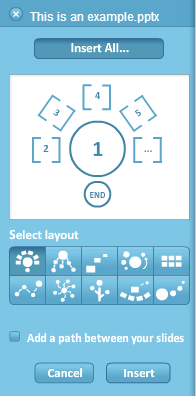
Although you can just add all the slides, it might, however, be useful to go through the slides individually as it can be a good time to review your PowerPoint content and assess what is still useful. This is advisable, rather than simply continuing with the same content, which may no longer be relevant. It is best to only include important information in a Prezi, so narrowing it down is a valuable exercise.
Summary
This article describes how we can convert our existing PowerPoint into Prezi.
Resources for Article:
Further resources on this subject:


 United States

 Great Britain
 India
India
 Germany
 France
 Canada
 Russia
 Spain
Spain
 Brazil
 Australia
 Singapore
 Canary Islands
 Hungary
 Ukraine
 Luxembourg
 Estonia
 Lithuania
 South Korea
 Turkey
 Switzerland
 Colombia
 Taiwan
 Chile
Chile
 Norway
 Ecuador
 Indonesia
 New Zealand
 Cyprus
 Denmark
 Finland
 Poland
 Malta
Malta
 Czechia
 Austria
 Sweden
 Italy
Italy
 Egypt
Egypt
 Belgium
 Portugal
 Slovenia
 Ireland
 Romania
 Greece
 Argentina
 Netherlands
 Bulgaria
 Latvia
 South Africa
 Malaysia
 Japan
Japan
 Slovakia
 Philippines
 Mexico
 Thailand