

Understanding web development
Developing for the web means developing with the Hypertext Transfer Protocol (HTTP), so we will start by reviewing this important foundational technology.
Understanding the Hypertext Transfer Protocol
To communicate with a web server, the client, also known as the user agent, makes calls over the network using HTTP. As such, HTTP is the technical underpinning of the web. So when we talk about websites and web services, we mean that they use HTTP to communicate between a client (often a web browser) and a server.
A client makes an HTTP request to a resource, such as a page, uniquely identified by a URL, and the server sends back an HTTP response, as shown in Figure 1.18:
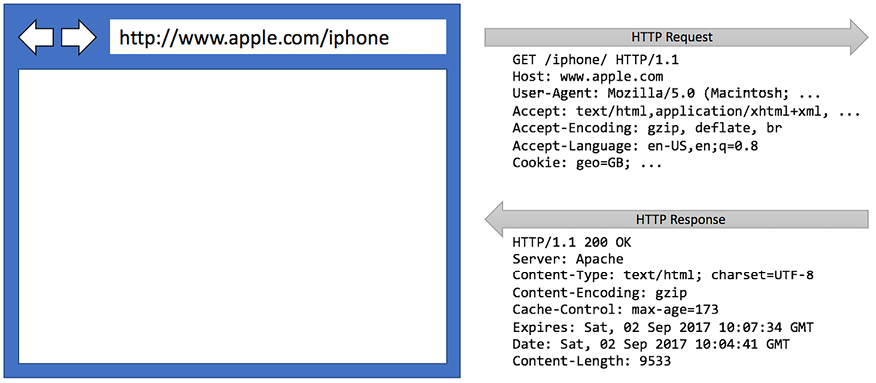
Figure 1.18: An HTTP request and response
You can use Google Chrome and other browsers to record requests and responses.
Good practice: Google Chrome is currently used by about two-thirds of website visitors worldwide, and it has powerful, built-in developer tools, so it is a good first choice for trying out your websites. Try out your websites with Chrome and at least two other browsers, for example, Firefox and Safari for macOS and iPhone, respectively. Microsoft Edge switched from using Microsoft’s own rendering engine to using Chromium in 2019, so it is less important to try out with it, although some say Edge has the best developer tools. If Microsoft’s Internet Explorer is used at all, it tends to be mostly inside organizations for intranets.
Understanding the components of a URL
A URL is made up of several components:
- Scheme:
http(clear text) orhttps(encrypted). - Domain: For a production website or service, the Top-Level Domain (TLD) might be
example.com. You might have subdomains such aswww,jobs, orextranet. During development, you typically uselocalhostfor all websites and services. - Port number: For a production website or service, use
80forhttpand443forhttps. These port numbers are usually inferred from the scheme. During development, other port numbers are commonly used, such as5000,5001, and so on, to differentiate between websites and services that all use the shared domainlocalhost. - Path: A relative path to a resource, for example,
/customers/germany. - Query string: A way to pass parameter values, for example,
?country=Germany&searchtext=shoes. - Fragment: A reference to an element on a web page using its
idvalue, for example,#toc.
A URL is a subset of a Uniform Resource Identifier (URI). A URL specifies where a resource is located and how to get it. A URI identifies a resource either by the URL or Uniform Resource Name (URN).
Using Google Chrome to make HTTP requests
Let’s explore how to use Google Chrome to make HTTP requests:
- Start Google Chrome.
- Navigate to More tools | Developer tools.
- Click the Network tab, and Chrome should immediately start recording the network traffic between your browser and any web servers (note the red circle), as shown in Figure 1.19:
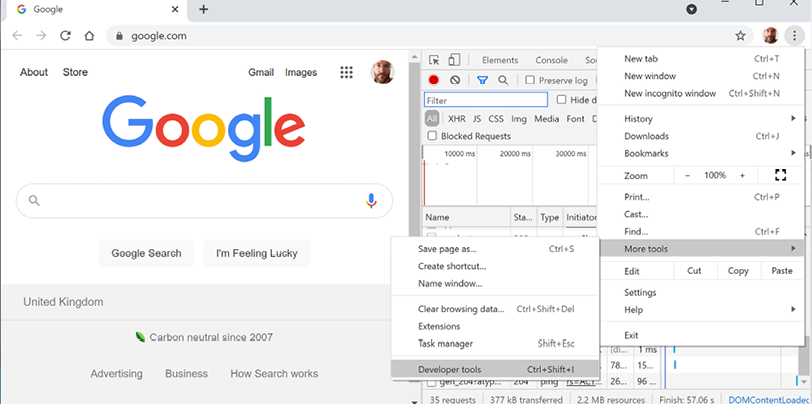
Figure 1.19: Chrome Developer tools recording network traffic
- In Chrome’s address box, enter the address of Microsoft’s website for learning ASP.NET, which is the following URL:
https://dotnet.microsoft.com/en-us/learn/aspnet. - In Developer Tools, in the list of recorded requests, scroll to the top and click on the first entry, the row where Type is document, as shown in Figure 1.20:
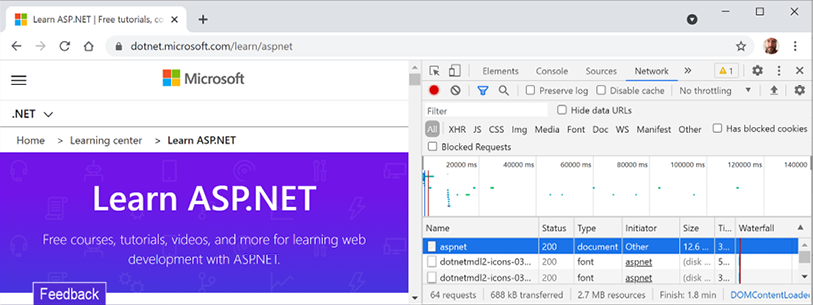
Figure 1.20: Recorded requests in Developer Tools
- On the right-hand side, click on the Headers tab, and you will see details about Request Headers and Response Headers, as shown in Figure 1.21:
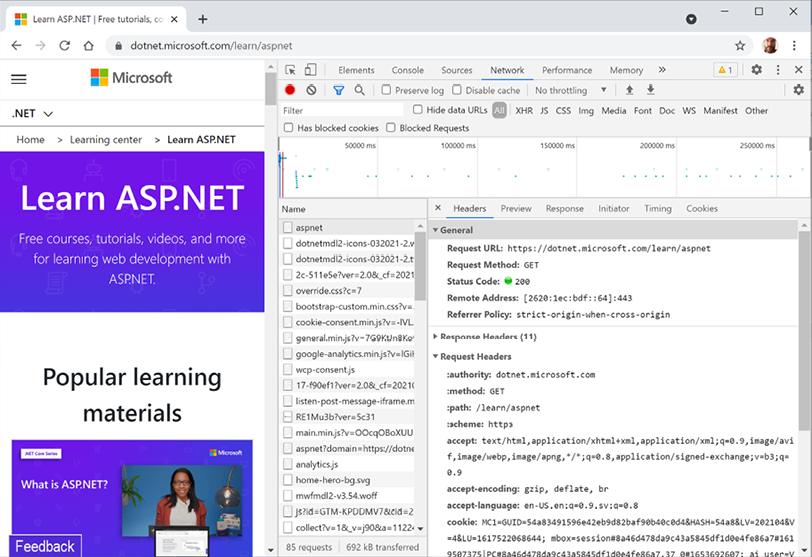
Figure 1.21: Request and response headers
Note the following aspects:
- Request Method is
GET. Other HTTP methods that you could see here includePOST,PUT,DELETE,HEAD, andPATCH. - Status Code is
200OK. This means that the server found the resource that the browser requested and has returned it in the body of the response. Other status codes that you might see in response to aGETrequest include301 Moved Permanently,400 Bad Request,401 Unauthorized, and404 Not Found. - Request Headers sent by the browser to the web server include:
accept, which lists what formats the browser accepts. In this case, the browser is saying it understands HTML, XHTML, XML, and some image formats, but it will accept all other files (*/*). Default weightings, also known as quality values, are1.0. XML is specified with a quality value of0.9, so it is less preferable than HTML or XHTML. All other file types are given a quality value of0.8, so they are the least preferred.accept-encoding, which lists what compression algorithms the browser understands, in this case, GZIP, DEFLATE, and Brotli.accept-language, which lists the human languages it would prefer the content to use, in this case, US English, which has a default quality value of1.0; any dialect of English, which has an explicitly specified quality value of0.9; and then any dialect of Swedish, which has an explicitly specified quality value of0.8.
- Response Headers (
content-encoding), which tells me that the server has sent back the HTML web page response compressed using thegzipalgorithm, as it knows that the client can decompress that format. (This is not visible in Figure 12.9 because there is not enough space to expand the Response Headers section.)
- Close Chrome.
Understanding client-side web development technologies
When building websites, a developer needs to know more than just C# and .NET. On the client (that is, in the web browser), you will use a combination of the following technologies:
- HTML5: This is used for the content and structure of a web page.
- CSS3: This is used for the styles applied to elements on the web page.
- JavaScript: This is used to code any business logic needed on the web page, for example, validating form input or making calls to a web service to fetch more data needed by the web page.
Although HTML5, CSS3, and JavaScript are the fundamental components of frontend web development, there are many additional technologies that can make frontend web development more productive, including:
- Bootstrap, the world’s most popular frontend open-source toolkit
- SASS and LESS, CSS preprocessors for styling
- Microsoft’s TypeScript language for writing more robust code
- JavaScript libraries such as Angular, jQuery, React, and Vue
All these higher-level technologies ultimately translate or compile to the underlying three core technologies, so they work across all modern browsers.
As part of the build and deploy process, you will likely use technologies such as:
- Node.js, a framework for server-side development using JavaScript
- Node Package Manager (npm) and Yarn, both client-side package managers
- webpack, a popular module bundler and a tool for compiling, transforming, and bundling website source files