






























































Creating an icon using Icon Composer
At this point, you have the individual layers for your icon saved as PNG files with transparent backgrounds. You will now use Icon Composer to combine and modify these files to create your app icon. Follow these steps:
- From the Xcode menu, choose Open Developer Tool | Icon Composer:
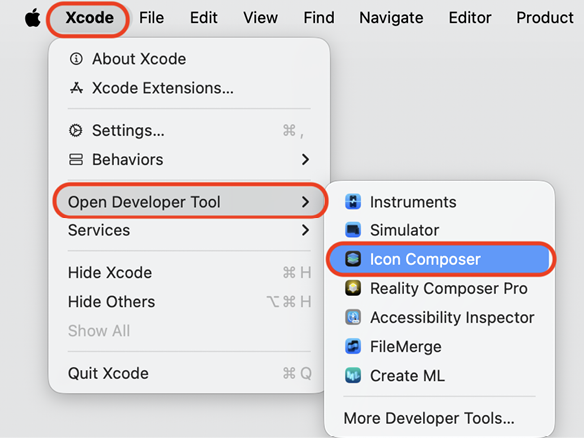
Figure 24.6: Xcode menu with Open Developer Tool | Icon Composer selected
- If you see a screen displaying Icon Composer Agreement, click Agree:
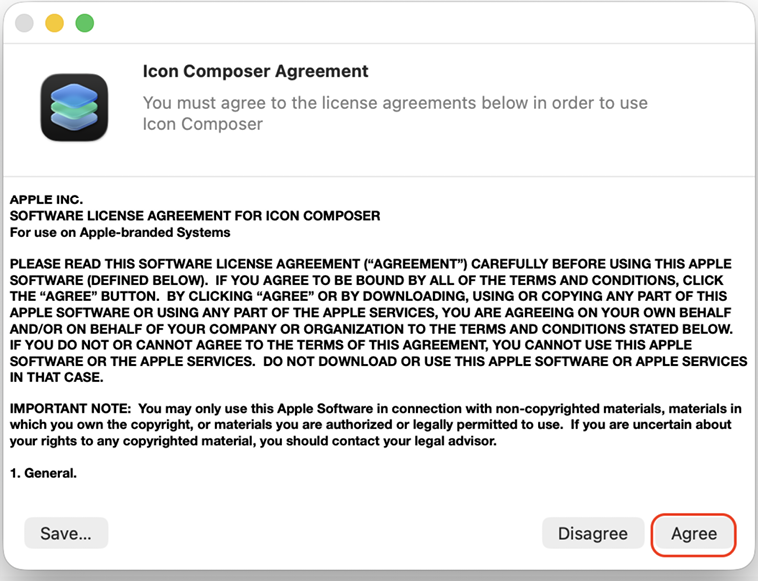
Figure 24.7: Icon Composer Agreement screen with Agree highlighted
- Icon Composer will launch and display a file selection dialog box. Click New Document.
- A new Icon Composer document appears. Open the folder containing the exported PNG files, and drag them to the left side of the Icon Composer document:
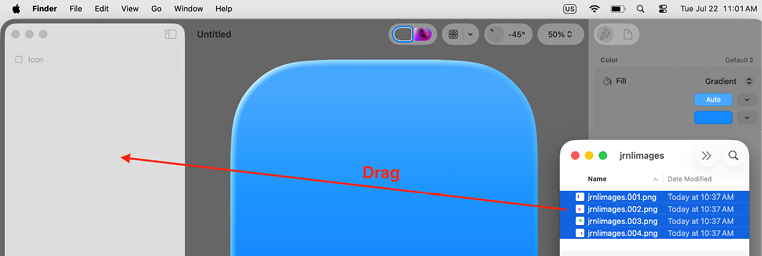
Figure 24.8: Icon Composer document showing drag destination for PNG files
- Verify that Icon Composer has automatically composed your app...




